How Do I Check Private Browsing History On My Phone
Wondering how do I check private browsing history on my phone? Many people search for this because private browsing mode hides your tracks, but traces can still remain. This guide covers simple methods for both iPhone and Android devices. You will learn how to view private browsing history through browser settings, network logs, and backup files. Whether you need to recover lost searches or monitor internet activity, this article has you covered.
Have you ever wondered if your private browsing really stays private? The answer might surprise you. Many people use incognito mode or private browsing on their phones every day. They think it erases all traces of their internet activity. But that is not entirely true. Your phone, your carrier, and even your WiFi router can still keep records. If you have ever asked yourself, “how do I check private browsing history on my phone,” you are not alone. This is one of the most searched questions about phone privacy today.
The truth is, private browsing history is not completely gone. It may be hidden from your browser, but other places still store clues. These clues can live in system logs, backup files, DNS caches, and router records. Whether you want to recover a lost search, monitor a child’s phone, or simply understand your own digital footprint, knowing where to look makes all the difference. This guide walks you through every practical method step by step.
We will cover both iPhone and Android devices in detail. You will find clear instructions, real examples, and honest tips. No jargon, no fluff, just straightforward advice you can use right away. By the end, you will know exactly how to find browsing data from private sessions on any phone.
Key Takeaways
- Private browsing is not invisible: Your phone and network still store traces of incognito sessions.
- iPhone users can check Safari private history: Through iCloud backups, Spotlight search, and device logs.
- Android users have multiple options: Chrome history, DNS cache, and third-party apps can reveal private browsing data.
- Router logs are a powerful tool: Your WiFi router records all internet activity, including private browsing.
- Backup files hold hidden data: iTunes, iCloud, and local backups may contain private browsing records.
- Privacy settings matter: Adjusting your browser and phone settings helps control your digital footprint.
- Parental controls can help: Family safety tools let you monitor internet activity on shared devices.
📑 Table of Contents
- What Is Private Browsing and Why Does It Hide History?
- Can You Check Private Browsing History on iPhone?
- Can You Check Private Browsing History on Android?
- Methods to Recover or View Private Browsing History
- Why People Want to Check Private Browsing History
- Tips to Protect Your Privacy While Browsing
- Common Mistakes People Make with Private Browsing
- Expert Insights on Phone Privacy and Browsing History
- Conclusion
What Is Private Browsing and Why Does It Hide History?
Before we dive into the methods, let us understand what private browsing actually does. When you open a private browsing window on your phone, your browser starts a temporary session. This session does not save your search history, cookies, or site data. Once you close the window, those details disappear from your browser.
But here is the catch. Private mode only hides data within your browser. It does not erase everything. Your internet service provider, your employer, and your WiFi network can still see what you visited. Your phone’s operating system may also keep certain logs. This is why checking private browsing history is possible, even if it feels hidden.
How Incognito Mode Works on Your Phone
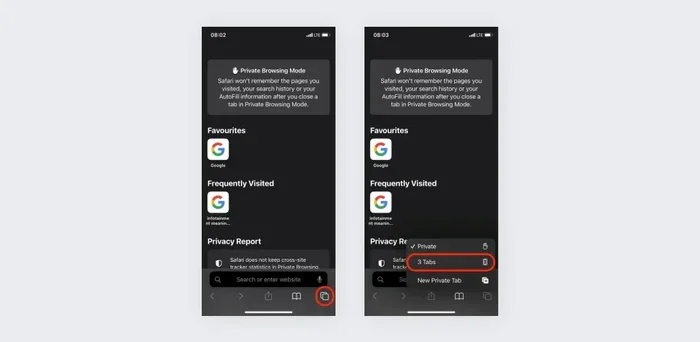
Both iPhone and Android phones offer a built-in private browsing feature. On iPhone, it is called Private Browsing in Safari. On Android, it is called Incognito Mode in Chrome. When you turn it on, your browser creates a separate session. This session does not link to your regular browsing profile.
Here is what happens during a private session:
- Your browser does not save new browsing history.
- Cookies and site data get deleted when you close the window.
- Form inputs and passwords are not stored.
- Your search queries stay out of the browser’s main history list.
That sounds very private, right? But remember, your phone still connects to the internet through a network. That network keeps records. And your phone’s operating system may keep temporary files too.
What Private Browsing Actually Does and Does Not Do
Let us be clear about what private mode protects you from. It prevents other people who use the same device from seeing your search history. If you share a phone with a family member, they will not see your private tabs. That is a real benefit.
However, private browsing does not make you invisible online. Your internet provider can still see your activity. Websites you visit can still track your behavior using fingerprints. And your phone’s system may still hold traces. Understanding this difference is key. It helps you know where to look when you want to check private browsing history.
Can You Check Private Browsing History on iPhone?
If you use an iPhone, you might think your private Safari history is gone forever. But Apple devices store more data than most people realize. There are several ways to find traces of private browsing sessions on an iPhone. Let us walk through each method.
Using iCloud and Spotlight to Find Browsing Data
One of the easiest ways to check for private browsing history on iPhone is through Spotlight Search. Spotlight indexes many types of data on your device. Even if you browsed privately, some data may still appear in search results.
Here is how to try it:
- Swipe down from the middle of your home screen.
- Type a keyword you remember from a private session.
- Look through the search results for any matching links or sites.
Spotlight may pull up cached pages or linked content. This works best if you visited the same site more than once, even in private mode. Your iPhone browser data can sometimes leak into search suggestions too.
Checking Safari Private Browsing History Through iCloud
If you use iCloud sync on your iPhone, your browsing data may be stored in the cloud. Even private sessions can leave traces in iCloud backups. Here is what you should know:
- Go to Settings and tap your name at the top.
- Select iCloud, then iCloud Drive.
- Check if Safari data is included in your backup.
Apple keeps backup copies of your device data. These backups may include browsing records from private sessions. You can restore a backup to a different device or use a third-party tool to read the backup files directly. This is one of the most reliable ways to recover private browsing history on an iPhone.
Using iPhone Diagnostics and System Logs
Your iPhone keeps system logs that track network activity. These logs include DNS requests and connection records. You can access these through your phone’s privacy settings or by connecting to a computer.
To view network logs on your iPhone:
- Go to Settings, then Privacy, then Analytics.
- Look for logs related to your browser or network activity.
- Check for timestamps that match your private browsing sessions.
This method requires patience, but it can reveal internet activity that your browser did not save. It is especially useful if you are trying to understand your own digital footprint.
Can You Check Private Browsing History on Android?
Android phones offer just as many ways to find private browsing history as iPhones do. The open nature of the Android system gives you more flexibility. You can access logs, use third-party apps, and dig into network data more easily.
Using Chrome’s History and Network Logs
Google Chrome is the default browser on most Android phones. Even in Incognito Mode, Chrome does not save your history to the main list. But there are still ways to find traces.
Try these steps first:
- Open Chrome and tap the three dots in the top right corner.
- Go to History and look for any entries you may have missed.
- Check if your Google account has synced any search history from private sessions.
If you were signed into Google while browsing privately, your search queries may still appear in your Google account history. This is a common mistake people make. They think turning on incognito mode makes everything disappear. But being logged into an account changes that.
Third-Party Apps for Tracking Internet Activity
The Android system allows you to install apps that monitor network traffic. These apps can show you every site your phone visits, even in private browsing mode. Some popular options include:
- GlassWire: Monitors data usage and shows which sites you visit.
- NetGuard: A firewall that logs all network connections.
- DNS66: Lets you see DNS requests made by your browser.
These apps work by tracking your phone’s internet activity at the network level. They do not depend on your browser’s history. So even if you use private mode, these tools can still record your visits. They are very useful if you want to check private browsing history on an Android device.
Checking Android System Logs Through Developer Options
If you want to go deeper, Android has a hidden feature called Developer Options. This gives you access to system logs that include network requests. Here is how to enable it:
- Go to Settings, then About Phone.
- Tap Build Number seven times.
- Go back to Settings and find Developer Options.
- Look for logging or debugging options that track network activity.
This method is more technical, but it can reveal a lot. Your phone’s browser cache and system logs may hold details from private sessions. Use this approach if you are comfortable with technical tools.
Methods to Recover or View Private Browsing History
Now that we have covered phone-specific methods, let us look at universal approaches. These techniques work on both iPhone and Android. They help you find private browsing history even when the browser itself does not show it.
Checking DNS Cache and Router Logs
Every time you visit a website, your phone sends a DNS request. This request tells your network which site you want to visit. Your router keeps a log of these requests. This means your WiFi router records all your internet activity, including private browsing.
To check your router logs:
- Open a web browser and type your router’s IP address.
- Log in using your router’s admin credentials.
- Find the logs or history section.
- Look for DNS requests that match your browsing times.
This is one of the most reliable ways to see private browsing history. Your router does not care whether you were in regular mode or private mode. It records everything. If you share a WiFi network, this method can reveal a lot about anyone’s internet activity.
Using Phone Backup Files to Find Hidden Browsing Data
Both iPhone and Android phones create backup files regularly. These backups contain copies of your data, including browser information. Even private browsing sessions may be captured in these files.
For iPhone users:
- Connect your phone to a computer and open iTunes or Finder.
- Create a local backup of your device.
- Use a third-party tool like Enigma or iMazing to read the backup.
- Search for browser data, including private session records.
For Android users:
- Go to Settings, then System, then Backup.
- Check your Google Drive backup for browser data.
- Use a file manager to look for local backup copies.
- Use tools like Dr.Fone or Tenorshare to extract browsing records.
Backup files are like a time capsule of your phone’s data. They can hold browsing history that you thought was gone forever. This is especially true if the backup was made while a private session was still active.
Recovering Deleted Private Browsing Data
Sometimes you delete your browsing history intentionally. But deleted data is not always gone forever. Your phone may still keep fragments in its storage. Data recovery tools can scan your phone’s memory and find these traces.
Some reliable data recovery tools include:
- Dr.Fone: Works on both iPhone and Android to recover deleted data.
- Tenorshare UltData: Scans backup files for lost browsing records.
- iMobie PhoneRescue: Recovers deleted internet activity from iOS devices.
These tools work by scanning your phone’s storage at a deep level. They can find remnants of private browsing sessions that your browser has deleted. This is a powerful option if you need to recover specific search history or website visits.
Why People Want to Check Private Browsing History
There are many reasons someone might want to check private browsing history. Understanding these reasons helps you choose the right method. Let us explore the most common ones.
Parental Monitoring and Family Safety
Parents often want to protect their children online. Kids may use private browsing to hide what they are doing. As a parent, you may want to check if your child is visiting safe websites. Monitoring internet activity helps you keep your family safe.
Here are some tools that help with parental monitoring:
- Google Family Link: Lets you view your child’s browsing history, even in private mode.
- Qustodio: Tracks all internet activity and sends reports to parents.
- Bark: Monitors social media, texts, and browser activity on your child’s phone.
These tools work at the network or system level. They do not rely on the browser’s history. So even if your child uses incognito mode, you can still see their online activity. This gives parents real peace of mind.
Recovering Lost Bookmarks or Searches
Sometimes you find a great article in private browsing and forget to bookmark it. Later, you want to find it again. Checking your private browsing history through the methods above can help you recover that lost page. It is a frustrating experience to lose a good link. But with the right tools, you can usually find it again.
Checking Your Own Digital Footprint
Your digital footprint is the trail of data you leave online. Even in private mode, you leave traces. Checking your own internet activity helps you understand what others might see. It is a good exercise in privacy awareness. When you know how your data is tracked, you can make better choices about what you share online.
Tips to Protect Your Privacy While Browsing
Now that you know how to find private browsing history, you might wonder how to protect your own privacy better. Here are some practical tips that make a big difference.
Clearing Your Digital Footprint Effectively
If you want true privacy, private browsing alone is not enough. You need to take extra steps. Here is what you should do:
- Always sign out of your Google or Apple account before browsing privately.
- Use a VPN to hide your IP address from your internet provider.
- Clear your browser cache and cookies regularly.
- Use privacy-focused browsers like Brave or DuckDuckGo.
- Turn off location services when you do not need them.
These steps reduce your digital footprint significantly. They make it much harder for anyone to trace your internet activity back to you.
Adjusting Your Privacy Settings on Your Phone
Both iPhone and Android offer strong privacy settings. You can control what data your phone shares. Here is how to check your settings:
- On iPhone, go to Settings, then Privacy, then Tracking. Turn off app tracking.
- On Android, go to Settings, then Privacy, then Permission Manager. Review each app’s access.
- Disable personalized ads in your phone’s settings.
- Turn off WiFi and Bluetooth when you are not using them.
Adjusting these settings gives you more control over your online privacy. It is one of the simplest ways to protect yourself while browsing.
Common Mistakes People Make with Private Browsing
Many people make mistakes when they think they are being private online. Avoiding these mistakes helps you stay safer.
Mistake 1: Thinking incognito means invisible. Private mode only hides data from your browser and other device users. It does not hide you from your internet provider or the websites you visit.
Mistake 2: Staying logged into accounts. If you stay signed into Google, Facebook, or Amazon while browsing privately, those companies still track you. Always sign out for true privacy.
Mistake 3: Ignoring your WiFi router’s logs. Your router records everything. If you think private mode keeps you hidden on your home network, think again.
Mistake 4: Not checking backup files. Phone backups often contain more data than you realize. They may hold records of your private browsing sessions that you thought were deleted.
Avoiding these mistakes helps you take your online privacy seriously. It also helps you understand what traces you leave behind.
Expert Insights on Phone Privacy and Browsing History
Cybersecurity experts agree that private browsing is just one layer of protection. It is not a complete privacy solution. Experts recommend using multiple tools together for better results. A VPN, a privacy-focused browser, and regular cache clearing work much better than private mode alone.
Experts also stress the importance of understanding your digital footprint. Every time you go online, you leave traces. These traces can live in your browser, your network, and your phone’s storage. Knowing where these traces hide helps you manage your privacy better.
If you are serious about online privacy, consider using a combination of tools. A VPN encrypts your traffic. A privacy browser blocks trackers. And regular device maintenance clears old data. Together, these steps give you much stronger protection than private browsing alone.
Conclusion
So, how do I check private browsing history on my phone? The answer is clearer now. You have many options, from checking iCloud backups to reading router logs. Both iPhone and Android devices leave traces of private browsing sessions. These traces live in system logs, backup files, DNS caches, and network records.
Private browsing is a useful tool, but it is not a magic shield. It hides your history from other device users. But it does not make you invisible to your network, your internet provider, or your phone’s system. Understanding this helps you use private mode more wisely.
Whether you want to recover a lost search, monitor a family member’s phone, or simply understand your own digital footprint, the methods in this guide give you real power. Use them responsibly and always respect the privacy of others. Take control of your online privacy today, and browse with more confidence and awareness.
Frequently Asked Questions
Can someone else see my private browsing history on my phone?
Yes, in some cases. Other people who use the same device will not see it in the browser. But your internet provider, WiFi owner, and network administrator can still see your activity. Your phone’s system logs and backup files may also contain traces.
Is private browsing completely private?
No, private browsing is not completely private. It only hides your history from other users of the same device. It does not hide you from your internet provider, websites, or your WiFi network. Think of it as hiding your tracks from people nearby, not from the whole internet.
How long does private browsing history stay on a phone?
Private browsing does not save history in your browser. But traces can remain in system logs, DNS caches, and backup files for weeks or months. Your WiFi router may keep records even longer. The length of time depends on your device settings and network configuration.
Can I recover deleted private browsing history?
Yes, you can often recover deleted private browsing history. Your phone’s backup files, system logs, and data recovery tools can help. Even after you delete browser data, fragments may remain in your phone’s storage or cloud backups.
What is the difference between private browsing and a VPN?
Private browsing hides your history from other device users. A VPN hides your IP address and encrypts your internet traffic. They serve different purposes. Using both together gives you much stronger privacy than either one alone.
Do parental control apps work even when a child uses private browsing?
Yes, most parental control apps work even when a child uses private browsing. These apps monitor internet activity at the network or system level. They do not depend on the browser’s history. Tools like Google Family Link, Qustodio, and Bark can track all online activity regardless of browsing mode.