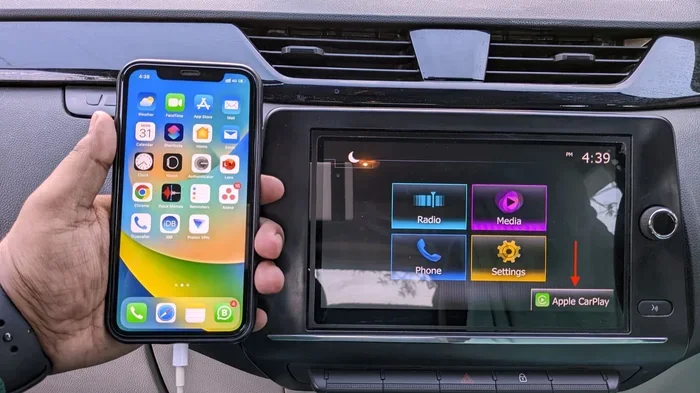
How Do I Pair My Iphone To My Car In Just A Few Steps
Pairing your iPhone to your car is easier than you think and takes just a few minutes. Whether you use Bluetooth, a USB cable, or Apple CarPlay, this guide walks you through every step. You will learn how to connect, troubleshoot issues, and keep your connection running smoothly.
Have you ever jumped into your car and wished you could just connect your phone without a fuss? How Do I Pair My Iphone To My Car is one of the most searched questions by new iPhone users and car owners alike. The good news is that connecting your iPhone to your vehicle is much simpler than it looks.
Whether you drive a new sedan or a classic truck, modern cars support Bluetooth and other connection methods. This guide will walk you through every option step by step. By the end, you will know exactly how to get your phone linked to your car’s audio system, navigation, and hands-free calling features. Let us get your iPhone connected so you can focus on the road.
Key Takeaways
- Bluetooth pairing is the most common and wireless way to link your iPhone to your car.
- Apple CarPlay offers the best integration between your iPhone and your car’s infotainment system.
- USB connection provides a reliable wired alternative when Bluetooth fails or for charging while driving.
- Common pairing problems like connection drops can usually be fixed with simple reset steps.
- Keeping your iPhone and car software updated prevents most compatibility issues.
- Hands-free calling and Siri work best once your iPhone is properly paired.
- Multiple devices can be paired to one car, making sharing easy for families.
📑 Table of Contents
- What You Need Before You Start Pairing
- How Do I Pair My Iphone To My Car Using Bluetooth
- How Do I Connect My Iphone To My Car Using a USB Cable
- Apple CarPlay: The Best Way To Connect iPhone and Car
- How To Pair Multiple Devices To Your Car
- Common Pairing Problems And How To Fix Them
- Tips To Keep Your iPhone And Car Connection Strong
- Why Connecting Your iPhone To Your Car Matters
- Frequently Asked Questions
- Conclusion
What You Need Before You Start Pairing
Before you dive into the connection process, it helps to know what you are working with. Pairing your iPhone to your car requires a few basic things to be in place. Here is a quick checklist of what you need:
- A working iPhone with the latest iOS version installed. Go to Settings, then General, then Software Update to check.
- A car with Bluetooth capability or a USB port for wired connections. Most cars made after 2015 have Bluetooth built in.
- A clean Bluetooth cache on both your phone and car system. Old paired devices can sometimes cause conflicts.
- Your car’s user manual nearby, just in case you need to find a specific menu or button.
- A USB cable if you plan to use a wired connection or Apple CarPlay via cable.
Taking these few minutes to prepare will save you a lot of frustration later. Bluetooth pairing works best when both devices are ready and free of old connections. Now let us move on to the actual steps.
How Do I Pair My Iphone To My Car Using Bluetooth
Bluetooth is the most popular way to connect an iPhone to a car. It is wireless, convenient, and works with almost every modern vehicle. Pairing iPhone to car via Bluetooth takes less than five minutes once you know the steps.
Step 1: Turn On Bluetooth on Your iPhone
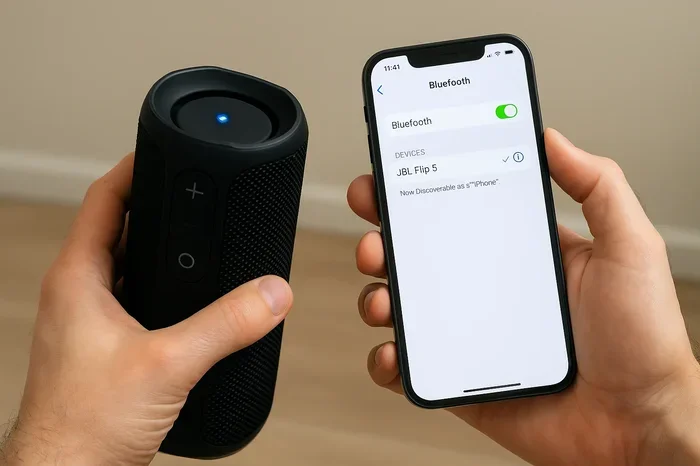
Open the Settings app on your iPhone. Tap on Bluetooth and toggle it on. You should see the Bluetooth icon appear at the top right of your screen. If it is already on, turn it off and back on to refresh the connection. This simple trick fixes many pairing issues right away.
Step 2: Enable Discoverable Mode on Your Car
Go to your car’s infotainment system. Look for the Bluetooth or Phone menu. Select the option to search for new devices. Your car will now scan for nearby Bluetooth signals. Make sure your car is parked and stationary during this process.
Step 3: Find Your Car on Your iPhone
Back on your iPhone, you should see your car’s name appear under Other Devices. Tap on it. Your car may ask you to confirm a pairing code. Make sure the code on your phone matches the one on your car’s display. Tap Pair or Confirm to complete the connection.
Step 4: Test the Connection
Once paired, play some music from your iPhone. You should hear it come through your car speakers. Try making a hands-free call to confirm everything works. If both audio and calls work, you are all set. Bluetooth car connection is now active and ready to use.
Quick Tip: If your car does not show up on your iPhone, try turning Bluetooth off and on again on both devices. Restarting your iPhone can also help. Sometimes the simplest fix is the best one.
How Do I Connect My Iphone To My Car Using a USB Cable
Not every car has great Bluetooth reception. Some older vehicles only support wired connections. Using a USB cable is a reliable backup method. Connecting iPhone to car with USB gives you a stable connection and can charge your phone at the same time.
Step 1: Plug in Your USB Cable
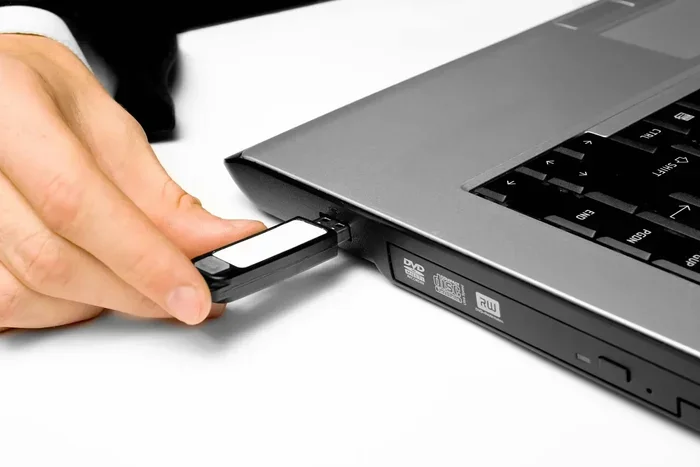
Find the USB port in your car. It is usually located in the center console, glove box, or near the steering wheel. Plug one end of your Lightning or USB-C cable into your iPhone and the other end into the car port.
Step 2: Trust the Device Prompt
Your iPhone will display a message asking if you trust the connected car. Tap Trust and enter your passcode if prompted. This step is important because it allows your phone and car to communicate safely.
Step 3: Select USB as the Audio Source
On your car’s display, change the audio source to USB or Aux. You should now see your iPhone’s music library on the car screen. You can browse playlists, artists, and podcasts directly from the car interface.
Quick Tip: Use an Apple-certified cable for the best results. Cheap cables sometimes fail to transfer data properly, even if they charge your phone fine.
Apple CarPlay: The Best Way To Connect iPhone and Car
Apple CarPlay takes the iPhone-to-car experience to a whole new level. It mirrors your phone’s interface onto your car’s screen, giving you access to maps, music, messages, and more. CarPlay setup is straightforward and works with both wireless and wired connections.
What Is Apple CarPlay?
Apple CarPlay is Apple’s official system for integrating iPhones with car infotainment. It replaces your car’s basic interface with a simplified, driver-friendly version of iOS. You get Siri voice commands, navigation, and hands-free messaging all in one place. Phone integration with CarPlay makes driving safer and more convenient.
How To Set Up Wireless CarPlay
Many newer cars support wireless CarPlay, which means no cable is needed. First, make sure your car supports wireless CarPlay. Then, on your iPhone, go to Settings, then General, then CarPlay. Select your car from the list. Your car should now connect automatically every time you get in.
How To Set Up Wired CarPlay
For cars that only support wired CarPlay, plug your iPhone into the USB port using a Lightning cable. Your car’s display should switch to CarPlay automatically. If it does not, manually select CarPlay as the source on your car’s system. Wireless CarPlay is more convenient, but wired CarPlay is just as functional.
Getting the Most From CarPlay
Once connected, you can use Siri to send messages, make calls, and get directions without touching your phone. Siri voice commands while driving keep your eyes on the road. You can also use Apple Maps, Google Maps, or Waze through CarPlay for navigation. Music apps like Spotify, Apple Music, and Podcasts all work seamlessly with CarPlay.
Expert Insight: CarPlay is not just for navigation. Many drivers use it for podcasts and audiobooks during their commute. It transforms your car into a smart entertainment hub. The more you use it, the more you will wonder how you ever drove without it.
How To Pair Multiple Devices To Your Car
Most modern cars can store several paired devices at once. This is great for families who share one vehicle. Syncing iPhone to car with multiple profiles means everyone can have their own connection.
To pair a second iPhone, follow the same Bluetooth steps we covered earlier. The car will remember each device separately. When you get in the car, it will usually connect to the last device that was used. You can switch devices in your car’s Bluetooth settings if needed.
Quick Tip: If your car connects to the wrong phone, go to your car’s Bluetooth menu and forget the other device. Then re-pair the correct one. This keeps things clean and prevents accidental connections.
Common Pairing Problems And How To Fix Them
Even with the best setup, you might run into issues. Bluetooth troubleshooting is easier than most people think. Here are the most common problems and their fixes.
iPhone Will Not Connect to Car
If your iPhone refuses to pair, start by turning Bluetooth off and on again. Restart both your iPhone and your car’s infotainment system. Make sure your iPhone is not connected to another Bluetooth device like headphones or speakers, as this can interfere. iPhone car connection issues are often caused by background Bluetooth conflicts.
Paired But No Sound
If the connection works but you cannot hear audio, check your car’s audio source. Make sure it is set to Bluetooth or CarPlay, not radio or aux. On your iPhone, go to Settings, then Bluetooth, and tap the info icon next to your car. Make sure Audio Sharing is turned on.
Connection Drops Frequently
A dropping connection can be annoying. This often happens if your phone is too far from the car’s antenna or if there are too many walls between you and the car. Keep your iPhone in a consistent spot, like a dashboard mount or cup holder. Updating your iPhone software and your car’s firmware can also fix stability issues.
Car Shows But iPhone Does Not Respond
Sometimes the car detects your phone but you cannot control anything from the car screen. Delete the car from your iPhone’s Bluetooth list and re-pair it. Also check that your iPhone is not in Low Power Mode, as this can limit Bluetooth performance.
Android and iPhone Confusion
If you have passengers with Android phones, their devices might try to auto-connect and cause confusion. Go to your car’s Bluetooth settings and remove any old Android pairings. This keeps your iPhone connection clean and priority-based.
Common Mistakes To Avoid: Do not rush the pairing process. Do not skip the Trust prompt on your iPhone. And never pair your phone while driving, always do it when the car is completely stopped. These small habits prevent big headaches.
Tips To Keep Your iPhone And Car Connection Strong
Once you have successfully paired iPhone to car, you want that connection to stay reliable. Here are some habits that help maintain a strong link between your devices.
- Keep your iPhone updated. Apple releases iOS updates that fix Bluetooth bugs and improve compatibility with car systems.
- Restart your car’s infotainment system monthly. This clears temporary glitches and keeps everything running smoothly.
- Delete old paired devices. Your car can only store a limited number of connections. Clearing old ones frees up space.
- Use a quality cable for wired connections. A good USB cable prevents data transfer errors and charging issues.
- Keep your car’s firmware updated. Check with your dealer or car manufacturer for software updates. These often improve Bluetooth performance.
- Reset network settings if problems persist. Go to Settings, then General, then Transfer or Reset iPhone, then Reset Network Settings. This clears all Bluetooth pairings and Wi-Fi passwords, giving you a fresh start.
Key Takeaways: A strong connection comes from regular maintenance. Treat your Bluetooth connection like any other relationship, give it a little attention and it will serve you well for years.
Why Connecting Your iPhone To Your Car Matters
You might wonder why all this matters. Phone integration with your car is about more than just playing music. It is about safety, convenience, and staying connected without distraction.
Hands-free calling lets you answer calls without taking your hands off the wheel. Navigation apps guide you to your destination using voice directions. Music and podcasts keep you entertained on long drives. iPhone car kit features like Siri make it all possible with just your voice.
For many drivers, wireless streaming of music and podcasts has replaced traditional radio. The ability to access your entire library, podcasts, and audiobooks through your car’s speakers is a game changer. Car audio system quality combined with iPhone streaming gives you a premium listening experience on every trip.
Expert Insight: Safety experts consistently recommend hands-free technology for drivers. Connecting your iPhone properly to your car reduces distractions and keeps your eyes on the road. It is one of the simplest ways to make your daily commute safer and more enjoyable.
Frequently Asked Questions
Why Will My iPhone Not Connect to My Car via Bluetooth?
There are several reasons this can happen. Your car’s Bluetooth might be turned off or in a different mode. Try turning Bluetooth off and on again on both your iPhone and your car. Restarting both devices often resolves the issue. Make sure your iPhone is not connected to another Bluetooth device at the same time, as this can interfere with the car connection.
Can I Pair More Than One iPhone to My Car?
Yes, most modern cars can store multiple paired devices. Each person who drives the car can pair their own iPhone. The car will usually connect to the last device that was used. You can switch between devices in your car’s Bluetooth settings whenever needed.
What Is the Difference Between Bluetooth and Apple CarPlay?
Bluetooth connects your iPhone to your car for audio and hands-free calls. Apple CarPlay goes further by mirroring your iPhone’s interface on your car’s screen. With CarPlay, you get navigation, messaging, and app access directly on the car display. Bluetooth pairing is basic connectivity, while CarPlay is a full smart integration.
Do I Need a Cable If My Car Supports Wireless CarPlay?
No, you do not need a cable for wireless CarPlay. Wireless CarPlay connects through Bluetooth and Wi-Fi. However, some cars only support wired CarPlay, in which case you will need a Lightning or USB-C cable. Check your car’s manual to see which type of CarPlay it supports.
How Do I Reset the Bluetooth Connection Between My iPhone and My Car?
Go to Settings, then Bluetooth, on your iPhone. Find your car under My Devices and tap the info icon. Select Forget This Device. Then restart both your iPhone and your car’s infotainment system. Re-pair the devices from scratch. This clears any corrupted settings and often fixes stubborn connection issues.
Is It Safe to Use My iPhone While Driving?
Using hands-free features like CarPlay and Siri is much safer than holding your phone while driving. You can make calls, send messages, and get directions using voice commands. However, the safest option is to pull over if you need to interact with your phone directly. Keep your eyes on the road and your hands on the wheel at all times.
Conclusion
How Do I Pair My Iphone To My Car is a question with a simple answer once you know the steps. Bluetooth, USB, and Apple CarPlay give you flexible options for every type of vehicle and driving style. Pairing iPhone to car opens up a world of convenience, safety, and entertainment on every drive.
Start with Bluetooth for a quick wireless connection. Use USB for a stable wired link. And explore Apple CarPlay for the full smart experience. If you run into problems, the troubleshooting tips in this guide will help you get back on track quickly.
Take a few minutes today to connect your iPhone to your car. You will wonder how you ever drove without it. A good connection between your phone and your car makes every trip better, safer, and more enjoyable. Happy driving and happy connecting.