How Do I Copy An Iso File To A Fat32 Usb Flash Drive
Copying an ISO file to a FAT32 USB flash drive is a simple process that lets you install operating systems or run software from a portable drive. FAT32 has a 4GB file size limit, which can cause issues with larger ISO files. This guide covers the best tools, methods, and workarounds to get the job done right.
Have you ever tried to copy an ISO file to a FAT32 USB flash drive and hit a wall? You are not alone. This is one of the most common tasks people run into when they want to install an operating system, run a live Linux environment, or create a bootable USB drive. The process sounds simple on the surface, but there are a few quirks with the FAT32 file system that can trip you up.
In this guide, we walk you through every step of copying an ISO file to a FAT32 USB drive. We cover why FAT32 matters, which tools to use, and what to do when the file size becomes an issue. Whether you are a beginner or someone who just needs a refresher, this article has you covered.
By the end, you will know exactly how to get your ISO file onto a FAT32 USB flash drive without any headaches. Let us dive in.
Key Takeaways
- FAT32 USB drives work with almost every computer and are ideal for creating bootable USB drives.
- The FAT32 file system has a 4GB file size limit, which can be a problem for large ISO files.
- Tools like Rufus, Win32 Disk Imager, and the Windows USB/DVD Download Tool make the process easy.
- Splitting large ISO files is one workaround when the file exceeds 4GB.
- Formatting the USB drive correctly before copying is essential for success.
- Alternative file systems like exFAT or NTFS can help if FAT32 doesn’t fit your needs.
📑 Table of Contents
- What Is an ISO File and Why Use a FAT32 USB Drive?
- Understanding the FAT32 File Size Limit
- Tools You Need to Copy an ISO File to FAT32 USB
- Step-by-Step Guide to Copying an ISO File to FAT32 USB
- Alternative Methods When FAT32 Does Not Work
- Common Mistakes to Avoid
- When Should You NOT Use FAT32?
- Final Thoughts on Copying ISO Files to FAT32 USB
What Is an ISO File and Why Use a FAT32 USB Drive?
Before we get into the how-to, let us quickly cover the basics. An ISO file is basically a complete copy of a disc. It contains all the files and folders that would be on a CD, DVD, or Blu-ray. When you download an operating system like Windows or a Linux distro, it usually comes as an ISO file.
A FAT32 USB flash drive uses the FAT32 file system. This system is one of the oldest and most widely supported formats. Almost every computer, laptop, and gaming console can read FAT32 drives. That is why it is such a popular choice for bootable USB drives and portable storage.
Here are some reasons people choose FAT32 for USB drives:
- Wide compatibility – works on Windows, Mac, Linux, and many devices.
- Simple formatting – easy to set up with built-in tools.
- Good for bootable drives – many BIOS systems prefer FAT32.
- Fast and lightweight – no heavy overhead or complex structure.
The main downside is the 4GB file size limit. Since most modern ISO files are larger than 4GB, this can create a problem. We will tackle that issue in detail later in this guide.
Understanding the FAT32 File Size Limit
Why Does FAT32 Have a 4GB Limit?
The FAT32 file system was introduced in 1996. At that time, 4GB felt enormous. Fast forward to today, and ISO files for Windows 10 or Windows 11 can easily exceed 5GB. So the 4GB limit becomes a real roadblock when you try to copy a large ISO file to FAT32 USB.
The limit is baked into the file system itself. FAT32 uses a 32-bit file allocation table, which caps individual file sizes at just under 4GB. No matter how much free space your USB drive has, a single file cannot exceed this limit on a FAT32 formatted drive.
How Big Are Common ISO Files?
Here is a quick look at typical ISO file sizes:
- Windows 10 – around 4.5GB to 5.5GB
- Windows 11 – around 5GB to 6GB
- Ubuntu Linux – around 2GB to 4GB
- Linux Mint – around 2GB
- Smaller Linux distros – under 1GB
As you can see, Windows ISO files will not fit on FAT32 without some workarounds. Smaller Linux ISO files usually work fine on their own.
Can You Bypass the 4GB Limit on FAT32?
Not directly. You cannot change the FAT32 file size limit without reformatting the drive to a different file system. However, there are smart workarounds that let you get around this problem while still keeping the FAT32 format for compatibility. We will cover these methods in the next section.
Tools You Need to Copy an ISO File to FAT32 USB
You do not need expensive software or technical skills to copy an ISO file to a FAT32 USB drive. A few free tools handle this task beautifully. Here are the best options:
Rufus
Rufus is the go-to tool for most people. It is a free, lightweight Windows application that creates bootable USB drives from ISO files. Rufus automatically handles the FAT32 formatting and file splitting when needed. It is widely considered the best tool for this job.
Why people love Rufus:
- Free and open source
- Very fast
- Handles large ISO files with ease
- Supports many file systems including FAT32
- Works with almost any ISO file
Windows USB/DVD Download Tool
This is Microsoft’s official tool for copying ISO files to USB drives. It is simple and straightforward. You select your ISO file, choose the USB drive, and let the tool do the work. It supports FAT32 and other formats.
Win32 Disk Imager
Win32 Disk Imager is another solid option. It works well on Windows and is especially popular among Linux users who need to write ISO files to USB drives. The interface is basic but effective.
BalenaEtcher
BalenaEtcher is a cross-platform tool that works on Windows, Mac, and Linux. It is known for its simplicity. You just select the ISO, pick the drive, and flash. It is a great choice if you want something foolproof.
Manual Copy (For Smaller ISO Files)
If your ISO file is under 4GB, you can simply plug in your FAT32 USB drive, right-click the ISO file, and select Copy. Then paste it onto the drive. This method works perfectly for smaller files and does not require any special software.
Step-by-Step Guide to Copying an ISO File to FAT32 USB
Now let us get into the actual process. Follow these steps carefully for the best results.
Step 1: Back Up Your USB Drive
Before you do anything, make sure you back up any data on your USB flash drive. Formatting will erase everything on the drive. Plug in your USB drive and copy any important files to your computer.
Step 2: Format the USB Drive to FAT32
You need to make sure the drive is formatted as FAT32 before you start. Here is how:
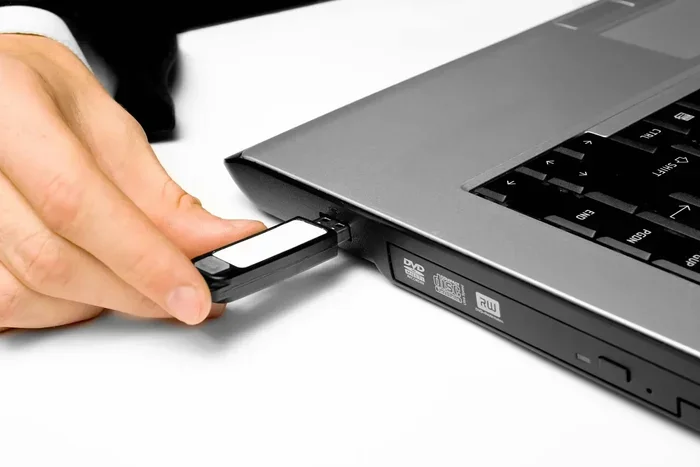
- Insert the USB flash drive into your computer.
- Open File Explorer (Windows) or Disk Utility (Mac).
- Right-click the USB drive and select Format.
- Choose FAT32 as the file system.
- Click Start and wait for the process to finish.
On Mac, you can also use the Disk Utility app. Select the drive, choose Erase, and pick MS-DOS (FAT) as the format.
Step 3: Choose Your Tool
Pick one of the tools mentioned above. Rufus is our top recommendation. Download it from the official website, install it, and open the app.
Step 4: Load the ISO File
In Rufus, click the SELECT button and browse to your ISO file. The tool will read the file and display its details. Make sure the correct USB drive is selected in the device dropdown.
Step 5: Configure Settings
Set the File system to FAT32. For partition scheme, choose MBR for older computers or GPT for newer ones. Click START and wait for the process to complete.
Rufus will automatically split large ISO files if needed, which solves the FAT32 4GB problem. This is one of the biggest reasons Rufus is the preferred tool for this task.
Step 6: Eject and Test
Once the process finishes, safely eject the USB drive. Plug it into the computer where you want to use it. Restart the computer and enter the BIOS or boot menu. Select the USB drive as the boot device.
If everything worked, you should see the ISO file load and begin the installation or live session. Congratulations – you successfully copied an ISO file to a FAT32 USB flash drive!
Quick Tips for a Smooth Process
- Always use a genuine USB flash drive – cheap or counterfeit drives can cause errors.
- Use a USB 3.0 drive for faster write speeds.
- Double-check the drive letter in Rufus to avoid formatting the wrong drive.
- Keep your ISO file on your computer until the process is complete.
- Close all other programs while creating the bootable drive for best performance.
Alternative Methods When FAT32 Does Not Work
Sometimes FAT32 simply will not work for your ISO file. Maybe the file is too large, or your target device does not support FAT32 booting. Here are some alternatives.
Method 1: Split the ISO File
You can use a tool like GSplit or 7-Zip to split a large ISO file into smaller chunks under 4GB. After splitting, copy all the pieces to the FAT32 USB drive. On the target computer, you reassemble the pieces before flashing them to a USB drive.
This method works but adds extra steps. It is best for situations where you must stick with FAT32.
Method 2: Use exFAT Instead
exFAT is a modern file system that does not have the 4GB limit. It is also widely supported on Windows and Mac. If your target device supports exFAT booting, this is the easiest solution.
Simply format the USB drive as exFAT and copy the ISO file directly. No splitting required.
Method 3: Use NTFS
NTFS is the default file system for Windows. It supports very large files and is great for storing ISO files. However, not all BIOS systems can boot from NTFS-formatted drives. Use this method only if FAT32 and exFAT do not work for your setup.
Comparison Table: FAT32 vs exFAT vs NTFS
| Feature | FAT32 | exFAT | NTFS |
|---|---|---|---|
| Max file size | 4GB | 16EB | 16EB |
| Boot support | Excellent | Good | Limited |
| Windows support | Yes | Yes | Yes |
| Mac support | Yes | Yes | Read-only |
| Linux support | Yes | Yes | Yes |
| Best for | Bootable USB | Large files | Windows-only storage |
For most copy ISO to FAT32 USB scenarios, FAT32 remains the best choice thanks to its universal boot support. Use exFAT or NTFS only when FAT32 cannot handle your file size.
Common Mistakes to Avoid
Even with the right tools, mistakes can happen. Here are the most common errors people make when copying ISO files to FAT32 USB drives:
- Forgetting to format the drive – Always format to FAT32 before starting. An incorrectly formatted drive will cause failures.
- Using a fake USB drive – Counterfeit USB drives have less storage than advertised and often fail during the writing process.
- Skipping the backup step – Formatting wipes everything. Always save your data first.
- Using the wrong partition scheme – MBR and GPT matter. Choose based on your target computer’s age and BIOS type.
- Trying to copy a file over 4GB directly – This will fail silently on FAT32. Use Rufus or a splitting tool instead.
- Not verifying the ISO file – A corrupted ISO will create a broken bootable drive. Always check the file hash if possible.
Expert Insight
According to tech experts at Microsoft and Linux communities, Rufus remains the gold standard for creating bootable USB drives from ISO files. Its ability to handle FAT32 formatting and file splitting automatically saves users from the most common pitfalls. If you are unsure which tool to use, go with Rufus.
When Should You NOT Use FAT32?
FAT32 is great, but it is not always the right choice. Here are situations where you should consider a different file system:
- Your ISO file is over 4GB and you cannot split it.
- Your target device does not support FAT32 booting (rare but possible).
- You need to store files larger than 4GB on the same drive for regular use.
- You are using the drive for data storage only and do not need boot capability.
In these cases, exFAT or NTFS will serve you better. But for creating bootable USB drives, FAT32 is still the king of compatibility.
Final Thoughts on Copying ISO Files to FAT32 USB
Copying an ISO file to a FAT32 USB flash drive is a valuable skill that everyone should know. Whether you are installing Windows, trying out a Linux distribution, or creating a recovery drive, the process is straightforward once you know the steps.
The key takeaway is to match your method to your file size. Small ISO files under 4GB can be copied directly. Larger files need a tool like Rufus that handles the splitting automatically. And always remember to format your drive correctly before you start.
With the tools and knowledge in this guide, you are fully equipped to handle any ISO to FAT32 USB task. Grab your USB flash drive, pick your favorite tool, and get started today. You will be surprised how easy it really is once you see it in action.
Do not let the FAT32 file size limit scare you off. The workarounds are simple, and the results are worth it. A bootable USB drive is one of the most useful tools in your tech toolkit. Now you know exactly how to make one.
Frequently Asked Questions
Can I copy an ISO file larger than 4GB to a FAT32 USB drive directly?
No, you cannot copy a single file larger than 4GB directly to a FAT32 drive. The FAT32 file system simply does not support files over 4GB. You need to use a tool like Rufus that automatically splits large ISO files, or use an alternative method like splitting the file manually before copying.
Is Rufus the best tool for copying ISO files to FAT32 USB?
Yes, Rufus is widely regarded as the best free tool for this task. It handles FAT32 formatting, file splitting, and bootable USB creation all in one simple interface. It is fast, reliable, and works with almost any ISO file you throw at it.
Can I use exFAT instead of FAT32 for my USB drive?
Yes, exFAT is a great alternative if you need to store files larger than 4GB. It removes the FAT32 size limit and still works on most modern computers. However, some older BIOS systems may not boot from exFAT-formatted drives, so FAT32 remains the safer choice for bootable USB creation.
Do I need to format my USB drive every time I copy a new ISO file?
Yes, you should format the drive to FAT32 before each new ISO file to ensure a clean, error-free bootable drive. Leftover files from previous copies can sometimes interfere with the boot process or cause installation errors.
Why does my computer not boot from the FAT32 USB drive?
This usually happens when the BIOS boot order is not set correctly, or the partition scheme (MBR vs GPT) does not match your computer’s firmware. Enter your BIOS settings, check the boot order, and make sure the USB drive is listed as a boot option. Also verify that you used the correct partition scheme when creating the drive.
Can I use a Mac to copy an ISO file to a FAT32 USB drive?
Yes, you can use a Mac. Format the USB drive as FAT32 using Disk Utility, then use a tool like BalenaEtcher to write the ISO file to the drive. The process is slightly different from Windows but works just as well for creating bootable USB drives.