Can Thunderbolt 2 Connect To Hdmi Here Is The Full Answer
Yes, you can connect Thunderbolt 2 to HDMI using the right adapter or cable. Thunderbolt 2 uses a Mini DisplayPort connector, which carries both video and audio signals that can be converted to HDMI. This guide covers every adapter type, compatibility detail, and setup step you need to know for a smooth connection.
You have a Thunderbolt 2 port on your laptop or desktop, and you want to hook it up to an HDMI display. Maybe it is a TV, a monitor, or a projector. The question is simple: can Thunderbolt 2 connect to HDMI? The short answer is yes. But the full answer is a bit more detailed than that. You need the right adapter, you need to know your resolution limits, and you need to understand how signal conversion works. This guide walks you through everything. By the end, you will know exactly what to buy, what to expect, and how to avoid common pitfalls.
Thunderbolt 2 has been around since 2013. It was a big deal back then because it combined PCIe and DisplayPort into one fast port. Apple made it popular with their MacBook Pro lineup. Many creative professionals still use Thunderbolt 2 machines today. If you are one of them, you probably need to connect to modern HDMI displays. And that is where things can get a little tricky. Not all adapters are created equal. Not all cables will work. And not every setup will give you the results you want. Let us break it all down.
Key Takeaways
- Thunderbolt 2 can connect to HDMI: You need a proper adapter or active converter to make this work.
- Mini DisplayPort is the key: Thunderbolt 2 uses the same connector as Mini DisplayPort, which is HDMI-compatible with the right adapter.
- Active vs passive adapters matter: Active adapters are needed for certain resolutions and setups.
- Audio works too: Thunderbolt 2 can transmit both video and audio through HDMI.
- Check your devices first: Not all adapters work with all setups, so verify compatibility before buying.
- Resolution support varies: Thunderbolt 2 supports up to 4K with the right adapter and display.
📑 Table of Contents
- What Is Thunderbolt 2 and How Does It Work?
- Can Thunderbolt 2 Connect to HDMI? The Full Answer
- Types of Thunderbolt 2 to HDMI Adapters
- Resolution and Performance: What to Expect
- Step-by-Step Setup Guide
- Common Mistakes and How to Avoid Them
- Expert Tips for the Best Thunderbolt 2 HDMI Experience
- Thunderbolt 2 HDMI vs Other Connection Options
- Who Still Uses Thunderbolt 2 and Why It Matters
- Frequently Asked Questions
What Is Thunderbolt 2 and How Does It Work?
Thunderbolt 2 is a hardware interface developed by Intel. It combines two types of data into one port. You get PCIe for storage and peripherals. You also get DisplayPort for video output. The connector is a Mini DisplayPort shape, which is smaller than a standard DisplayPort. This was Apple’s preferred connector for several years. Many Mac users know it well.
The Thunderbolt 2 port delivers up to 10 Gbps of bandwidth. That is twice as fast as the original Thunderbolt. For video, it can support one 4K display at 60 Hz or two 1080p displays at the same time. This makes it quite capable for most display setups. But here is the thing. HDMI uses a completely different signaling protocol. So you cannot just plug a Thunderbolt 2 cable into an HDMI port. You need a bridge between the two.
The Role of Mini DisplayPort in Thunderbolt 2
Thunderbolt 2 shares its physical connector with Mini DisplayPort. This is actually good news for HDMI users. Mini DisplayPort can carry video signals that are compatible with HDMI through conversion. The key is that the signal inside the cable is already a digital video signal. It just needs to be translated into the HDMI format. An adapter does this translation for you.
There are two main types of adapters you will encounter. Active adapters have built-in chips that convert the signal. Passive adapters simply reroute the pins. For Thunderbolt 2 to HDMI, you almost always need an active adapter. This is because the pinout and signal type differ between Mini DisplayPort and HDMI. A passive cable alone will not work.
Can Thunderbolt 2 Connect to HDMI? The Full Answer
So, can Thunderbolt 2 connect to HDMI? Absolutely. The connection is fully supported. But it requires an adapter or a docking station with HDMI output. The Thunderbolt 2 port sends a Mini DisplayPort signal. The adapter converts that signal into HDMI. Your HDMI cable then carries the signal to your TV, monitor, or projector.
Here is what makes this work. Both Thunderbolt 2 and HDMI carry digital audio and video signals. They just use different connectors and protocols. The adapter handles the conversion seamlessly. In most cases, you will not notice any difference in quality. The picture stays sharp. The audio stays clear. You just plug in and go.
What You Need for a Thunderbolt 2 to HDMI Connection
To connect Thunderbolt 2 to HDMI, you need three things. First, a Thunderbolt 2 device with a Mini DisplayPort connector. Second, a Thunderbolt 2 to HDMI adapter. Third, a standard HDMI cable. That is it. The adapter plugs into your Thunderbolt 2 port. The HDMI cable plugs into the adapter. The other end of the HDMI cable goes into your display.
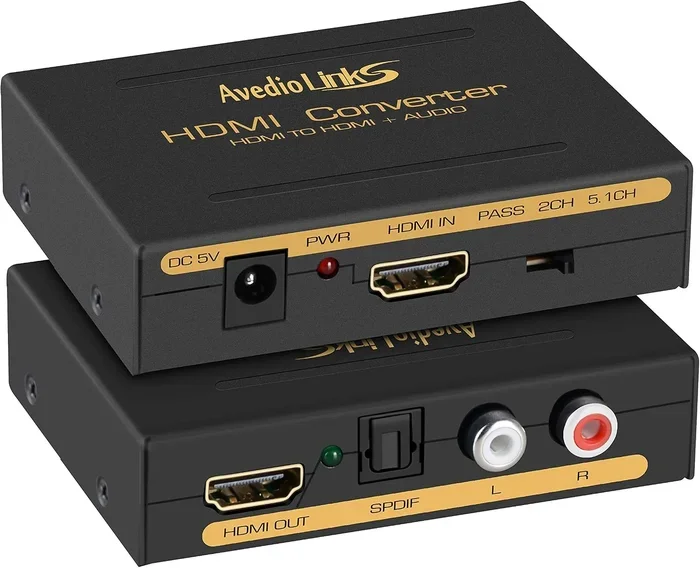
Some adapters are all-in-one units. They have a Thunderbolt 2 input on one side and an HDMI output on the other. Others are cables that combine both connectors into one piece. Both styles work fine. The all-in-one cable is more convenient for travel. The separate adapter gives you more flexibility.
Types of Thunderbolt 2 to HDMI Adapters
Not all adapters are the same. There are several options on the market, and they vary in quality, features, and price. Choosing the right one matters more than you might think. A cheap adapter can cause signal drops, no audio, or resolution problems.
Active Thunderbolt 2 to HDMI Adapters
Active adapters are the most common choice. They contain a conversion chip inside the adapter body. This chip takes the Mini DisplayPort signal from Thunderbolt 2 and converts it to HDMI. Active adapters support audio pass-through as well. This means your sound travels through the HDMI cable to your TV or monitor speaker system.
Brands like Cable Matters, Uni, and Belkin make reliable active adapters. They are usually small and portable. You can keep one in your laptop bag. These adapters typically support up to 4K resolution at 30 Hz or 1080p at 60 Hz. Check the specifications before you buy to make sure you get the resolution you need.
Thunderbolt Docking Stations with HDMI Output
If you need more than just an HDMI connection, a Thunderbolt docking station is a great option. These docks connect to your Thunderbolt 2 port and offer multiple output options. Most include HDMI, USB ports, Ethernet, and SD card readers. They turn your laptop into a full workstation.
Docking stations are more expensive than simple adapters. But they offer much more versatility. If you connect to an HDMI display every day at your desk, a dock is worth the investment. You do not have to plug and unplug adapters constantly. Just dock your laptop and everything is ready to go.
USB-C to HDMI Adapters and Why They Do Not Work with Thunderbolt 2
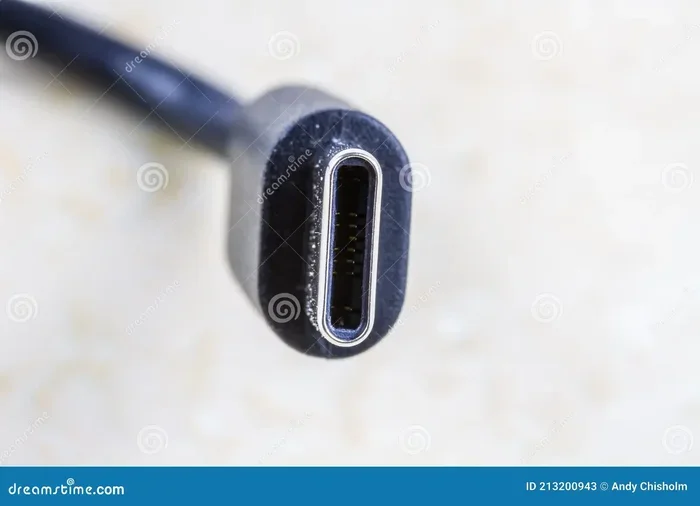
Here is a common mistake. People buy a USB-C to HDMI adapter and try to use it with Thunderbolt 2. It does not work. Thunderbolt 2 uses a Mini DisplayPort connector, not USB-C. The shapes are different. The pinouts are different. The signal protocols are different. Always make sure your adapter matches your port type.
If you have a newer device with USB-C Thunderbolt 3 or 4, then a USB-C to HDMI adapter works great. But for Thunderbolt 2 specifically, you need a Mini DisplayPort to HDMI adapter. Do not confuse the two. They look similar but serve different purposes.
Resolution and Performance: What to Expect
One of the most common questions about Thunderbolt 2 and HDMI is resolution support. How sharp can your picture be? Can you run a 4K display? The answer depends on your adapter and your display.
Thunderbolt 2 supports up to 4K resolution. However, most Thunderbolt 2 to HDMI adapters only output 4K at 30 Hz. This is fine for static images and video playback. But if you are gaming or doing fast-motion work, you might notice some flickering. For smoother performance, 1080p at 60 Hz is the sweet spot.
Understanding Bandwidth Limitations
Thunderbolt 2 has 10 Gbps of total bandwidth. This bandwidth is shared between data and display. When you are using the port for video output only, you get the full 10 Gbps for the display signal. That is plenty for 4K at 30 Hz or 1080p at 60 Hz. If you are also using the port for data transfer, the display bandwidth gets split. This can reduce the maximum resolution or refresh rate.
Keep this in mind if you are using a Thunderbolt 2 dock. The dock shares the Thunderbolt 2 connection between all its ports. So if you are copying large files while driving an HDMI display, performance might dip. For best results, use the Thunderbolt 2 port directly for your display when possible.
Audio Support Through HDMI
Thunderbolt 2 supports audio through its Mini DisplayPort connection. When you use an active adapter, the audio signal is passed through to HDMI. This means your TV or monitor speakers will play sound. You do not need a separate audio cable. This is a huge convenience for presentations and media watching.
However, some older adapters may not support audio pass-through. Always check the product description. Look for terms like “audio supported” or “audio and video.” If audio is important to your setup, do not skip this check. A silent display is frustrating, especially during a presentation or movie night.
Step-by-Step Setup Guide
Setting up a Thunderbolt 2 to HDMI connection is straightforward. Follow these steps and you will be up and running in minutes.
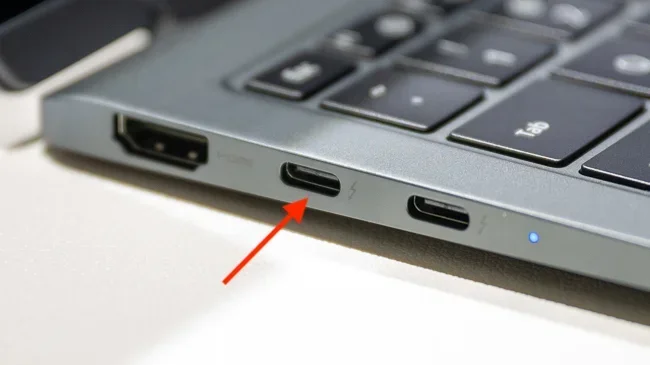
- Identify your Thunderbolt 2 port. Look for the small port with the lightning bolt icon next to it. It is shaped like a Mini DisplayPort. It is smaller than a standard USB port.
- Purchase the right adapter. Get a Thunderbolt 2 to HDMI active adapter. Make sure it supports your desired resolution. Check reviews for reliability.
- Plug the adapter into your Thunderbolt 2 port. It should fit snugly. Do not force it. The Mini DisplayPort connector has a locking tab. Push it in until it clicks.
- Connect your HDMI cable to the adapter. Use a good quality HDMI cable. Cheap cables can cause signal issues at higher resolutions.
- Plug the other end of the HDMI cable into your display. This can be a TV, monitor, or projector.
- Switch your display input to HDMI. Use your TV or monitor remote to select the correct HDMI input channel.
- Check for audio and video. Your screen should display. If you have sound, you are all set. If not, check your audio output settings in your operating system.
Common Mistakes and How to Avoid Them
Even with the right adapter, things can go wrong. Here are the most common mistakes people make when connecting Thunderbolt 2 to HDMI.
- Using a USB-C adapter: Thunderbolt 2 is not USB-C. Do not buy a USB-C to HDMI adapter for a Thunderbolt 2 port. They are physically incompatible.
- Using a passive cable: Passive Mini DisplayPort to HDMI cables do not work with Thunderbolt 2. You need an active adapter with a conversion chip.
- Ignoring resolution limits: If your adapter only supports 1080p, do not expect 4K. Check the adapter specs before you assume it will work at your target resolution.
- Forgetting to switch display input: Your TV or monitor needs to be set to the correct HDMI input. This sounds obvious, but it is the number one reason connections “fail.”
- Using a low-quality adapter: Cheap adapters from unknown brands often cause flickering, no audio, or dropped signals. Stick with reputable brands and read reviews.
- Overlooking driver updates: On some systems, especially Windows PCs, display drivers need to be updated for proper HDMI output. Check for updates before troubleshooting the hardware.
Expert Tips for the Best Thunderbolt 2 HDMI Experience
Getting the best results from your Thunderbolt 2 to HDMI setup comes down to a few smart choices. Here are some tips from experienced users and tech professionals.
First, invest in a quality adapter. A $10 adapter from an unknown brand will cause headaches. A $25 to $40 adapter from a reputable brand will work reliably for years. The small extra cost is worth the peace of mind.
Second, keep your cables short. HDMI signal quality degrades over long cable runs. If you can, use a cable that is 6 feet or shorter. This ensures a clean, stable signal from your adapter to your display.
Third, update your graphics drivers regularly. On Windows, this is especially important. Updated drivers fix compatibility issues and improve display performance. On macOS, updates come through system updates, so keep your Mac up to date.
Fourth, test your setup before a big presentation or event. Do not wait until you are in a meeting to discover that your adapter does not work. Set it up the night before and confirm everything works perfectly.
Fifth, consider a docking station if you use external displays often. A Thunderbolt 2 dock simplifies your setup and reduces wear on your adapter. You just dock and undock. No fumbling with cables every time.
Thunderbolt 2 HDMI vs Other Connection Options
Thunderbolt 2 is not your only option for connecting to HDMI. Let us compare it to a few alternatives so you can make an informed decision.
| Connection Type | Port Shape | Max Resolution | Audio Support | Adapter Needed for HDMI |
|---|---|---|---|---|
| Thunderbolt 2 | Mini DisplayPort | 4K at 30 Hz | Yes | Yes, active adapter |
| Thunderbolt 3/4 | USB-C | 4K at 60 Hz or 8K | Yes | Yes, USB-C to HDMI adapter |
| DisplayPort 1.2 | Standard DisplayPort | 4K at 60 Hz | Yes | Yes, DisplayPort to HDMI adapter |
| HDMI Direct | HDMI | 4K at 60 Hz | Yes | No |
| VGA | HD-15 Analog | 1080p max | No | Yes, VGA to HDMI converter |
As you can see, Thunderbolt 2 is a solid choice for HDMI connections. It supports 4K and carries audio. The main limitation is the 30 Hz refresh rate at 4K compared to newer standards. But for most everyday uses, Thunderbolt 2 HDMI works perfectly well.
Who Still Uses Thunderbolt 2 and Why It Matters
You might wonder why Thunderbolt 2 still matters in 2024 and beyond. The answer is simple. Many professionals still rely on Thunderbolt 2 machines. Music producers, video editors, and designers often use older Mac Pros and MacBook Pros with Thunderbolt 2 ports. These machines are stable and reliable. They handle demanding creative workflows well.
For these users, connecting to modern HDMI displays is essential. Conference rooms use HDMI projectors. Hotels provide HDMI-enabled TVs for presentations. External monitors with HDMI inputs are still the most common type on the market. So knowing how to connect Thunderbolt 2 to HDMI is a practical skill that remains relevant.
Thunderbolt 2 also has a place in legacy setups. If you have invested in Thunderbolt 2 peripherals, docking stations, or storage devices, your entire workflow depends on that port. Adding HDMI output through a simple adapter keeps your existing setup working while you interact with modern displays.
Frequently Asked Questions
Can I use a Thunderbolt 2 to HDMI adapter with a Mac?
Yes, Thunderbolt 2 to HDMI adapters work great with Macs. Apple used Thunderbolt 2 ports on many MacBook Pro and Mac Mini models for years. Just plug in the adapter, connect your HDMI cable, and your Mac should recognize the external display automatically. If it does not, go to System Preferences and check your display settings.
Does Thunderbolt 2 to HDMI support audio?
Yes, most active Thunderbolt 2 to HDMI adapters support audio pass-through. Your sound will travel through the HDMI cable to your TV or monitor. However, always check the adapter specifications before purchasing. Some very old or low-quality adapters may not include audio support.
Can I get 4K resolution through Thunderbolt 2 HDMI?
You can get 4K resolution, but typically at 30 Hz. This is fine for movies, presentations, and static content. If you need 4K at 60 Hz, you will need a Thunderbolt 3 or USB-C connection instead. Thunderbolt 2 does not have enough bandwidth for 4K at 60 Hz over HDMI.
What is the difference between a Thunderbolt 2 adapter and a Mini DisplayPort to HDMI adapter?
There is no functional difference. Thunderbolt 2 uses the same Mini DisplayPort connector and carries the same signal. A Mini DisplayPort to HDMI adapter will work perfectly with a Thunderbolt 2 port. The only difference is the branding on the adapter packaging.
Do I need a special HDMI cable for Thunderbolt 2 connections?
No, you do not need a special HDMI cable. Any standard HDMI cable will work. However, for best results at higher resolutions, use a high-speed HDMI cable rated for 4K. Avoid very long cables, as they can cause signal degradation.
Can I connect multiple HDMI displays through one Thunderbolt 2 port?
Thunderbolt 2 natively supports one display output. However, if you use a Thunderbolt 2 docking station with multiple HDMI ports, you can connect more than one display. The dock handles the signal splitting. Keep in mind that total bandwidth is shared across all connected displays.