How Can I Use My Phone As A Remote For Your Devices
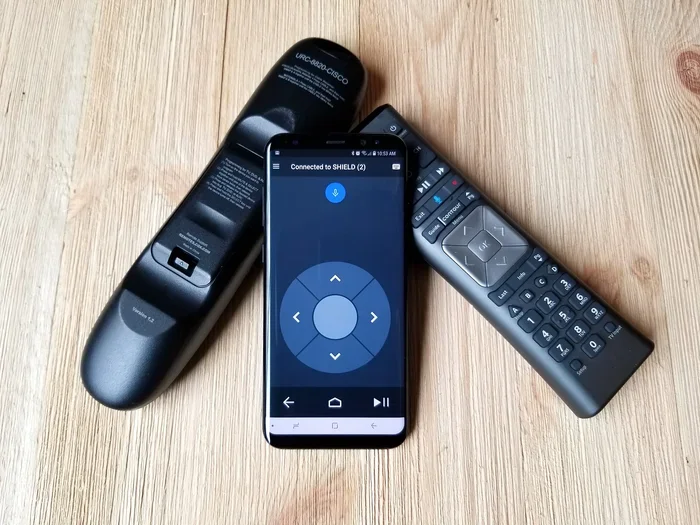
Using your phone as a remote is one of the simplest upgrades you can make to your daily tech routine. Whether you want to control your TV, PC, streaming box, or smart home gadgets, your smartphone can replace multiple remotes in seconds. With the right apps and a few simple steps, you can turn any phone into a powerful universal remote that works across all your favorite devices.
Key Takeaways
- Phone as Remote Works Everywhere: Most modern phones can control TVs, PCs, streaming devices, and smart home gadgets with the right app.
- IR Blasters Make It Easy: Phones with built-in infrared emitters can mimic traditional remotes without any extra hardware.
- Free Apps Are Abundant: Top remote control apps like Peel, AnyMote, and Unified Remote offer powerful features at no cost.
- Setup Takes Minutes: You do not need technical skills to pair your phone with your devices and start using it as a remote.
- Smart Home Integration Is a Bonus: Using your phone as a remote opens the door to full home automation and voice control.
- Battery Life Matters: Your phone uses more power when acting as a remote, so keep it charged during long streaming sessions.
- Bluetooth and WiFi Are Key: Most phone-to-device connections rely on Bluetooth or WiFi, so make sure both are enabled.
📑 Table of Contents
How Can I Use My Phone As A Remote For All My Devices
Have you ever lost your TV remote right when you wanted to watch something? Or maybe you have five different remotes cluttering your coffee table and none of them work right. The good news is that your phone can replace all of them. Using your phone as a remote is easier than you think, and it works for almost every device in your home.
Whether you want to change channels on your TV, pause a movie on your streaming stick, or control your smart lights, your smartphone is already built to handle it. You just need the right app and a little know-how. In this guide, we will walk you through everything you need to know about using your phone as a remote. You will learn which apps work best, how to set things up, and tips to get the most out of your new wireless remote.
The idea of a smartphone remote control is not new. People have been doing it for years. But recent apps and device updates have made the experience smoother and more reliable than ever. Let us dive in and show you how it all works.
Why Use Your Phone as a Remote?
There are many reasons to ditch the traditional remote and pick up your phone instead. First, you always have your phone on you. You do not need to hunt under the couch cushions anymore. Second, phone-based universal remote apps can control multiple devices from one screen. That means one app for your TV, your soundbar, your streaming box, and your smart home gadgets.
Another big advantage is convenience. Phone remotes often offer on-screen keyboards, voice search, and gesture controls that physical remotes simply cannot match. Imagine typing a search query on your TV using your phone keyboard instead of pressing each letter with arrow buttons. It is a game changer.
Finally, using your phone as a remote saves space. Fewer remotes means less clutter on your furniture and fewer batteries to buy. It is a small change that makes a big difference in your daily routine.
How Does a Phone Work as a Remote Control
Understanding the basic technology behind phone remote control helps you troubleshoot issues and choose the right setup. There are three main ways your phone connects to other devices: infrared, Bluetooth, and WiFi. Each method has its strengths and best use cases.
Infrared (IR) Remoting
Older TVs and electronics use infrared signals to receive commands from remotes. Some smartphones still have a built-in IR blaster, which works just like the infrared emitter on a traditional remote. Phones from brands like Xiaomi, Huawei, and Samsung (in some older models) include this feature.
If your phone has an IR blaster, you can point it at your TV or device just like a normal remote. The infrared remote signal travels in a straight line and does not need WiFi or Bluetooth. This makes it very reliable for controlling TVs, set-top boxes, and air conditioners.
Bluetooth Remote Control
Many modern devices use Bluetooth instead of infrared. Bluetooth has a longer range than IR and does not require a direct line of sight. When you use your phone as a Bluetooth remote, it connects to the device through a paired wireless link.
This method works great for smart TVs, wireless speakers, and some streaming devices. The connection is stable and the response time is fast. Most universal remote apps support Bluetooth as a primary connection method.
WiFi-Based Remote
WiFi remoting is the most flexible option. Your phone sends commands over your home network to devices that are connected to the same WiFi router. This works especially well for smart home devices, streaming boxes, and smart TVs with built-in internet features.
The advantage of WiFi remoting is range. You can control devices from anywhere in your house, not just from the same room. The downside is that it depends on a strong and stable network connection. If your WiFi is slow, the remote might lag slightly.
| Connection Type | Range | Line of Sight Needed | Best For |
|---|---|---|---|
| Infrared (IR) | Short (about 5 meters) | Yes | TVs, set-top boxes, AC units |
| Bluetooth | Medium (about 10 meters) | No | Smart TVs, speakers, headphones |
| WiFi | Long (whole house) | No | Smart home devices, streaming boxes |
Top Apps to Turn Your Phone Into a Remote
The right app makes all the difference when you want to use phone as remote. There are many options available, and most of them are free. Here are the best ones you should try.
Peel Smart Remote
Peel is one of the most popular remote control apps for Android and iOS. It works with most smart TVs and streaming devices. The app has a clean interface and supports voice search. It also provides TV guide information, so you can see what is playing without switching apps.
Unified Remote
If you want to control your PC, Unified Remote is a top choice. It turns your phone into a mouse, keyboard, and media remote for your computer. You can control Spotify, PowerPoint presentations, and even your file explorer from your phone. The free version covers the basics, and the paid version adds more features.
AnyMote
AnyMote is a versatile universal remote for phone users. It supports IR, Bluetooth, and WiFi devices. You can create custom remote layouts for any device you own. It works well with smart TVs, Roku, Apple TV, and many other streaming platforms. The app also supports macros, which let you press one button to trigger multiple actions.
SURE Universal Remote
SURE is another strong option for mobile remote users. It has a large database of pre-configured device codes. You simply select your device brand and model, and the app sets everything up automatically. It works with TVs, soundbars, projectors, and set-top boxes.
Google Home App
If you are building a smart home setup, the Google Home app deserves a mention. It lets you control Google-compatible smart devices from your phone. You can adjust lights, thermostats, speakers, and cameras all from one place. It is not a traditional remote app, but it covers a lot of ground.
How to Set Up Your Phone as a Remote
Setting up your phone as a remote is straightforward. Follow these steps and you will be in business in minutes.
Step 1: Check Your Phone’s Capabilities
First, check if your phone has an IR blaster. You can search your phone model online or look in the settings for an IR option. If your phone does not have IR, do not worry. Bluetooth and WiFi remote apps work just as well for most modern devices.
Step 2: Download the Right App
Go to the Google Play Store or Apple App Store and download a remote control app. Peel and SURE are great for TV control. Unified Remote works best for PC and media devices. Pick the one that matches your needs.
Step 3: Connect to Your Device
Open the app and follow the setup wizard. For IR phones, point the phone at your device and select the brand. For Bluetooth and WiFi devices, make sure both your phone and the target device are on the same network or paired via Bluetooth.
Step 4: Test and Customize
Once connected, test every button. Make sure volume, power, and navigation keys work correctly. Most apps let you customize the remote layout. You can add buttons for apps you use often or create a macro for your favorite viewing setup.
Quick Tips for Setup Success
- Keep your phone and target device close during initial setup.
- Make sure Bluetooth and WiFi are turned on before pairing.
- Restart both devices if the connection fails.
- Update the app regularly for the best compatibility.
- Use the same WiFi network for all smart devices.
Common Uses for Phone as Remote
Once your phone is set up as a remote, you will find many practical uses for it every day. Here are the most common ways people use phone as remote setups.
Controlling Your Smart TV
The most popular use case is replacing your TV remote. Most smart TVs support Bluetooth or WiFi connections, and almost all remote control apps include TV profiles. You can change channels, adjust volume, and open apps directly from your phone. Some apps even let you cast content from your phone to your TV with a single tap.
Using Your Phone as a PC Remote
Watching movies or giving presentations from your laptop is much easier when your phone acts as a media remote. Apps like Unified Remote and KDE Connect let you control your PC from across the room. You can play, pause, and skip media, adjust volume, and even type on your phone to input text on your computer.
Controlling Streaming Devices
Roku, Fire TV Stick, Apple TV, and Chromecast all work with phone-based remotes. Instead of using the tiny remote that came in the box, you can use your phone as a wireless remote for streaming. The on-screen keyboard on your phone makes searching for shows and movies much faster and more comfortable.
Smart Home Device Control
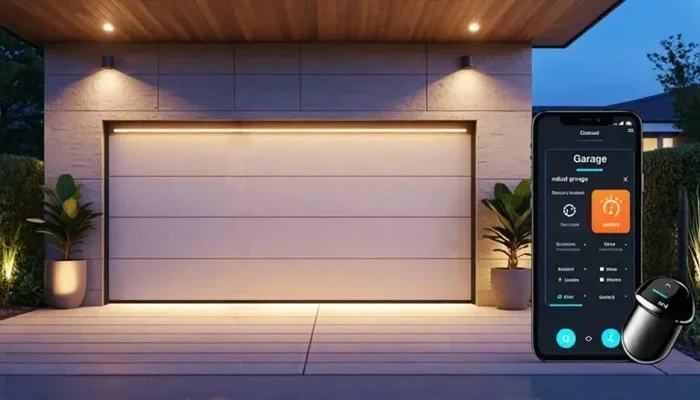
Your phone can control smart lights, smart plugs, thermostats, and security cameras. Apps like Google Home, Alexa, and SmartThings turn your phone into a home automation hub. You can set routines, adjust lighting, and monitor your home from anywhere. This is one of the most powerful benefits of using your phone as a remote.
Gaming Controller
Some mobile remote apps also double as game controllers. You can connect your phone to your smart TV or PC and use it to play games. This is especially useful for retro emulators or casual games that support phone-based input.
Common Mistakes to Avoid
Even though setting up a phone remote is easy, some common mistakes can cause frustration. Here is what to watch out for.
Not checking IR compatibility first. If your phone lacks an IR blaster, you cannot use it for IR-only devices. Always check before assuming it will work.
Using the wrong app for your device. Not all remote apps support all devices. Make sure the app you choose is compatible with your TV, streaming box, or PC before you commit to it.
Ignoring network issues. WiFi-based remotes depend on a strong connection. If your remote is lagging, check your WiFi signal strength and router placement.
Forgetting to charge your phone. Using your phone as a remote drains battery faster than normal use. Keep your phone plugged in during long movie nights or gaming sessions.
Skipping app updates. Manufacturers update their apps to fix bugs and add new device profiles. Keeping your remote app updated ensures smooth operation.
Expert Insights on Phone Remote Setup
Tech experts agree that using your phone as a remote is one of the most practical upgrades for any home entertainment setup. According to industry reviews, the best approach is to combine an IR-capable phone with a versatile app like Peel or SURE for TV control, and a PC-focused app like Unified Remote for computer tasks.
Pro tip: Set up a dedicated remote profile on your phone. Most apps let you save multiple device configurations. You can have one profile for your living room TV and another for your bedroom setup. Switching between them takes just a tap.
Experts also recommend keeping your phone within arm’s reach during initial setup. Once devices are paired, you can use the remote from across the room. The Bluetooth remote range typically covers about 10 meters, which is more than enough for most living rooms.
Another expert recommendation is to explore home automation features. Many remote apps now integrate with smart home ecosystems. You can control your lights, thermostat, and door locks from the same app you use for your TV. This creates a seamless and unified experience across all your connected devices.
Key Takeaways
- Phone as Remote Works Everywhere: Most modern phones can control TVs, PCs, streaming devices, and smart home gadgets with the right app.
- IR Blasters Make It Easy: Phones with built-in infrared emitters can mimic traditional remotes without any extra hardware.
- Free Apps Are Abundant: Top remote control apps like Peel, AnyMote, and Unified Remote offer powerful features at no cost.
- Setup Takes Minutes: You do not need technical skills to pair your phone with your devices and start using it as a remote.
- Smart Home Integration Is a Bonus: Using your phone as a remote opens the door to full home automation and voice control.
- Battery Life Matters: Your phone uses more power when acting as a remote, so keep it charged during long streaming sessions.
- Bluetooth and WiFi Are Key: Most phone-to-device connections rely on Bluetooth or WiFi, so make sure both are enabled.
Conclusion
Using your phone as a remote is one of the easiest and most useful things you can do with your smartphone today. Whether you want to control your TV, manage your PC, or automate your entire smart home, your phone has you covered. With free apps and simple setup steps, you can ditch the clutter of multiple remotes and enjoy a cleaner, smarter setup.
The universal remote app ecosystem has grown tremendously in recent years. Apps like Peel, Unified Remote, AnyMote, and SURE make it simple to connect and control almost any device in your home. And with WiFi and Bluetooth support becoming standard, almost any phone can work as a wireless remote for your entertainment and smart home devices.
Start today. Download a remote app, follow the setup steps, and experience how convenient it is to have everything in the palm of your hand. Once you make the switch, you will wonder how you ever lived without it.
Frequently Asked Questions
Can any phone be used as a remote control?
Most phones can work as a remote, but the method depends on your phone’s hardware. Phones with an IR blaster can control devices using infrared signals. All other phones can use Bluetooth or WiFi-based remote apps to connect to compatible devices. Check your phone’s specifications to see which method it supports.
Do I need to buy extra hardware to use my phone as a remote?
In most cases, no. You only need to download a free remote control app. However, if your phone lacks an IR blaster and you want to control IR-only devices, you may need a small external IR transmitter that plugs into your phone’s headphone jack or USB-C port.
Is it safe to use remote control apps on my phone?
Yes, reputable remote apps from trusted developers are safe to use. Always download apps from the official Google Play Store or Apple App Store. Check user reviews and app permissions before installing. Avoid apps from unknown sources that ask for unnecessary access to your phone.
Can I use my phone as a remote for my laptop or PC?
Absolutely. Apps like Unified Remote and KDE Connect let you use your phone as a mouse, keyboard, and media remote for your PC. You just need to install the corresponding desktop software and connect both devices to the same WiFi network. The setup takes less than five minutes.
Why does my phone remote lag sometimes?
Lag usually happens due to weak WiFi or Bluetooth signals. Make sure your phone and the target device are close enough and on the same network. Restarting both devices and updating the app can also fix most lag issues. If you use an IR phone, make sure there are no obstructions between the phone and the device.
Can I control multiple devices with one phone remote app?
Yes, most universal remote apps support multiple device types. You can set up your TV, soundbar, streaming box, and smart home devices all within one app. Many apps let you create custom remote layouts for each device and switch between them with a single tap.