Can I Share Wi Fi Via Iphone Here Is Everything You Need
Yes, you can share Wi-Fi via iPhone using multiple built-in methods like Personal Hotspot, Wi-Fi password sharing, and QR code generation. This guide covers every way to share your internet connection from an iPhone, including step-by-step instructions, tips, and common mistakes to avoid. Whether you need to help a friend or set up a second device, you will find the solution here.
Have you ever been in a situation where someone asked you for your Wi-Fi password, and you had no idea how to help them? Maybe a friend came over, or a family member needed internet access at your place. The good news is that your iPhone can do more than just connect to Wi-Fi. It can also share your internet connection with others. So, can I share Wi-Fi via iPhone? The short answer is yes. And this guide will show you every method available.
Sharing Wi-Fi from an iPhone is easier than most people think. Apple has built several tools into iOS that make this process smooth and straightforward. Whether you want to use the Personal Hotspot feature, share a saved password, or generate a QR code, there is a method that fits your needs. In this article, we will walk through each option in detail. You will learn how to set everything up, troubleshoot common issues, and avoid mistakes that trip people up.
Let us dive right in and explore all the ways you can share your iPhone’s internet connection with others.
Key Takeaways
- iPhone Personal Hotspot: Turn your iPhone into a Wi-Fi router and share mobile data with up to 5 devices.
- Wi-Fi Password Sharing: Share your saved Wi-Fi password with nearby Apple devices instantly using iOS 11 or later.
- QR Code Method: Generate a QR code from your Wi-Fi credentials so others can scan and connect easily.
- Bluetooth and USB Tethering: Alternative ways to share internet without using Wi-Fi.
- Family Sharing: Set up shared Wi-Fi access for family members through your Apple account.
- Common Mistakes: Avoid carrier restrictions, outdated iOS, and wrong hotspot settings that cause problems.
📑 Table of Contents
- Can I Share Wi-Fi via iPhone Using Personal Hotspot
- How to Share Wi-Fi Password from iPhone to Another Device
- Generate a QR Code to Share Wi-Fi from iPhone
- Share Internet via Bluetooth or USB from iPhone
- Common Problems When Sharing Wi-Fi from iPhone
- Tips for Sharing Wi-Fi Safely and Securely
- Expert Insights on iPhone Wi-Fi Sharing
- Key Takeaways
- Conclusion
Can I Share Wi-Fi via iPhone Using Personal Hotspot
The Personal Hotspot feature is the most popular way to share internet from an iPhone. It turns your phone into a portable Wi-Fi router. Other devices can connect to your iPhone and use your mobile data plan. This is incredibly useful when you are on the go and need to get a laptop or tablet online.
How to Set Up Personal Hotspot on iPhone
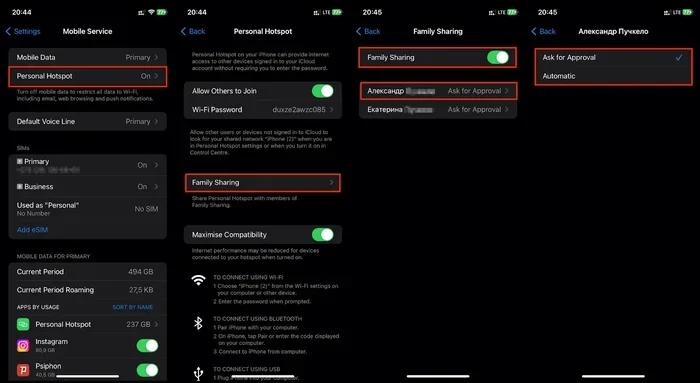
Setting up a Personal Hotspot takes just a few minutes. Here is how you do it step by step:
- Open the Settings app on your iPhone.
- Tap on Personal Hotspot. If you do not see it, go to Cellular first and then look for it.
- Toggle on Allow Others to Join.
- Set a strong password for your hotspot. Use a mix of letters, numbers, and symbols.
- On the other device, open Wi-Fi settings and look for your iPhone name in the list.
- Select your iPhone and enter the password you just created.
That is it. Your other device is now connected to the internet through your iPhone. You can check how many devices are connected by going back to the Personal Hotspot settings page.
Things to Know About iPhone Hotspot
Before you start using your hotspot, keep a few important details in mind. First, your mobile data plan matters. Sharing internet uses data from your cellular plan, so check with your carrier about any limits or extra charges. Second, the number of devices that can connect depends on your carrier and iPhone model. Most iPhones allow up to five devices at the same time. Third, your iPhone must have a strong cellular signal for the best hotspot performance.
You can also change the Wi-Fi password at any time. Go to Settings, tap Personal Hotspot, and update the password field. This is a good security practice, especially if you share your hotspot often.
How to Share Wi-Fi Password from iPhone to Another Device
Did you know you can share your saved Wi-Fi password directly from your iPhone? This feature works between Apple devices running iOS 11 or later. It is fast, secure, and does not require you to type anything out. If you have ever struggled to remember a long Wi-Fi password, this method will feel like magic.
Share Wi-Fi Password with an iPhone or iPad
Here is how to share a Wi-Fi password between Apple devices:
- Make sure both devices have Wi-Fi and Bluetooth turned on.
- Ensure both devices are saved in each other’s contacts.
- On the device that needs the Wi-Fi connection, go to Settings and tap Wi-Fi.
- Select the network you want to join from the list.
- A prompt will appear on the iPhone that is already connected to that network.
- Tap Share Password on the prompt.
- The second device will connect automatically.
This method works seamlessly because Apple uses a secure handshake between devices. Your password is never displayed on screen or sent through a message. It stays encrypted and private. This is one of the best features Apple has built into its ecosystem.
Limitations of Wi-Fi Password Sharing
While this feature is great, it does have some limits. It only works between Apple devices. You cannot share a Wi-Fi password from an iPhone to an Android phone or a Windows laptop this way. Also, both devices need to be relatively close to each other since Bluetooth plays a role in the process. Finally, the Wi-Fi network must already be saved on the device sharing the password.
Generate a QR Code to Share Wi-Fi from iPhone
If you want to share your Wi-Fi with someone who does not use Apple products, a QR code is a great option. You can create a QR code that contains your Wi-Fi network name and password. The other person simply scans the code with their phone camera, and their device connects automatically.
How to Create a Wi-Fi QR Code on iPhone
You have a few ways to generate a QR code for your Wi-Fi network:
- Use a free QR code generator app. Apps like Qrafter or WiFi QR Code Generator let you enter your network name and password. The app then creates a scannable QR code.
- Use a website. Sites like qifi.org or qr-code-generator.com let you create a Wi-Fi QR code right in your browser. No app download is needed.
- Use the Shortcuts app. If you have the Shortcuts app on your iPhone, you can create a custom shortcut that generates a QR code from your Wi-Fi credentials.
Once you have the QR code, simply show it on your iPhone screen to the other person. They open their phone camera, point it at the code, and follow the on-screen prompt to connect. This method works on both iPhone and Android devices.
Why QR Code Sharing Is Convenient
The QR code method is perfect for situations like dinner parties, office meetings, or guest visits. You do not need to read out a long password or type it in manually. Just scan and connect. It also reduces the chance of typos, which often happen when sharing passwords verbally. For hosts who regularly welcome guests, saving a QR code in your phone photos can save a lot of time.
Share Internet via Bluetooth or USB from iPhone
Wi-Fi is not the only way to share your iPhone’s internet. You can also use Bluetooth or a USB cable. These methods are less common but useful in specific situations.
Bluetooth Tethering
Bluetooth tethering lets you share your iPhone’s internet connection with another device wirelessly, but through Bluetooth instead of Wi-Fi. Here is how it works:
- Turn on Bluetooth on both devices.
- Pair the devices by going to Settings and selecting the other device.
- On the iPhone, go to Settings and tap Bluetooth.
- Find the paired device and look for an internet sharing option.
Bluetooth tethering is slower than Wi-Fi hotspot, but it uses less battery. It is a good choice when you need a quick connection and do not want to drain your iPhone’s battery quickly.
USB Tethering
USB tethering connects your iPhone to another device using a cable. This method provides the fastest and most stable connection. To use USB tethering:
- Connect your iPhone to the other device using a Lightning or USB-C cable.
- On the other device, go to network settings and look for USB tethering or internet sharing options.
- Your iPhone should appear as a network source.
USB tethering is especially helpful when you need a reliable connection for work or streaming. The cable ensures a stable link, and you do not have to worry about signal strength or interference.
Common Problems When Sharing Wi-Fi from iPhone
Sharing Wi-Fi from an iPhone is usually smooth, but sometimes things go wrong. Here are the most common issues and how to fix them.
Personal Hotspot Not Showing Up
If other devices cannot find your iPhone hotspot, try these steps:
- Make sure Personal Hotspot is turned on in Settings.
- Restart your iPhone and the device trying to connect.
- Check that your cellular data is enabled.
- Update your iPhone to the latest iOS version.
- Contact your carrier to confirm your plan supports hotspot usage.
Wi-Fi Password Sharing Not Working
If the password sharing prompt does not appear, check these things:
- Both devices must be running iOS 11 or later.
- Bluetooth must be enabled on both devices.
- Both devices need to be in each other’s contacts.
- The Wi-Fi network must already be saved on the sharing device.
Slow Hotspot Speeds
If your hotspot connection is slow, try moving to an area with a stronger cellular signal. You can also reduce the number of connected devices. Closing background apps on your iPhone can help too. Sometimes simply restarting your iPhone fixes speed issues.
Tips for Sharing Wi-Fi Safely and Securely
Sharing your internet connection comes with security considerations. You want to make sure you are not putting your personal data at risk. Here are some quick tips to keep your connection safe.
- Use a strong hotspot password. Avoid simple passwords like 1234 or password. A long, random password is much harder to guess.
- Turn off hotspot when not in use. This saves battery and prevents unauthorized connections.
- Monitor connected devices. Check your Personal Hotspot settings regularly to see which devices are using your connection.
- Avoid sharing passwords verbally in public. Use the QR code method instead so your password is not overheard.
- Update your iOS regularly. Apple releases security patches that protect your device and your shared connections.
Expert Insights on iPhone Wi-Fi Sharing
Apple continues to improve how iOS handles network sharing. With each new update, the process becomes smoother and more secure. The introduction of iOS 17 brought even better Wi-Fi password sharing features. Now, your iPhone can suggest sharing passwords with contacts who are nearby and trying to connect to the same network.
Network experts also recommend using a separate guest network if your router supports it. This keeps your main network private while still giving visitors internet access. However, when you are away from your home network, the iPhone hotspot remains the most reliable tool for sharing internet on the go.
One thing many people overlook is carrier restrictions. Some mobile plans limit or charge extra for hotspot usage. Before you rely on your iPhone hotspot regularly, check your plan details. Most major carriers offer hotspot add-ons or unlimited plans that include hotspot data. Knowing this ahead of time saves you from surprise charges on your bill.
Key Takeaways
- Personal Hotspot: The easiest way to share mobile data from your iPhone with up to five devices using Wi-Fi.
- Wi-Fi Password Sharing: Instantly share saved Wi-Fi passwords between Apple devices using Bluetooth and contacts.
- QR Code Sharing: Create a scannable code for your Wi-Fi credentials so anyone can connect quickly, including Android users.
- Bluetooth and USB Tethering: Alternative sharing methods that work when Wi-Fi is not ideal or available.
- Security Matters: Always use strong passwords, monitor connected devices, and turn off hotspot when not needed.
- Troubleshooting: Restarting devices, updating iOS, and checking carrier settings can resolve most sharing issues.
- Carrier Awareness: Check your mobile plan for hotspot data limits to avoid unexpected charges.
Conclusion
So, can I share Wi-Fi via iPhone? Absolutely. You have multiple powerful tools at your fingertips. The Personal Hotspot feature lets you turn your iPhone into a Wi-Fi router in seconds. The built-in password sharing makes it effortless to help friends and family connect to your home network. And the QR code method opens up sharing to any device, regardless of the operating system.
Each method has its strengths. Personal Hotspot is best for on-the-go internet sharing. Wi-Fi password sharing is perfect for Apple-to-Apple connections. QR codes are ideal for quick guest access. Bluetooth and USB tethering offer alternatives when Wi-Fi is not the right choice.
The key is knowing which method to use in each situation. With the steps and tips in this guide, you are now equipped to handle any Wi-Fi sharing need. Try them out, share your internet with confidence, and enjoy the convenience of having your iPhone as your go-to sharing tool. Your friends, family, and colleagues will thank you for being the person who always has a solution for getting everyone online.
Frequently Asked Questions
Can I share my iPhone Wi-Fi password with an Android device?
Yes, but not directly through the Apple password sharing feature. The best way is to generate a QR code from your Wi-Fi credentials using a QR code generator app or website. The Android user simply scans the code with their camera app and connects automatically.
How many devices can connect to my iPhone Personal Hotspot at once?
Most iPhones allow up to five devices to connect to the Personal Hotspot simultaneously. However, the exact number can vary based on your carrier and your cellular plan. If you experience connection issues with multiple devices, try disconnecting the ones that are not actively using the internet.
Does sharing Wi-Fi from my iPhone use a lot of battery?
Yes, using Personal Hotspot can drain your iPhone battery faster than normal usage. To conserve battery, turn off the hotspot when you are not actively sharing your connection. You can also connect your iPhone to a power source while the hotspot is running to keep it charged.
Why can other devices not find my iPhone hotspot?
This usually happens when the hotspot is not enabled, your iPhone is on an older iOS version, or your carrier has disabled hotspot features. Try toggling the hotspot off and on, restarting your iPhone, and checking that your cellular data is active. Updating to the latest iOS version also helps resolve this issue.
Is it safe to share my Wi-Fi password using the QR code method?
Yes, it is safe. The QR code only contains your network name and password. Once the other person scans it and connects, no further data is shared. To stay safe, generate QR codes only for trusted individuals and avoid displaying the code publicly where strangers could scan it.
Can I share Wi-Fi from my iPhone without using mobile data?
Yes, you can share a Wi-Fi password you have already saved on your iPhone. The password sharing feature between Apple devices does not use mobile data at all. It works through Bluetooth and your contacts. However, to create a Personal Hotspot, you do need an active cellular data connection.