Can Android Phone Output To Hdmi Without Any Adapter
Yes, your Android phone can output to HDMI in several ways, and some methods don’t require a traditional adapter. You can use wireless casting, built-in HDMI ports on select phones, or USB-C Alt Mode to connect directly to a display. This guide covers every option so you can pick the best method for your setup.
Have you ever wanted to show something on your phone screen to a bigger display? Maybe you want to watch a movie on your TV or present slides at work. The question can Android phone output to HDMI comes up a lot. And the even bigger question is whether you can do it without any adapter at all.
The short answer is yes, but it depends on your phone model and the method you choose. Some Android phones can connect to an HDMI display wirelessly. Others need a simple cable that plugs right into a USB-C port. And a few older phones even had a tiny HDMI port built in.
In this article, we will walk you through every way your Android phone can output to HDMI. We will cover wireless options, wired options, and everything in between. You will learn which method works best for your phone, what gear you need, and how to avoid common mistakes. By the end, you will know exactly how to get your phone screen on any HDMI display.
Let us dive in and explore the world of Android phone HDMI output together. No jargon. No fluff. Just clear, practical advice you can use right away.
Key Takeaways
- Wireless HDMI Casting: Use Miracast, Chromecast, or DLNA to stream your Android screen to a TV without any cables or adapters.
- USB-C DisplayPort Alt Mode: Many modern Android phones support direct video output through USB-C, which some consider adapter-free.
- Built-in HDMI Ports: A few older and niche Android devices had micro-HDMI ports, allowing direct HDMI output.
- Samsung DeX Mode: Samsung phones offer a desktop-like experience when connected to a display, with or without a cable.
- Common Mistakes to Avoid: Using the wrong cable, ignoring compatibility, or assuming all phones support the same output methods.
- Quick Tips Save Time: Always check your phone’s specifications before buying any accessory or trying a new method.
📑 Table of Contents
- What Does It Mean to Output HDMI from an Android Phone?
- Can Android Phone Output To HDMI Without Any Adapter?
- How To Check If Your Phone Supports HDMI Output
- Wireless vs Wired HDMI Output: Which Is Better?
- Step-by-Step: How To Output Your Android Phone to HDMI
- Common Mistakes People Make When Outputting HDMI from Android Phones
- Expert Tips for the Best HDMI Output Experience
- Frequently Asked Questions
- Conclusion
What Does It Mean to Output HDMI from an Android Phone?
When we talk about Android phone HDMI output, we mean sending your phone’s screen to a TV, monitor, or projector through an HDMI connection. This lets you see your phone’s display on a much larger screen. You can watch videos, play games, share photos, or give presentations.
The HDMI standard carries both video and audio through a single cable. That is a big advantage. You do not need separate cables for sound and picture. Everything flows through one connection.
Why Would You Want HDMI Output?
There are many reasons people want to connect their phone to an HDMI display. Here are some of the most common ones:
- Watching movies and shows: Stream content from apps like Netflix or YouTube on a bigger screen.
- Gaming: Play mobile games on a TV with better visuals and sound.
- Work presentations: Share your phone screen during meetings or classroom settings.
- Photo sharing: Show your vacation photos on a large display at home.
- Screen mirroring: Duplicate your entire phone screen for demonstrations or tutorials.
Each of these use cases benefits from a simple way to get your phone content onto a bigger screen. And Android phone output to HDMI makes this possible in multiple ways.
Can Android Phone Output To HDMI Without Any Adapter?
This is the big question. And the answer is more nuanced than you might think. Some methods are truly adapter-free. Others use a cable that functions as a very simple bridge. Let us break it all down.
Wireless HDMI Output Methods
Wireless methods are the closest thing to adapter-free HDMI output. You do not plug any cable into your phone. Instead, you use your Wi-Fi network to send your screen to a compatible display.
Miracast is a wireless standard built into many Android phones and smart TVs. It lets you mirror your phone screen to a TV without any extra hardware. You just go to your phone’s display settings, look for a cast or screen mirror option, and select your TV.
Chromecast is another popular wireless option. Google’s Chromecast device plugs into your TV’s HDMI port. You then cast content from compatible apps on your phone. It is not true screen mirroring for everything, but it works great for streaming video and audio.
DLNA is a protocol that lets devices share media over a network. Many smart TVs and streaming boxes support DLNA. You can send photos, videos, and music from your phone to your TV without any cables.
USB-C DisplayPort Alt Mode
Many modern Android phones support something called DisplayPort Alt Mode over USB-C. This is a feature built into the USB-C port itself. It allows the phone to send a video signal directly to a display.
Now, here is where the “without any adapter” claim gets tricky. You still need a USB-C to HDMI cable or a USB-C HDMI adapter. But some people consider this different from a traditional adapter because the cable is essentially a direct bridge. The phone’s USB-C port natively supports video output. You are not using a converter chip or dongle in the same way as older methods.
Phones that support USB-C DisplayPort Alt Mode include many models from Samsung, Google Pixel, OnePlus, and other brands. You can check your phone’s specifications to see if it has this feature.
Phones With Built-in HDMI Ports
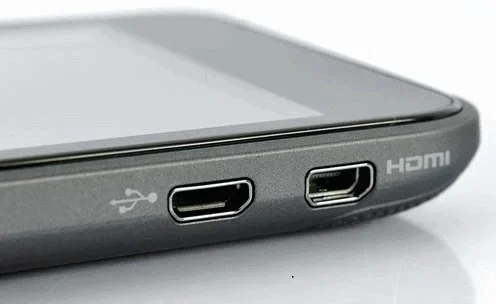
A few years ago, some Android phones came with a micro-HDMI port. This was a full-size HDMI connector, just much smaller. Phones like certain HTC models and some older Samsung devices had this port.
With a micro-HDMI port, you could plug an HDMI cable directly from your phone to your TV. No adapter needed. No extra dongle. Just a direct cable connection. However, this design is very rare in modern phones. Most manufacturers have moved to USB-C as the standard charging and output port.
How To Check If Your Phone Supports HDMI Output
Before you try any method, you need to know what your phone can do. Not every Android phone supports the same output options. Here is how you can find out.
Check Your Phone’s Specifications
Go to your phone’s settings and look for the “About Phone” section. Find the model number and search it online. The manufacturer’s website will list all the ports and features your phone supports.
Look for terms like USB-C DisplayPort Alt Mode, MHL support, or HDMI output. If you see any of these, your phone can likely output to a display.
Look for Cast or Screen Mirror Options
On most Android phones, you can swipe down from the top of the screen to open the quick settings panel. Look for a “Cast,” “Screen Mirroring,” or “Smart View” button. If you see it, your phone supports wireless output to compatible displays.
Test with a Simple Cable
If your phone has a USB-C port, try a USB-C to HDMI cable. If the TV shows your phone screen, you are good to go. If nothing happens, your phone may not support video output through USB-C.
Wireless vs Wired HDMI Output: Which Is Better?
Both wireless and wired methods have their strengths. Let us compare them so you can decide which is right for you.
Wireless HDMI Output
Wireless output is convenient. You do not deal with cables. You can move around freely. It works well for casual viewing and streaming content from apps like Netflix or YouTube.
However, wireless methods can have latency. There might be a slight delay between what you do on your phone and what appears on the TV. For gaming or real-time interaction, this can be annoying. Wireless output also depends on a strong Wi-Fi connection. If your network is slow or crowded, the quality may drop.
Wired HDMI Output
Wired output gives you the best quality. The video and audio are transmitted without compression or delay. You get a crisp, lag-free picture on your TV or monitor.
The downside is that you need a cable or adapter. You are tethered to your display. You cannot move around freely. But for presentations, gaming, or high-quality video playback, wired is the way to go.
Quick Comparison Table
| Feature | Wireless | Wired |
|---|---|---|
| Setup Ease | Very easy | Moderate |
| Video Quality | Good | Excellent |
| Latency | Noticeable delay | Near zero |
| Mobility | Full freedom | Tethered to display |
| Equipment Needed | Wi-Fi and compatible TV | Cable or adapter |
| Best For | Casual streaming | Gaming, presentations |
Step-by-Step: How To Output Your Android Phone to HDMI
Now let us walk through the actual steps. We will cover both wireless and wired methods so you can follow along.
Method 1: Wireless Casting with Miracast
Here is how to mirror your Android screen to a TV wirelessly:
- Make sure your TV supports Miracast or has a built-in Chromecast feature.
- Connect your phone and TV to the same Wi-Fi network.
- Swipe down from the top of your phone screen.
- Tap the “Cast” or “Screen Mirroring” icon.
- Select your TV from the list of available devices.
- Your phone screen will now appear on the TV.
That is it. No cables. No adapters. Just a few taps and you are casting.
Method 2: USB-C to HDMI Cable
For a wired connection, follow these steps:
- Get a USB-C to HDMI cable or a USB-C HDMI adapter.
- Plug the USB-C end into your phone.
- Plug the HDMI end into your TV or monitor.
- Switch your TV to the correct HDMI input.
- Your phone screen should appear on the TV automatically.
If nothing shows up, check that your phone supports USB-C video output. Not all phones have this feature.
Method 3: Using Samsung DeX
Samsung phone users have a special option. DeX mode turns your phone into a desktop-like experience when connected to a display.
- Connect your Samsung phone to a monitor using a USB-C to HDMI cable.
- Swipe down from the top of your screen.
- Tap the “DeX” notification to enable the mode.
- Your phone will now show a desktop interface on the TV.
DeX is great for productivity. You can open multiple windows, use a mouse, and get more done on a big screen.
Common Mistakes People Make When Outputting HDMI from Android Phones
Many people run into problems when trying to connect their phone to an HDMI display. Here are the most common mistakes and how to avoid them.
Using the Wrong Cable
Not all USB-C cables support video output. A regular charging cable will not carry a video signal. You need a cable that supports DisplayPort Alt Mode or a dedicated USB-C to HDMI cable. Check the cable specifications before buying.
Ignoring Phone Compatibility
Some people assume all Android phones can output to HDMI. That is not true. Older budget phones may not have the hardware needed for video output. Always check your phone’s specs first.
Not Switching the TV Input
This sounds obvious, but many people forget to switch their TV to the correct HDMI input. If you plug into HDMI port 2, make sure your TV is set to HDMI 2. Otherwise, you will see a blank screen.
Weak Wi-Fi for Wireless Casting
Wireless casting needs a strong and stable Wi-Fi connection. If your router is far from the TV, the cast may lag or drop. Try moving closer to the router or using a Wi-Fi extender.
Forgetting to Enable Developer Options
On some phones, you may need to enable USB debugging or specific developer options to allow video output through USB-C. Check your phone’s developer settings if the wired method does not work right away.
Expert Tips for the Best HDMI Output Experience
Here are some tips from people who use Android HDMI output regularly. These small steps can make a big difference.
Use a high-quality cable. Cheap cables can cause signal drops or poor video quality. A well-made USB-C to HDMI cable ensures a stable connection and crisp picture.
Keep your phone cool. Video output can make your phone warm. If it gets too hot, the connection may drop. Take breaks during long streaming sessions.
Update your phone software. Manufacturers often fix HDMI output bugs in software updates. Keep your phone up to date for the best experience.
Try both wireless and wired. If one method does not work well for you, try the other. Sometimes wireless is more convenient, and other times wired gives better quality. Having both options is a win.
Check your TV’s HDMI version. Older TVs with HDMI 1.4 may not support 4K output. If you want the best quality, make sure your TV supports HDMI 2.0 or higher.
Frequently Asked Questions
Can every Android phone output to HDMI?
No, not every Android phone can output to HDMI. The ability depends on your phone’s hardware and software. Most modern flagship phones from Samsung, Google, and OnePlus support some form of HDMI output, either wireless or through USB-C. Budget phones and older models may not have this feature. Always check your phone’s specifications before trying to connect it to an HDMI display.
Do I need an adapter to output HDMI from my Android phone?
It depends on the method you use. For wireless casting, you do not need any adapter at all. For wired output, you will need a USB-C to HDMI cable or a USB-C HDMI adapter. Some people consider a USB-C to HDMI cable as a simple bridge rather than a traditional adapter. But technically, you do need some form of connector to go from USB-C to HDMI.
Is wireless HDMI output as good as wired?
Wireless output is very convenient but not quite as good as wired in terms of quality and latency. Wired connections give you a sharper picture with no delay. Wireless casting can have a slight lag and depends on your Wi-Fi strength. For watching movies, wireless works great. For gaming or presentations, wired is the better choice.
Can I use HDMI output to charge my phone at the same time?
In most cases, no. When you use a USB-C to HDMI cable, the USB-C port is busy sending video. This means you cannot charge your phone through the same port at the same time. Some phones support parallel charging through other ports, but the HDMI output port itself will not charge while streaming video.
Why does my TV show no signal when I connect my Android phone?
This usually happens for one of a few reasons. Your TV may be on the wrong HDMI input. Your phone may not support video output through USB-C. Or the cable you are using may not be compatible. Try switching the TV input, checking your phone specs, and using a different cable to troubleshoot the issue.
Does screen mirroring use a lot of battery?
Yes, screen mirroring uses more battery than normal phone use. Both wireless and wired output require your phone to process and send video in real time. This drains the battery faster. If you plan to mirror your screen for a long time, keep your phone plugged in or use a battery pack.
Conclusion
The answer to can Android phone output to HDMI without any adapter is yes, in many cases. Wireless methods like Miracast, Chromecast, and DLNA let you cast your screen to a TV with zero cables. USB-C DisplayPort Alt Mode allows many modern phones to send video to an HDMI display using a simple cable. And a handful of older phones had built-in HDMI ports for direct connection.
Each method has its own strengths. Wireless is convenient and adapter-free. Wired gives the best quality and zero lag. Samsung DeX adds a powerful productivity layer for Samsung users. The key is knowing what your phone supports and choosing the right method for your needs.
Now you have all the information you need to get your Android phone screen on any HDMI display. Check your phone’s specs, pick your preferred method, and start casting. You will be amazed at how easy it is to go from a small phone screen to a big TV display. Give it a try today and enjoy your content on the largest screen in your home.