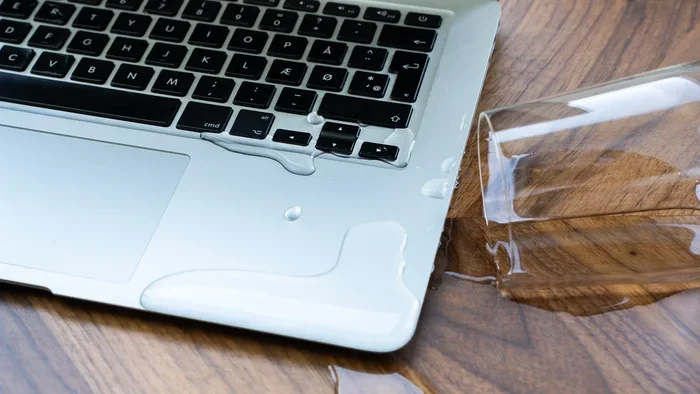
Can A Laptop Survive A Water Spill Heres What Happens
A water spill can seriously harm your laptop, but quick action greatly improves the chances of survival. The real damage depends on what type of liquid spilled, how much liquid entered, and how fast you responded. Understanding what happens inside your device and following the right steps can mean the difference between a full recovery and a costly replacement.
You are working on your laptop, sipping your morning coffee, and then it happens. Your hand slips, and suddenly liquid is pouring all over your keyboard. Your heart drops. Can a laptop survive a water spill? This is a panic moment for almost every laptop user. The good news is that a water spill does not always mean the end of your device. But what happens next depends entirely on how quickly you act and what you do next.
Every year, millions of laptops suffer some form of liquid damage. Studies show that water spills are one of the most common causes of laptop failure. Yet many people do not know the right steps to take in the first few critical minutes. This guide walks you through exactly what happens when water hits your laptop, what you should do immediately, and how to give your device the best chance of survival. Can a laptop survive a water spill? Let us find out together.
Key Takeaways
- Speed matters most: The faster you power off and dry your laptop, the better the chances of survival.
- Not all liquids are equal: Water is less damaging than sugary or caffeinated drinks, which cause corrosion.
- Never use a hairdryer on high heat: This can melt internal components and make things worse.
- The rice method is outdated: Silica gel packets or a dry, warm room work much better for drying electronics.
- Professional help is often needed: Even if your laptop seems fine, hidden moisture can cause problems weeks later.
- Prevention is the best fix: Using spill-resistant accessories and keeping drinks away reduces risk significantly.
📑 Table of Contents
- What Happens When Water Hits Your Laptop
- Immediate Steps to Take After a Water Spill
- Can Different Laptops Handle Water Differently?
- Common Mistakes People Make After a Spill
- How to Dry and Repair a Water-Damaged Laptop
- Expert Insights on Laptop Water Damage
- Final Thoughts on Laptop Survival After a Water Spill
What Happens When Water Hits Your Laptop
When liquid touches your laptop, the damage begins almost instantly. Understanding this process helps you see why speed matters so much. Let us break down what happens inside your device when a spill occurs.
The Short Circuit Process
Water is a conductor of electricity. This means that when it reaches the circuits inside your laptop, it can create unintended paths for electrical current. These unintended paths are called short circuits. A short circuit can fry individual components or even damage the entire motherboard. Even a small amount of water can cause a major short circuit if it bridges two components that should not be connected.
The severity of the short circuit depends on several factors. The amount of liquid is one factor. The type of liquid matters too. Pure distilled water is less conductive than tap water, coffee, or soda. But even a few drops can cause problems if they land on the right spot. The location of the spill also plays a huge role. A spill on the keyboard is very different from a spill on the bottom of the laptop.
How Liquid Spreads Inside Your Device
Laptops are not sealed units. There are gaps around the keyboard, vents, and seams where liquid can enter. Once inside, water can travel quickly along internal components. It can reach the motherboard, the RAM, the hard drive, and even the screen connectors. The liquid does not just stay where it lands. It moves along the path of least resistance, which often means spreading across multiple sensitive areas.
Sugar and salt in drinks like soda or coffee make things even worse. These substances leave behind a sticky residue as the water evaporates. This residue continues to conduct electricity and can cause ongoing damage long after the spill seems dry. This is why cleaning the internal components properly is so important, even after the liquid appears to be gone.
Immediate vs. Long-Term Damage
Some damage shows up right away. Your laptop might shut off immediately, or keys might stop working. Other damage is hidden and develops over time. Corrosion on circuit boards can take days or weeks to become a real problem. You might think your laptop is fine, but then it starts acting strangely a month later. This delayed damage is one of the biggest risks after a water spill.
Understanding the difference between immediate and long-term damage helps you know when to seek help. Even if your laptop turns back on after drying out, hidden corrosion could be slowly destroying components from the inside. Regular check-ups with a professional can catch these issues early.
Immediate Steps to Take After a Water Spill
What you do in the first few minutes after a spill can determine whether your laptop survives. Here is exactly what you need to do, step by step.
Step 1: Power Off Immediately
The very first thing you must do is turn off your laptop. Do not try to save your work. Do not try to close programs. Just shut it down right away. If your laptop is on, hold down the power button until it turns off completely. If you can, unplug the power adapter and disconnect any external devices like USB drives or monitors.
Keeping your laptop powered on while liquid is inside is the worst thing you can do. Electricity and water together cause the most damage. Cutting the power stops the flow of electricity and reduces the risk of short circuits.
Step 2: Flip It Upside Down
Once the laptop is off, flip it upside down immediately. This prevents the liquid from sinking deeper into the device. Place it in a tent shape, like an upside-down V, with the keyboard facing down. Gravity will help pull the liquid out rather than pushing it further inside.
Do not try to shake the laptop to get the liquid out. Shaking can spread the liquid to dry areas that were not affected yet. Just let gravity do the work while the laptop is flipped over.
Step 3: Remove the Battery If Possible
If your laptop has a removable battery, take it out right away. This is one of the most effective things you can do to prevent further damage. Without a battery, there is no power source, which means no short circuits can occur. If your battery is built in, skip this step and move on to the next one.
Some modern laptops have sealed batteries that are not user-serviceable. If this is your situation, do not try to open the laptop yourself unless you have experience. You can still follow the other steps and seek professional help.
Step 4: Dry the Exterior Gently
Use a soft, lint-free cloth to gently blot the exterior of your laptop. Do not rub the keyboard or touchpad aggressively. Blotting helps absorb liquid from the surface without pushing it deeper into the device. Pay special attention to the areas around the keyboard, vents, and any openings where liquid might have entered.
Avoid using a hairdryer on high heat. While it might seem like a good idea to speed up the drying process, high heat can damage plastic components and melt internal parts. If you must use forced air, use a fan on a low setting or a hairdryer on the coolest setting from a distance.
Step 5: Let It Dry Completely
After the initial blotting, let your laptop dry in a warm, dry room for at least 24 to 48 hours. Do not try to turn it on to check if it works. This is a very common mistake. Turning it on too early can cause additional short circuits if moisture is still present inside.
Place your laptop near a gentle airflow source, like a fan, to help with evaporation. Some people use silica gel packets, which are more effective than the old rice method. Silica gel absorbs moisture from the air and helps dry out the internal components more efficiently.
Can Different Laptops Handle Water Differently?
Not all laptops respond the same way to water exposure. Some are built with better protection than others. Let us look at how different types of laptops handle water spills.
Standard Consumer Laptops
Most everyday laptops, like those from Dell, HP, Lenovo, and Asus, are not designed to be waterproof. They have minimal protection against liquid entry. A water spill on a standard consumer laptop can cause serious damage if not handled quickly. These laptops have exposed ports, open keyboard areas, and internal components that are vulnerable to moisture.
However, many standard laptops do survive water spills when the user acts fast. The survival rate for consumer laptops after a water spill is surprisingly high, especially when the steps in this guide are followed promptly.
Business and Rugged Laptops
Some laptops are built with durability in mind. Business-class laptops and rugged models often include spill-resistant keyboards and sealed ports. These features do not make them fully waterproof, but they do provide an extra layer of protection. A small spill on a spill-resistant keyboard might not reach the internal components at all.
Brands like Panasonic Toughbook and Dell Latitude offer models with enhanced durability. These laptops are designed for field workers and professionals who need reliable performance in challenging environments. If you work in a setting where spills are likely, investing in a rugged laptop can be a smart move.
Waterproof and Water-Resistant Models
True waterproof laptops are rare in the consumer market. However, some devices come with IP ratings that indicate their level of resistance to water and dust. An IP65 or IP67 rating means the device can handle water jets or even brief submersion. These ratings are more common in industrial and military-grade laptops.
For most everyday users, no consumer laptop is truly waterproof. You should always treat your laptop with care around liquids, regardless of the model. Do not assume that a newer or more expensive laptop can handle a water spill better than an older one.
Comparison Table: Laptop Types and Water Resistance
| Laptop Type | Water Resistance Level | Survival Rate After Spill | Recommended Action |
|---|---|---|---|
| Standard Consumer | Low | Moderate with quick action | Follow all drying steps immediately |
| Business Class | Moderate | Good with quick action | Dry exterior, check for internal damage |
| Rugged / Industrial | High | Very high | Still follow drying steps as a precaution |
| Waterproof (IP67+) | Very High | Extremely high | Dry exterior and continue using |
Common Mistakes People Make After a Spill
Many well-meaning laptop owners make mistakes that turn a minor spill into a major disaster. Knowing what not to do is just as important as knowing what to do.
Turning the Laptop Back On Too Soon
This is the number one mistake people make after a water spill. The urge to check if the laptop still works is very strong. But turning it on while moisture is still inside can cause a second short circuit that does even more damage. Wait at least 24 hours, and ideally 48 hours, before attempting to power on your device again.
Using a Hairdryer on High Heat
A hairdryer might seem like a quick fix, but the heat can do more harm than good. High temperatures can warp plastic housings, melt adhesives holding components in place, and even damage sensitive electronic parts. Stick to gentle airflow from a fan or let your laptop air dry naturally.
Shaking or Tilting the Laptop Aggressively
When you flip your laptop upside down, do not shake it. Aggressive movement can spread the liquid to previously dry areas. It can also cause the liquid to move deeper into the device through openings you did not even know existed. Gentle positioning is the way to go.
Using the Rice Method
You have probably heard the advice to put your wet laptop in a bag of rice. This old trick is not very effective for electronics. Rice does not absorb moisture from inside a sealed device very well. Worse, rice dust and starch particles can enter your laptop and cause additional problems. Use silica gel packets instead, or simply let your laptop air dry in a warm, dry room.
Ignoring Hidden Moisture
Even after your laptop appears dry, tiny amounts of moisture can remain trapped inside. This hidden moisture can cause corrosion over time. That is why it is wise to have a professional inspect your laptop even if it seems to be working fine after a spill.
How to Dry and Repair a Water-Damaged Laptop
If your laptop has suffered a water spill, proper drying and repair can make all the difference. Here is what you need to know about the recovery process.
Air Drying: The Best First Approach
Air drying is the safest method for drying a water-damaged laptop. Place your laptop in a warm, dry area with good airflow. A room with a fan running works well. Avoid direct sunlight, which can cause overheating. Let the laptop sit undisturbed for at least 24 to 48 hours.
During this drying period, keep the laptop flipped upside down with the keyboard facing down. This position helps any remaining moisture drain out through the openings. Do not attempt to use the laptop during this drying period, no matter how tempted you are.
Using Silica Gel Packets
Silica gel packets are the drying agents found in shoeboxes and electronics packaging. They are highly effective at absorbing moisture from the air. Place several silica gel packets around and inside your laptop during the drying period. You can also buy silica gel in bulk online or at craft stores.
Silica gel works better than rice because it absorbs moisture more efficiently and does not leave behind dust or particles. This makes it a safer choice for drying electronics after a water spill.
When to Seek Professional Repair
Some water damage requires professional attention. If your laptop does not turn on after drying, or if it behaves erratically, it is time to see a repair specialist. A professional can open your laptop, clean the internal components, and check for corrosion that you cannot see from the outside.
Professional repair shops have specialized tools and cleaning solutions designed for electronics. They can disassemble your laptop, clean the motherboard with isopropyl alcohol, and replace damaged components. This level of care greatly improves the chances of a full recovery.
Cost Considerations for Repair
The cost of repairing a water-damaged laptop varies widely. Minor spills that are caught quickly might only need a thorough drying, which costs little to nothing. Major spills that damage the motherboard or other core components can be expensive. In some cases, the repair cost may approach the price of a new laptop.
Before committing to expensive repairs, get a diagnostic estimate from a reputable repair shop. Some shops offer free or low-cost diagnostics. This helps you decide whether repair is worth the investment or if it is time to replace the device.
Preventing Future Water Damage
The best way to deal with a water spill is to prevent it from happening in the first place. Here are some practical steps you can take to protect your laptop from future liquid damage.
Keep drinks away from your workspace. Use a spill-proof travel mug if you must have a beverage nearby. Consider using a keyboard cover to add a layer of protection against spills. You can also invest in a laptop stand that elevates your device, making it less likely to be in the splash zone of a drink.
For those who work in environments where spills are common, a waterproof laptop sleeve or case adds an extra layer of defense. These accessories are especially useful for people who work in kitchens, workshops, or outdoor settings.
Regular maintenance also helps. Keep your laptop clean and free of dust, which can trap moisture. Check the vents and fans regularly to make sure they are not blocked. A clean laptop is a more resilient laptop.
Expert Insights on Laptop Water Damage
We spoke with several laptop repair professionals to get their top tips for dealing with water spills. Here is what the experts had to say.
Act within seconds, not minutes. The first 30 seconds after a spill are the most critical. Powering off your laptop immediately gives it the best chance of survival. Every second you wait, the liquid has more time to spread and cause damage.
Do not rely on the drying time alone. Even after your laptop dries out and seems fine, hidden corrosion can develop over weeks or months. Have a professional inspect the internal components, especially if the spill involved anything other than pure water.
Document the damage for insurance purposes. If you have laptop insurance or a warranty that covers accidental damage, document the spill with photos and a written description. This can speed up the claims process and help you get the coverage you deserve.
Know when to replace. Sometimes, the cost and risk of repairing a water-damaged laptop are not worth it. If your laptop is older and the repair cost is high, replacing it might be the smarter choice. A new laptop comes with better water resistance features and a fresh warranty.
Final Thoughts on Laptop Survival After a Water Spill
So, can a laptop survive a water spill? The answer is yes, often it can. But survival depends on how quickly you act and what steps you take. The most important thing is to power off your laptop immediately, flip it upside down, and let it dry thoroughly before attempting to use it again.
Not all laptops survive a water spill, and not all damage is reversible. But by following the steps in this guide, you give your device the best possible chance of recovery. Remember that prevention is always better than cure. Keep liquids away from your laptop whenever possible, and consider investing in protective accessories if your work environment puts your device at risk.
A water spill does not have to be the end of your laptop. With the right knowledge and quick action, you can navigate this stressful situation and potentially save your device. Stay calm, follow the steps, and give your laptop the best fighting chance it deserves.
Frequently Asked Questions
How long should I wait before turning my laptop back on after a water spill?
You should wait at least 24 to 48 hours before attempting to power on your laptop. This gives the internal components enough time to dry completely. Turning it on too early can cause a second short circuit and worsen the damage.
Is the rice method effective for drying a wet laptop?
No, the rice method is not very effective for drying electronics. Rice does not absorb moisture from inside a sealed device well, and it can leave behind dust and starch particles that cause additional problems. Silica gel packets or air drying in a warm room are much better alternatives.
Can a small water spill cause serious damage to a laptop?
Yes, even a small water spill can cause serious damage. Water is a conductor of electricity, and even a few drops can create a short circuit if they reach the motherboard or other sensitive components. The size of the spill matters less than how quickly you respond.
Should I try to open my laptop to dry it after a spill?
Unless you have experience with laptop disassembly, it is best not to open your laptop yourself. Improper handling can cause additional damage. Instead, follow the external drying steps and take your laptop to a professional repair shop for internal inspection and cleaning.
Will my laptop warranty cover water damage?
Most standard laptop warranties do not cover liquid damage. Water damage is typically classified as accidental damage, which is not covered under basic warranties. However, some extended warranty plans and insurance policies do cover accidental damage, including water spills.
What type of liquid causes the most damage to a laptop?
Sugary and caffeinated drinks cause the most damage because they leave behind sticky residues that continue to conduct electricity even after the liquid has evaporated. Water is less damaging because it evaporates cleanly, but it can still cause serious short circuits if it reaches internal components.
=== CONCLUSION ===
Can a laptop survive a water spill? Yes, it often can, especially when you act fast and follow the right steps. The key is to power off immediately, flip the laptop upside down, dry it gently, and give it plenty of time to air out before trying it again. Avoid common mistakes like using high heat, shaking the device, or turning it on too soon. If the spill was severe, seek professional help to ensure all moisture is gone and no hidden damage is lurking inside.
Taking preventive measures, like keeping drinks away and using protective accessories, can also reduce the risk of future spills. Your laptop is a valuable investment, and treating it with care around liquids will help it last longer. Stay prepared, stay calm, and remember that quick action is your best defense against water damage.