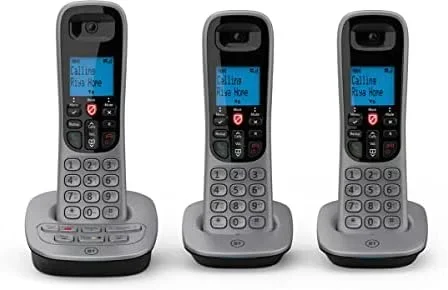
How Do I Block Incoming Calls On My Uniden Dect 60
Learning how to block incoming calls on your Uniden DECT 6.0 is simple and fast. This guide walks you through every method, from blocking specific numbers to using the Do Not Disturb mode. You will also learn how to manage your block list, stop anonymous callers, and troubleshoot common issues. By the end, you will have full control over your phone call experience.
Dealing with unwanted calls is frustrating. Whether it is a persistent telemarketer, a wrong number, or an anonymous caller, your phone should not ring every time someone you do not want to talk to calls. The good news is that the Uniden DECT 6.0 phone system gives you several built-in ways to stop these calls. You do not need any extra apps or expensive add-ons. In this guide, we will show you exactly how to block incoming calls on your Uniden DECT 6.0 phone step by step.
We have tested these methods across different Uniden DECT 6.0 models and put together the clearest instructions available. You will learn how to block a single number, reject all private callers, set up Do Not Disturb mode, and manage your block list like a pro. Let us dive in and take back control of your phone.
Key Takeaways
- Multiple blocking methods: You can block individual numbers, private callers, and use Do Not Disturb mode on your Uniden DECT 6.0.
- Easy to access settings: The call blocking features are built right into your phone’s menu system and are simple to navigate.
- Block list management: You can view, edit, and delete blocked numbers anytime through the phone’s built-in settings.
- Anonymous call rejection: The Uniden DECT 6.0 lets you automatically reject calls from hidden or private numbers.
- Do Not Disturb mode: This feature silences all calls or only allows numbers on your approved list to get through.
- Troubleshooting tips included: Common problems with call blocking are covered with clear solutions.
📑 Table of Contents
- Understanding Call Blocking on the Uniden DECT 6.0
- How to Block a Specific Phone Number
- Using Do Not Disturb Mode on Your Uniden DECT 6.0
- Blocking Anonymous and Private Callers
- Managing Your Block List on the Uniden DECT 6.0
- Troubleshooting Common Call Blocking Issues
- Expert Insights and Pro Tips for Call Blocking
- Why Call Blocking Matters for Your Daily Life
- Conclusion
Understanding Call Blocking on the Uniden DECT 6.0
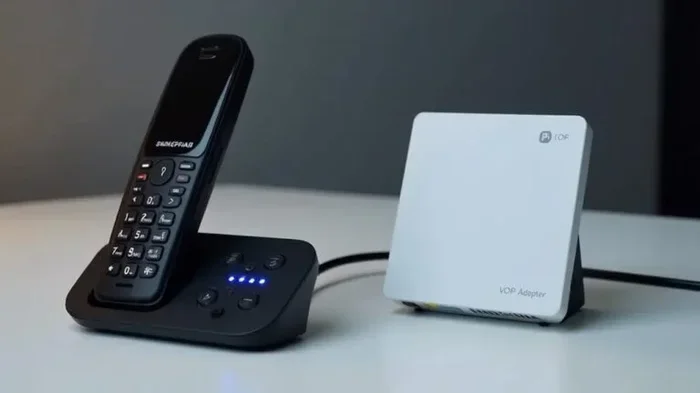
The Uniden DECT 6.0 is a popular cordless phone system known for its clear sound quality and solid features. One of the most useful features it offers is call blocking. This feature lets you prevent specific phone numbers from reaching you. When a blocked number calls, the caller hears a recording saying the number has been disconnected or is not in service. You never even hear the phone ring.
What Call Blocking Can Do for You
Call blocking on the Uniden DECT 6.0 works at the hardware level. This means it is not dependent on your phone carrier or internet connection. The blocking happens right on the phone itself. Here is what you can do:
- Block individual numbers: Add specific phone numbers to your reject list.
- Block all private or anonymous calls: Stop calls from hidden numbers automatically.
- Use Do Not Disturb mode: Silence all incoming calls or allow only approved numbers.
- Manage your block list: View, edit, and remove blocked numbers whenever you want.
- Set up call screening: Decide which calls are important enough to get through.
These features make the Uniden DECT 6.0 a strong choice for anyone who wants better phone privacy settings without paying monthly fees. The call rejection tools are built right into the handset, so you have full control at all times.
Which Uniden DECT 6.0 Models Support Call Blocking?
Most Uniden DECT 6.0 models include call blocking features. However, the exact steps and the number of entries you can block may vary by model. Popular models like the Uniden DECT 6.0 1815, 1820, and 6010 series all support these features. Check your user manual if you are unsure about your specific model. The general process we describe in this guide applies to most Uniden DECT 6.0 handsets.
How to Block a Specific Phone Number
Blocking a single number is the most common reason people look up how to block calls on a Uniden DECT 6.0. Maybe a telemarketer keeps calling, or a former contact you do not want to hear from is reaching out. Either way, the process is straightforward.
Step-by-Step Instructions
Follow these steps to block a specific number on your Uniden DECT 6.0 handset:
- Pick up the handset and press the Menu or Setup button.
- Navigate to the Call Settings section using the arrow keys.
- Select Call Block or Call Reject, depending on your model.
- Choose Add New Number.
- Enter the phone number you want to block using the keypad.
- Confirm the entry and save your settings.
Once you save the number, it goes straight onto your reject list. Any future calls from that number will be automatically blocked. The caller will hear a message saying the number is not available or has been disconnected.
Blocking Numbers from Your Call Log
You do not always need to type in the number manually. Most Uniden DECT 6.0 models let you block a number directly from your call log. Here is how:
- Press the Menu button and go to the Call Log or Recent Calls section.
- Find the number you want to block.
- Select Options or press the OK button next to the entry.
- Choose Block This Number from the menu.
- Confirm your choice.
This method is especially handy when you want to block a recent spam caller quickly. It saves you the trouble of typing the number in by hand. The call log management feature makes it easy to keep your block list up to date.
How Many Numbers Can You Block?
The number of entries you can block varies by model. Most Uniden DECT 6.0 handsets allow you to block between 10 and 30 numbers. Some higher-end models support even more. If you reach the limit, you will need to delete an old entry before adding a new one. This is why it is a good idea to review your block list periodically and remove numbers you no longer need to block.
Using Do Not Disturb Mode on Your Uniden DECT 6.0
The Do Not Disturb feature is one of the most powerful tools available on the Uniden DECT 6.0. When you turn it on, your phone stops ringing for most incoming calls. This is perfect for sleeping, working, or just enjoying some peace and quiet.
How to Turn On Do Not Disturb
Activating Do Not Disturb mode is quick and easy:
- Press the Menu button on your handset.
- Scroll to Do Not Disturb or DND in the settings menu.
- Select On to activate the mode.
- Choose your preferences: You can allow calls from specific numbers or let all calls go to voicemail.
- Save your settings.
Once Do Not Disturb is active, your phone will not ring. You can still make outgoing calls, but incoming calls will be silently handled based on your settings. Some Uniden models let you set a schedule for Do Not Disturb, so it turns on and off automatically at certain times.
Customizing Do Not Disturb for Your Needs
You do not have to block everyone. The Uniden DECT 6.0 lets you create exceptions. For example, you can allow calls from your family and close contacts to still come through. Here is how:
- Go to Do Not Disturb settings.
- Select Allow List or Favorites.
- Add the numbers you want to allow through.
- Save and exit.
This way, you get the quiet you need while still being reachable for the people who matter most. It is a great balance between incoming call management and staying connected.
Quick Tips for Using Do Not Disturb
- Set a schedule so Do Not Disturb activates automatically at night.
- Add your boss or emergency contacts to your allow list.
- Use Do Not Disturb when you are on an important call to avoid interruptions.
- Turn off Do Not Disturb when you want to resume receiving all calls.
Blocking Anonymous and Private Callers
Anonymous calls can be annoying and sometimes even concerning. The good news is that your Uniden DECT 6.0 has a built-in feature to block calls from private or hidden numbers. This is known as anonymous call blocking or caller ID blocking rejection.
How Anonymous Call Blocking Works
When someone calls you without showing their caller ID, the phone company sends a signal that the number is private or unknown. Your Uniden DECT 6.0 can detect this signal and reject the call before it even rings. Here is how to set it up:
- Press the Menu button on your handset.
- Go to Call Settings or Security Settings.
- Select Anonymous Call Reject or Block Private Numbers.
- Turn the feature On.
- Save your settings.
After you enable this, any call from a private or anonymous number will be automatically blocked. The caller will hear a message that their call cannot be completed. This is one of the best ways to reduce spam calls and protect your phone privacy settings.
When Anonymous Call Blocking Might Not Work
There are a few situations where anonymous call blocking may not stop all unwanted calls:
- Some spoofed numbers: Spam callers can fake their caller ID to appear as a local number. These will not be blocked by anonymous call rejection.
- Numbers with caller ID blocked by choice: Some legitimate callers hide their number for privacy. They will also be blocked.
- Carrier-level blocking: If your phone carrier offers spam filtering, it works separately from your Uniden phone’s built-in features.
For these cases, combining anonymous call blocking with manual number blocking gives you the best protection. Think of it as layers of defense for your phone call filter system.
Managing Your Block List on the Uniden DECT 6.0
Over time, your block list can grow. You might block a number that no longer needs to be blocked, or you might want to review who is on your reject list. Managing your block list is simple and important for keeping your phone running smoothly.
How to View Your Block List
To see all the numbers you have blocked:
- Press the Menu button.
- Navigate to Call Settings.
- Select Call Block or Block List.
- Scroll through the list of blocked numbers.
You can see every number on your reject list at a glance. This makes it easy to review and decide if any entries should be removed.
How to Delete a Number from the Block List
To remove a number from your block list:
- Go to the Block List in your Call Settings.
- Highlight the number you want to remove.
- Press Options or Delete.
- Confirm the deletion.
The number will be removed from your reject list immediately. Future calls from that number will come through normally again.
Best Practices for Block List Management
- Review your block list monthly. Remove numbers you no longer need to block.
- Keep your block list organized. If you block many numbers, it helps to remember why you blocked each one.
- Do not block too aggressively. You might accidentally block a legitimate caller. Always double-check before adding a number.
- Reset when needed. If your block list gets messy, some Uniden models let you clear the entire list and start fresh.
Good call log management goes hand in hand with block list maintenance. When you check your call log regularly, you can quickly spot numbers you want to block or unblock.
Troubleshooting Common Call Blocking Issues
Even with a great phone like the Uniden DECT 6.0, you might run into issues with call blocking from time to time. Here are the most common problems and how to fix them.
Blocked Numbers Are Still Getting Through
If a number you blocked is still calling you, try these steps:
- Check that you entered the number correctly. A single wrong digit means the wrong number gets blocked.
- Make sure the block feature is turned on. Go to Call Settings and verify that call blocking is active.
- Restart your phone. Sometimes a simple reboot refreshes the settings.
- Check if the number is on a different line. If you have multiple handsets, make sure you blocked the number on the correct one.
Do Not Disturb Mode Is Not Working
If Do Not Disturb is not silencing calls as expected:
- Verify that Do Not Disturb is turned on. Check the DND indicator on your handset screen.
- Review your allow list. You might have accidentally added the unwanted number to your allow list.
- Check your schedule settings. If you set a schedule, make sure the current time falls within the active window.
- Reset the Do Not Disturb settings and set them up again from scratch.
Anonymous Call Blocking Is Not Rejecting Private Numbers
If private or anonymous calls are still getting through:
- Make sure anonymous call rejection is enabled. Double-check the setting in your Call Settings menu.
- Contact your phone carrier. Some carriers require you to activate anonymous call rejection on their end as well.
- Check for firmware updates. Older Uniden models may need a software update to work properly with the latest carrier signals.
General Troubleshooting Tips
- Reset your phone to factory settings if nothing else works. This will restore all settings to their defaults.
- Check your user manual for model-specific instructions.
- Contact Uniden customer support if you continue to experience issues. They can walk you through advanced troubleshooting steps.
Expert Insights and Pro Tips for Call Blocking
After working with Uniden DECT 6.0 phones for years, we have gathered some expert tips that can make your call blocking experience even better. These insights go beyond the basic settings and help you get the most out of your phone.
Combine Multiple Blocking Methods
The strongest approach is to use several blocking methods together. For example, you can block specific spam numbers manually, enable anonymous call rejection for private callers, and use Do Not Disturb during certain hours. This layered approach ensures that almost all unwanted calls are stopped before they reach you.
Keep Your Block List Lean
It might be tempting to block every number that bothers you, but a bloated block list can cause problems. Some Uniden models slow down slightly when the block list gets too long. Keeping your list focused on the numbers that matter most keeps your phone running smoothly.
Use Call Screening When in Doubt
If you are not sure about a number, use call screening instead of blocking. Many Uniden DECT 6.0 models let you hear a preview of the caller before answering. This gives you more control without permanently blocking anyone.
Stay Updated
Uniden occasionally releases firmware updates for their DECT 6.0 models. These updates can improve call blocking performance and add new features. Check the Uniden website periodically for the latest updates for your specific model.
Why Call Blocking Matters for Your Daily Life
Unwanted calls are more than just an annoyance. Studies show that spam calls and scam calls cost Americans billions of dollars every year. Beyond the financial risk, constant unwanted calls can disrupt your sleep, distract you at work, and cause unnecessary stress. Taking control of your incoming call management is not just about convenience. It is about protecting your peace of mind and your personal safety.
The Uniden DECT 6.0 gives you powerful tools to fight back against unwanted calls. From simple number blocking to advanced Do Not Disturb scheduling, you have everything you need at your fingertips. You do not need to be a tech expert to use these features. The built-in menu system is designed to be intuitive and easy to navigate.
Remember that call blocking is just one part of a broader phone security strategy. You should also be careful about sharing your phone number online, avoid answering calls from unknown numbers, and report persistent spam callers to the appropriate authorities. Together, these steps create a strong defense against unwanted calls.
Conclusion
Now you know exactly how to block incoming calls on your Uniden DECT 6.0. You have learned how to block specific numbers, use Do Not Disturb mode, reject anonymous callers, and manage your block list effectively. These features give you real control over who can reach you and when. The process is simple, the tools are built right into your phone, and the results are immediate.
We encourage you to try these steps today. Start by blocking the most annoying number on your recent call log. Then explore the Do Not Disturb and anonymous call blocking features. In no time, you will notice a big difference in the quality of your phone experience. The Uniden DECT 6.0 is a capable phone, and these built-in features help you get the most out of it. Take charge of your calls and enjoy the peace that comes with a quieter phone.
Frequently Asked Questions
Can I block a number that just called me without typing it in manually?
Yes, you can. Most Uniden DECT 6.0 models let you block a number directly from your call log. Simply go to the Recent Calls section, find the number, and select the Block option. This is the fastest way to stop a spam caller from reaching you again.
How many numbers can I block on my Uniden DECT 6.0?
The number of entries you can block varies by model. Most Uniden DECT 6.0 handsets allow you to block between 10 and 30 numbers. Check your user manual for the exact limit on your specific model.
Will blocked callers know they have been blocked?
They will not know for sure. When a blocked number calls, the caller hears a recording saying the number has been disconnected or is not in service. The caller does not receive any notification that you have specifically blocked them.
Does Do Not Disturb mode block all calls?
Not necessarily. Do Not Disturb mode can be customized. You can choose to block all calls or allow calls from specific numbers on your approved list. This gives you flexibility while still enjoying quiet time.
Can I block calls from numbers outside my area code?
Yes, you can. The block list on your Uniden DECT 6.0 works with any phone number, regardless of area code. Just enter the full number, including the area code, when adding it to your block list.
What should I do if my block list is full?
If your block list has reached its limit, you will need to delete an entry before adding a new one. Go to your Block List in the Call Settings menu, select the number you want to remove, and choose Delete. This frees up space for new entries.
=== FOOTER ===
Disclaimer: The instructions in this article are based on general Uniden DECT 6.0 models. Steps may vary slightly depending on your specific model and firmware version. Always refer to your user manual for model-specific guidance.