Do Chromecast Need Updates and Why They Are Important
Do Chromecast need updates? Yes, absolutely. Keeping your Chromecast device updated ensures smooth streaming, better performance, and stronger security. This guide covers why updates matter, how to update your device, and what happens if you skip them.
Do Chromecast need updates? The short answer is yes. If you own a cast device from Google, keeping it updated is one of the most important things you can do. Updates affect everything from streaming quality to device security. They fix bugs, add new features, and keep your streaming device working the way it should.
Many people plug in their Chromecast and forget about it. They assume it just works forever without any maintenance. But technology evolves fast. Apps get updated. Streaming services change their cast protocol. New Wi-Fi connectivity standards emerge. Without regular updates, your device falls behind. This means slower performance, fewer features, and even potential device security risks.
In this article, we will answer the question do Chromecast need updates in detail. We will explain why updates matter, how they work, and what happens if you ignore them. You will also learn step-by-step how to update your device and troubleshoot common problems. Whether you are a casual streamer or a tech-savvy user, this guide has something for you.
Key Takeaways
- Regular updates keep your Chromecast running smoothly and prevent streaming issues like buffering or crashes.
- Firmware updates patch security vulnerabilities that could expose your cast device to unauthorized access.
- Updates add new features and improve compatibility with the latest apps and streaming services.
- Updating is automatic by default, but you can check and trigger updates manually through the Google Home app.
- Skipping updates can lead to poor streaming quality and app incompatibility over time.
- Resetting your Chromecast is sometimes necessary if an update fails or causes problems.
📑 Table of Contents
- Why Do Chromecast Need Updates
- How Chromecast Updates Work
- How to Update Your Chromecast
- What Happens If You Do Not Update
- Common Chromecast Update Problems and How to Fix Them
- Expert Tips for Keeping Your Chromecast Updated
- How Chromecast Updates Compare to Other Streaming Devices
- Frequently Asked Questions
- Conclusion
Why Do Chromecast Need Updates
Updates are not just annoying pop-ups on your screen. They serve a real purpose. Every update to your cast device brings improvements that directly affect your streaming experience. Let us break down exactly why updates matter.
Security Improvements
Every cast device connected to your Wi-Fi network is a potential entry point for hackers. Chromecast devices communicate with Google servers and various streaming apps. Without regular firmware updates, known security flaws remain open. Hackers can exploit these flaws to access your network or spy on your activity.
Google releases security patches through over-the-air updates. These patches close vulnerabilities before they can be exploited. Think of it like locking the doors of your house. You would not leave them unlocked just because you feel safe today. Device security works the same way.
If you also use other Google devices like a Chromebook, keeping all your devices updated creates a safer Google ecosystem. For example, if you have ever wondered do Chromebooks have a password, you already understand the importance of securing Google devices. The same principle applies to your Chromecast.
Performance Enhancements
Every update aims to make your streaming device faster and more reliable. Google optimizes the software to reduce buffering, improve Wi-Fi connectivity, and speed up app loading times. Over time, these improvements add up to a noticeably better experience.
Have you ever noticed your cast device lagging during a movie? Maybe the video stutters or the audio falls out of sync. These are common issues that updates often fix. Google identifies these bugs through user feedback and releases patches in the next update cycle.
New Features and App Compatibility
Updates do not just fix problems. They also add new features. Google might introduce better streaming resolution support, improved voice controls, or enhanced compatibility with popular apps. Without updates, you miss out on these improvements.
App developers also update their software to work with the latest firmware. When your Chromecast falls behind, some apps may stop working correctly. You might see error messages or find that certain features no longer function. Keeping your device updated ensures app compatibility across all your favorite streaming services.
How Chromecast Updates Work
Understanding how over-the-air updates work helps you appreciate the process. Your cast device connects to Google servers automatically to check for new firmware. When an update is available, it downloads in the background and installs when the device restarts.
Automatic vs. Manual Updates
By default, Chromecast updates automatically. This means you do not need to do anything most of the time. The device checks for updates when it is idle and connected to Wi-Fi. Once it finds a new version, it downloads and installs it during the next restart.
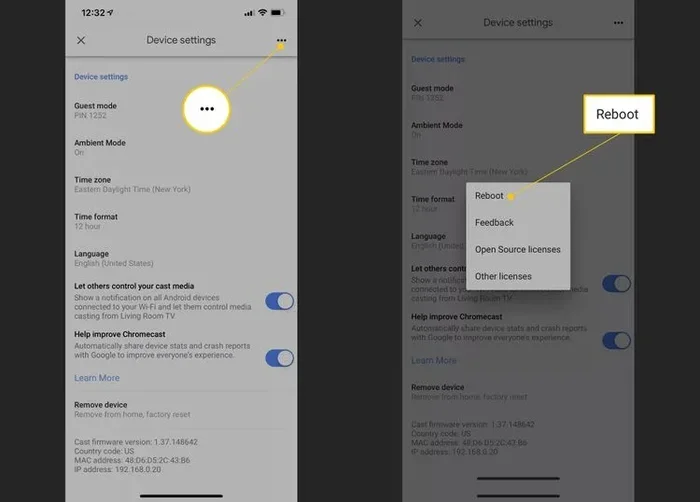
However, you can also check for updates manually. Open the Google Home app on your phone. Select your Chromecast device. Tap the settings gear icon. Look for the software version information. If an update is available, you can trigger it from there. This is helpful if you have been experiencing issues and want to make sure you are running the latest version.
What Happens During an Update
When your streaming device updates, the screen usually shows the Google logo with a progress bar. The process takes about 5 to 10 minutes. During this time, you cannot use the Chromecast. Your TV will display a message saying the device is restarting or updating.
Do not unplug the device during an update. Interrupting a firmware update can cause problems. In rare cases, it can even brick the device. Let the process complete fully before using the cast device again.
How to Update Your Chromecast
Updating your Chromecast is simple. Here is a step-by-step guide to make sure your cast device is always running the latest software.
- Connect to Wi-Fi: Make sure your Chromecast and phone are on the same network.
- Open Google Home: Launch the Google Home app on your smartphone or tablet.
- Select Your Device: Tap on your Chromecast from the list of devices.
- Go to Settings: Tap the gear icon in the top right corner.
- Check for Updates: Look for software update information. If available, tap to update.
- Restart the Device: Let the device restart after the update completes.
Following these steps regularly ensures your streaming device stays in top shape. You should check for updates at least once a month, especially after major app releases.
What Happens If You Do Not Update
Some people skip updates. They are not alone. But ignoring updates on your cast device can lead to several problems over time.
Poor Streaming Quality
Without updates, your streaming resolution may suffer. Apps optimize their content for the latest firmware. Older software may not support newer streaming quality standards. You might notice that videos look blurry or that buffering happens more often than it should.
App Crashes and Compatibility Issues
Streaming apps like Netflix, Hulu, and YouTube update frequently. They expect your cast device to run current firmware. When your Chromecast falls behind, these apps may crash or refuse to work. You could find yourself unable to cast your favorite shows, which is incredibly frustrating.
Security Risks
This cannot be stressed enough. Outdated firmware leaves security vulnerabilities open. Every day, new threats emerge in the digital world. Google works hard to protect users through timely patches. Skipping updates means you are exposed to risks that could have been easily prevented.
Common Chromecast Update Problems and How to Fix Them
Sometimes updates do not go smoothly. Here are the most common issues and how to solve them.
Update Stuck on Loading Screen
If your cast device gets stuck during an update, try unplugging it for 30 seconds and plugging it back in. This often forces the device to complete the installation. If the problem persists, you may need to factory reset the Chromecast.
Update Fails to Install
A failed update usually means a Wi-Fi connectivity issue. Check your internet connection and make sure the signal is strong near your streaming device. Restarting your router can also help. Try the update again after confirming your network is stable.
Device Not Showing the Update
If your Chromecast does not show a pending update, try restarting it first. Sometimes the device needs a fresh connection to Google servers to detect new firmware. You can also try removing and re-adding the device in the Google Home app.
Expert Tips for Keeping Your Chromecast Updated
Here are some practical tips from the field to keep your cast device in excellent shape.
- Enable automatic updates: This is the easiest way to stay current without thinking about it.
- Restart your Chromecast monthly: Regular restarts help the device check for and install pending updates.
- Keep your Google Home app updated: The app version matters too. An outdated app may not properly communicate with your device.
- Maintain a strong Wi-Fi signal: Place your router close to your streaming device for reliable update downloads.
- Check for updates after major Google events: Google often releases firmware updates around new product launches or major app changes.
Following these simple habits keeps your streaming device performing at its best. You will notice fewer glitches, better streaming quality, and peace of mind knowing your device security is up to date.
How Chromecast Updates Compare to Other Streaming Devices
It is helpful to understand how Chromecast updates compare to other streaming devices on the market. Different brands handle updates differently.
| Feature | Chromecast | Amazon Fire Stick | Apple TV |
|---|---|---|---|
| Update Method | Automatic over-the-air | Automatic over-the-air | Automatic over-the-air |
| Manual Update Option | Yes, via Google Home app | Yes, via Settings menu | Yes, via Settings menu |
| Update Frequency | Regular, as needed | Regular, as needed | Regular, as needed |
| Security Patches | Yes, included in updates | Yes, included in updates | Yes, included in updates |
| Ecosystem Integration | Google Home and Android | Alexa and Amazon services | Apple ecosystem |
All major streaming devices follow a similar update model. Automatic downloads and background installations are the industry standard. Chromecast stands out for its tight integration with the Google ecosystem. If you use Android phones, Google Home, or other Google services, your cast device fits naturally into your workflow.
For those who travel or use their streaming device in different environments, it is worth noting that Wi-Fi connectivity plays a big role in how smoothly updates work. Devices in areas with weak signals may struggle to download large firmware files. This is another reason to ensure your cast device is on a stable network whenever possible.
Similarly, if you are someone who enjoys entertainment on the go, you might have noticed that even in-flight entertainment systems vary widely. Many people ask do Virgin flights have Netflix, and the answer shows how streaming availability depends on device and platform updates. The same principle applies to your home setup. Updated devices deliver the best results.
Frequently Asked Questions
How often should I update my Chromecast?
Chromecast updates automatically whenever a new firmware version is available. You should manually check for updates at least once a month. If you notice streaming issues, checking for an update should be your first step. Regular updates keep your cast device running at peak performance.
Can I skip a Chromecast update?
Yes, you can skip an update if you want to. However, skipping too many updates will eventually cause problems. Apps and services stop supporting older firmware versions. Your streaming quality and device security both suffer when you fall too far behind. It is best to install updates as soon as they become available.
Do Chromecast updates require internet?
Yes, your cast device needs a stable Wi-Fi connection to download updates. Make sure your Wi-Fi connectivity is strong and reliable before triggering a manual update. A weak signal can cause downloads to fail, which may lead to incomplete or corrupted firmware installations.
What should I do if my Chromecast will not update?
Start by restarting your device and router. Check that your Wi-Fi network is working properly. Try removing the device from the Google Home app and adding it back. If none of these steps work, a factory reset often resolves update issues. Remember to back up any important settings first.
Do Chromecast updates delete my data?
No, firmware updates do not delete your data. Your apps, preferences, and accounts remain intact after an update. However, it is always a good practice to note your Wi-Fi password and any custom settings before updating, just in case something unexpected happens during the process.
Can I use my Chromecast while it is updating?
No, you should not use your streaming device during an update. The device needs uninterrupted power and processing time to complete the installation. Using it mid-update can interrupt the process and potentially cause software problems. Wait for the device to fully restart before casting content.
Conclusion
So do Chromecast need updates? The answer is a clear yes. Your cast device depends on regular firmware updates for security, performance, and compatibility. Skipping updates leads to poor streaming quality, app crashes, and potential device security risks.
The good news is that updating your Chromecast is easy. Automatic updates handle most of the work for you. A quick check in the Google Home app keeps everything current. Simple habits like restarting your device monthly and maintaining a strong Wi-Fi connection go a long way.
Take a few minutes today to check if your streaming device is up to date. Your future self will thank you when everything streams smoothly and securely. Keep your Chromecast updated, and enjoy the best streaming experience possible every single day.