How Do I Reconnect Apple Watch After Restoring iPhone
Restoring your iPhone can feel overwhelming, but reconnecting your Apple Watch doesn’t have to be. This guide walks you through the entire reconnect Apple Watch after restoring iPhone process with clear, simple steps. You will learn how to pair your watch again, fix common issues, and avoid mistakes that cause problems. Whether you use a cellular or GPS model, you will find practical solutions here. By the end, your watch will be back up and running smoothly.
This is a comprehensive guide about How Do I Reconnect My Apple Watch After Restoring My Iphone.
Key Takeaways
- Automatic Reconnection: In most cases, your Apple Watch reconnects on its own once your restored iPhone is back online.
- Manual Pairing Is Simple: If auto-pairing fails, you can pair your watch again using the Watch app in just a few minutes.
- Backup Matters: Restoring from an iCloud or iTunes backup preserves your watch settings and data.
- Common Issues Have Easy Fixes: Bluetooth glitches, software mismatches, and activation locks can all be resolved quickly.
- Preparation Prevents Problems: Updating both devices and keeping your Apple ID handy makes the process seamless.
- Cellular Models Need Extra Steps: If you use a cellular Apple Watch, you may need to reactivate your plan with your carrier.
- Patience Goes a Long Way: Giving the devices time to sync and restart often solves the trickiest connection problems.
[FEATURED_IMAGE_PLACEHOLDER]
What Happens When You Restore Your iPhone
Restoring an iPhone wipes your device and loads a fresh copy of iOS. This process removes all apps, settings, and data. It also resets many wireless connections. Your Apple Watch loses its direct link to the phone during this process.
The good news is that restoring from a backup brings back most of your information. If you used iCloud or iTunes to back up your iPhone, your watch settings travel with that backup. This means your watch faces, apps, and health data can return quickly.
However, the Bluetooth pairing between the watch and phone does not always restore perfectly. You may see a blank screen on your watch. Or the watch might ask you to unlock it with your iPhone passcode. These moments can feel confusing, but they are normal.
Understanding what happens during a restore helps you stay calm. You are not starting from scratch. You are simply re-linking two devices that already know each other. The process is faster the second time around.
Let us walk through exactly what to do next. The steps below work for all Apple Watch models, including Series 3, Series 7, SE, and Ultra.
How to Reconnect Apple Watch After Restoring iPhone
Step 1: Make Sure Both Devices Are Charged and Updated
Before you do anything, charge both your iPhone and Apple Watch. You want at least 50 percent battery on each device. A low battery can interrupt the pairing process and cause errors.
Next, check for software updates. Open the Settings app on your iPhone. Tap General, then Software Update. Install any available updates. On your watch, go to Settings, then General, then Software Update. Keeping both devices current prevents compatibility issues.
Also, make sure your iPhone has a stable Wi-Fi connection. A weak signal can slow down the pairing process. If you are using a cellular Apple Watch, ensure your cellular plan is active.
Step 2: Turn on Bluetooth and Wi-Fi
Bluetooth is the bridge between your iPhone and Apple Watch. Without it, the two devices cannot talk to each other. Swipe down from the top-right corner of your iPhone screen to open Control Center.
Tap the Bluetooth icon to turn it on. The icon should turn green. Then, tap the Wi-Fi icon to connect to a network. You can also go to Settings, then Bluetooth, and make sure Bluetooth is toggled on.
On your Apple Watch, swipe up from the bottom of the screen to open Control Center. Make sure the Bluetooth and Airplane Mode icons look correct. If Airplane Mode is on, tap it to turn it off.
Step 3: Open the Watch App on Your iPhone
The Watch app is the control center for your Apple Watch. It handles all pairing and settings. Find the Watch app icon on your iPhone home screen. It looks like a black watch face on a green background.
Tap to open the app. If your watch is nearby, the app may show a My Watch tab at the bottom. Tap on it. You should see a list of options for managing your watch.
If the app does not detect your watch, try moving closer. Sometimes the Bluetooth signal needs a clear path between the two devices. Remove any thick cases or metal objects that might block the signal.
Step 4: Pair Your Apple Watch Again
If your watch does not reconnect automatically, you will need to pair it again. This sounds scary, but it is actually very simple. Do not worry about losing your data. Your iCloud backup protects everything.
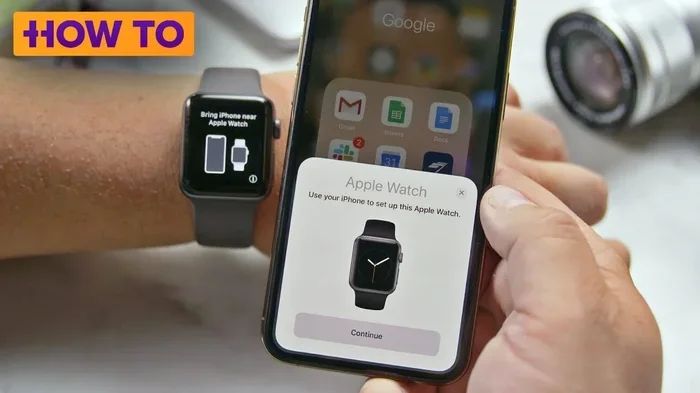
Hold your Apple Watch near your iPhone. A message should appear on the iPhone screen asking if you want to pair the devices. Tap Continue. If you do not see this message, open the Watch app and tap Add Watch.
Follow the on-screen instructions. You will see a animation on the watch screen. Point your iPhone camera at it to scan the code. Enter your Apple ID password if asked. Choose whether you want to restore from a backup or set up as new.
Wait for the sync to finish. This can take anywhere from a few minutes to half an hour. Keep both devices close together and do not move them around too much.
Step 5: Restore Your Watch Data From Backup
During the pairing process, you will be asked how to set up your watch. If you have a recent iCloud backup, choose Restore from iCloud Backup. This option brings back your watch faces, complications, and app layouts.
If you backed up your iPhone using iTunes or Finder on a computer, the watch data should be included in that backup. When you restore your iPhone from that backup, the watch settings come along too.
After the restore completes, your Apple Watch should feel familiar again. Your favorite watch faces return. Your health data starts syncing once more. If something looks missing, give it a few hours to catch up.
Common Issues When Reconnecting Apple Watch
Apple Watch Shows a Blank Screen After Restore
A blank screen is one of the most common problems after an iPhone restore. This usually happens because the watch did not fully power on during the pairing process. Try pressing and holding the side button on your watch for several seconds.
If the screen still stays dark, place the watch on its charger. Let it charge for at least 15 minutes. Sometimes the battery drains completely during a restore, and the watch needs time to build up enough power to turn on.
If the watch still does not respond, try restarting your iPhone. Hold down the side button and a volume button until the slider appears. Slide to power off. Wait 30 seconds, then turn it back on. This clears temporary glitches that can block the connection.
Apple Watch Says It Is Paired With Another iPhone
This error means your watch still remembers its old pairing. It is stuck thinking it belongs to a different iPhone. This is a common issue after restoring from a backup.
To fix this, you need to unpair the watch from the old iPhone first. Open the Watch app on your current iPhone. Tap on your watch name at the top. Scroll down and tap Unpair Apple Watch. Confirm your choice.
After unpairing, put the watch in recovery mode. Connect it to your iPhone using a cable. Then follow the pairing steps again. This fresh start removes the old pairing information and lets the watch connect to your restored iPhone.
Bluetooth Keeps Disconnecting After Reconnection
Bluetooth dropouts are frustrating but very common. They often happen when the watch and iPhone are too far apart. Keep them within 10 feet of each other during the initial pairing.
If disconnections continue, try resetting network settings on your iPhone. Go to Settings, then General, then Transfer or Reset iPhone. Tap Reset, then Reset Network Settings. This clears all Wi-Fi and Bluetooth connections and forces fresh ones.
You can also try turning Bluetooth off and back on. Or toggle Airplane Mode on and off. These simple resets often fix stubborn connection problems without losing any data.
Activation Lock Keeps Appearing
Activation Lock is a security feature that protects your Apple Watch if it is ever lost or stolen. After restoring your iPhone, you may see the Activation Lock screen when trying to pair your watch.
This lock requires your Apple ID and password. Make sure you remember your Apple ID credentials. If you forgot your password, you can reset it through Apple’s account recovery page.
If you are setting up a watch for a family member, make sure you are using the correct Apple ID. The watch must be linked to the Apple ID of the person who owns it.
Tips to Avoid Problems When Restoring Your iPhone
Prevention is always easier than fixing problems. A few simple steps before you restore your iPhone can save you a lot of trouble later.
First, always back up your iPhone before you restore it. Open Settings, tap your name at the top, then iCloud, then iCloud Backup. Tap Back Up Now and wait for it to finish. This backup includes your Apple Watch settings and data.
Second, write down your Apple ID and password. Keep them somewhere safe. You will need them during the reconnection process. Losing access to your Apple ID can make restoring your devices very difficult.
Third, update both devices to the latest software version before you start. An outdated watchOS or iOS version can cause pairing failures. Apple releases updates regularly to fix bugs and improve compatibility.
Fourth, keep your iPhone and Apple Watch close together throughout the entire restore process. Moving them apart too often can break the Bluetooth link and force you to start over.
Fifth, be patient. The restore and reconnection process takes time. Do not rush it. Let each step finish completely before moving to the next one. Rushing leads to errors, and errors lead to more work.
When Should You Contact Apple Support
Most reconnection issues resolve with the steps above. But sometimes, you need professional help. If your Apple Watch still will not pair after trying all the troubleshooting steps, it is time to reach out.
Contact Apple Support if you see error messages that do not go away. If your watch gets stuck on the Apple logo for more than a few minutes, that is another sign to seek help. Also contact support if you cannot remember your Apple ID or passcode and cannot access your backup.
You can reach Apple Support through the Apple Support app on your iPhone. You can also visit an Apple Store or call Apple directly. Their team can walk you through advanced steps like putting your watch into DFU mode or restoring it from a computer.
Before you contact support, gather your Apple ID, your iPhone backup information, and your Apple Watch serial number. Having these details ready speeds up the support process and gets your watch working faster.
Expert Insights on Apple Watch Reconnection
Apple Watch experts agree that the reconnection process is smoother when you follow a few key habits. First, always keep your iCloud backup current. This single step saves hours of manual setup if something goes wrong.
Second, experts recommend restarting both devices before attempting to pair again. A fresh start clears out temporary software bugs that can block the connection. This is one of the simplest yet most effective troubleshooting steps.
Third, if you use a cellular Apple Watch, contact your carrier before restoring your iPhone. Some carriers require you to reactivate your cellular plan after a major device change. Doing this in advance prevents service interruptions after the restore.
Finally, do not ignore watchOS and iOS update notifications. These updates often include fixes for Bluetooth pairing issues. Staying current with software updates keeps your devices working together without problems.
Frequently Asked Questions
How long does it take to reconnect Apple Watch after restoring iPhone?
The reconnection process usually takes between 5 and 20 minutes. If you are restoring from an iCloud backup, it may take longer depending on the size of the backup. A stable Wi-Fi connection speeds things up significantly.
Do I lose my Apple Watch data when I restore my iPhone?
No, you do not lose your data if you have a recent backup. Your Apple Watch settings, health data, and app information are saved in your iCloud or iTunes backup. When you restore and reconnect, this data comes back to your watch.
Can I reconnect my Apple Watch without the iPhone it was originally paired with?
Yes, you can. After restoring your iPhone, you can pair the watch with the new or restored iPhone. You will need the Apple ID that was used on the original watch. The watch will need to be unpaired from the old device first.
Why does my Apple Watch not show up in the Watch app after restoring iPhone?
This usually happens because Bluetooth is off or the devices are too far apart. Make sure Bluetooth is enabled on both devices. Restart both the iPhone and the Apple Watch. If the problem continues, reset your network settings on the iPhone.
Do I need to erase my Apple Watch before restoring my iPhone?
No, you do not need to erase your watch manually. When you unpair the watch from the old iPhone during the restore process, it automatically removes the pairing. The watch data remains safe in your iCloud backup.
Will my Apple Watch cellular plan work after I restore my iPhone?
Yes, but you may need to reactivate it. Open the Watch app on your iPhone, go to Cellular, and follow the prompts to set up your cellular plan again. You can also contact your carrier to confirm your plan is active on the restored device.
Final Thoughts
Reconnecting your Apple Watch after restoring your iPhone is a straightforward process once you know the steps. The key is to stay calm, follow the instructions carefully, and give your devices time to sync. Most users find that their watch reconnects within minutes of completing the restore.
Remember to keep your backup current, your Apple ID handy, and both devices updated. These simple habits make every future restore much easier. If you run into trouble, the troubleshooting steps above cover nearly every scenario you might face.
Your Apple Watch is a powerful tool for health tracking, communication, and daily convenience. Taking a few extra minutes to reconnect it properly ensures you get the most out of every feature. Now that you know how to reconnect Apple Watch after restoring iPhone, you can handle this situation with confidence the next time it comes up.
Go ahead and try these steps. Your watch will be back on your wrist before you know it, ready to track your workouts, deliver your notifications, and keep you connected to the people and apps you rely on every day.
Frequently Asked Questions
What is How Do I Reconnect My Apple Watch After Restoring My Iphone?
How Do I Reconnect My Apple Watch After Restoring My Iphone is an important topic with many practical applications.