Can I Use A Gateway As Just A Modem At Home Instead
Yes, you can use a gateway as just a modem at home instead of using it as a router and modem combo. Many people want to know if they can use a gateway as just a modem to improve their internet speed and reduce wireless interference. By putting your gateway device into bridge mode, you strip away the router functions. This leaves the modem to handle the internet connection from your ISP.
Key Takeaways
- Bridge mode is key: You must enable bridge mode to turn a gateway into a modem only.
- Better performance: Using your own router can improve your wireless speeds and range.
- Check with your ISP: Some internet service providers have specific settings or restrictions.
- Simpler setup: A modem only setup reduces network conflicts and double NAT issues.
- You keep your internet: The gateway still handles the IP address and connection from your provider.
📑 Table of Contents
What Exactly Is A Gateway Device?
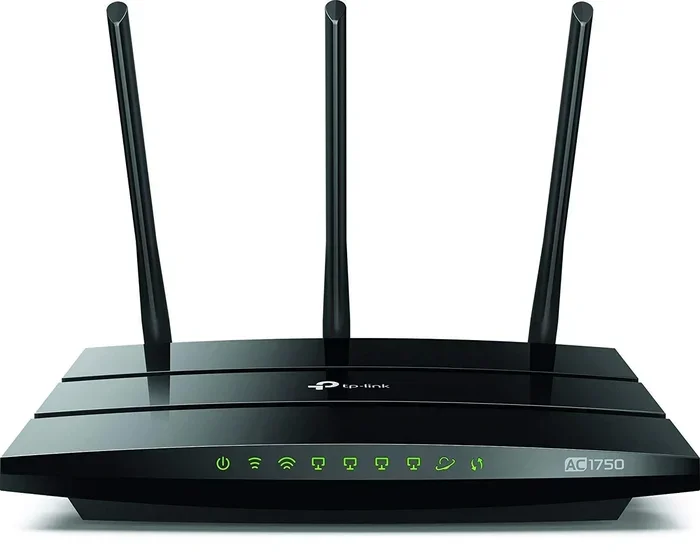
Before you change your setup, you need to know what a gateway is. A gateway device is a single box that does the job of two machines. It works as a modem and a router all in one. Your internet service provider often gives you this box when you sign up for their service. Many folks just call it a modem. But it is really a gateway router combo. The box has a modem inside. It also has a wireless router inside. The modem talks to the wider internet. The router shares that internet with your phones and laptops. It creates the Wi-Fi you use every day. It also assigns IP addresses to your devices. This is done through a process called DHCP. All of this happens inside one box. It is very convenient. But it is not always the best choice for every home.
The gateway acts like a traffic cop. It directs the data to the right place. It sends data to your smart TV. It sends data to your gaming console. It keeps track of all the devices on your network. This is called network setup. When you use a gateway device, you do not have to configure anything. It works right out of the box. But that ease comes with limits. You cannot change many advanced settings. You are stuck with what your internet service provider gives you. If the gateway is old, your network speed might be slow. You might not get the full speed of your internet plan. This is why many people look for alternatives. They want to use their own gear.
Modem Vs Router Vs Gateway
A modem connects your home to the wider internet. It talks to your internet service provider. A router shares that internet connection with your devices. It creates the Wi-Fi network you use on your phone or laptop. A gateway combines both of these jobs into one box. This saves space and cuts down on cables. But it can also limit your network speed. When you have a gateway router combo, the router part is usually basic. It may not be strong enough for a big house. It might also slow down your internet plan. A standalone modem or a better wireless router can fix this. You just need to know how to use them together. Think of the modem as the key that opens the internet door. Think of the router as the hallway that spreads the internet to all the rooms in your house. A gateway does both jobs in one box.
How A Gateway Works In Your Home
When the internet signal comes into your home, the gateway modem part reads it. Then, the gateway router part sends it out to your devices. It uses a wireless router function to give you Wi-Fi. You plug in an ethernet cable from the gateway to your computer if you want a wired connection. The gateway also assigns IP addresses to your devices. This is done through a process called DHCP. All of this happens inside one box. It is very convenient. But it is not always the best choice for every home.
The gateway keeps track of who is online. It manages the traffic so everyone gets a fair share. It also provides a firewall. A firewall blocks bad actors from getting into your network. This is an important security feature. But the firewall in a gateway router combo is often basic. It may not have the advanced features you need. If you care about network security, you might want more control. Using a separate router gives you better security options and more wireless coverage.
Can You Really Use A Gateway As Just A Modem?
Yes, you can use a gateway as just a modem. To do this, you need to change a setting on the gateway. This setting is called bridge mode. When bridge mode is on, the gateway stops acting like a router. It only acts like a modem. It passes the internet signal straight through to another router you own. Many folks want to know if they can use a gateway as just a modem. They want to improve their internet speed. They also want to reduce wireless interference. By putting your gateway device into bridge mode, you strip away the router functions. This leaves the modem to handle the internet connection from your ISP. In this guide, we will show you exactly how to set up your gateway as a modem only setup.
The Concept Of Bridge Mode
Bridge mode is a special setting on your gateway device. It turns off the router functions inside the box. The gateway still talks to your internet service provider. But it does not try to manage your home Wi-Fi network. It just passes the data along. Think of it like a bridge over a river. The data comes in on one side and goes out the other. Your own wireless router then takes over the job of creating the Wi-Fi network. This setup is called a modem only setup. You get the best of both worlds. You use the gateway for the internet connection. You use your own gear for the Wi-Fi. Your own router can be much faster. It can also reach further. This means better wireless coverage in every room of your home.
When You Need Gateway Modem Only Mode
There are many good reasons to use a gateway as a modem only. Maybe your gateway router is old and slow. Perhaps you bought a much better standalone modem or wireless router. Using your own gear can give you much faster network speeds. It also gives you more control over your network setup. You can choose the best security settings. You can also update the firmware on your own router. This keeps your home network safe and fast. You can also pick a router with better antennas. This gives you wider wireless coverage in your house. If you live in a big home, this is very important. You do not want dead zones. Dead zones are spots where the Wi-Fi signal is weak or gone. A better router fixes this problem easily.
How To Set Up Your Gateway As A Modem Only
Setting up your gateway in modem only mode is not hard. You just need to follow a few simple steps. Every gateway brand is a little different. But the basic process is the same for most devices. Here is how you do it. You do not need to be a tech expert. Anyone can do this with a few minutes of time and a little patience.
Step By Step Setup Guide
First, find the IP address of your gateway. You can usually find this on a sticker on the back of the box. It often looks like 192.168.1.1 or 10.0.0.1. Open a web browser on your computer. Type that IP address into the address bar and press Enter. Log in with your admin username and password. This info is also on the sticker on the back. Do not lose this sticker. It has important info you will need later. If you forgot your password, you can usually reset the gateway to factory settings. But this will erase all your custom settings. So try to remember the login first.
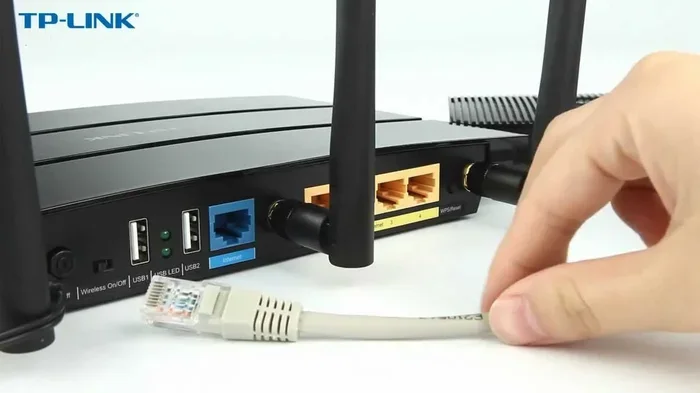
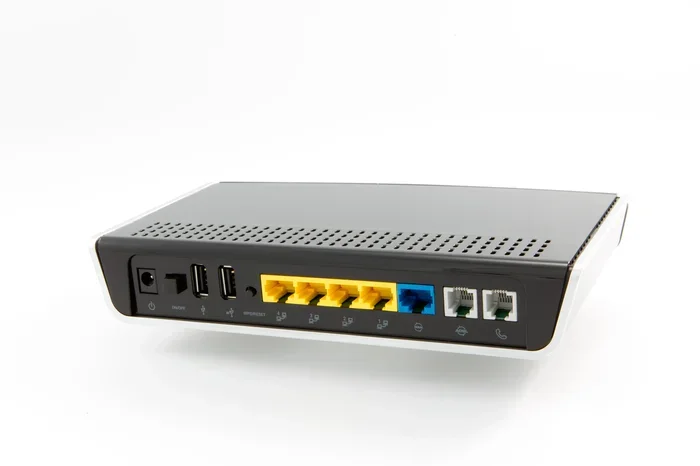
Look for a section called “Gateway” or “Network” or “Advanced Setup.” Find the option for “Bridge Mode” or “Router Mode.” Turn Bridge Mode to “On” or “Enable.” Save your settings and restart the gateway device. After the reboot, your gateway is now in modem only mode. You will need to connect your own wireless router to it. Use an ethernet cable to link the gateway to your router. Your router will then create the Wi-Fi network for your home. The ethernet cable goes into the router WAN port. The WAN port is often a different color than the other ports. This is the port that receives the internet signal.
Quick Tips For A Smooth Transition
- Write down your old settings before you change them. This helps if you need to go back.
- Keep your internet service provider phone number handy. You may need to call them for help.
- Place your gateway near your new router for the best wired connection.
- Use a high-speed ethernet cable to get the best network speed.
- Be patient. The reboot can take a few minutes.
- Check your internet speed after the switch to see the improvement.
- Restart your devices if they do not connect right away.
Pros And Cons Of Using A Gateway As A Modem
Like any tech setup, using a gateway as a modem only has good parts and bad parts. You should weigh these before you make the switch. Here is a look at both sides. Understanding the pros and cons helps you make the right choice for your home.
Advantages Of This Setup
The biggest advantage is better network performance. Your own wireless router is often much faster than the one built into the gateway. You get to pick the best router for your home. You also avoid double NAT issues. Double NAT happens when two routers try to manage the internet traffic. This can block some apps and games from working right. Another benefit is more control. You can update your router firmware. You can set up parental controls. You can choose the best channel for your Wi-Fi signal. This helps reduce wireless interference from your neighbors. More control means a better internet experience for you and your family. You can also prioritize traffic. This means your gaming console gets the fastest speed when you play online.
Disadvantages You Should Know
The main downside is that you lose the phone support for your gateway. If your internet stops working, your internet service provider will not help you with your own router. They only help with the modem part. Also, you now have two boxes to power and place in your home. This takes up more space. Finally, you have to buy your own router. This costs extra money upfront. Make sure you are ready for this change before you switch. It is a good idea to compare the cost of a new router to the cost of a new gateway. Sometimes the price difference is very small.
| Feature | Gateway As Modem Only | Gateway As Router And Modem |
|---|---|---|
| Wi-Fi Speed | Faster with your own router | Slower, limited by gateway |
| Control Over Settings | Full control on your router | Limited to gateway settings |
| Number Of Devices | Handles more devices easily | Can get overloaded |
| Setup Complexity | Needs bridge mode setup | Plug and play |
| ISP Support | Only modem issues | Full router and modem help |
Common Mistakes To Avoid
When you switch to a modem only setup, some people make mistakes. These mistakes can cause big problems with your internet connection. Here are the most common ones you should avoid. Learning from other people’s errors saves you time and frustration.
Skipping The ISP Contact
Some internet service providers lock the bridge mode setting. They do this to stop you from using your own gear. Before you try to turn on bridge mode, call your ISP. Ask them to enable it on their end. They can often do this remotely in just a few minutes. Skipping this step will leave you stuck with no internet access. Always call first to save time and frustration. It is a small step that makes a huge difference.
Forgetting To Update Firmware
Even when you use a gateway as just a modem, it still needs updates. Firmware updates fix bugs and patch security holes. Check your gateway settings for updates once a month. Keeping your modem up to date keeps your home network safe. It also helps your internet connection stay stable. A stable connection means fewer dropped calls and smoother streaming. Do not ignore update notifications. They are there to protect you.
Using A Bad Ethernet Cable
You need a strong ethernet cable to connect the gateway to your router. A cheap or old cable can slow down your network speed. Use a Cat6 or Cat6a cable for the best results. This ensures the full speed of your internet plan reaches your router. Do not use a very long cable if you do not need to. Keep the cable as short as possible for the best signal. A short, high-quality cable is the best choice for a modem only setup.
Placing The Gateway In A Bad Spot
Where you put your gateway matters a lot. Do not hide it behind a TV or inside a cabinet. Walls and metal blocks the signal. Place it in a central, open area. This gives the best internet connection to all parts of your home. Good placement is a simple way to boost your network speed without buying new gear.
Expert Insights On Home Network Setup
We asked a few network experts about using a gateway as a modem only. They gave us some great advice for your home network setup. Their tips can help you avoid common pitfalls and get the best results. One expert said, “Always check your internet speed before and after the switch. You should see a boost if your old gateway router was holding you back.” Another expert added, “Place your standalone modem and router in a central spot. This gives you the best wireless coverage in your house. Do not hide them in a closet.” They also reminded us that not all gateways support bridge mode. Older models from some internet service providers might not have this feature. Check your user manual or the manufacturer website first. If bridge mode is not there, you might need to buy a standalone modem. This is the best path forward for a clean setup. A standalone modem paired with your own router gives you the most freedom. You can upgrade your router anytime without changing the modem. This saves you money in the long run.
Another expert pointed out that you should always check your internet speed before you make the switch. Run a speed test on your current setup. Write down the results. Then change to the modem only setup. Run the test again. Compare the numbers. You should see an improvement if your old gateway was the bottleneck. This proves that your own router makes a real difference. Do not just guess. Let the numbers speak for themselves. A speed test only takes a minute but gives you valuable proof of the upgrade.
Conclusion
Using a gateway as just a modem is a smart move for many homes. It lets you break free from the slow router inside your ISP box. You get faster network speeds and more control. You just need to enable bridge mode and connect your own wireless router. This guide showed you how to do it step by step. You also learned about the pros and cons of this setup. Now you know what to watch out for, like common setup mistakes. Your home network can be much better with a simple modem only setup. Take the time to try it. You will enjoy a faster and more reliable internet connection every single day. Your internet experience will never be the same.
Frequently Asked Questions
What is bridge mode on a gateway?
Bridge mode is a setting that turns off the router part of your gateway. It lets the gateway act as a modem only. Your own wireless router then takes over the Wi-Fi job.
Do I need to call my ISP to enable bridge mode?
Yes, you should call your internet service provider first. Some providers lock the bridge mode setting on your gateway device. They can enable it for you remotely in just a few minutes.
Will I lose my internet if I switch to modem only mode?
No, you will not lose your internet. The gateway still connects to your ISP. It just stops routing the traffic. You will need to connect your own wireless router to keep using the Wi-Fi.
Can I use any router with my gateway in bridge mode?
Yes, you can use almost any standalone modem or wireless router. Just make sure it is compatible with your internet plan. Check the router specs to ensure it supports the right speeds.
What is the main benefit of using a gateway as just a modem?
The main benefit is better network performance. You avoid double NAT issues and get faster speeds. You also have full control over your network setup and security settings.
Is it hard to set up a gateway in modem only mode?
It is not hard at all. You just log into the gateway settings and turn on bridge mode. You then connect your own router with an ethernet cable. The whole process takes about ten minutes.