How Do I Share My Ipad Screen With My Tv Without Any Hassle
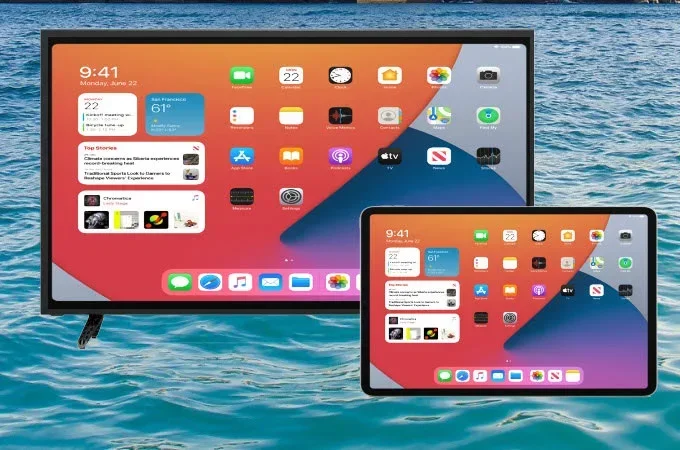
Sharing your iPad screen with your TV is easier than you think. Whether you use AirPlay, an HDMI cable, or a streaming device, you can mirror your iPad to your TV in just a few simple steps. This guide covers every method so you can pick the one that works best for your setup.
Have you ever wanted to show photos, videos, or presentations from your iPad on a bigger screen? Maybe you are hosting a movie night, sharing a work presentation, or just want to browse the web on your TV. Whatever the reason, sharing your iPad screen with your TV is a simple process that anyone can learn.
You do not need expensive equipment or technical skills. There are several easy ways to cast iPad to TV, and this guide will walk you through each one. By the end, you will know exactly which method works best for your setup and how to get it running in minutes.
Let us dive right in and explore all the options available to you.
Key Takeaways
- AirPlay is the easiest wireless option if you have an Apple TV or a Smart TV that supports it.
- An HDMI adapter gives you a reliable wired connection with no lag or interference.
- Streaming devices like Chromecast and Roku offer great alternatives for non-Apple TVs.
- Both devices need to be on the same Wi-Fi network for wireless screen sharing to work properly.
- Common issues like lag or no sound can be fixed with simple troubleshooting steps.
- Updating your iPad and TV software before sharing helps avoid most problems.
📑 Table of Contents
- Understanding Your Options for Sharing iPad Screen
- How to Share iPad Screen Wirelessly Using AirPlay
- How to Share iPad Screen With a Cable
- Using Streaming Devices to Share Your iPad Screen
- Common Problems When Sharing iPad Screen With TV
- Tips for the Best Screen Mirroring Experience
- Frequently Asked Questions
- Conclusion
Understanding Your Options for Sharing iPad Screen
Before you start, it helps to understand the different ways you can share your iPad screen with your TV. Each method has its own advantages, and the right choice depends on your TV, your iPad model, and what you plan to do.
Here are the main methods you can use:
- AirPlay wireless mirroring – The easiest and most popular option for Apple users.
- HDMI cable connection – A reliable wired option with zero lag.
- Streaming devices – Chromecast, Roku, or Amazon Fire Stick.
- Smart TV built-in features – Many modern TVs have screen sharing built right in.
All of these methods let you display iPad screen on TV. The big difference is whether you want a wireless or wired connection. Let us look at each one in detail.
Wireless vs Wired: Which Is Better?
Wireless sharing gives you freedom of movement. You can sit on the couch and control your iPad without being tied to a cable. However, wireless mirroring can sometimes experience lag or quality drops if your Wi-Fi signal is weak.
Wired sharing through an HDMI cable gives you a stable, high-quality connection. There is no lag, no buffering, and no interference. The trade-off is that you are physically connected to your TV.
For most people, wireless sharing works perfectly fine. If you need pixel-perfect quality or are presenting something important, a cable connection is the safer bet.
How to Share iPad Screen Wirelessly Using AirPlay
AirPlay is Apple’s built-in screen sharing technology. It lets you wirelessly mirror your iPad to an Apple TV or a compatible Smart TV. This is the most popular way to share iPad screen with TV, and for good reason.
Step-by-Step Guide to Using AirPlay
Follow these steps to get your iPad screen on your TV using AirPlay:
- Make sure both devices are on the same Wi-Fi network. This is the most important step. Your iPad and your TV or Apple TV must share the same internet connection.
- Open the Control Center on your iPad. Swipe down from the top-right corner of your screen.
- Tap the Screen Mirroring icon. It looks like two overlapping rectangles.
- Select your TV or Apple TV from the list. Your device should appear if it is AirPlay-compatible.
- Wait for the connection to establish. You should see your iPad screen appear on your TV within a few seconds.
That is it! Your iPad screen is now being shared with your TV. Anything you do on your iPad will show up on the big screen in real time.
Tips for a Smooth AirPlay Experience
- Keep your iPad and TV close to your router for the strongest Wi-Fi signal.
- Reduce the number of devices on your network during screen sharing to avoid congestion.
- Turn off notifications on your iPad if you do not want them appearing on your TV screen.
- Use a 5GHz Wi-Fi band instead of 2.4GHz for faster and more stable streaming.
How to Share iPad Screen With a Cable
If wireless sharing is not working for you, or if you need a rock-solid connection, a cable is the way to go. Sharing your iPad screen with your TV through a cable is straightforward and works with almost any TV that has an HDMI port.
What You Will Need
Here is a list of what you need for a wired connection:
- A Lightning to HDMI adapter (for older iPads) or a USB-C to HDMI adapter (for newer iPads).
- An HDMI cable. Most people already have one lying around.
- An HDMI input on your TV. Nearly all modern TVs have at least one HDMI port.
Step-by-Step Guide to Using a Cable
- Plug the adapter into your iPad. Make sure it fits snugly.
- Connect the HDMI cable to the adapter. Then plug the other end into an available HDMI port on your TV.
- Switch your TV to the correct HDMI input. Use your TV remote to select the right port.
- Your iPad screen should now appear on your TV. If it does not, try unplugging and replugging the cable.
One of the biggest advantages of a cable connection is that there is no delay. You can play games, watch videos, or give presentations without any lag. This makes it ideal for screen sharing iPad to TV during important meetings or gaming sessions.
Quick Tips for Cable Connections
- Buy a high-quality adapter from Apple or a trusted brand to avoid compatibility issues.
- Check that your adapter supports video output. Some cheap adapters only charge your iPad and do not transmit video.
- Keep your cable as short as possible to maintain a strong signal.
Using Streaming Devices to Share Your iPad Screen
Not everyone has an Apple TV or a Smart TV with AirPlay support. That is where streaming devices come in. Devices like Chromecast, Roku, and Amazon Fire Stick can help you share iPad screen on TV without needing an expensive new television.
Using Chromecast with Your iPad
Google Chromecast is a popular and affordable option. While it does not support AirPlay natively, you can still share content from your iPad using compatible apps. Here is how:
- Make sure your Chromecast and iPad are on the same Wi-Fi network.
- Open a supported app on your iPad, such as YouTube, Netflix, or Google Photos.
- Tap the Cast icon (a rectangle with Wi-Fi waves in the corner).
- Select your Chromecast device. Your content will play on your TV.
Keep in mind that Chromecast does not support full screen mirroring from iPad. You can only cast content from apps that support the Cast protocol. For full iPad screen sharing, you may want to consider other options.
Using Roku with Your iPad
Roku devices are another great choice. Many Roku models now support AirPlay, which makes sharing your iPad screen easy.
- Go to Settings on your Roku. Look for the AirPlay option and enable it.
- Follow the AirPlay steps mentioned earlier to mirror your iPad screen.
- Make sure your Roku and iPad are on the same network.
Using Amazon Fire Stick with Your iPad
Amazon Fire Stick does not natively support AirPlay. However, you can use third-party apps like AirScreen or Replica to enable screen mirroring. Simply download the app on your Fire Stick, follow the setup instructions, and then mirror your iPad screen as you normally would.
Common Problems When Sharing iPad Screen With TV
Even though screen sharing is generally easy, you might run into some issues. Here are the most common problems and how to fix them.
iPad Screen Not Showing on TV
If your iPad screen share is not working, try these steps:
- Check that both devices are on the same Wi-Fi network. This is the number one cause of connection failures.
- Restart your iPad and your TV. A simple reboot often fixes the issue.
- Make sure AirPlay is turned on. Go to Settings on your iPad and check your Screen Mirroring settings.
- Update your iPad and TV software. Outdated software can cause compatibility problems.
Poor Video Quality or Lag
If your shared screen looks blurry or stuttery, try the following:
- Move closer to your Wi-Fi router to get a stronger signal.
- Switch to a 5GHz network if your router supports it.
- Close other apps on your iPad that might be using bandwidth.
- Lower the screen resolution on your iPad if possible.
No Sound When Mirroring
If you can see your iPad screen on the TV but there is no sound, try this:
- Check your TV volume. Make sure it is not muted.
- Go to Control Center on your iPad and tap the audio output icon. Select your TV as the audio device.
- Restart both devices and try again.
Connection Keeps Dropping
A dropping connection is frustrating but usually fixable:
- Reduce the distance between your iPad and your router.
- Avoid using your iPad for heavy tasks while mirroring, as this can strain the connection.
- Check for interference from other wireless devices like microwaves or baby monitors.
Tips for the Best Screen Mirroring Experience
Want to get the most out of your iPad to TV screen sharing experience? Here are some expert tips that make a big difference.
Optimize Your Wi-Fi Network
A strong Wi-Fi connection is the foundation of a good wireless mirroring experience. Place your router in a central location, away from walls and electronic devices. If you have a large home, consider using a Wi-Fi extender to boost the signal in the room where your TV is located.
Keep Your Devices Updated
Apple regularly releases software updates that improve AirPlay performance. Make sure your iPad and your TV or Apple TV are running the latest versions of their operating systems. The same applies to streaming devices like Chromecast and Roku.
Use the Right Adapter
If you are going the cable route, invest in a quality adapter. Cheap adapters can cause overheating, poor video quality, or connection drops. Apple’s official adapters are the most reliable, but there are also good third-party options from brands like Belkin and Anker.
Consider Your Use Case
Think about what you will be doing with your shared screen. For casual movie watching, wireless mirroring works great. For gaming or presentations that need zero lag, go with a cable connection. For streaming apps like Netflix or YouTube, a Chromecast or Roku may be the most convenient choice.
Protect Your Privacy
When you mirror your iPad screen, everything you do becomes visible on your TV. Be mindful of notifications, personal messages, and sensitive information. You can turn on “Do Not Disturb” mode on your iPad before sharing to avoid showing private content.
Frequently Asked Questions
Can I share my iPad screen with any TV?
Most modern TVs support screen sharing in some form. If your TV has AirPlay built in, you can use it wirelessly. If not, you can use an HDMI adapter or a streaming device like Chromecast or Roku to connect your iPad to your TV.
Do I need an Apple TV to use AirPlay?
No, you do not need an Apple TV. Many Smart TVs from brands like Samsung, LG, and Sony now have AirPlay support built right in. Check your TV’s settings or manual to see if it supports AirPlay.
Is screen mirroring free?
Yes, AirPlay and screen mirroring are completely free features built into your iPad. You only need to pay for an HDMI adapter or a streaming device if your TV does not already support wireless sharing.
Can I share my iPad screen with my TV without Wi-Fi?
Yes, you can use a wired HDMI connection without Wi-Fi. Simply plug your iPad into your TV using an adapter and an HDMI cable. Wireless mirroring does require a Wi-Fi connection, though.
Why is there a delay when I mirror my iPad screen?
A slight delay is normal with wireless mirroring because your iPad has to compress and send video data over Wi-Fi. The delay is usually just a fraction of a second. If the delay is significant, try moving closer to your router or switching to a 5GHz network.
Can I use my iPad while mirroring to my TV?
Yes, you can continue using your iPad while your screen is mirrored. However, anything you do on your iPad will also show on your TV. If you want to use your iPad privately, you will need to stop the mirroring session first.
Conclusion
Sharing your iPad screen with your TV opens up a world of possibilities. You can watch movies on a bigger screen, share photos with friends and family, give presentations at work, or even play games with a more immersive experience. With the methods covered in this guide, you have everything you need to get started.
Whether you choose the wireless convenience of AirPlay, the reliability of an HDMI cable, or the flexibility of a streaming device, the process is simpler than you might think. Pick the method that fits your setup, follow the steps outlined above, and you will be enjoying your iPad content on the big screen in no time.
Now that you know how to share iPad screen with TV, it is time to give it a try. Grab your iPad, pick your preferred method, and start enjoying your content the way it was meant to be seen.