Can I Use Chromebook Without Internet and Stay Productive
You can absolutely use a Chromebook without internet and still get meaningful work done. With offline mode, cached files, and the right apps, using a Chromebook without internet is simpler than most people think. This guide covers setup steps, best tools, limitations, and practical tips to keep you productive anywhere.
Key Takeaways
- Chromebooks work offline: Many core functions don’t need a live connection.
- Setup is easy: Enabling offline mode takes just a few minutes in settings.
- Key apps support offline use: Google Docs, Gmail, and Spotify all work without wifi.
- Limitations exist: Cloud-dependent tasks will be restricted offline.
- Planning ahead matters: Downloading files before losing connection is the biggest tip.
- Offline extensions boost productivity: Add-ons like offline PDF viewers make a big difference.
- You can still email and write: Drafts sync automatically once you reconnect.
📑 Table of Contents
- Can I Use a Chromebook Without Internet and Still Get Things Done?
- What Happens When You Use a Chromebook Without Internet?
- How to Set Up Your Chromebook for Offline Use
- Best Apps and Tools for Working Offline on a Chromebook
- Limitations of Using a Chromebook Without Internet
- Tips to Stay Productive Offline on a Chromebook
- Who Should Consider Using a Chromebook Without Internet?
Can I Use a Chromebook Without Internet and Still Get Things Done?
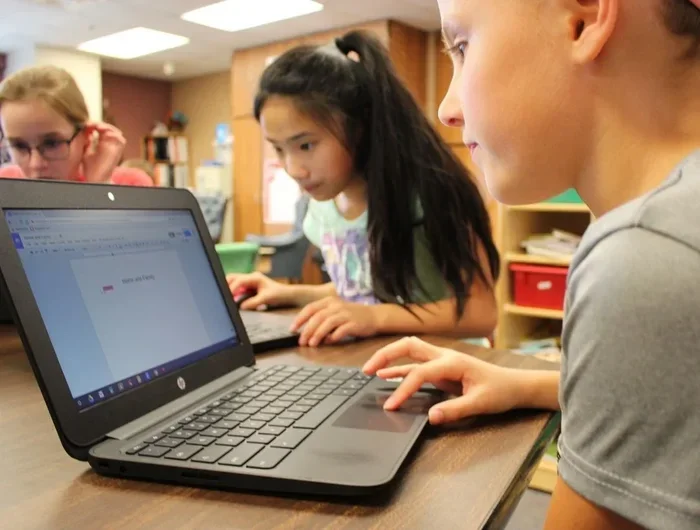
Here is the short answer: yes, you can use a Chromebook without internet and stay productive. Many people think Chromebooks are useless without wifi. That is simply not true. While these laptops are designed around cloud computing, they still offer plenty of offline power.
Think of a Chromebook like a phone. You can take photos, listen to music, write notes, and read downloaded books even when you are off the grid. A Chromebook without internet works much the same way. You just need to know what to set up beforehand.
In this article, we will walk you through everything you need to know. We will cover setup steps, the best offline apps, what you can and cannot do, and practical tips to maximize your productivity. Whether you are on a plane, in a cabin, or just dealing with a spotty connection, this guide has you covered.
Using a Chromebook without internet is not just possible. It can actually be a surprisingly smooth experience once you know the ropes. Let us dive in.
Why People Doubt Offline Chromebook Use
The biggest reason people doubt offline capability is marketing. Google pushes cloud services hard. Chrome OS is built around the idea of constant connectivity. So it is easy to assume that no wifi means no work.
But the reality is different. Chrome OS has built-in offline features that many users never explore. Google has spent years improving offline support for its core apps. And the Chrome Web Store is full of extensions designed for offline use. Once you discover these tools, using a Chromebook without internet becomes second nature.
What Happens When You Use a Chromebook Without Internet?
When you lose your internet connection, your Chromebook does not shut down. It keeps running. You can still open locally stored files, use pre-installed apps, and write documents. The experience changes a bit, but it does not stop.
Here is what you can still do without a connection:
- Write and edit documents in Google Docs using offline mode.
- Read downloaded files from your local storage or Google Drive cache.
- Listen to downloaded music on Spotify or other offline-capable apps.
- Watch downloaded videos from Netflix or YouTube Premium.
- Take notes using offline note-taking apps.
- Edit photos with local image editors.
- Play offline games installed on your device.
- Manage your calendar and view pre-synced events.
What you cannot do offline is more limited than you might think. Streaming live content, real-time collaboration, and cloud-only features will pause. But for most everyday tasks, you will find that a Chromebook without internet still has a lot to offer.
How Chrome OS Handles the Loss of Connection
Chrome OS is smart about handling connectivity changes. When your internet drops, the system automatically switches to offline mode for supported apps. It does not crash or freeze. Instead, it queues your actions and waits for the connection to return.
For example, if you write an email in Gmail while offline, it saves as a draft. Once wifi returns, the email sends automatically. The same goes for Google Docs. Your changes are saved locally and then synced to the cloud when you reconnect. This seamless handling is one of the best features of using a Chromebook without internet.
How to Set Up Your Chromebook for Offline Use
Setting up your Chromebook for offline work is straightforward. You do not need to be a tech expert. A few simple steps prepare your device before you go offline.
Step 1: Enable Offline Mode for Google Docs
This is the most important step for most users. Google Docs offline mode lets you create, edit, and save documents without wifi. Here is how to turn it on:
- Open Chrome browser while connected to the internet.
- Go to Google Drive settings.
- Check the box that says “Offline.”
- Wait for Chrome to sync your files locally.
Once this is done, you can open and edit any Google Doc even when you are using a Chromebook without internet. Your changes save automatically and sync when you go back online.
Step 2: Download Files You Need in Advance
Do not wait until you are already offline. Download important files, documents, and media ahead of time. Google Drive has an “Available Offline” option for individual files and folders.
Here are some files you should consider downloading before you lose connection:
- Work documents and presentations
- PDFs and ebooks
- Music and video playlists
- Important images and screenshots
- Offline maps (Google Maps supports this)
Step 3: Install Offline-Ready Apps and Extensions
The Chrome Web Store has many apps that work without internet. Some popular ones include:
- Google Docs, Sheets, and Slides for office work
- Spotify for offline music
- Evernote for note-taking
- VLC Media Player for local video playback
- Offline PDF Viewer for reading documents
Installing these before you go offline ensures you have everything you need. Using a Chromebook without internet becomes much easier when your toolkit is ready.
Quick Tips for Offline Setup
- Check your storage space. Offline files take up local disk space. Make sure you have enough room.
- Sync before you go offline. A quick sync ensures all your recent files are downloaded.
- Test your setup. Turn off wifi and try opening a document. Make sure everything works before you actually need it.
- Bookmark important pages. Chrome can save cached versions of frequently visited sites for offline reading.
Best Apps and Tools for Working Offline on a Chromebook
The Chrome ecosystem has grown significantly when it comes to offline support. You are not limited to just Google apps. There is a whole world of tools that work without internet.
Productivity Apps
For writing and editing, Google Docs offline mode is the gold standard. But there are other strong options too:
- LibreOffice is a free, full-featured office suite that works entirely offline.
- OnlyOffice offers similar functionality and supports multiple file formats.
- Simplenote is a lightweight note-taking app that syncs when you reconnect.
- Google Keep works offline and syncs your notes once wifi returns.
These tools make using a Chromebook without internet feel almost as capable as being online. You can write reports, take meeting notes, and manage tasks without any connection.
Media and Entertainment
Entertainment does not stop when the internet does. Here are some great offline options:
- Spotify Premium lets you download playlists and listen offline.
- YouTube Premium allows video downloads for offline watching.
- Netflix and other streaming apps support offline downloads.
- Google Play Books lets you download ebooks to read anytime.
These apps are especially useful for travel. Long flights, road trips, and remote getaways become much more enjoyable when you have entertainment downloaded and ready.
File Management and Storage
Managing files offline is easier than you think. Chrome OS has a built-in file manager that handles local files. You can also use external storage like SD cards and USB drives to expand your offline capacity.
Google Drive also offers a “Offline” folder feature. Any file in this folder stays available even without internet. This is a game-changer for people who regularly work with documents on the go.
Expert Insight: The Power of Caching
Chrome browser uses a feature called caching. When you visit a website, Chrome saves a copy of that page locally. This means you can often revisit those pages later even without internet. It is not perfect, but it is a handy trick for using a Chromebook without internet when you need to reference something quickly.
Limitations of Using a Chromebook Without Internet
Let us be honest. A Chromebook without internet is not the same as a Chromebook with wifi. There are real limitations you should know about before you rely on offline mode.
What You Cannot Do Offline
- Real-time collaboration: You cannot co-edit documents with others in real time.
- Cloud-only apps: Some web apps require a constant connection to function.
- Streaming live content: Live TV, live sports, and live webinars need internet.
- Email sending: You can draft emails, but they wait in the outbox until you reconnect.
- Cloud backups: New files will not back up to the cloud until you have internet.
- Software updates: Chrome OS updates require a connection.
- Online research: You cannot browse new websites or search the web.
These limitations are manageable. Most can be solved with a little planning. The key is understanding what you need before you go offline and preparing accordingly.
Common Mistakes People Make When Working Offline
Avoid these common pitfalls to make your offline experience smoother:
- Forgetting to enable offline mode. Google Docs will not work offline unless you turn this on first.
- Not downloading enough files. Only downloading a few files leaves you short when you need more.
- Ignoring storage limits. Offline files eat up local storage. Check your available space regularly.
- Assuming all apps work offline. Not every Chrome app supports offline use. Check before you rely on one.
- Skipping the sync test. Always test your offline setup before you actually need it.
These mistakes are easy to avoid. A little preparation goes a long way toward making using a Chromebook without internet a frustration-free experience.
Tips to Stay Productive Offline on a Chromebook
Productivity offline is all about preparation and the right mindset. Here are some proven strategies to help you stay on track when you are away from wifi.
Plan Your Work Before You Go Offline
Before you disconnect, think about what you need to accomplish. Make a simple list of tasks. Prioritize the ones that do not need internet. This keeps you focused and prevents wasted time trying to figure out what to do.
Use the “Capture and Sync” Method
This method works great for writers, students, and professionals. Here is how it works:
- Capture: Write, create, or draft your work while offline.
- Store: Save everything locally or in offline mode.
- Sync: Once you reconnect, let your Chromebook sync everything to the cloud.
This approach keeps your workflow moving even without internet. It also ensures nothing gets lost. Everything syncs automatically once your connection returns.
Batch Your Online Tasks
Save tasks that need internet for when you reconnect. This includes sending large email attachments, uploading files to cloud storage, and doing web research. Batching these tasks saves time and keeps your offline work flowing smoothly.
Keep a Local Backup of Important Files
Do not rely solely on cloud storage for critical files. Keep a local copy on your Chromebook or an external drive. This ensures you always have access, even if something goes wrong with your sync.
Use Offline-Friendly Browser Extensions
A few Chrome extensions can significantly boost your offline productivity:
- Save to Pocket: Save articles and web pages for offline reading.
- Offline PDF Viewer: Read and annotate PDFs without internet.
- Task management tools: Apps like Todoist have offline modes that sync later.
- Grammar checkers: Tools like Grammarly work offline for basic checking.
These small additions make a big difference. They turn your Chromebook without internet into a capable offline workstation.
Key Takeaways for Offline Productivity
- Prepare before you go offline. Download files, enable offline mode, and install the right apps.
- Focus on tasks that do not need internet. Writing, editing, and reading are all great offline activities.
- Sync regularly. Reconnect often to keep your files backed up and up to date.
- Keep a task list. Knowing what to work on prevents downtime and keeps you productive.
- Test your setup. A quick offline test before you actually need it saves headaches later.
Who Should Consider Using a Chromebook Without Internet?
Not everyone needs offline Chromebook capability. But certain groups of people benefit greatly from it.
Frequent Travelers
If you fly often, travel internationally, or visit areas with poor connectivity, a Chromebook without internet is a lifesaver. You can work on documents, watch downloaded movies, and stay productive during long flights or layovers.
Students
Students who study in libraries, cafes, or locations with unreliable wifi will appreciate offline mode. Downloading lecture slides, writing essays, and taking notes all work without a connection.
Remote Workers in Rural Areas
Internet service can be spotty in rural and remote areas. For workers in these locations, offline Chromebook capabilities mean they can keep working even when the connection drops.
Anyone Who Wants Backup Productivity
Even if you have reliable internet, having offline capability is a great backup. Power outages, ISP issues, or dead hotspots do not have to stop your work. A prepared Chromebook without internet keeps you moving forward.
Final Thoughts
Using a Chromebook without internet is not just possible. It is practical, reliable, and increasingly powerful. Chrome OS has come a long way in offline support. With the right setup, you can write, edit, read, listen to music, and stay productive almost anywhere.
The key is preparation. Enable offline mode, download the files you need, and install the right apps before you go offline. Avoid common mistakes like skipping the sync test or assuming every app works without internet. Follow the tips in this guide, and you will find that a Chromebook without internet is still a productive machine.
So the next time you find yourself without wifi, do not panic. Your Chromebook has you covered. Just open your offline documents, put on your headphones, and get to work. Productivity does not need a wifi connection. It just needs the right tools and a little preparation.
Frequently Asked Questions
Can I still write emails on a Chromebook without internet?
Yes, you can draft emails in Gmail while offline. They save as drafts and send automatically once your Chromebook reconnects to the internet. This makes using a Chromebook without internet still useful for communication.
Does Google Docs work offline on a Chromebook?
It does, but you must enable offline mode first. Go to Google Drive settings and check the “Offline” box while connected to wifi. Once enabled, you can create, edit, and save documents without any internet connection.
Can I watch Netflix on a Chromebook without internet?
Yes, if you have downloaded content through Netflix while connected to the internet. Netflix and YouTube Premium both support offline downloads. Just make sure you download your shows or videos before you lose your connection.
Is it safe to use a Chromebook without internet?
Absolutely. Using a Chromebook without internet does not pose any security risks. In fact, being offline can reduce your exposure to online threats. Your local files remain safe and unaffected by any internet-based threats.
How much storage do I need for offline use?
It depends on what you plan to store. For basic documents and a few media files, 16 GB to 32 GB is usually enough. If you plan to download many movies or large files, consider a Chromebook with 64 GB or more, or use an external SD card or USB drive.
Will my Chromebook update without internet?
No, Chrome OS updates require an internet connection. However, you can still use your Chromebook normally without updates. When you reconnect, the system will automatically check for and install any available updates.
=== CONCLUSION ===
Using a Chromebook without internet is not only possible, it is practical and increasingly powerful. With offline mode enabled, the right apps installed, and a little preparation, you can write, edit, read, listen to music, and stay productive almost anywhere. The limitations are real but manageable. Plan ahead, download what you need, and embrace the offline capability your Chromebook already has built in.