Can Iphone Measure Wi Fi Signal Strength Like A Pro
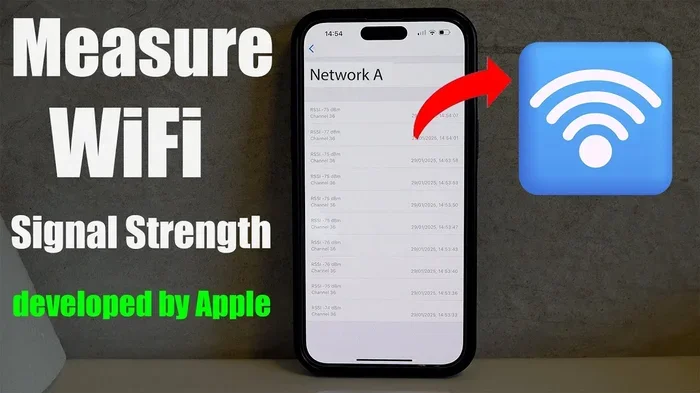
Yes, your iPhone can measure WiFi signal strength, and you do not need expensive equipment to do it. You can use built-in tools, hidden field test modes, and free apps to check your wireless signal quality in seconds. This guide shows you exactly how to measure WiFi signal strength on iPhone like a networking pro.
Have you ever stood in your living room wondering why your phone keeps buffering? You look at the WiFi signal bars on your iPhone, and they look fine. But your internet feels slow. Something does not add up. The truth is that the little bars on your phone do not tell the whole story. They give you a rough idea, but they do not show you the real numbers. If you have ever asked yourself, can iPhone measure WiFi signal strength with real precision, the answer is yes. Your iPhone has more tools than you think. Let us walk through every way you can check and understand your wireless signal like a true expert.
Most people never dig deeper than the two or three bars at the top of their screen. They assume more bars mean better speed. But that is not always true. A strong signal does not always mean fast internet. And a weak signal does not always mean slow speeds. The real magic happens when you learn to read the actual numbers behind those bars. This article will show you how to unlock those numbers. You will learn about hidden iPhone features, free apps, and simple tricks that can transform your home network. By the end, you will know exactly how to measure, interpret, and improve your iPhone WiFi signal strength with confidence.
Key Takeaways
- iPhone has built-in tools that let you check WiFi signal strength right in Settings and through a hidden field test mode.
- Field Test Mode reveals dBm readings, giving you a precise numerical value for your signal strength.
- Third-party apps like NetSpot and WiFi Analyzer provide detailed signal maps and channel analysis.
- Signal strength matters for speed, so knowing your dBm level helps you troubleshoot slow connections.
- Simple placement tips can dramatically improve your iPhone WiFi signal without any extra cost.
- Understanding signal bars vs. dBm helps you make smarter decisions about router placement and network setup.
📑 Table of Contents
- Understanding WiFi Signal Strength on iPhone
- Built-In Ways to Check WiFi Signal on iPhone
- Third-Party Apps That Measure WiFi Signal
- How to Interpret Your WiFi Signal Readings
- Tips to Improve Your iPhone WiFi Signal Strength
- Common Mistakes People Make with WiFi Signal Measurement
- Frequently Asked Questions
Understanding WiFi Signal Strength on iPhone
Before you start measuring anything, it helps to understand what signal strength actually means. When your iPhone connects to a router, it receives radio waves. These waves carry your internet data. The strength of those waves determines how well your phone communicates with the router. Stronger waves mean a more stable connection. Weaker waves mean dropped packets, slower speeds, and frustration.
Signal strength is measured in decibels relative to milliwatts, or dBm for short. This is a negative number. The closer that number is to zero, the stronger your signal. For example, a reading of negative 30 dBm is excellent. A reading of negative 80 dBm is very weak. Most people never see these numbers. But once you know how to access them, you can see exactly what your iPhone is experiencing.
What the Signal Bars Actually Mean
The familiar signal bars on your iPhone are a simplified visual guide. They give you a general sense of connection quality. But they do not account for interference, distance, or network congestion. Apple uses these bars as a quick reference, not a precise measurement tool. One bar might mean your signal is between negative 70 and negative 80 dBm. Three bars could mean your signal is between negative 50 and negative 60 dBm. The ranges are not exact, and they vary depending on your iPhone model and iOS version.
This is why relying only on the bars can be misleading. You might have three bars but still experience slow speeds because of wireless interference from neighboring networks. Or you might have one bar but still stream videos perfectly because your router is powerful and your phone’s antenna is sensitive. The bars are a starting point, not the final word.
Why Precise Measurement Matters
Precise measurement matters because it helps you solve real problems. If your internet is slow, you need to know whether the issue is your network performance or something else. Maybe your ISP is throttling your connection. Maybe your router is outdated. Or maybe your iPhone is simply too far from the router. Without actual signal readings, you are guessing. With dBm readings, you are diagnosing.
Think of it like checking your car’s temperature gauge. The warning light tells you something is wrong. But the actual temperature number tells you exactly how wrong. The same logic applies to your WiFi connection. The more precise your data, the better your decisions. This is especially important if you work from home, game online, or stream content regularly.
Built-In Ways to Check WiFi Signal on iPhone
Your iPhone comes with several built-in tools that can help you check your WiFi signal. You do not need to jailbreak your device or download anything shady. Apple has included basic and advanced options right inside the operating system. Let us explore each one so you can start measuring today.
Using the Settings App
The simplest way to check your WiFi signal is through the Settings app. Open Settings and tap on WiFi. You will see a list of available networks. The network you are currently connected to will have a blue checkmark next to it. Next to the network name, you will see small dots or bars. These represent your current signal strength. More dots mean a stronger signal.
However, this method only gives you a visual estimate. It does not show you the actual dBm value. For most casual users, this is enough. But if you want real numbers, you need to go deeper. The Settings app is your starting point, not your final destination.
The Hidden Field Test Mode
Here is where things get interesting. iPhones have a hidden field test mode that reveals the actual dBm value of your WiFi signal. This is the same mode used by technicians and network engineers. It is built right into iOS, and you can access it without any extra tools.
To use field test mode for WiFi, open the Phone app and dial 3001#12345# and press call. This opens the field test screen. Now, instead of looking at the top of your screen for the cellular signal, you need to switch to WiFi mode. Tap on the WiFi icon in the top left corner of the field test screen. You will see a list of nearby networks. Look for the network you are connected to. Next to it, you will see a number. That number is your dBm reading.
This method works on most iPhone models running modern iOS versions. The reading might look slightly different depending on your iOS version, but the basic process remains the same. Once you see that negative number, you know exactly where you stand. A number between negative 30 and negative 50 is excellent. Between negative 50 and negative 65 is good. Between negative 65 and negative 75 is fair. Below negative 75 is weak and will likely cause problems.
Quick Tip: Write down your dBm reading in different rooms of your house. This creates a simple signal strength map that helps you identify dead zones and weak spots. You can then decide where to place your router or where to add a WiFi extender.
Third-Party Apps That Measure WiFi Signal
While Apple’s built-in tools are helpful, third-party apps take your measurements to the next level. These apps use your iPhone’s hardware to analyze your wireless environment in ways the built-in tools cannot. They show you signal strength over time, identify the best channels for your router, and even create visual heat maps of your home.
NetSpot WiFi Analyzer
NetSpot is one of the most popular WiFi analyzer apps for iPhone. It gives you detailed information about your wireless signal quality including dBm readings, signal-to-noise ratio, and channel usage. The app is easy to use and provides clear visual charts. You can walk around your home while NetSpot records your signal strength at each location. At the end, it generates a heat map showing exactly where your signal is strong and where it is weak.
NetSpot works well for both casual users and more advanced users. The free version gives you enough features to understand your signal. The paid version unlocks advanced analysis tools that power users love. If you want a professional-grade tool on your iPhone, NetSpot is a great choice.
WiFi Analyzer by Farproc
WiFi Analyzer is another excellent option. It focuses on helping you find the best WiFi channel for your router. The app scans all nearby networks and shows you which channels are crowded and which are open. This is incredibly useful because crowded channels cause interference, which weakens your signal even if you are close to your router.
The app displays your signal strength in both bars and dBm values. It also shows you the frequency band your network is using, whether 2.4 GHz or 5 GHz. This information is valuable because the two bands behave very differently. The 2.4 GHz band travels farther but is slower and more prone to interference. The 5 GHz band is faster but has a shorter range. Knowing which band your iPhone is connected to helps you understand your signal readings better.
Other Useful Apps Worth Trying
Beyond NetSpot and WiFi Analyzer, several other apps can help you measure and improve your WiFi connection. Here are a few worth checking out:
- Airport Utility – This is Apple’s own app, pre-installed on many iPhones. It includes a WiFi scanner that shows nearby networks and their signal strengths.
- WiFiman – Developed by Ubiquiti, this app is free and offers professional-grade network scanning. It shows signal strength, channel usage, and even bandwidth speed tests.
- Fing – Fing goes beyond signal measurement. It scans your entire network, identifies connected devices, and checks for security vulnerabilities.
Each of these apps has its strengths. You do not need all of them. Pick one or two that match your needs and start exploring your wireless environment. The more you understand about your signal, the better decisions you will make.
How to Interpret Your WiFi Signal Readings
Now that you know how to get signal readings, let us talk about what those numbers actually mean. Understanding dBm values is the key to using this information effectively. Without context, a number is just a number. With context, it becomes a powerful diagnostic tool.
The dBm Scale Explained
The dBm scale for WiFi signals ranges from approximately negative 30 to negative 100. Here is a simple breakdown of what these numbers mean:
- Negative 30 to negative 50 dBm: Excellent signal. Your connection will be fast and stable. You are likely very close to your router.
- Negative 50 to negative 60 dBm: Good signal. You will experience fast speeds and minimal interruptions.
- Negative 60 to negative 70 dBm: Fair signal. Speeds may fluctuate, especially during heavy use. This is still usable for most activities.
- Negative 70 to negative 80 dBm: Weak signal. You may experience slow speeds, buffering, and occasional disconnections.
- Below negative 80 dBm: Very weak signal. Your connection will be unreliable. Streaming, video calls, and online gaming will be difficult.
Keep in mind that these ranges are general guidelines. Actual performance depends on many factors, including your router quality, your ISP speed, and the number of devices connected to your network. A reading of negative 65 dBm on a high-end router with a fast internet plan might give you excellent speeds. The same reading on an older router with a slow plan might feel sluggish.
Signal Strength vs. Internet Speed
It is important to understand that signal strength and internet speed are related but not the same thing. Your WiFi signal strength measures how well your iPhone communicates with your router. Your internet speed measures how fast data travels from the router to the wider internet. You can have a strong signal but slow internet if your ISP plan is slow. You can also have a weak signal but fast internet if your router is powerful and your ISP plan is excellent.
This distinction matters when troubleshooting. If your speed test shows slow results but your signal is strong, the problem is likely with your ISP or your router’s internet connection. If your speed test shows slow results and your signal is weak, the problem is likely with distance, interference, or obstacles between your phone and the router.
Tips to Improve Your iPhone WiFi Signal Strength
Once you know how strong your signal is, you can take steps to improve it. Many of these tips are free and take only a few minutes. Others may require a small investment. Either way, they can make a noticeable difference in your daily WiFi experience.
Move Your Router to a Central Location
The single most effective thing you can do is move your router to a central location in your home. Routers broadcast signal in all directions. If your router is in a corner of your house, half of your signal goes outside where nobody is using it. Moving it to the center ensures the signal reaches every room more evenly.
Try to place your router on a high shelf or mounted on a wall. Signals travel downward better than upward. Keep it away from thick walls, metal objects, and large appliances. Microwaves, baby monitors, and cordless phones can all cause signal interference on the 2.4 GHz band.
Switch Between 2.4 GHz and 5 GHz Bands
Most modern routers broadcast on two frequency bands. The 2.4 GHz band covers more distance but is slower and more crowded. The 5 GHz band is faster but has a shorter range. If you are far from your router, try switching to the 2.4 GHz band. If you are close and need speed, use the 5 GHz band.
You can check which band your iPhone is using in the field test mode or through your third-party WiFi analyzer app. Some routers allow you to assign different band names, making it easy to switch manually. Others use band steering, which automatically moves your device to the best band. If your router supports band steering, make sure it is turned on.
Reduce Wireless Interference
Wireless interference is one of the biggest enemies of a strong signal. Other WiFi networks, Bluetooth devices, baby monitors, and even microwave ovens can all disrupt your wireless connectivity. To reduce interference, try changing your WiFi channel. Use your analyzer app to find a channel that is less crowded in your area.
If you live in an apartment building or densely populated area, interference from neighbors is almost guaranteed. Changing your channel and switching to the 5 GHz band can help significantly. You can also adjust your router’s transmit power. Some routers allow you to boost the signal strength, which can help reach distant rooms.
Use a WiFi Extender or Mesh System
If you have tried all the tips above and still have weak spots, consider investing in a WiFi extender or mesh system. A WiFi extender is a simple device that receives your existing signal and rebroadcasts it. It is affordable and easy to set up. However, extenders can sometimes reduce your speed because they use the same radio to receive and transmit data.
A mesh WiFi system is a more advanced solution. It uses multiple nodes placed around your home to create a seamless network. Each node communicates with the others and with your router, ensuring strong signal coverage everywhere. Mesh systems are more expensive than extenders, but they deliver much better performance. Popular options include Google Nest WiFi, Eero, and TP-Link Deco.
Expert Insight: According to networking professionals, the best time to measure your signal strength is during peak usage hours. This is when your network is under the most load and when interference is highest. Testing during off-peak hours can give you misleading results that make your connection look better than it actually is.
Common Mistakes People Make with WiFi Signal Measurement
Even with the right tools, people often make mistakes that lead to incorrect conclusions. Avoiding these common errors will help you get accurate readings and make better decisions about your network.
Relying Only on Signal Bars
The most common mistake is trusting the signal bars completely. As we discussed earlier, the bars are a rough estimate. They do not account for interference, network congestion, or the quality of your router. Always check the actual dBm reading before making conclusions about your signal quality.
Measuring Only in One Location
Another mistake is checking your signal in only one spot. Signal strength varies throughout your home. A strong reading in your living room does not mean you have a strong signal in your bedroom. Walk around your home and take readings in multiple locations. This gives you a complete picture of your wireless coverage.
Ignoring the Difference Between WiFi and Cellular Signal
iPhones have both WiFi and cellular connections. The field test mode shows you both. Make sure you are reading the WiFi signal and not the cellular signal. They are completely different measurements. A strong cellular signal does not mean your WiFi is strong, and vice versa. Always double-check which connection you are measuring.
Not Testing During Real Usage
Testing your signal when no one else is using the network gives you the best-case scenario. But your family members, roommates, and smart home devices all share your WiFi. Test your signal while someone is streaming a video or downloading a large file. This gives you a more realistic picture of your network performance under real-world conditions.
Forgetting to Restart Your Router
If your signal readings are consistently poor, try restarting your router before assuming the worst. Routers accumulate temporary data and can experience software glitches that affect performance. A simple restart can clear these issues and improve your signal strength. Unplug your router, wait 30 seconds, and plug it back in. Wait a few minutes for it to fully restart, then test again.
Frequently Asked Questions
Can iPhone measure WiFi signal strength in decibels?
Yes, your iPhone can measure WiFi signal strength in dBm using the hidden field test mode. Dial 3001#12345# in the Phone app, switch to WiFi mode, and you will see the exact dBm reading for your connected network. This gives you a precise numerical value instead of just the visual signal bars.
What is a good WiFi signal strength for iPhone?
A good WiFi signal strength for iPhone is between negative 50 dBm and negative 65 dBm. This range provides fast and stable connections suitable for streaming, video calls, and online gaming. Signals below negative 70 dBm are considered weak and may cause performance issues.
Do I need a special app to measure WiFi signal on iPhone?
You do not need a special app to get basic measurements. The Settings app shows your signal bars, and the field test mode shows your dBm reading. However, third-party apps like NetSpot and WiFi Analyzer provide more detailed analysis, heat maps, and channel information that can be very helpful for troubleshooting.
Why is my WiFi signal strong but internet slow?
A strong WiFi signal means your iPhone communicates well with your router. But slow internet usually means the problem is between your router and the wider internet. This could be caused by ISP issues, network congestion, or a slow internet plan. Run a speed test to determine whether the problem is your WiFi signal or your internet connection.
Can iPhone measure signal strength for both 2.4 GHz and 5 GHz networks?
Yes, your iPhone can measure signal strength for both frequency bands. The field test mode and WiFi analyzer apps will show readings for whichever network your iPhone is currently connected to. You can switch between bands in your WiFi settings and measure each one separately to compare signal quality.
How often should I check my WiFi signal strength?
There is no need to check your signal strength daily. However, it is a good idea to check whenever you notice slow speeds, dropped connections, or dead zones in your home. After making changes to your router setup or adding new devices, testing your signal helps you verify that the changes improved your connection.