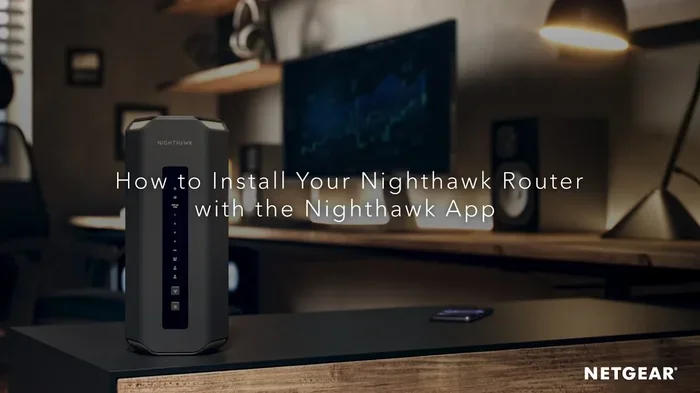
Can Netgear Nighthawk Be Used With Xfinity Internet
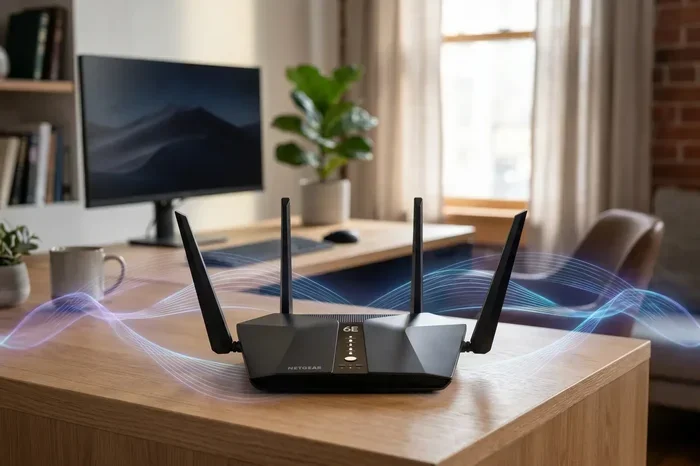
Yes, you can use a Netgear Nighthawk router with Xfinity internet. This setup gives you faster speeds, better range, and more control over your home network. Whether you have a basic Nighthawk or a premium model, this guide covers everything you need to know about making them work together.
If you are an Xfinity internet subscriber, you have probably noticed that the router Comcast provides is… fine. It gets the job done, but it might not deliver the best speeds or coverage in your home. This is exactly why many people look into upgrading to a Netgear Nighthawk router. These devices are known for their powerful performance, sleek design, and advanced features.
The big question is simple: Can Netgear Nighthawk be used with Xfinity? The short answer is yes. The longer answer is that it depends on your setup, your specific Nighthawk model, and a few configuration steps you need to follow. In this article, we will walk you through everything you need to know. From compatibility checks to step-by-step setup, we have you covered.
Key Takeaways
- Full Compatibility: Most Netgear Nighthawk routers work seamlessly with Xfinity internet connections and gateways.
- Bridge Mode Is Key: Using bridge mode prevents double NAT issues when pairing your Nighthawk with an Xfinity xFi gateway.
- Speed Boost: A dedicated Nighthawk router can significantly improve your WiFi coverage and speeds compared to the stock Xfinity router.
- Easy Setup: The process is straightforward and takes just a few minutes with the right steps.
- Model Matters: Choose the right Nighthawk model based on your internet speed plan and home size.
- Optimization Tips: Firmware updates, correct channel settings, and placement matter for best performance.
📑 Table of Contents
- Why Use a Netgear Nighthawk with Xfinity Internet?
- Netgear Nighthawk Models Compatible with Xfinity
- How to Set Up Netgear Nighthawk with Xfinity
- Bridge Mode vs. Router Mode with Xfinity
- Optimizing Your Netgear Nighthawk for Xfinity
- Common Problems and How to Fix Them
- Expert Tips for Getting the Most Out of Your Setup
- Key Takeaways
- Conclusion
Why Use a Netgear Nighthawk with Xfinity Internet?
Xfinity provides reliable internet service across many parts of the United States. However, the equipment they ship to customers often falls short in real-world performance. Here is why a Netgear Nighthawk can make a real difference.
Better WiFi Coverage
The standard Xfinity gateway is a combo modem-router device. It handles both tasks but often struggles with larger homes. A dedicated Nighthawk router comes with powerful antennas and advanced beamforming technology. This means stronger signals in every corner of your house.
Faster Speeds
Xfinity offers plans that go up to 1 Gbps and beyond. The stock gateway may not fully utilize those speeds. A Netgear Nighthawk router supports the latest WiFi standards, including WiFi 6 and WiFi 6E. This ensures you get the most out of your internet plan.
More Features and Control
Xfinity gateways come with basic settings. Nighthawk routers, on the other hand, offer advanced features. You get QoS settings, parental controls, guest networks, and port forwarding options. These tools give you much more control over your home network.
Stability and Reliability
Many users report that standalone routers handle heavy network traffic better. If you have multiple smart home devices, streaming TVs, and gaming consoles, a Netgear Nighthawk can manage the load without slowing down.
Netgear Nighthawk Models Compatible with Xfinity
Not all Nighthawk models are the same. Some work better with Xfinity than others. Here is a look at the most popular options.
Netgear Nighthawk AX8 (R6700)
This is an excellent mid-range option. It supports dual-band WiFi with speeds up to 600 Mbps on the 2.4 GHz band and 1200 Mbps on the 5 GHz band. It works well with Xfinity plans up to 400 Mbps.
Netgear Nighthawk AX12 (RAX120)
This is a powerful WiFi 6 router. It delivers speeds up to 6 Gbps. It is ideal for Xfinity gigabit plans and larger homes with many connected devices.
Netgear Nighthawk Pro XR500
This model is popular among gamers. It offers advanced QoS, a built-in VPN, and geo-filtering for online gaming. It works great with Xfinity internet for low-latency gaming.
Netgear Nighthawk X10 (R9000)
This is a high-end option with WiFi 6E support. It offers speeds up to 7.8 Gbps. If you have a premium Xfinity plan, this router will fully utilize your bandwidth.
Quick Compatibility Check
Before buying, keep these points in mind:
- Make sure the router supports your Xfinity internet speed tier.
- Check if your Xfinity plan uses a DOCSIS 3.1 modem or gateway.
- Verify that the Nighthawk model has enough Ethernet ports for your needs.
- Confirm the router supports the WiFi standard your devices use.
How to Set Up Netgear Nighthawk with Xfinity
Setting up your Nighthawk with Xfinity is straightforward. Follow these steps carefully for a smooth experience.
Step 1: Gather Your Equipment
Before you start, make sure you have everything ready:
- Your Xfinity modem or xFi gateway
- Your new Netgear Nighthawk router
- An Ethernet cable (usually included with the router)
- A computer or smartphone for configuration
- Your Xfinity account login details
Step 2: Connect the Hardware
First, unplug your Xfinity gateway from power. Connect one end of the Ethernet cable to the LAN port on your Xfinity modem. Connect the other end to the WAN or Internet port on your Nighthawk router. Plug the Xfinity modem back in and wait for it to fully boot up. Then plug in your Nighthawk router and wait for the lights to stabilize.
Step 3: Access the Nighthawk Interface
Open a web browser on your computer or phone. Type routerlogin.net or 192.168.1.1 into the address bar. Log in with the default credentials found on the bottom of your router. The default username is usually “admin” and the password is “password.”
Step 4: Run the Setup Wizard
The Nighthawk setup wizard will guide you through the process. You will be asked to:
- Set up your new WiFi network name and password
- Choose your region and time zone
- Configure your internet connection type (DHCP is usually automatic)
- Update the router firmware
Step 5: Connect Your Devices
Once setup is complete, search for your new WiFi network name on your devices. Enter the password you created and connect. Test your internet speed to make sure everything is working properly.
Step 6: Optimize Settings
Go back to the router dashboard and explore the settings. Enable QoS if you have gaming or streaming needs. Set up a guest network for visitors. Check for any available firmware updates.
Bridge Mode vs. Router Mode with Xfinity
This is one of the most important topics when using a Netgear Nighthawk with Xfinity. Understanding the difference can save you from frustrating network issues.
What Is Bridge Mode?
Bridge mode turns your Nighthawk router into a pure router. It stops performing modem functions and simply passes the internet connection from your Xfinity gateway to your devices. This setup is ideal when you want to use your Nighthawk as the primary router while keeping the Xfinity gateway in modem mode.
What Is Router Mode?
In router mode, your Nighthawk handles all routing tasks. This is the default mode. However, if your Xfinity gateway is also acting as a router, you may run into double NAT issues. Double NAT can cause problems with gaming, port forwarding, and some streaming services.
How to Enable Bridge Mode
To enable bridge mode on your Nighthawk:
- Log in to the Nighthawk admin panel at routerlogin.net
- Go to Advanced Settings
- Select Router Mode
- Toggle Bridge Mode to On
- Save your settings and restart the router
Which Mode Should You Use?
For most Xfinity users, bridge mode is the best choice. It eliminates double NAT and gives your Nighthawk full control over your home network. However, if you are not experiencing any issues, router mode works fine too.
| Feature | Bridge Mode | Router Mode |
|---|---|---|
| Double NAT Risk | None | Possible |
| Setup Complexity | Moderate | Simple |
| Best For | Advanced users | Basic setups |
| Port Forwarding | Works perfectly | May have issues |
| Gaming Performance | Excellent | Good |
Optimizing Your Netgear Nighthawk for Xfinity
Once your Nighthawk is connected and working, you can fine-tune it for the best possible performance.
Update the Firmware
Netgear regularly releases firmware updates that fix bugs and improve performance. Check for updates in the Nighthawk dashboard under Administration. Keeping your router updated ensures security patches and the latest features.
Choose the Right WiFi Channel
Xfinity neighborhoods can be crowded with wireless networks. Use the Nighthawk’s WiFi analyzer tool to find the least congested channel. For the 2.4 GHz band, channels 1, 6, and 11 are usually the best options. For the 5 GHz band, let the router auto-select.
Position Your Router Properly
Placement matters a lot. Keep your Nighthawk in a central location in your home. Avoid placing it near microwaves, baby monitors, or thick walls. Elevate the router on a shelf for better signal distribution.
Enable QoS for Priority Traffic
Quality of Service lets you prioritize certain types of traffic. If you are a gamer or a streamer, enable QoS and set your gaming console or streaming device as a priority device. This ensures smooth performance even when other devices are using bandwidth.
Set Up a Guest Network
Keep your main network secure by setting up a separate guest network. This is especially useful if you have visitors who need WiFi access. It also keeps your smart home devices isolated from your personal devices.
Use Ethernet for Critical Devices
While WiFi is convenient, a wired connection always delivers better speeds and lower latency. Connect your desktop PC, gaming console, or smart TV directly to the Nighthawk using an Ethernet cable for the best experience.
Common Problems and How to Fix Them
Even with the best setup, you may run into occasional issues. Here are the most common problems and their solutions.
No Internet Connection
If your Nighthawk shows no internet, try these steps:
- Restart both your Xfinity modem and Nighthawk router
- Check the Ethernet cable connection
- Verify your Xfinity account is active
- Log in to the Nighthawk dashboard and check the connection status
Slow WiFi Speeds
Slow speeds can be caused by several factors:
- Your router may be too far from your device
- The WiFi channel may be congested
- Firmware may need updating
- Your Nighthawk may not support your full Xfinity speed tier
Double NAT Issues
Symptoms include inability to host game servers, VPN connection failures, and some streaming errors. The fix is to enable bridge mode on your Nighthawk or configure your Xfinity gateway to bridge mode instead.
Router Keeps Disconnecting
This can be frustrating. Try these fixes:
- Check for firmware updates
- Reduce the number of connected devices temporarily
- Factory reset the router and set it up again
- Contact Netgear support if the issue persists
Xfinity xFi Gateway Interference
Sometimes the Xfinity gateway and Nighthawk router conflict with each other. If this happens, try putting your Xfinity gateway into bridge mode through the Xfinity app or admin panel. This turns the gateway into a modem-only device and lets your Nighthawk handle all routing duties.
Expert Tips for Getting the Most Out of Your Setup
Here are some insider tips from networking experts that will help you get the best performance from your Netgear Nighthawk and Xfinity combination.
Tip 1: Use the Nighthawk App. Netgear offers a free mobile app that makes managing your router easy. You can check speeds, update firmware, and troubleshoot issues right from your phone.
Tip 2: Enable MU-MIMO. This technology lets your router communicate with multiple devices simultaneously. It is especially useful in homes with many connected devices.
Tip 3: Schedule Reboots. Set your Nighthawk to reboot automatically during off-hours. This keeps the router running smoothly and prevents memory leaks that can slow performance over time.
Tip 4: Monitor Connected Devices. Regularly check which devices are connected to your network. Remove any unknown devices to keep your network secure and fast.
Tip 5: Consider a Mesh System. If you have a very large home, a single Nighthawk may not cover every room. Consider adding a Netgear Orbi satellite or using a mesh WiFi system for whole-home coverage.
Key Takeaways
- Full Compatibility: Most Netgear Nighthawk routers work seamlessly with Xfinity internet connections and gateways.
- Bridge Mode Is Key: Using bridge mode prevents double NAT issues when pairing your Nighthawk with an Xfinity xFi gateway.
- Speed Boost: A dedicated Nighthawk router can significantly improve your WiFi coverage and speeds compared to the stock Xfinity router.
- Easy Setup: The process is straightforward and takes just a few minutes with the right steps.
- Model Matters: Choose the right Nighthawk model based on your internet speed plan and home size.
- Optimization Tips: Firmware updates, correct channel settings, and placement matter for best performance.
- Troubleshooting: Most common issues can be resolved with a restart, firmware update, or bridge mode adjustment.
Conclusion
The answer to the question “Can Netgear Nighthawk be used with Xfinity” is a resounding yes. Whether you want better WiFi coverage, faster speeds, or more advanced features, a Netgear Nighthawk is an excellent choice for your Xfinity internet setup. The process is simple, the benefits are real, and the results are noticeable from day one.
Take the time to choose the right model for your needs. Follow the setup steps carefully. Enable bridge mode if you run into any double NAT issues. And once everything is running, fine-tune your settings for the best possible performance. Your home network will thank you.
Upgrading your Xfinity setup with a Nighthawk router is one of the best investments you can make for your home internet experience. You will enjoy faster speeds, more reliable connections, and a network that is truly yours to control. Start your setup today and feel the difference.
Frequently Asked Questions
Do I need to contact Xfinity before using a Netgear Nighthawk?
In most cases, no. You can simply connect the Nighthawk router to your Xfinity modem and start using it. However, if you want to put your Xfinity gateway into bridge mode, you may need to call Xfinity support or adjust settings in the Xfinity app. It is a quick and easy process.
Will using a Netgear Nighthawk void my Xfinity warranty?
No, using your own router does not void your Xfinity service warranty. Xfinity supports the use of third-party routers. However, if you experience issues, Xfinity support may ask you to temporarily connect their gateway to rule out equipment problems.
Can I use the Netgear Nighthawk as the only router and remove the Xfinity gateway?
No, you still need the Xfinity modem or gateway to convert the cable signal from your wall into an internet signal. The Nighthawk is a router only. It cannot replace the modem function of your Xfinity equipment. However, you can use bridge mode to simplify your setup.
What is the best Netgear Nighthawk model for Xfinity gigabit internet?
The Netgear Nighthawk AX12 (RAX120) or the Nighthawk X10 (R9000) are excellent choices for gigabit plans. These routers support WiFi 6 and WiFi 6E respectively and can handle speeds well above 1 Gbps without any bottlenecks.
How do I know if my Nighthawk is working properly with Xfinity?
Run an internet speed test at speedtest.net. Compare the results to your Xfinity plan speed. If you are getting close to your plan speed over WiFi, everything is working correctly. You can also check the Nighthawk dashboard for connected devices and signal strength.
Can I use multiple Netgear Nighthawk routers with Xfinity for mesh WiFi?
Yes, Netgear offers mesh-compatible Nighthawk models. You can pair a main Nighthawk router with Nighthawk satellites or Orbi units to create a mesh network. This provides seamless coverage throughout your entire home. Make sure all units are from the same product line for best results.