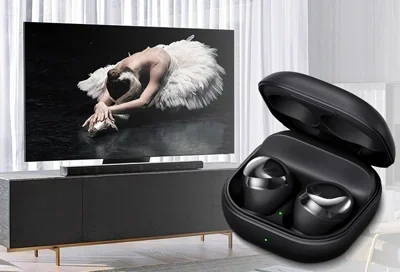
Can I Listen To My Samsung TV With Bluetooth Headphones
Can I Listen To My Samsung TV With Bluetooth Headphones? The short answer is yes. Most Samsung TVs made after 2018 have built-in Bluetooth support that lets you connect wireless headphones directly. You can pair your headphones in just a few simple steps, adjust the volume from your TV remote, and enjoy private listening without disturbing anyone else in the room. Whether you own a Samsung QLED, Crystal UHD, or Smart Monitor, this guide covers everything you need to know about getting wireless audio working on your Samsung TV.
You are settling in for a movie night. The snacks are ready. The lights are dimmed. And then it happens. You want to watch your favorite show but your partner is sleeping. Or maybe you just prefer watching TV without everyone hearing every dialogue and sound effect. This is where the question comes up: Can I Listen To My Samsung TV With Bluetooth Headphones?
The good news is that most Samsung TVs made in the last several years support Bluetooth connectivity. You can pair your wireless headphones directly to your TV and enjoy private listening sessions anytime you want. Whether you have a flagship QLED model or a more affordable Crystal UHD set, the process is usually straightforward and takes just a couple of minutes.
In this guide, we walk you through everything you need to know. We cover how Bluetooth works with Samsung TVs, the step-by-step pairing process, common problems you might run into, and the best headphones to use. By the end, you will know exactly how to get wireless audio working on your Samsung TV.
Key Takeaways
- Most Samsung TVs support Bluetooth: Models from 2018 onward include built-in Bluetooth for wireless headphone connections.
- Pairing is simple: You can connect your Bluetooth headphones through the TV’s Settings menu in under two minutes.
- Audio lag can be an issue: Some Bluetooth headphones experience delay, but you can fix this with the right settings or a Bluetooth transmitter.
- Older Samsung TVs need an adapter: If your TV does not have Bluetooth, a cheap Bluetooth adapter solves the problem.
- Not all headphones work equally well: Look for headphones with low-latency codecs like aptX for the best experience.
- Volume can be controlled from the TV remote: Samsung TVs let you manage headphone volume right from your regular remote.
📑 Table of Contents
- How Bluetooth Works with Samsung TVs
- Step-by-Step Guide to Pairing Bluetooth Headphones
- Common Problems and How to Fix Them
- Best Bluetooth Headphones for Samsung TV
- Alternative Ways to Connect Wireless Headphones to Samsung TV
- Tips for the Best Listening Experience
- Can I Use Multiple Bluetooth Headphones with One Samsung TV?
- Expert Insights on Samsung TV Bluetooth Audio
- Key Takeaways
- Conclusion
How Bluetooth Works with Samsung TVs
Samsung has been adding Bluetooth support to its TVs for several years now. The technology lets your TV send audio wirelessly to compatible headphones, speakers, and other audio devices. This is part of the broader Bluetooth connectivity ecosystem that most people use every day with their phones and laptops.
Here is how it works at a basic level. Your Samsung TV has a Bluetooth chip built inside it. When you turn on Bluetooth in the TV settings, the TV starts searching for nearby devices. Once you select your headphones from the list, the two devices pair up and create a secure wireless connection. Audio then flows from the TV to your headphones without any wires.
Built-in Bluetooth vs External Bluetooth Adapter
Not all Samsung TVs are the same when it comes to Bluetooth support. Newer models from 2018 onward usually have built-in Bluetooth. This means you do not need any extra equipment. You simply go into the settings and connect your headphones.
However, if you own an older Samsung TV, it might not have Bluetooth at all. In that case, you have two options. You can buy a Bluetooth adapter that plugs into your TV’s audio output. These adapters are small, affordable, and easy to set up. They essentially give your older TV the ability to connect to wireless headphones. Some adapters also offer better audio quality and lower latency than built-in Bluetooth on certain TV models.
Which Samsung TV Models Support Bluetooth?
Most Samsung Smart TVs support Bluetooth. Here are some of the popular series that include this feature:
- Samsung QLED TVs (Q60A and newer)
- Samsung Crystal UHD TVs (CU7000 and newer)
- Samsung Neo QLED TVs (QN85A and newer)
- Samsung OLED TVs (OLED QN90A and newer)
- Samsung The Frame and The Serif TVs
- Samsung Smart Monitors with Bluetooth support
If you are not sure whether your specific model has Bluetooth, you can check the user manual or go to Settings, then Sound, then Sound Output. If you see a Bluetooth option there, your TV supports wireless audio output.
Step-by-Step Guide to Pairing Bluetooth Headphones
Pairing your wireless headphones to a Samsung TV is a simple process. Follow these steps and you will be listening in private within minutes.
Step 1: Turn on Bluetooth on Your Samsung TV
Press the Home button on your Samsung TV remote. Navigate to Settings, which looks like a gear icon. Go to Sound, and then select Sound Output. You should see a Bluetooth option. Turn it on. Your TV will now start searching for nearby Bluetooth devices.
Step 2: Put Your Headphones in Pairing Mode
Every pair of Bluetooth headphones has a slightly different way to enter pairing mode. Usually, you need to press and hold the power button or a dedicated Bluetooth button for a few seconds. Check your headphone manual if you are unsure. The LED light on your headphones should start flashing, which means they are ready to be found.
Step 3: Select Your Headphones from the TV
Back on your Samsung TV, you should see a list of available Bluetooth devices. Find your headphones in the list and select them. The TV will connect to your headphones. You may hear a confirmation sound or see a message on screen that says the device is connected.
Step 4: Adjust the Volume
Once connected, you can control the volume using your Samsung TV remote. This is one of the great things about pairing headphones directly to a Samsung TV. You do not need to adjust the volume on your headphones separately. The TV remote handles everything smoothly.
Step 5: Test the Audio
Play a video or some music to test the connection. Make sure the sound is coming through your headphones clearly. If you hear audio, you are all set. If not, move on to the troubleshooting section below.
Common Problems and How to Fix Them
Even though the pairing process is simple, you might run into some issues along the way. This is normal. Bluetooth connections can sometimes be finicky. Here are the most common problems and their solutions.
Audio Lag and Delay Issues
One of the biggest complaints about wireless audio is audio lag. This is when you see the lips move on screen but the sound comes a fraction of a second later. It can be distracting and make watching videos feel out of sync.
Audio lag happens because Bluetooth technology has a slight delay when transmitting audio data. The good news is that you can reduce or eliminate this problem. First, make sure your headphones support a low-latency codec like aptX or aptX Low Latency. These codecs are designed specifically to reduce audio delay. Second, keep your headphones close to the TV. The further away you are, the stronger the delay can become. Third, some Samsung TVs have a game mode or an audio sync setting that can help reduce lag.
If none of these solutions work, consider using a Bluetooth transmitter. This device plugs into your TV and sends audio to your headphones with much lower latency than the TV’s built-in Bluetooth. Many transmitters also support aptX Low Latency, which makes the audio and video feel perfectly in sync.
Connection Drops and Interference
Sometimes your Bluetooth headphones keep disconnecting from the Samsung TV. This can be frustrating, especially during an intense movie scene. The most common cause is interference from other wireless devices.
Wi-Fi routers, microwaves, and even other Bluetooth devices can all cause interference. To fix this, try moving your TV and headphones closer together. Also, try turning off other Bluetooth devices in the room temporarily. If you have a lot of Wi-Fi devices nearby, changing your Wi-Fi channel on your router can sometimes help.
Another useful tip is to make sure your headphones are fully charged. Low battery levels can cause weak connections and frequent drops. Keep your headphones charged and you will have a much more stable connection.
Headphones Not Showing Up in the TV’s Bluetooth List
If your headphones do not appear in the Samsung TV’s Bluetooth device list, do not panic. This happens more often than you might think. Try these fixes:
- Turn off Bluetooth on the TV and turn it back on.
- Restart your headphones by turning them off and on again.
- Make sure your headphones are in pairing mode.
- Move the headphones closer to the TV.
- Reset the Bluetooth connection on both devices.
- Check if the headphones are already connected to another device. Disconnect them from other devices first.
Samsung TV Bluetooth Not Working After a Software Update
Sometimes a Samsung TV software update can cause Bluetooth to stop working. This is rare but it does happen. If your Bluetooth suddenly stops working after an update, try resetting the TV’s network settings. Go to Settings, then General, then Reset. Choose Reset Network Settings. This will not delete your apps or data, but it will reset your Bluetooth and Wi-Fi connections. After the reset, try pairing your headphones again.
Best Bluetooth Headphones for Samsung TV
Not all Bluetooth headphones are created equal when it comes to watching TV. Some are designed for music and calls, which means they may not deliver the best TV watching experience. Here are some things to look for when choosing headphones for your Samsung TV.
- Low latency support: Look for headphones that support aptX Low Latency or similar codecs. These reduce audio delay significantly.
- Long battery life: You do not want your headphones to die in the middle of a movie. Look for at least 20 hours of battery life.
- Comfortable fit: You might wear these headphones for hours. Choose a pair that feels comfortable for long listening sessions.
- Good sound quality: Look for headphones with clear dialogue and good bass response for an immersive TV experience.
- Multipoint connection: Some headphones can connect to multiple devices at once. This lets you switch between your TV and phone easily.
Some popular options include the Sony WH-1000XM5, Bose QuietComfort 45, and Sennheiser Momentum 4. These headphones offer excellent sound quality, comfortable designs, and strong Bluetooth connectivity. However, you do not need to spend a lot of money. Many affordable Bluetooth headphones work just as well with Samsung TVs.
Alternative Ways to Connect Wireless Headphones to Samsung TV
Bluetooth is not the only way to connect wireless headphones to your Samsung TV. Here are a few alternative methods you might want to consider.
Using a Bluetooth Transmitter
A Bluetooth transmitter is a small device that you plug into your TV’s audio output. It sends audio to your headphones using Bluetooth. Transmitters are great because they often have better range and lower latency than built-in TV Bluetooth. They also work with TVs that do not have Bluetooth built in. Popular options include the Avantree Oasis and the 1Mii Bluetooth transmitter.
Using a Wireless Headphone System
Some wireless headphone systems come with a base station that connects to your TV using a cable. The headphones then connect to the base station wirelessly. These systems are often used in hearing aid applications and can provide very stable connections with minimal audio delay. Brands like Sennheiser and Sony make wireless headphone systems designed for TV watching.
Using Samsung’s TV Plus App with Compatible Earbuds
If you use Samsung TV Plus for streaming content, some Samsung earbuds can connect directly through the Samsung Wearable app. This is a more niche solution but it works well for Samsung ecosystem users.
Tips for the Best Listening Experience
Once you have your Bluetooth headphones connected to your Samsung TV, you can make the experience even better with a few simple tips.
- Keep your TV software updated: Samsung regularly releases firmware updates that improve Bluetooth performance and fix bugs. Check for updates in Settings, then Support, then Software Update.
- Use the TV’s equalizer settings: Samsung TVs have built-in sound settings that let you adjust the audio profile. Try the “Speech Enhance” option to make dialogue clearer through your headphones.
- Limit the number of connected devices: The more Bluetooth devices in your home, the more interference you may experience. Keep your headphones close to the TV for the best connection.
- Use headphones with a mic: Some Bluetooth headphones have a built-in microphone. This lets you answer phone calls or use voice assistants without removing your headphones.
- Set up a dedicated Bluetooth profile: Some Samsung TVs allow you to save multiple Bluetooth audio devices. You can switch between headphones and a soundbar easily without re-pairing every time.
Can I Use Multiple Bluetooth Headphones with One Samsung TV?
This is a question many people ask. The short answer is that most Samsung TVs only support one Bluetooth audio device at a time for regular use. However, there is a workaround. Some Samsung TVs have a feature called “Multi-output” or you can use a Bluetooth splitter to connect two pairs of headphones to the same TV. This is great for couples or families who want to watch TV together but each use their own headphones.
Expert Insights on Samsung TV Bluetooth Audio
According to audio engineers and Samsung support specialists, the key to getting the best Bluetooth audio from a Samsung TV is understanding your TV’s Bluetooth version. Newer Samsung TVs use Bluetooth 5.0 or higher, which offers better range, faster data transfer, and more stable connections. If your TV has Bluetooth 4.2 or older, you may experience more audio lag and connection drops.
Experts also recommend checking your headphone’s codec support. A codec is the technology used to compress and transmit audio over Bluetooth. The most common codecs are SBC, AAC, and aptX. If your headphones and TV both support aptX, you will get better audio quality and lower latency compared to SBC alone. This is especially important when watching fast-paced content like sports or action movies where audio sync matters a lot.
One more expert tip: always pair your headphones in a quiet environment with no obstructions between the TV and the headphones. Walls, furniture, and even other electronic devices can weaken the Bluetooth signal and cause connection problems.
Key Takeaways
- Most Samsung TVs support Bluetooth: Models from 2018 onward include built-in Bluetooth for wireless headphone connections.
- Pairing is simple: You can connect your Bluetooth headphones through the TV’s Settings menu in under two minutes.
- Audio lag can be an issue: Some Bluetooth headphones experience delay, but you can fix this with the right settings or a Bluetooth transmitter.
- Older Samsung TVs need an adapter: If your TV does not have Bluetooth, a cheap Bluetooth adapter solves the problem.
- Not all headphones work equally well: Look for headphones with low-latency codecs like aptX for the best experience.
- Volume can be controlled from the TV remote: Samsung TVs let you manage headphone volume right from your regular remote.
Conclusion
Can I Listen To My Samsung TV With Bluetooth Headphones? Absolutely yes. Whether your Samsung TV has built-in Bluetooth or you need to add a Bluetooth adapter, connecting wireless headphones is easy and gives you the freedom to enjoy your favorite shows and movies without disturbing anyone else. The process is quick, the setup is simple, and the results are worth it.
Remember to keep your TV software updated, choose headphones with low-latency support, and troubleshoot any connection issues using the tips we shared. With the right setup, you can turn any Samsung TV into a private cinema experience. So go ahead, put on your headphones, and enjoy your next movie night in complete peace and quiet.
Take a few minutes today to try connecting your Bluetooth headphones to your Samsung TV. You will be glad you did. Private listening has never been easier, and once you start using it, you will wonder how you ever watched TV without it.
Frequently Asked Questions
Can I connect any Bluetooth headphones to my Samsung TV?
Most Bluetooth headphones will work with Samsung TVs that have built-in Bluetooth. However, for the best experience, look for headphones that support low-latency codecs like aptX. Some very old or very cheap headphones may not connect properly or may have noticeable audio delay.
Why is there a delay between the video and audio when using Bluetooth headphones?
Audio delay, also called latency, happens because Bluetooth takes a small amount of time to transmit audio data. This is normal for all Bluetooth connections. You can reduce the delay by using headphones with aptX Low Latency support, keeping your headphones close to the TV, or using a Bluetooth transmitter designed for low latency.
Do I need to buy a special Bluetooth adapter for my Samsung TV?
No, not if your Samsung TV was made after 2018. Most newer Samsung TVs have Bluetooth built in. If you have an older model without Bluetooth, a Bluetooth adapter is a simple and affordable solution. Just plug it into your TV’s audio output and follow the pairing steps.
Can I control the headphone volume with my Samsung TV remote?
Yes, in most cases you can. When your Bluetooth headphones are connected to a Samsung TV, the TV remote controls the headphone volume. You do not need to adjust the volume directly on your headphones unless you want to.
What should I do if my Samsung TV Bluetooth keeps disconnecting?
First, make sure your headphones are fully charged. Next, move closer to the TV and remove any obstacles between the two devices. You can also try resetting the Bluetooth connection on both devices. If the problem continues, check for a Samsung TV software update, as these often fix Bluetooth connectivity issues.
Can I connect two pairs of Bluetooth headphones to one Samsung TV?
Most Samsung TVs only support one Bluetooth audio device at a time. However, you can use a Bluetooth splitter or check if your TV has a multi-output feature. Some Samsung models also support connecting to a wireless headphone system that allows multiple listeners.