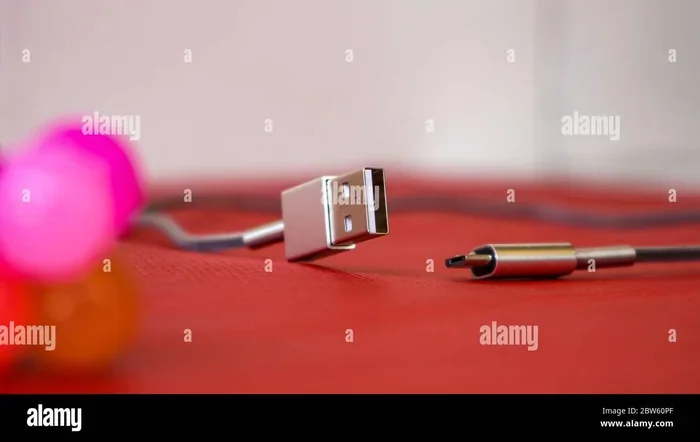
Can A USB Port Be Used For HDMI Without Extra Adapters
Yes, some USB ports can carry HDMI signals, but it depends on the port type. USB Type-C with DisplayPort Alt Mode can output video directly to an HDMI display in many cases. Standard USB-A ports usually need an adapter or cable to work with HDMI. This guide breaks down exactly what works, what doesn’t, and how to get your screen connected the easy way.
Key Takeaways
- USB Type-C can output HDMI signals natively: Many modern laptops use USB-C with DisplayPort Alt Mode for direct video output.
- USB-A ports cannot send HDMI without help: You will almost always need an adapter or a USB-to-HDMI cable for USB-A connections.
- USB-C with HDMI Alt Mode exists: Some devices support HDMI Alt Mode directly, meaning zero extra adapters are needed.
- Docking stations add versatility: A USB docking station can turn one port into multiple display outputs including HDMI.
- Check your device specs first: Not all USB ports support video output, so always verify before buying cables or adapters.
- Quality matters: Cheap cables can cause signal loss, flickering, or low resolution on your HDMI display.
📑 Table of Contents
- Can a USB Port Be Used for HDMI Without Extra Adapters?
- Understanding USB Ports and HDMI Connections
- USB Type-C vs USB Type-A for HDMI Output
- How to Connect USB to HDMI Without Extra Adapters
- When You DO Need an Adapter
- Common Mistakes to Avoid When Connecting USB to HDMI
- Quick Tips for the Best USB-to-HDMI Experience
- Expert Insights on USB and HDMI Connectivity
- Conclusion
Can a USB Port Be Used for HDMI Without Extra Adapters?
The short answer is: it depends. USB ports are incredibly versatile. They charge our phones, transfer files, and even connect to external displays. But can every USB port send a signal to an HDMI screen? Not exactly. Some can. Some cannot. And the difference comes down to the type of USB port your device has.
In this article, we will walk you through everything you need to know about using a USB port for HDMI. We will cover which ports work, which ones need help, and how to get your display connected without buying unnecessary gear. Whether you are at home, at the office, or setting up a conference room, this guide has you covered.
Let us be clear about one thing upfront. The title says “without extra adapters,” and for some setups, that is true. But for many others, you will still need at least one small piece of hardware. We will explain exactly when that is and when it is not. No fluff. No confusion. Just clear, practical information.
Understanding USB Ports and HDMI Connections
Before we dive into the details, let us quickly understand what each port does. A USB port is a universal connection standard. It was designed for data transfer and power delivery. HDMI, on the other hand, is a dedicated audio and video standard. It carries high-definition signals from a source to a display.
So how do these two very different technologies connect? The answer lies in modern USB Type-C design. Over the years, USB has evolved far beyond simple file transfers. Today, certain USB ports can carry video signals. This is a game-changer for laptops, tablets, and even smartphones.
What Makes a USB Port Able to Output Video?
Not every USB port can send video. Here are the key factors that determine whether your USB port supports HDMI output:
- Port type: USB Type-C is the most common port that supports video output today.
- Alt Mode support: This is a feature that allows non-USB protocols (like HDMI or DisplayPort) to run through a USB-C connector.
- Hardware capability: Your device’s graphics processor must support output through the USB port.
- Driver and software support: Some systems need specific drivers to recognize video output over USB.
Think of it like a highway. The USB port is the road. Alt Mode is the lane designation that allows video traffic to use that road. Without the right lane, the traffic simply cannot flow.
USB Type-C vs USB Type-A for HDMI Output
This is where things get important. Not all USB ports are created equal. Let us compare the two most common types.
USB Type-C and HDMI
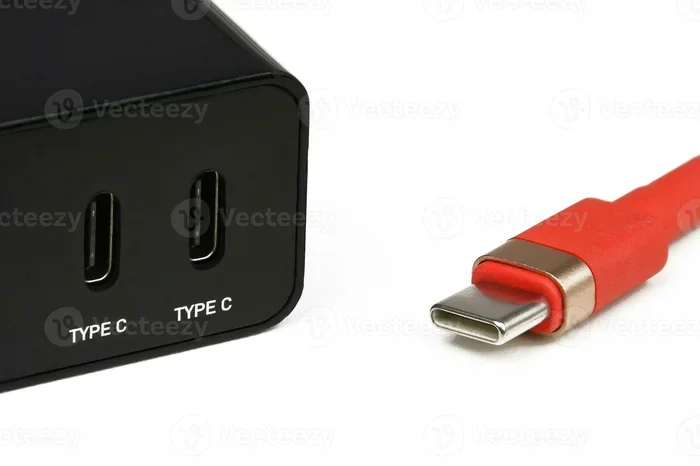
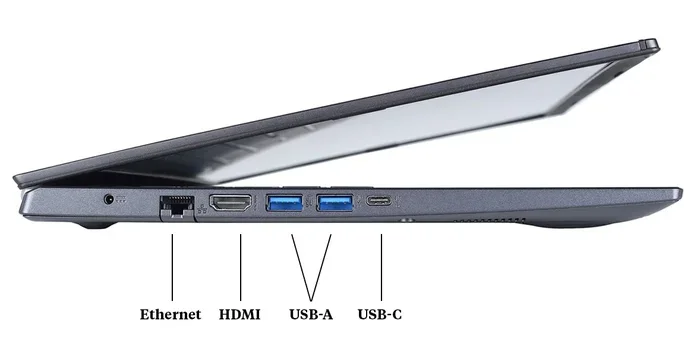
USB Type-C is the small, oval-shaped port found on most modern laptops, tablets, and phones. Many USB-C ports support DisplayPort Alt Mode or HDMI Alt Mode. This means they can carry video signals directly to an HDMI display.
In some cases, you can plug a USB-C to HDMI cable directly into your device and into your TV or monitor. No adapter needed. This works on many modern devices, including certain Chromebooks, MacBooks, and Windows laptops. The key is that the USB-C port on your device must support video output.
Here is a quick way to check. Look at your device specifications online or in the user manual. Search for terms like “USB-C with DisplayPort Alt Mode” or “USB-C with HDMI Alt Mode.” If those terms appear, you are in luck.
USB Type-A and HDMI
USB Type-A is the traditional rectangular port found on older computers, desktops, and many peripherals. This type of port was never designed to carry video signals. Period.
If you have a USB-A port and want to connect to an HDMI display, you will need an adapter or a special cable. The most common solution is a USB-to-HDMI adapter. This small device plugs into your USB-A port and provides an HDMI output jack. It converts the USB data signal into an HDMI video and audio signal.
Some people confuse USB 3.0 or USB 3.1 speeds with video capability. Faster data transfer does not mean video output. USB-A ports, regardless of their speed version, do not natively support HDMI. You always need a converter for that connection.
How to Connect USB to HDMI Without Extra Adapters
Now let us get to the part you really want to know. How can you use a USB port for HDMI without adding extra adapters? The answer is simpler than you think.
Step-by-Step: Direct USB-C to HDMI Connection
Follow these steps to connect your device to an HDMI display without any extra adapters:
- Check your USB-C port: Make sure it supports video output. Look for the DisplayPort or HDMI symbol next to the port.
- Get a USB-C to HDMI cable: This is a single cable with USB-C on one end and HDMI on the other. No dongles, no adapters, no extra boxes.
- Plug it in: Connect the USB-C end to your device and the HDMI end to your TV, monitor, or projector.
- Switch your display input: On your HDMI screen, select the correct input source.
- Enjoy your display: Your device screen should now appear on the HDMI display.
This method works beautifully on devices that support HDMI Alt Mode through their USB-C port. It is clean, simple, and requires no extra accessories sitting on your desk.
Which Devices Support Direct USB-C to HDMI?
Many modern devices now support direct USB-C to HDMI connections. Here are some common examples:
- Most Apple MacBook Pro and MacBook Air models from 2018 onward
- Many Windows laptops with USB-C ports that support video output
- Google Chromebooks with USB-C support
- Some Android phones with USB-C and DisplayPort Alt Mode
- Certain tablets including iPad Pro models with USB-C
Keep in mind that even among these devices, not every USB-C port may support video. Some devices have USB-C ports that only handle power and data. Always double-check before you assume it will work.
It is worth noting that USB ports serve many purposes across different industries. In fields like medicine, computers are used for imaging, diagnostics, and patient monitoring, and versatile connectivity options like USB-to-HDMI play a role in how those systems display critical information. You can read more about the many ways computers are used in medicine to understand just how important these connections really are.
When You DO Need an Adapter
Let us be honest. There are plenty of situations where you will need an adapter to connect USB to HDMI. That is perfectly fine. It does not mean something is wrong with your setup. It just means your device uses a port type that does not natively carry HDMI signals.
Common Scenarios That Require Adapters
Here are the most common situations where you will need an adapter:
- You have a USB-A port: The standard rectangular port cannot output HDMI without a converter.
- Your USB-C port lacks Alt Mode: Some USB-C ports only support data and charging, not video.
- You need multiple displays: A single USB port may not support more than one HDMI output without a docking station.
- You want higher resolutions: Some adapters support 4K while others only support 1080p. Check the specs carefully.
Types of Adapters That Work Well
Not all adapters are created equal. Here are the most reliable options:
- USB-A to HDMI adapter: A small dongle that converts USB-A to HDMI. Works for most desktop computers.
- USB-C to HDMI adapter: For devices with USB-C that do not support Alt Mode natively.
- USB docking station: A hub that adds multiple ports including HDMI output. Great for office setups.
- USB-C to HDMI cable with built-in chip: A cable that has the conversion hardware built right into the cable itself.
When shopping for an adapter, look for brands that are well-known and read user reviews. Cheap, no-name adapters can cause flickering, low resolution, or no signal at all. Spending a little more on a quality adapter saves you a lot of frustration later.
Common Mistakes to Avoid When Connecting USB to HDMI
Even when you have the right gear, mistakes can happen. Here are the most common ones and how to avoid them.
Assuming All USB-C Ports Support Video
This is the biggest mistake people make. Just because a port is USB-C does not mean it can output video. Some USB-C ports are designed only for charging and data. Always check your device specs before you buy a cable or adapter.
Using the Wrong Cable
Not all USB-C to HDMI cables are the same. Some support only 1080p. Others support 4K at 60Hz. If you need high resolution, make sure the cable you buy matches your needs. Look for cables that mention the resolution and refresh rate on the packaging.
Ignoring Driver Updates
On some computers, especially Windows laptops, you may need to update your graphics drivers before the USB video output works properly. A quick driver update through your device manager can solve mysterious connection issues.
Forcing a Connection
USB-C and HDMI connectors are designed to fit one way. If it does not go in easily, do not force it. Check the orientation and try again. Forcing connectors can damage both the port and the cable.
Quick Tips for the Best USB-to-HDMI Experience
Here are some simple tips that will make your life easier:
- Test before a big presentation: Always set up your USB-to-HDMI connection before an important meeting or event.
- Keep your cables organized: A tangled mess of cables can lead to damaged connectors and poor signal quality.
- Use high-quality cables: Brands like Anker, Belkin, and Cable Matters offer reliable USB-C to HDMI options.
- Check your HDMI port too: Make sure the HDMI display you are connecting to is working properly with another device first.
- Restart if needed: Sometimes a simple restart of your device fixes display detection issues after connecting.
Expert Insights on USB and HDMI Connectivity
Technology experts agree that USB-C is becoming the universal connector of the future. With a single cable, you can charge your device, transfer data, and output video to an HDMI display. This convergence is making setups simpler and cleaner for everyone.
However, experts also warn that the transition is not complete yet. Many older devices still rely on USB-A or other legacy ports. If you work in an environment with mixed devices, keeping a few adapters on hand is always a smart move. A small USB-C to HDMI adapter in your bag can save you in a pinch.
The industry is moving toward USB4 and Thunderbolt 4, both of which carry HDMI and DisplayPort signals natively through USB-C connectors. This means that in the near future, the question “can a USB port be used for HDMI” will have a much simpler answer: yes, almost always.
USB connectivity is evolving fast. Staying informed about your device’s capabilities will help you make smarter purchasing decisions and avoid buying gear you do not need.
Conclusion
So, can a USB port be used for HDMI without extra adapters? The answer is yes, but with an important caveat. Your device needs a USB-C port that supports HDMI Alt Mode or DisplayPort Alt Mode. If it does, a simple USB-C to HDMI cable will do the job with no extra adapters needed.
If your device has a USB-A port or a USB-C port without video support, you will need an adapter. This is not a flaw. It is just how the technology works today. The good news is that adapters are affordable and widely available.
The key takeaway is to know your device. Check your specs, understand what your USB ports can do, and buy the right cable or adapter for your situation. With the right setup, connecting your device to an HDMI display is quick, easy, and completely hassle-free.
Take a few minutes today to check your device’s USB capabilities. You might be surprised at how simple it is to get your screen connected. Once you know what your port supports, you will never have to wonder again.
Frequently Asked Questions
Can I plug a USB cable directly into an HDMI port?
No, you cannot plug a standard USB cable directly into an HDMI port. They are different connection types with different purposes. However, you can use a USB-C to HDMI cable or a USB-to-HDMI adapter to bridge the two connections. The adapter or cable handles the conversion between the USB data signal and the HDMI audio-video signal.
Does USB 3.0 support HDMI output?
USB 3.0 refers to the speed of data transfer, not video capability. USB-A ports with USB 3.0 speeds still cannot output HDMI signals natively. You will need a USB-to-HDMI adapter or converter to display video through a USB 3.0 port. The speed of the USB port does not change this limitation.
Why does my USB-C to HDMI cable not work?
There are a few common reasons. First, your USB-C port may not support video output. Second, you may need to update your graphics drivers. Third, the cable itself may be defective or incompatible. Try checking your device specifications, updating your drivers, and testing the cable with another device to isolate the problem.
Can I use a USB hub to connect to HDMI?
Yes, many USB hubs and docking stations include HDMI output ports. These devices connect to your computer through a single USB port and provide multiple connectivity options including HDMI. Just make sure the hub you choose supports video output and is compatible with your device.
What is the difference between HDMI Alt Mode and DisplayPort Alt Mode?
Both are features found in USB-C ports that allow video output. HDMI Alt Mode outputs the HDMI signal directly through the USB-C port. DisplayPort Alt Mode outputs a DisplayPort signal, which can then be converted to HDMI using a DisplayPort to HDMI adapter. Both serve the same end goal but use slightly different protocols.
Are USB to HDMI adapters expensive?
Not at all. Most USB to HDMI adapters are very affordable, typically ranging from $10 to $30. Higher-quality adapters or docking stations may cost more, but for basic connectivity, you do not need to spend a lot. Look for well-reviewed options from reputable brands to get the best value.
=== INTERNAL LINKS ===
For more information on how USB ports are used across different industries and applications, check out our article on 10 Ways Computers Are Used In Medicine to see how versatile connectivity shapes critical fields.