Can HDMI Splitter Send Audio To Your TV and Speakers
Yes, an HDMI splitter can send audio to your TV and speakers, but it depends on the type of splitter you use. A basic HDMI splitter passes both video and audio signals to all connected displays. If you want audio only, you need an HDMI audio extractor or a splitter with dedicated audio output ports. This guide covers everything you need to know about HDMI splitter audio and how to set it up correctly.
If you have ever plugged in an HDMI splitter and wondered why your speakers or soundbar are not playing sound, you are not alone. Many people buy an HDMI splitter expecting it to do more than just split a video signal. The truth is, HDMI splitters can send audio but how they do it depends on the type of splitter and your setup.
This guide breaks down everything you need to know about HDMI splitter audio. We will cover how splitters work, the different types available, setup steps, common problems, and tips to get the best sound from your devices. Whether you are building a home theater or just want to hear sound from your laptop on multiple speakers, this article has you covered.
Let us start with the basics so you understand what is happening behind the scenes when you plug in an HDMI cable and press play.
Key Takeaways
- HDMI splitters can send audio: Most splitters pass both video and audio to all connected devices simultaneously.
- Audio extractors offer more flexibility: They let you route sound to speakers or soundbars separately from video.
- Powered splitters work better: They provide stronger signal strength and more reliable audio output.
- Check your device compatibility: Not all splitters support all audio formats like Dolby or DTS.
- Setup is simple: You just plug in cables and adjust your TV or audio settings.
- Common issues are fixable: Problems like no sound or audio delay usually have straightforward solutions.
- Choose the right splitter for your needs: Consider the number of outputs, audio formats, and your home setup.
📑 Table of Contents
- How Does an HDMI Splitter Handle Audio?
- Types of HDMI Splitters and Their Audio Capabilities
- Can HDMI Splitters Send Audio to External Speakers?
- Common Problems with HDMI Splitter Audio
- How to Choose the Right HDMI Splitter for Audio
- Quick Tips for Better HDMI Splitter Audio
- Expert Insights on HDMI Splitter Audio
- Frequently Asked Questions
- Conclusion
How Does an HDMI Splitter Handle Audio?
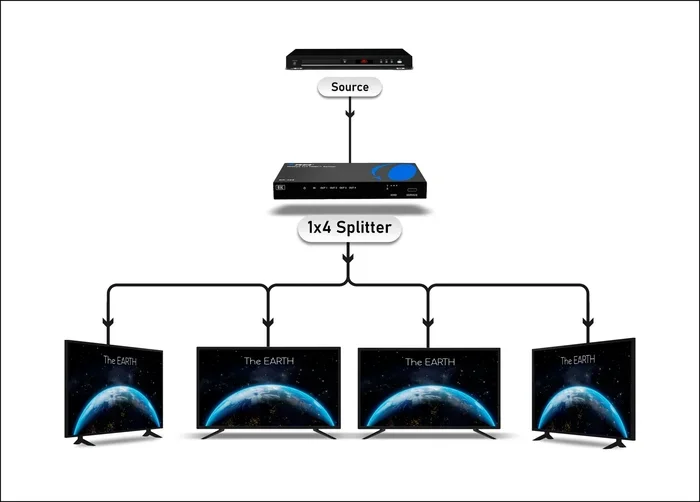
An HDMI splitter takes one input signal and copies it to multiple output ports. Think of it like a water pipe splitter. Water flows through both paths at the same time. Similarly, an HDMI signal carries both video and audio together. When you use a splitter, both signals travel to each connected display.
But here is the important part. Not all splitters handle audio the same way. Some pass full audio and video to every output. Others strip the audio and only send video. This depends on the splitter model and its specifications.
What Is in an HDMI Signal?
An HDMI cable carries more than just a picture. It carries:
- Video data: The image you see on screen.
- Audio data: The sound that comes with the video.
- Control signals: Commands that tell devices how to communicate.
- Metadata: Information about the content like resolution and format.
A good HDMI splitter preserves all of this data and sends it to every output port. That means your TV gets both the picture and the sound. Your second monitor or projector gets the same.
Audio Pass-Through Explained
The term audio pass-through means the splitter lets the audio signal flow through to the connected devices without changing it. Most modern splitters support this feature. When audio pass-through is enabled, you get full sound quality at every output.
However, some cheap splitters do not support pass-through. They may only send video to certain ports. Always check the product description before buying. Look for phrases like “supports audio and video output” or “HDMI audio pass-through enabled.”
Types of HDMI Splitters and Their Audio Capabilities
Not all splitters are created equal. Different types serve different purposes. Let us look at the main categories and how each one handles sound.
Basic HDMI Splitters
A basic HDMI splitter has one input and two or more outputs. It copies the entire HDMI signal to every output. This includes both video and audio. You plug your streaming device into the input. Then you connect your TV and a second display to the outputs.
The result is simple. Both screens show the same picture and play the same sound. This works great for presentations or watching the same content in two rooms.
HDMI Splitters with Audio Extractors
An HDMI audio extractor is a step up from a basic splitter. It splits the HDMI signal into two separate paths. One path carries video. The other path carries audio. This is useful when you want sound to come from your speakers but video from your TV.
Most extractors have an optical audio output or a 3.5mm audio jack. You can connect these directly to a soundbar, home theater system, or powered speakers. The video still goes to your TV through a separate HDMI cable.
Powered vs. Unpowered Splitters
Powered HDMI splitters use an external power source. They amplify the signal before sending it to each output. This means stronger and more reliable audio and video. Powered splitters also tend to support more audio formats.
Unpowered splitters draw power from the HDMI port itself. They are cheaper but may struggle with longer cable runs. They can also introduce audio lag or drop audio altogether in some setups.
| Feature | Powered Splitter | Unpowered Splitter |
|---|---|---|
| Signal Strength | Strong and stable | Weaker over long distances |
| Audio Support | Full format support | Basic audio only |
| Price | Higher | Lower |
| Power Source | External adapter | HDMI port |
| Best For | Home theater setups | Simple presentations |
Can HDMI Splitters Send Audio to External Speakers?
This is one of the most common questions people ask. The short answer is yes, but it depends on your setup. Let us look at the different ways you can route audio to external speakers using an HDMI splitter.
Using an HDMI Audio Extractor
The easiest way to send HDMI audio to external speakers is through an audio extractor. Here is how it works in simple steps:
- Plug your HDMI source into the extractor input.
- Connect the extractor output to your TV using an HDMI cable.
- Use the audio output (optical or 3.5mm) to connect to your speakers or soundbar.
- Turn on your devices and select the correct input.
That is it. Your TV shows the picture and your speakers play the sound. You get the best of both worlds. This setup is perfect for a home theater where sound quality matters.
Using HDMI ARC for Audio
Many modern TVs have an HDMI ARC port. ARC stands for Audio Return Channel. This feature lets audio travel back from your TV to a soundbar or receiver through a single HDMI cable.
If your splitter supports ARC, you can use it to send audio to your sound system. However, not all splitters support ARC. Check the product specs carefully. Also, your TV must support ARC for this to work.
Connecting Speakers Directly to the Splitter
Some splitters come with a built-in 3.5mm audio output. You can plug this directly into a pair of powered speakers. This is a simple and affordable option for casual listening.
Keep in mind that the audio quality depends on the splitter. Cheap splitters may produce weak or distorted sound. A mid-range or premium splitter will give you much better results.
Setting Up Surround Sound Through a Splitter
If you want surround sound or 5.1 audio, you need a splitter that supports these formats. Most basic splitters only handle stereo audio. To get full surround sound, look for splitters that list Dolby Digital or DTS support in their specs.
You will also need compatible speakers or a sound system that can decode these formats. A standard soundbar may not support 5.1 audio. Check your speaker specifications before buying a splitter.
Common Problems with HDMI Splitter Audio
Even with the right splitter, you may run into audio issues. Here are the most common problems and how to fix them.
No Sound at All
If you have no audio, check these things first:
- Make sure all HDMI cables are firmly connected.
- Check your TV or speaker audio settings. Make sure the correct input is selected.
- Verify that your splitter supports audio output.
- Try a different HDMI cable to rule out a faulty cable.
Sometimes the simplest fix is just unplugging and replugging the cables. This resets the connection and can solve the problem immediately.
Audio Delay or Lip Sync Issues
Audio delay happens when the sound does not match the video. This is frustrating but common with some splitters. The splitter may process the signal slower than others.
To fix this, try the following:
- Use a powered splitter for better processing speed.
- Shorten your HDMI cable lengths.
- Check if your TV has an audio delay or sync setting you can adjust.
- Avoid using extension cables between devices.
Audio Cuts Out Intermittently
If your sound drops in and out, the signal may be weak. This often happens with unpowered splitters or long cable runs. A powered splitter usually solves this problem.
Also, make sure your splitter is not overheating. Some cheap splitters overheat after extended use, which causes audio dropouts. Give your splitter room to breathe and do not stack it in a closed cabinet.
Wrong Audio Format
Some splitters do not support advanced audio formats. If your content uses Dolby Atmos or DTS:X, a basic splitter may not pass it through. You will hear silence or fallback stereo sound.
Always check the audio format compatibility of your splitter before purchasing. Look for splitters that explicitly list support for the formats you need.
How to Choose the Right HDMI Splitter for Audio
Not all splitters are the same. Choosing the right one depends on your specific needs. Here is what to look for when shopping for an HDMI splitter that sends audio.
Check the Number of Outputs
How many devices do you need to connect? If you just need two, a 1×2 splitter works fine. For larger setups, you may need a 1×4 or even 1×8 splitter. Keep in mind that more outputs can mean weaker signal strength. A powered splitter helps with this.
Look for Audio Format Support
Make sure the splitter supports the audio formats you use. At a minimum, look for stereo and Dolby Digital support. If you want surround sound, check for 5.1 and 7.1 channel support. Some splitters also support Dolby Atmos, which is becoming more common.
Consider Your Setup
Think about where you will place your splitter. If it is close to your TV, a shorter HDMI cable works fine. If you need to run cables across a room, invest in high-quality cables. Longer runs need stronger signals, which means a powered splitter is a must.
Read Reviews Before Buying
Always read user reviews before purchasing. Look for feedback about audio quality, reliability, and ease of setup. Real-world experiences are more helpful than product descriptions. Pay attention to reviews that mention audio output specifically.
Budget vs. Quality
You can find basic HDMI splitters for under twenty dollars. But these often lack audio support or have poor build quality. A good splitter with reliable audio output typically costs between thirty and eighty dollars. Premium models with full surround sound support can cost over one hundred dollars.
For most home users, a mid-range splitter offers the best value. You get solid audio and video quality without paying for features you do not need.
Quick Tips for Better HDMI Splitter Audio
Here are some practical tips to improve your audio experience with an HDMI splitter:
- Use high-quality HDMI cables: Cheap cables can cause audio dropouts and weak signals.
- Update your device firmware: Sometimes audio issues come from outdated software on your TV or source device.
- Set your audio output correctly: Go to your TV or source device audio settings and make sure HDMI output is selected.
- Keep cables short: Shorter cables mean stronger signals and less audio delay.
- Use a powered splitter for complex setups: It provides better signal strength and more reliable audio.
- Test each output separately: If one output has audio issues, test it alone to isolate the problem.
Expert Insights on HDMI Splitter Audio
Audio engineers and AV specialists agree on a few key points about HDMI splitter audio. First, the quality of the splitter matters a lot. A premium splitter preserves audio quality better than a cheap one. Second, signal degradation increases with each output port. More outputs mean weaker audio and video on each display.
Experts also recommend using an audio extractor when you need to route sound to a separate audio system. This gives you more control over your audio setup. You can adjust volume, EQ, and sound settings independently from your video source.
Finally, always match your splitter to your content. If you watch a lot of movies with surround sound, invest in a splitter that supports those formats. If you just need basic stereo sound for presentations, a simple splitter will do the job just fine.
Frequently Asked Questions
Can an HDMI splitter send audio to a soundbar?
Yes, most HDMI splitters can send audio to a soundbar. If your splitter has an HDMI output and your soundbar supports HDMI ARC, you can connect them directly. Alternatively, use an HDMI audio extractor to route sound to your soundbar separately from your video. Check that your splitter supports the audio format your soundbar uses.
Do all HDMI splitters support audio?
No, not all HDMI splitters support audio. Some budget splitters only pass video signals and strip the audio. Always check the product specifications before buying. Look for terms like “audio and video pass-through” or “HDMI audio support” in the product description.
Can I use an HDMI splitter to send audio to multiple speakers?
Yes, but it depends on the splitter type. A basic splitter sends the same audio to all outputs. If you want different audio on different speakers, you need a more advanced setup with an audio extractor or an AV receiver. Most home users find that a splitter with an optical audio output works well for connecting to multiple speakers.
Why is there no audio from my HDMI splitter?
No audio can happen for several reasons. Check that your cables are connected properly. Make sure your splitter supports audio output. Verify that your TV or source device is set to output audio through HDMI. Try a different cable or port if the problem persists. A powered splitter can also help resolve signal issues.
Does an HDMI splitter affect audio quality?
A good quality HDMI splitter does not noticeably affect audio quality. Premium splitters preserve the full audio signal including surround sound formats. However, cheap or unpowered splitters may reduce audio quality or introduce noise. Always invest in a reputable brand for the best audio performance.
Can I get 5.1 surround sound through an HDMI splitter?
Yes, but you need a splitter that supports 5.1 audio. Not all splitters handle multi-channel audio. Look for splitters that specifically list Dolby Digital or DTS support. You will also need a speaker system or soundbar that can decode 5.1 audio for you to experience the full surround sound effect.
Conclusion
Can HDMI splitter send audio? Yes, it absolutely can. The key is choosing the right splitter for your needs and setting it up correctly. Whether you want simple stereo sound on your TV or full surround sound through a home theater system, there is an HDMI splitter that fits your setup.
Remember to check audio format support, use quality cables, and consider a powered splitter for the best results. If you run into issues, most problems have simple fixes. Start with cable connections and device settings before troubleshooting further.
With the right HDMI splitter and a little patience, you can enjoy great sound from any display in your home. Take your time, follow the steps in this guide, and you will have your audio working perfectly in no time.