Can I Connect Usb C To Usb A And Use Them Together
Yes, you can connect USB C to USB A using an adapter or a hybrid cable. This setup lets you plug modern USB C devices into older USB A ports without any hassle. You will get data transfer and charging capabilities, but speeds depend on the USB standard your ports support. Keep reading to learn exactly how it works and what to watch out for.
So you just got a shiny new device with a USB C connector, and now you need to plug it into something that only has a USB A port. Maybe it is your old laptop, your desktop computer, or a printer that has been sitting in a drawer for years. Whatever the reason, you are probably wondering if this is even possible. The good news is that it absolutely is.
Can I connect USB C to USB A and use them together? The short answer is yes. With the right adapter or cable, you can connect these two different USB standard connectors and get things working. But there are some important details you need to know before you just plug anything in and hope for the best. Let us walk through everything step by step.
In this guide, we will cover exactly how USB C to USB A connections work, what adapters you need, how fast your data transfers will be, and what mistakes to avoid. Whether you are a tech beginner or someone who just needs a quick answer, this article has you covered.
Key Takeaways
- USB C and USB A are compatible: You can connect them using the right adapter or cable.
- Data transfer works: But speeds depend on the USB version both devices support.
- Charging is possible: Power delivery depends on the adapter and port capabilities.
- Adapters are affordable: You can find quality USB C to USB A adapters for under $15.
- Watch for speed limits: USB 2.0 adapters will slow down your transfer rates significantly.
- Not all cables are equal: A dual USB C to USB A cable works but check the specs first.
- Thunderbolt adds power: Thunderbolt 3 and 4 USB C ports offer even faster speeds with the right setup.
📑 Table of Contents
- What Is the Difference Between USB C and USB A?
- Can You Physically Connect USB C to USB A?
- What Happens When You Use a USB C to USB A Cable?
- Adapters and Converters: Your Best Friend
- Common Mistakes to Avoid
- Expert Insights and Practical Tips
- Backward Compatibility: How USB C Works With Older Devices
- When Should You NOT Use a USB C to USB A Connection?
- Final Verdict
What Is the Difference Between USB C and USB A?
Understanding the Two Connectors
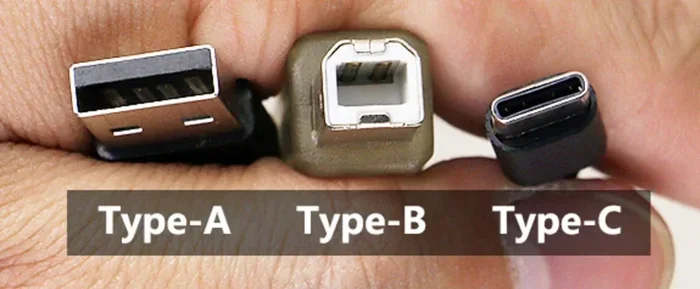
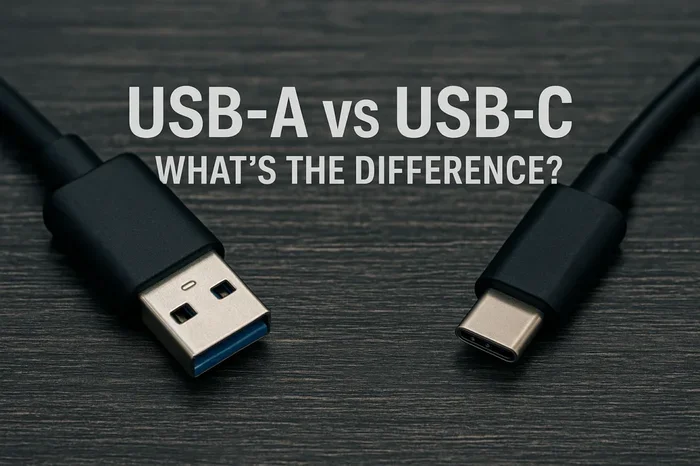
Before we dive into connections, it helps to understand what makes these two ports different. USB A is the classic rectangular connector that has been around for decades. You probably have several USB A cables lying around your house right now. They plug into printers, keyboards, external hard drives, and older chargers.
USB C is the newer, smaller, oval-shaped connector that has become the standard for modern laptops, phones, and tablets. One of the biggest advantages of USB C is that it is reversible. You can flip it either way, and it will plug in. No more flipping the cable three times to get the right orientation.
But here is the thing. Even though they look completely different, they both use the same USB protocol to send data and power. That is why you can connect them together. The shapes just do not match naturally, so you need a little helper to bridge the gap.
Why Do We Have Two Different Shapes?
The USB standard has evolved over the years. USB A was designed back when devices were bigger and ports needed to be larger. As devices got smaller and thinner, the industry needed a connector that was more compact and versatile. That is where USB C came in.
USB C supports higher power delivery and faster data transfer speeds than the original USB A design. It also works with newer standards like Thunderbolt 3 and Thunderbolt 4. But despite all these upgrades, the older USB A port is still everywhere. That is why adapters exist in the first place.
Can You Physically Connect USB C to USB A?
The Short Answer: Yes, With the Right Tool
You cannot plug a USB C cable directly into a USB A port. The shapes simply do not match. But you do not need to be a tech expert to make this work. All you need is an adapter or a special cable that has a USB C connector on one end and a USB A connector on the other.
These adapters are small, inexpensive, and widely available. You can find them online, at electronics stores, or even at your local grocery store. They plug right into the USB A port and give you a USB C port to use. It is that simple.
Some people use a dual USB C to USB A cable which has a USB C plug on each end and a USB A plug in the middle. This works great if you need to connect two devices at once. Just make sure the cable supports the data transfer speed and power delivery you need.
Types of Adapters You Can Use
There are several options when it comes to connecting USB C to USB A. Here are the most common ones:
- USB C to USB A adapter: A small dongle that plugs into a USB A port and gives you a USB C slot. These are the most popular option.
- USB C to USB A cable: A cable with USB C on one end and USB A on the other. No adapter needed. Just plug and play.
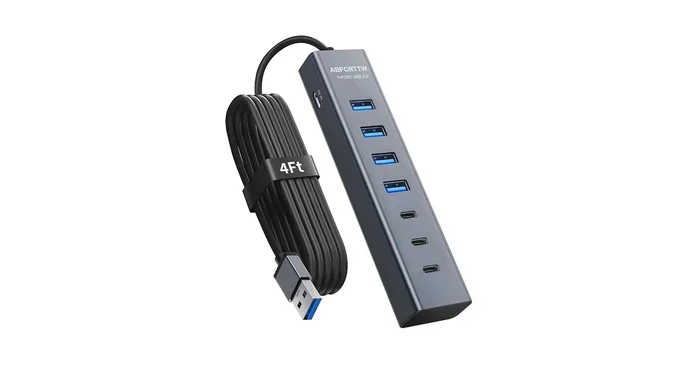
- USB hub with USB A and USB C ports: A hub that expands your connection options. Great if you need multiple ports at once.
- Dual USB C to USB A cable: A cable with two USB C ends and one USB A end. Useful for connecting two modern devices to one older port.
All of these options work well. The choice depends on what you are trying to do and how often you need the connection.
What Happens When You Use a USB C to USB A Cable?
Data Transfer Speeds
When you connect a USB C device to a USB A port, your data transfer speed will depend on the older of the two ports. This is the key thing most people do not understand.
For example, if your phone has a USB 3.1 USB C port but your laptop only has a USB 2.0 USB A port, your transfer speed will be limited to USB 2.0 speeds. That means around 480 Mbps. Not terrible, but not fast either.
If both ports support USB 3.0 or higher, you can get speeds up to 5 Gbps or even 10 Gbps. Here is a quick comparison:
- USB 2.0: Up to 480 Mbps
- USB 3.0: Up to 5 Gbps
- USB 3.1: Up to 10 Gbps
- USB 3.2: Up to 20 Gbps
- Thunderbolt 3: Up to 40 Gbps
Always check what USB standard your devices support before buying an adapter. This will save you from slow transfers and frustration.
Charging and Power Delivery
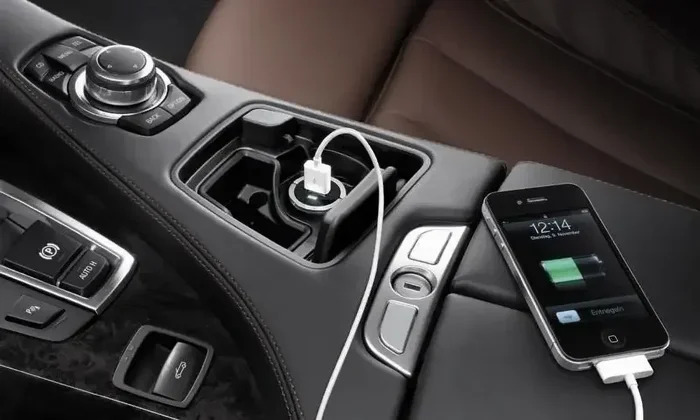
Charging works just as well with a USB C to USB A connection. Your device will charge, but the speed depends on the power delivery capabilities of both the cable and the port.
USB A ports typically deliver up to 2.5 watts of power under the basic USB standard. However, many modern USB A ports support USB Battery Charging specs that can push up to 7.5 watts or even 15 watts. USB C ports, on the other hand, can deliver up to 100 watts with USB Power Delivery.
So when you charge a USB C device through a USB A port, the charging speed will likely be slower than using a USB C charger and cable. For most phones and tablets, this is still perfectly fine. But if you have a laptop that needs fast charging, you might notice a difference.
Video and Display Output
Some USB C ports support video output through standards like DisplayPort Alt Mode or Thunderbolt. When you connect through a USB A port, this video output capability is usually lost. USB A ports were not designed to carry video signals.
If you need to connect a display, you are better off using a direct USB C to HDMI or USB C to DisplayPort cable. The USB C to USB A connection is best suited for data transfer and charging, not for video output.
Adapters and Converters: Your Best Friend
How to Choose the Right Adapter
Not all adapters are created equal. When you are shopping for a USB C to USB A adapter, look for a few key things. First, check if the adapter supports the USB standard you need. A cheap USB 2.0 adapter will limit your speeds no matter what.
Second, look for adapters from reputable brands. You do not need to spend a fortune, but a $3 no-name adapter from an unknown seller might not work reliably or could even damage your device. Stick with well-known brands that clearly state their specifications.
Third, consider what else you need the adapter for. If you travel a lot, a small and portable USB C to USB A adapter is perfect. If you work at a desk all day, a USB hub with multiple ports might be a better investment.
Do You Need an Active or Passive Adapter?
Most USB C to USB A adapters are passive, meaning they do not need any power to work. They simply route the signals from one connector to the other. Passive adapters are fine for most data transfer and charging needs.
Active adapters contain built-in electronics and sometimes need external power. You usually only need an active adapter for specialized tasks like connecting older displays or using Thunderbolt capabilities. For everyday use, a passive adapter will do the job just fine.
Common Mistakes to Avoid
Buying the Wrong Adapter
The most common mistake people make is buying a USB 2.0 adapter when they need USB 3.0 speeds. Always check the specifications before you buy. Look for the USB 3.0 or USB 3.1 logo on the adapter or its packaging.
If you are not sure, check the product description online. A quality USB C to USB A cable or adapter will clearly state its speed rating. Do not be afraid to contact the seller if the information is not clear.
Forcing the Connection
Both USB C and USB A connectors are designed to fit a specific way. If something does not go in easily, do not force it. Check that you have the right adapter and that you are inserting the cable correctly.
USB C is reversible, so either side should work. But USB A has a specific orientation. If the adapter feels tight or wrong, flip it around or double-check that you are using the correct adapter type.
Ignoring Power Limitations
As we mentioned earlier, USB A ports have lower power delivery limits than USB C ports. If you are charging a power-hungry device like a laptop, the USB A port might not provide enough power. Your device may charge very slowly or not charge at all while in use.
This is especially important to know if you are using a USB C to USB A adapter to charge your laptop from an older charger. You might need a dedicated USB C power adapter for the best results.
Expert Insights and Practical Tips
Keep Your Adapters Organized
Since USB C to USB A adapters are small and easy to lose, keep a few in strategic places. Put one in your laptop bag, one at your desk, and one in your car. This way, you are always prepared when you need to connect a USB C device to an older USB A port.
Some people keep their adapter attached to their keychain or hang it from a bag clip. Find a system that works for you and stick with it.
Check Your Device Manual
If you are unsure about what USB standard your device supports, check the user manual or the manufacturer’s website. Most modern devices list their USB specifications in the product details.
Knowing your device’s capabilities helps you choose the right adapter and set the right expectations for data transfer speeds and charging times.
Use Quality Cables for Best Results
The adapter is only one part of the equation. The cable you use matters just as much. A cheap or damaged cable can slow down your transfers, cause connection drops, or even pose a safety risk.
Invest in USB C cables that are certified by the USB Implementers Forum or carry the Thunderbolt certification. These cables are tested for quality and reliability.
Backward Compatibility: How USB C Works With Older Devices
One of the biggest advantages of USB C is backward compatibility. The USB standard was designed so that newer connectors can work with older ports, and vice versa, as long as you have the right adapter. This is why you can connect a brand-new USB C phone to a 15-year-old USB A printer and it will work.
This backward compatibility is a huge reason why USB C to USB A connections remain so popular. Even as more devices move to USB C exclusively, there are still millions of USB A devices in use around the world. Adapters keep them all connected.
The USB Implementers Forum, the organization that manages the USB standard, ensures that all USB C and USB A devices follow the same protocols. This means any USB C to USB A adapter from any reputable brand should work with any device that follows the USB standard.
When Should You NOT Use a USB C to USB A Connection?
While USB C to USB A connections are incredibly versatile, there are times when they are not the best choice. If you need the fastest possible data transfer speeds, a direct USB C to USB C connection will always be faster because both ports support the latest USB standards.
If you need video output, a direct USB C to display connection is better since USB A ports do not carry video signals. And if you need maximum power delivery for fast charging, a USB C power adapter and cable will always outperform a USB A connection.
For everyday tasks like transferring photos, backing up files, or charging your phone, a USB C to USB A connection works perfectly fine. Just be aware of the limitations so you are not surprised by slower speeds or lower power output.
Final Verdict
So, can you connect USB C to USB A and use them together? Absolutely. With a simple adapter or cable, you can bridge the gap between your modern USB C devices and older USB A ports. The connection works for data transfer, charging, and most everyday tasks.
The key is to choose the right adapter or cable for your needs. Check the USB standard support, invest in quality products, and be mindful of speed and power limitations. Follow these tips and you will have a seamless USB C to USB A experience every time.
Technology keeps evolving, and USB C is here to stay. But that does not mean your older USB A devices are useless. With the right tools, they work together beautifully. So go ahead, grab that adapter, and connect your devices with confidence.
Frequently Asked Questions
Can I use a USB C to USB A cable for fast charging?
Yes, but the charging speed depends on the USB A port and the cable quality. Most USB A ports deliver less power than USB C ports. For the fastest charging, use a direct USB C charger and cable instead.
Do I need a special adapter to connect USB C to USB A?
You need either a USB C to USB A adapter or a USB C to USB A cable. Both are widely available and affordable. You do not need any special software or drivers for a basic connection.
Will connecting USB C to USB A damage my device?
No, it will not damage your device. The USB standard ensures safe connections between different port types. Just make sure you use a quality adapter or cable from a reputable brand to avoid any issues.
What is the difference between USB 2.0 and USB 3.0 adapters?
A USB 2.0 adapter supports data transfer speeds up to 480 Mbps. A USB 3.0 adapter supports speeds up to 5 Gbps. The USB 3.0 adapter has a blue insert inside the port and clearly labeled logos. Always check the adapter specs before buying.
Can I transfer video through a USB C to USB A connection?
No, USB A ports do not support video output. If you need to connect a display, use a direct USB C to HDMI or USB C to DisplayPort cable instead.
Are all USB C to USB A cables the same?
No, they are not. Cables vary in data transfer speed, power delivery, and build quality. Some support USB 3.0 speeds while others only support USB 2.0. Always check the specifications before purchasing a cable.
=== CONCLUSION ===
Can I connect USB C to USB A and use them together? The answer is a resounding yes. These two different connector types work beautifully when you have the right adapter or cable in hand. Whether you need to transfer files, charge your device, or connect older peripherals, a USB C to USB A connection gets the job done.
Remember to check the USB standard support on both your device and your adapter. Choose quality products, avoid common mistakes, and you will enjoy a reliable and hassle-free experience. The world of USB C and USB A compatibility is simpler than it looks. Now that you know how it all works, go ahead and make the connection with confidence.