Can I Plug A Regular USB Into A USB 3 0 Port And Use It
Yes, you can plug a regular USB into a USB 3.0 port and use it. The USB 3.0 port is designed to be backward compatible, meaning it works with older USB 2.0 devices just fine. However, your data transfer speed will be limited to USB 2.0 levels. The good news is that your device will still function normally, and you won’t damage anything. This guide covers everything you need to know about mixing USB standards.
Have you ever stared at a USB 3.0 port on your computer and wondered if your old USB flash drive would work with it? Maybe you have a regular USB 2.0 device sitting in a drawer and a shiny new USB 3.0 port staring back at you. The good news is that the answer is a simple yes.
Can I plug a regular USB into a USB 3.0 port? Absolutely. USB 3.0 was built from the ground up to be backward compatible with older USB standards. This means your USB 2.0 flash drive, external hard drive, or any other USB device will plug right in and work just fine. But there are a few things you should know about speed, power, and connector types that can make a big difference in how well everything works.
In this guide, we will walk you through exactly what happens when you mix USB generations. We will cover compatibility, speed differences, connector types, and practical tips to help you get the most out of your ports and devices. Whether you are using a flash drive, an external hard drive, or a USB hub, this article has you covered.
Key Takeaways
- Full Compatibility: A regular USB 2.0 device plugs right into a USB 3.0 port and works without any extra setup.
- Speed Limitation: Your transfer speed drops to USB 2.0 rates, which maxes out around 480 Mbps.
- No Damage Risk: Plugging a USB 2.0 device into a USB 3.0 port is completely safe for your hardware.
- Power Delivery Stays the Same: Charging speed depends on the device, not the port version alone.
- Cable and Connector Matter: The physical connector type determines if it fits, not the USB version printed on the cable.
- USB 3.0 Offers Extra Benefits: Even with a USB 2.0 device, the USB 3.0 port can power multiple devices through a USB hub.
📑 Table of Contents
- Can I Plug A Regular USB Into A USB 3 0 Port?
- Understanding USB 3.0 and USB 2.0 Differences
- What Happens When You Plug a Regular USB Into a USB 3.0 Port
- Speed Differences: USB 2.0 Device in a USB 3.0 Port
- Types of USB Connectors and Ports
- Tips for Getting the Best Performance From USB 3.0
- Final Thoughts on Using Regular USB Devices in USB 3.0 Ports
Can I Plug A Regular USB Into A USB 3 0 Port?
The short answer is yes. You can plug a regular USB 2.0 device into a USB 3.0 port without any issues. The USB standard was designed with backward compatibility in mind. This is one of the best things about how USB technology has evolved over the years.
When you insert a USB 2.0 connector into a USB 3.0 port, the port recognizes the device and communicates with it using the USB 2.0 protocol. Your computer treats it just like it would any other USB 2.0 port. There is no need for special drivers or software updates in most cases. The plug and play experience works seamlessly.
Think of it like plugging a regular electrical plug into a newer outlet. The outlet might support more power, but your plug still works fine. The same idea applies here. The USB 3.0 port simply adjusts to match the capabilities of your older device.
Why Backward Compatibility Matters
Backward compatibility is one of the strongest features of the USB standard. It means that every new version of USB can work with older devices. This has been true since USB 1.0 and continues through USB 3.0, USB 3.1, and USB 3.2.
This compatibility saves users a lot of money. You do not need to replace all your old USB cables and devices every time a new standard comes out. Your existing USB connector types, like USB-A and USB-B, continue to work with newer ports. This is a huge win for everyday users and businesses alike.
What the USB 3.0 Port Looks Like
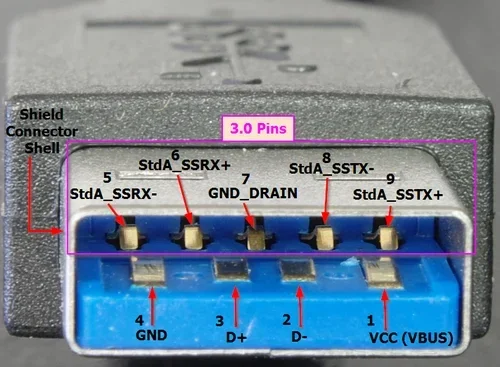
A USB 3.0 port is usually blue inside. This blue coloring helps you tell it apart from a USB 2.0 port, which is typically black or white. Some USB 3.0 ports also have the “SS” logo, which stands for SuperSpeed USB. This logo is a quick visual cue that your port supports faster data transfer rates.
Even though the port looks different on the inside, the basic shape of the USB-A connector has not changed. A standard USB-A plug from a USB 2.0 device fits perfectly into a USB 3.0 port. The physical design has remained consistent across generations, which is what makes backward compatibility possible.
Understanding USB 3.0 and USB 2.0 Differences
Before we go deeper, it helps to understand what makes USB 3.0 different from USB 2.0. These two standards share the same basic connector shapes, but they differ in speed, power delivery, and internal wiring.
What Makes USB 3.0 Faster?
USB 3.0, also known as SuperSpeed USB, was introduced to handle much faster data transfer rates. While USB 2.0 maxes out at 480 Mbps, USB 3.0 can reach speeds up to 5 Gbps. That is more than ten times faster.
The secret lies in the extra wires inside the USB cable. USB 3.0 cables have additional pins that allow for dual-bus data transfer. This means data can move in both directions at the same time. USB 2.0, on the other hand, uses a single bus that can only send or receive data at one time.
For everyday tasks like moving files from a flash drive to your computer, this speed difference is noticeable. A large file that takes several minutes on USB 2.0 might take just seconds on USB 3.0.
USB 2.0 vs USB 3.0: Key Differences
Here is a quick comparison of the two standards to help you understand where they differ.
- Data Transfer Speed: USB 2.0 tops out at 480 Mbps. USB 3.0 reaches up to 5 Gbps.
- Power Output: USB 2.0 provides up to 500 mA. USB 3.0 can deliver up to 900 mA.
- Connector Color: USB 2.0 ports are usually black or white. USB 3.0 ports are typically blue.
- Internal Wiring: USB 2.0 has 4 pins. USB 3.0 has 9 pins for faster data and power delivery.
- Cable Length: Both standards support cables up to about 3 meters (roughly 10 feet) for reliable performance.
- Device Recognition: Both standards use the same plug and play system. Your computer detects the device automatically.
Despite these differences, the physical connector shapes have stayed the same for USB-A and USB-B types. This is why a regular USB device can still fit into a USB 3.0 port.
What Happens When You Plug a Regular USB Into a USB 3.0 Port
Now let us get into the details of what actually happens when you connect a USB 2.0 device to a USB 3.0 port. Understanding this process helps you set realistic expectations and avoid frustration.
Backward Compatibility Explained
When you plug in a USB 2.0 device, the USB 3.0 port automatically detects the device type. It then negotiates a connection using the USB 2.0 protocol. This negotiation happens in milliseconds, so you barely notice any delay.
The port does not force the device to use USB 3.0 speeds. Instead, it steps down to match the device’s capabilities. This is the core of backward compatibility. The port adapts to the device, not the other way around.
You will see the same behavior whether you are using a USB flash drive, a mouse, a keyboard, or an external hard drive. As long as the connector fits, the device will work.
Will Your Device Still Work?
Yes, your device will work exactly as it would in a USB 2.0 port. All functions remain the same. You can read and write files, charge devices, and use peripherals without any problems.
The only thing that changes is the speed. If you are using a USB 2.0 flash drive in a USB 3.0 port, your transfer speeds will stay at USB 2.0 levels. The port cannot make your old device faster than it was designed to be.
This is an important point that many people overlook. A USB 3.0 port does not magically upgrade your USB 2.0 device. It simply provides a compatible connection that works at the device’s own speed.
Does It Damage Your Device or Port?
No. Plugging a USB 2.0 device into a USB 3.0 port will not damage either one. The USB standard includes built-in safety features that regulate power and data flow. Both the port and the device are designed to handle this kind of connection safely.
You can unplug and replug your device as many times as you need. There is no risk of wear and tear from mixing USB generations. This is one of the most reliable aspects of USB technology.
Speed Differences: USB 2.0 Device in a USB 3.0 Port
Understanding speed differences is one of the most common reasons people ask about mixing USB standards. Let us break down what to expect in real-world scenarios.
Real-World Speed Tests
In theory, USB 3.0 is over ten times faster than USB 2.0. But when you plug a USB 2.0 device into a USB 3.0 port, you will only get USB 2.0 speeds. Here is what that looks like in practice.
- USB 2.0 Transfer Rate: Up to 480 Mbps, or about 60 MB per second.
- USB 3.0 Transfer Rate: Up to 5 Gbps, or about 625 MB per second.
- Mixed Connection Speed: Limited to 480 Mbps when a USB 2.0 device is connected.
If you are copying a 1 GB file from a USB 2.0 flash drive to a USB 3.0 port, it might take around 15 to 20 seconds. The same file on a USB 3.0 flash drive would take less than 2 seconds.
The speed difference is very noticeable, especially when you are working with large files like videos, backups, or game installations. This is why upgrading to USB 3.0 devices can make such a big difference in daily workflows.
Why Speed Drops When Mixing USB Standards
The speed drops because the entire connection is only as fast as the slowest device in the chain. Think of it like a highway. If one lane is only 30 miles per hour and the other is 60 miles per hour, the overall flow is limited by the slower lane.
Your USB 2.0 flash drive can only process data at 480 Mbps. The USB 3.0 port can send data much faster, but it has to wait for the device to catch up. The port cannot push data faster than the device can receive it.
This is true even if your computer has a fast processor and plenty of RAM. The bottleneck is the USB 2.0 device itself.
Quick Tips for Optimal Speed
- Use USB 3.0 devices whenever possible to take full advantage of USB 3.0 ports.
- Check your cable quality. A damaged or low-quality cable can slow down transfers even further.
- Avoid using long USB cables for large file transfers. Keep cables under 3 meters for best results.
- If you need faster speeds, consider upgrading your USB 2.0 flash drive to a USB 3.0 version.
Types of USB Connectors and Ports
The USB world has several connector types, and understanding them helps you know exactly what fits where. Let us walk through the most common ones.
USB-A, USB-B, and USB-C Explained
USB-A is the classic rectangular connector you see on flash drives, keyboards, and mice. It is the most common connector type for connecting devices to computers. USB-A connectors are found on both USB 2.0 and USB 3.0 cables and devices.
USB-B is a square-shaped connector often used with printers and external hard drives. It comes in both USB 2.0 and USB 3.0 versions. The USB 3.0 version of USB-B is slightly larger to accommodate the extra pins.
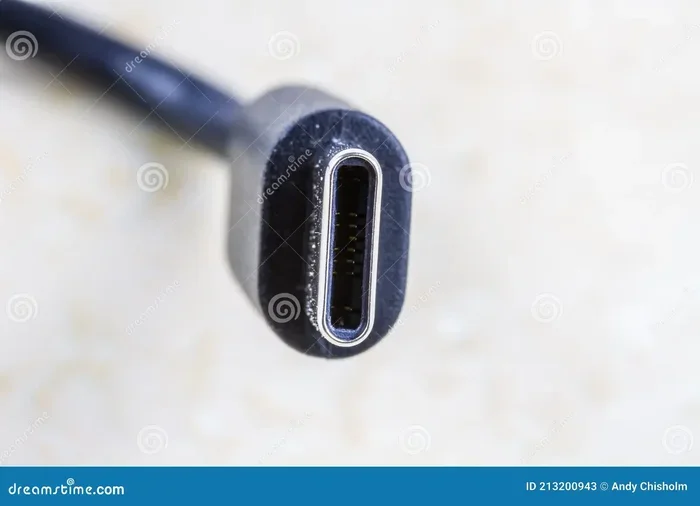
USB-C is the newest connector type. It is small, reversible, and supports USB 3.1 and USB 3.2 standards. USB-C can carry data, power, and video signals through a single cable. However, USB-C is not the same as USB 3.0, even though they often overlap in modern devices.
Which Connector Fits Where?
Here is a simple guide to help you understand which connectors work with which ports.
- USB-A to USB 3.0 Port: A regular USB-A plug fits perfectly into a USB 3.0 port. This is the most common connection scenario.
- USB-B to USB 3.0 Port: Standard USB-B plugs fit into USB 3.0 ports. USB 3.0 USB-B plugs are larger and will not fit into USB 2.0 ports.
- USB-C to USB 3.0 Port: USB-C does not fit into a standard USB 3.0 USB-A port without an adapter.
- USB 3.0 Micro-B and Mini-B: These fit into their matching ports on both USB 2.0 and USB 3.0 devices.
The key takeaway is that the physical shape of the connector determines whether it fits. The USB version (2.0 or 3.0) determines the speed and power capabilities of the connection.
Tips for Getting the Best Performance From USB 3.0
Now that you know how compatibility works, here are some practical tips to help you get the most out of your USB 3.0 ports and devices.
Quick Tips for Optimal Speed
- Always check the connector type. A USB 3.0 device with a USB-A connector will give you the fastest speeds in a USB 3.0 USB-A port.
- Use quality cables. Cheap or damaged cables can limit your speed and cause connection issues. Invest in well-made USB cables from reputable brands.
- Keep your drivers updated. While most USB devices work without extra drivers, updating your operating system ensures the best compatibility and performance.
- Use a USB hub wisely. A USB hub can expand your port options, but plugging too many devices into one hub can slow down speeds. Stick to powered hubs for best results.
- Avoid extension cords. Long cables introduce resistance and can reduce data transfer rates. Use the shortest cable that reaches your device comfortably.
Common Mistakes to Avoid
Even experienced users make mistakes with USB connections. Here are some common ones to watch out for.
- Assuming all USB 3.0 ports are the same speed. Some ports on certain computers may be USB 3.0 Gen 1 (5 Gbps) while others are USB 3.0 Gen 2 (10 Gbps). Check your computer specifications to know for sure.
- Using a USB 2.0 hub in a USB 3.0 port and expecting faster speeds. The hub will limit all connected devices to USB 2.0 speeds regardless of the port.
- Ignoring the blue color indicator. Not all USB 3.0 ports are blue, but many are. Use the blue color or SS logo as a quick visual check.
- Forcing a connector that does not fit. USB-C will not fit into a USB-A port. Do not force it. Use the correct adapter instead.
- Thinking USB 3.0 means faster charging. USB 3.0 does provide more power, but charging speed also depends on the device’s internal charging circuit and the power source.
Expert Insights on USB Compatibility
Industry experts agree that backward compatibility is one of the strongest points of the USB standard. According to the USB Implementers Forum (USB-IF), all USB 3.0 devices and ports are required to support USB 2.0 devices seamlessly.
Technology reviewer Mark Spoonauer notes, “The beauty of USB is that it just works. You can plug in a device from ten years ago into a brand-new computer, and it will function perfectly. The only difference is speed.”
Another expert, tech journalist Lisa Eadicicco, adds that users should focus on matching the connector type first and the USB version second. “If the connector fits, it will work. The version just determines how fast it works,” she explains.
These insights confirm what we have covered throughout this guide. Compatibility is never a problem with USB. Speed is the only variable that changes when you mix generations.
Final Thoughts on Using Regular USB Devices in USB 3.0 Ports
So, can I plug a regular USB into a USB 3.0 port and use it? The answer is a resounding yes. Your USB 2.0 devices will work perfectly fine in USB 3.0 ports. You just need to accept that the speed will match the older device, not the newer port.
The beauty of the USB standard is its consistency and backward compatibility. You do not need to worry about damaging your devices or your ports. You do not need special adapters for standard USB-A connections. And you do not need to replace all your old gear just because you upgraded your computer.
If you want to take full advantage of USB 3.0 speeds, consider upgrading your older USB devices to USB 3.0 versions over time. Start with the devices you use most often, like your flash drive or external hard drive. The speed improvement will be immediately noticeable and well worth the investment.
In the meantime, keep using your existing USB 2.0 devices with confidence. They work, they are safe, and they are compatible. The USB ecosystem was built to support you no matter which generation your devices belong to.
Remember these key points: backward compatibility means your old devices work in new ports, speed is limited by the older device, and connector type determines physical fit. Keep these in mind and you will never have a problem connecting your USB devices.
Now that you have all the information you need, go ahead and plug in that regular USB device with confidence. Your USB 3.0 port is ready and waiting to work with it, no matter what generation it belongs to.
Frequently Asked Questions
Will plugging a USB 2.0 device into a USB 3.0 port damage my computer?
No, it will not cause any damage. USB 3.0 ports are designed with safety features that regulate power and data flow. Your computer and device are both protected from any harm. This is one of the core benefits of the USB standard.
Can I use a USB 3.0 flash drive in a USB 2.0 port?
Yes, you can. The flash drive will work, but it will operate at USB 2.0 speeds. You will not get the faster SuperSpeed USB transfer rates. The connection is fully backward compatible in both directions.
Why is my USB 2.0 flash drive slow even in a USB 3.0 port?
Your flash drive is limited to USB 2.0 speeds because that is what it was designed for. The USB 3.0 port can communicate at faster rates, but it has to match the device’s capabilities. The speed bottleneck is the flash drive itself, not the port.
Do I need a special cable to connect a USB 2.0 device to a USB 3.0 port?
No, you do not need a special cable. A standard USB 2.0 cable with a USB-A connector will work perfectly fine in a USB 3.0 USB-A port. The cable type does not determine the port version. The connector shape does.
Can I use a USB hub with a USB 3.0 port?
Yes, you can use a USB hub with a USB 3.0 port. If the hub is USB 3.0, all connected devices can run at USB 3.0 speeds. If the hub is USB 2.0, all devices will be limited to USB 2.0 speeds regardless of the port.
How can I tell if my port is USB 3.0 or USB 2.0?
Look for a blue color inside the port. USB 3.0 ports often have a blue insert. You can also look for the “SS” logo, which stands for SuperSpeed. If neither is present, check your computer’s manual or specifications online to confirm the port type.