Can I Use A USB WiFi Adapter On My TV For Streaming
Yes, you can use a USB WiFi adapter on many TVs to get a stronger wireless connection for streaming. This simple device plugs right into your TV’s USB port and picks up WiFi signals your TV might miss. We will walk you through everything you need to know, from choosing the right adapter to setting it up in minutes.
Have you ever tried to stream your favorite show on the big screen, only to get stuck with endless buffering? It is frustrating. You paid for fast internet, your phone works fine, but your TV just will not cooperate. A USB WiFi adapter might be the simple fix you have been looking for.
This little device plugs right into your TV and gives it a better way to talk to your WiFi router. Think of it as giving your TV a stronger voice to shout across the room. Many people use them every day without even realizing how much they change the streaming game. In this guide, we will break down everything you need to know about using a USB WiFi adapter on your TV for streaming.
We will cover compatibility, setup, the best adapters to buy, and common mistakes to avoid. By the end, you will know exactly whether this solution works for your setup. Let us get started.
Key Takeaways
- USB WiFi adapters work on many smart TVs: Most modern TVs with USB ports can use an external adapter to improve wireless connectivity.
- Not all TVs support USB WiFi adapters: Some TVs limit USB ports to media playback only, so check your TV manual first.
- Setup is simple and fast: You just plug in the adapter, install drivers if needed, and connect to your WiFi network.
- Dual-band adapters give better performance: They offer faster speeds and less interference compared to single-band models.
- Internal components matter: Understanding what parts your TV has, like those found on the 5 Components That Are Found On The Motherboard, helps you troubleshoot issues.
- Your WiFi router plays a big role: A good adapter paired with a strong router delivers the best streaming experience.
📑 Table of Contents
- What Is a USB WiFi Adapter and How Does It Work?
- Can You Use a USB WiFi Adapter on Any TV?
- Benefits of Using a USB WiFi Adapter for TV Streaming
- How to Set Up a USB WiFi Adapter on Your TV
- Best USB WiFi Adapters for TV Streaming
- Common Problems and How to Fix Them
- USB WiFi Adapter vs. Other Streaming Options
- Expert Tips to Maximize Your Streaming Experience
- Final Thoughts
What Is a USB WiFi Adapter and How Does It Work?
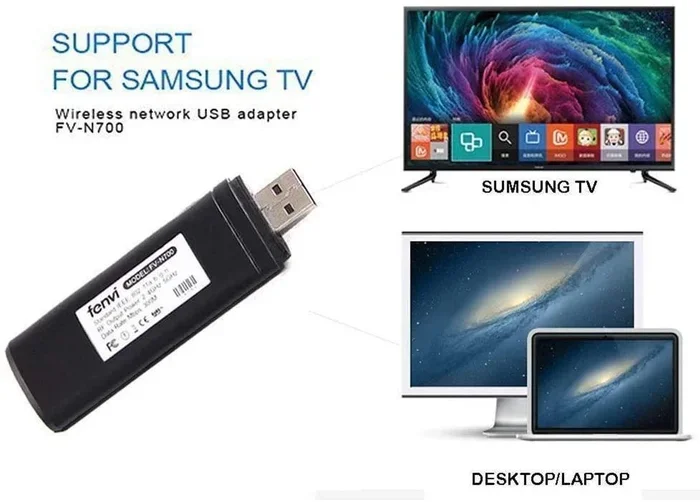
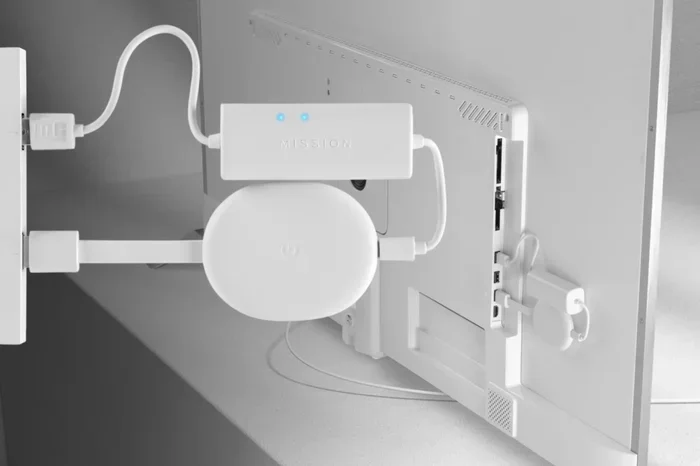
A USB WiFi adapter is a small dongle that connects to your TV’s USB port. It acts like a wireless receiver, picking up WiFi signals from your router and sending them to your TV. Without one, many TVs rely on built-in WiFi chips that may be weak or outdated.
Here is how it works in simple terms. Your WiFi router sends out a wireless signal. The adapter catches that signal and turns it into data your TV can use. This lets you stream videos, browse apps, and browse the internet without any cables. The wireless adapter does all the heavy lifting so your TV can stay connected.
Most adapters are plug-and-play. You do not need to be a tech expert. Just insert the adapter into an available USB port, and your TV should recognize it right away. Some models may need you to install a small driver or app first, but that is rare with modern smart TVs.
Why Do TVs Need External WiFi Adapters?
Many smart TVs come with built-in WiFi. But here is the problem. The internal WiFi chip in your TV is often weaker than what you find in a phone or laptop. It may only support older WiFi standards like 802.11n, which is much slower than modern WiFi 5 or WiFi 6.
Your TV might also sit far from your router. Walls, floors, and other electronics get in the way. All of this weakens the signal. A USB WiFi adapter solves this by using a better antenna and a stronger chip. It gives your TV a serious upgrade in wireless performance.
Some TVs also limit what their USB ports can do. For example, your TV might only use the USB port to play media files from a flash drive. An external adapter bypasses these limits by providing a dedicated network adapter connection. This is especially helpful for older TVs that do not have built-in WiFi at all.
Can You Use a USB WiFi Adapter on Any TV?
The short answer is no. Not every TV supports a USB WiFi adapter. But many do, and figuring out yours is easier than you think.
Here are the main factors that determine compatibility.
- USB port type: Your TV needs a USB port that supports data transfer, not just power. Most smart TVs have these, but some budget models do not.
- Operating system: Smart TVs run different platforms like Android TV, webOS, Tizen, or Fire TV. Each handles adapters differently.
- Driver support: Your TV must recognize the adapter and install the right drivers automatically.
- USB port functionality: Some TVs use USB ports only for firmware updates or connecting a mouse. Check your TV manual to confirm the port supports networking.
If your TV has a USB port and supports internet apps like Netflix or YouTube, there is a good chance it will work with a USB WiFi adapter. However, always double-check before buying. The last thing you want is to spend money on something that does not work.
How to Check If Your TV Supports USB WiFi Adapters
Start by looking at your TV manual. Search for the section about USB ports and network connections. If it mentions “USB networking” or “external adapter support,” you are in luck. You can also check the manufacturer’s website for a list of compatible accessories.
Another quick trick. Try plugging a USB flash drive into your TV. If it reads the files, your USB port supports data transfer. This is a good sign that a WiFi adapter will work too. Just remember that not all data USB ports will support adapters, but this is a solid first check.
You can also look at your TV’s network settings. Go to Settings, then Network, then Wireless. If you see an option to scan for networks or connect manually, your TV likely supports external adapters. Some TVs even let you see the current WiFi signal strength, which helps you decide if you need a boost.
Benefits of Using a USB WiFi Adapter for TV Streaming
Using a USB WiFi adapter for streaming comes with several real advantages. Let us look at why so many people make this simple upgrade.
Faster Internet Speeds
A good adapter supports dual-band WiFi, meaning it can connect to both 2.4GHz and 5GHz frequencies. The 5GHz band is much faster and less crowded. This means fewer buffering moments and smoother playback. You can stream in 4K without the constant pauses that ruin the experience.
Your TV’s built-in WiFi might cap out at 100 Mbps. A quality external adapter can push past that. Faster speeds mean better picture quality and less waiting around.
Better Signal Strength
External adapters usually have larger antennas than what fits inside a TV. This means they catch stronger signals from farther away. If your router is in another room, this makes a huge difference. You get a stable connection even through walls and furniture.
Better signal strength also means fewer dropouts. You will not have that annoying moment when your show freezes right at the climax. A strong wireless connection keeps you watching without interruption.
Easy to Move Between TVs
One great thing about USB adapters is portability. You can unplug it from one TV and plug it into another. This is perfect for households with multiple TVs or if you travel and want to use it with a portable monitor. It is a small device with a big payoff.
Cost-Effective Upgrade
Buying a new smart TV can cost hundreds of dollars. A USB WiFi adapter costs a fraction of that. For under 30 or 40 dollars, you can breathe new life into an older TV. It is one of the best streaming accessories you can buy.
How to Set Up a USB WiFi Adapter on Your TV
Setting up a USB WiFi adapter is straightforward. Here is a step-by-step guide that works for most smart TVs.
Step 1: Check your USB port. Make sure the port is not blocked by other devices. If your TV has multiple USB ports, try a different one if the first does not work.
Step 2: Plug in the adapter. Insert the USB WiFi adapter firmly into the port. Some TVs will recognize it immediately. You might see a notification pop up on screen.
Step 3: Install drivers if needed. Most modern TVs handle this automatically. But with some models, you may need to go to the TV’s app store and download the adapter driver. Check the adapter manufacturer’s website for instructions.
Step 4: Connect to WiFi. Go to your TV settings, find the network section, and select your WiFi network. Enter your password and wait for the connection to establish.
Step 5: Test your connection. Open a streaming app like Netflix or YouTube and start playing a video. Check if the quality is smooth and without buffering. If it is, you are all set.
Tips for a Smooth Setup
- Keep your adapter away from metal objects that can block signals.
- Place your router close to the TV for the best initial setup.
- Restart your TV after plugging in the adapter to refresh the connection.
- Update your TV firmware before installing a new adapter.
- Use the adapter on a USB port that provides enough power. Some ports only supply power and not data.
Remember that your TV’s internal hardware matters too. The way your TV processes signals depends on its internal parts, including components like the 5 Components That Are Found On The Motherboard. Understanding this helps you troubleshoot when things do not work as expected.
Best USB WiFi Adapters for TV Streaming
Not all adapters are the same. Here are some top picks that work well with most smart TVs.
| Adapter | WiFi Standard | Band | Speed | Best For |
|---|---|---|---|---|
| TP-Link Archer T3U | AC1300 | Dual-band | Up to 1300 Mbps | 4K streaming |
| Netgear A6210 | AC1200 | Dual-band | Up to 1200 Mbps | General streaming |
| ASUS USB-AC53 | AC1200 | Dual-band | Up to 1200 Mbps | Compact design |
| Edimax EW-7822ULC | AC1200 | Dual-band | Up to 1200 Mbps | Budget option |
| TP-Link Archer T4U | AC1300 | Dual-band | Up to 1300 Mbps | Long-range reception |
When choosing an adapter, look for dual-band support. This gives you the flexibility to switch between 2.4GHz for range and 5GHz for speed. Also check if the adapter is USB 3.0 compatible, as this provides faster data transfer than USB 2.0. A USB 3.0 adapter makes a noticeable difference in streaming quality.
Brand reputation matters too. TP-Link, Netgear, and ASUS are trusted names in the networking world. They offer good customer support and regular firmware updates. Avoid unknown brands that promise amazing speeds but deliver poor performance.
Common Problems and How to Fix Them
Even with the best adapter, you might run into issues. Here are the most common problems and simple fixes.
Adapter Not Recognized by TV
This is the most common issue. First, try a different USB port. Some ports only supply power and cannot read data. If that does not work, restart your TV and try again. You can also check if the adapter works on a computer. If it does, the problem is with your TV, not the adapter.
Slow Streaming Speeds
Slow speeds usually come from two places. Your WiFi signal might be weak, or your internet plan might not be fast enough. Try moving your router closer to the TV. Also, connect to the 5GHz band for faster speeds. If your internet speed is below 25 Mbps, you might struggle with 4K streaming.
Frequent Disconnections
If your adapter keeps dropping the connection, interference might be the culprit. Other electronics like microwaves and baby monitors can disrupt WiFi signals. Switch to a less crowded WiFi channel on your router. You can also try a USB extension cable to move the adapter away from the TV’s metal body.
Poor Video Quality
Buffering and low resolution often point to bandwidth issues. Make sure no one else in your household is downloading large files while you stream. A dual-band WiFi adapter helps here because it reduces interference from neighboring networks.
USB WiFi Adapter vs. Other Streaming Options
There are several ways to get internet on your TV. Let us compare the most popular options.
USB WiFi Adapter vs. Built-in WiFi
Built-in WiFi is convenient because it comes with the TV. But it is often weak and outdated. A USB WiFi adapter gives you a modern, powerful connection. It is like upgrading from a bicycle to a sports car. The adapter wins on speed, range, and reliability every time.
USB WiFi Adapter vs. Ethernet Cable
An Ethernet cable provides the most stable connection possible. It is the gold standard for streaming. But it requires running a cable across your room, which is not always practical. A USB WiFi adapter gives you almost the same speed without the cable clutter. For most people, the convenience of wireless outweighs the slight speed difference.
USB WiFi Adapter vs. Streaming Stick
A streaming stick like a Roku or Fire TV Stick connects to your HDMI port and gives your TV smart features. Many of these sticks have their own WiFi built in. But a USB WiFi adapter works directly with your TV’s own system. It does not change how your TV looks or operates. It simply makes the existing connection better.
Each option has its place. The right choice depends on your TV, your setup, and what you want to achieve. For most people looking to improve their current TV’s streaming ability, a USB WiFi adapter is the smartest choice.
Expert Tips to Maximize Your Streaming Experience
Want to get the most out of your USB WiFi adapter? Here are some expert-backed tips that make a real difference.
- Update your adapter drivers regularly. Manufacturers release updates that improve performance and fix bugs. Check the adapter brand’s website once a month.
- Use a USB extension cable. This lets you place the adapter in a better position for signal reception. Even a six-inch cable can improve your connection.
- Restart your router and TV weekly. This clears out cached data and refreshes connections. It takes just 30 seconds and can solve many issues.
- Limit the number of devices on your network. Too many devices sharing bandwidth slows everyone down. Disconnect devices you are not actively using.
- Position your router centrally. The closer your router is to your TV, the stronger the signal. Avoid hiding it behind furniture or inside cabinets.
These small changes add up to a big improvement. You will notice fewer buffering screens and better picture quality almost immediately.
Final Thoughts
Using a USB WiFi adapter on your TV is one of the easiest and most affordable ways to improve your streaming experience. It works on most smart TVs, setup takes just minutes, and the results are immediate. You get faster speeds, stronger signals, and fewer interruptions.
Not every TV will support an external adapter, so check your model first. But if your TV has a working USB port and runs internet apps, there is a good chance it will work. Start with our recommended adapters, follow the setup steps, and enjoy your favorite shows without buffering.
A small device can make a big impact. Do not let weak WiFi ruin your movie nights anymore. Grab a USB WiFi adapter today and transform the way you stream.
Frequently Asked Questions
Can I use any USB WiFi adapter with my TV?
Not every adapter works with every TV. Your TV needs a USB port that supports data transfer and must recognize the adapter’s drivers. Check your TV manual or the adapter manufacturer’s compatibility list before buying. Most popular brands like TP-Link and Netgear list supported TV models on their websites.
Will a USB WiFi adapter improve my streaming quality?
Yes, if your current WiFi signal is weak or slow. A good adapter with dual-band support can significantly boost your connection. This leads to smoother playback, higher resolution, and fewer buffering moments. However, if your internet plan itself is slow, the adapter alone will not fix that.
Do I need to install drivers for a USB WiFi adapter on my TV?
Most modern smart TVs install drivers automatically. You plug in the adapter and it works right away. Some older or less common TV models may require manual driver installation. Check the adapter manufacturer’s website for TV-specific driver downloads if needed.
Can I use a USB WiFi adapter on a non-smart TV?
It depends. If your non-smart TV has a USB port that supports data and a way to install apps or access network settings, it might work. However, most non-smart TVs only use USB ports for media playback. You may need a streaming device in combination with the adapter for full internet access.
Is a USB WiFi adapter better than a WiFi range extender for TV streaming?
Both have their uses. A USB WiFi adapter connects directly to your TV and gives it a stronger wireless signal. A range extender boosts the signal throughout your home. For TV streaming specifically, a USB adapter is usually more reliable because it connects directly to the device that needs the connection.
How much does a good USB WiFi adapter cost?
You can find reliable USB WiFi adapters for between 15 and 40 dollars. Higher-priced models offer faster speeds and better range. For most streaming needs, an AC1200 or AC1300 adapter in the 20 to 30 dollar range provides excellent value and performance.