Can I Plug A USB Wifi Adapter Into My TV Right Now
Yes, you can plug a USB WiFi adapter into many TVs to get wireless internet. This simple solution works on Smart TVs, monitors, and streaming devices that lack built-in WiFi or have weak signals. A USB WiFi adapter gives your TV a reliable wireless internet connection without cables or extra hardware.
You want to watch your favorite shows on the big screen. But your TV sits in a room far from the router. The WiFi signal is weak or maybe your TV does not have built-in WiFi at all. You look at the back of your TV and see a USB port. A thought crosses your mind. Can I plug a USB WiFi adapter into my TV and get it online?
The short answer is yes. In most cases, you can. A USB WiFi adapter is a small device that plugs right into your TV’s USB port. It gives your TV a wireless internet connection without any messy cables. This guide will walk you through everything you need to know. We will cover compatibility, setup, the best adapters, and common mistakes to avoid.
Whether you own a Smart TV or a basic monitor, a USB WiFi adapter can change your streaming game. Let us dive in and explore how this simple accessory can bring your TV online.
Key Takeaways
- Plug and Play: Most USB WiFi adapters work instantly when plugged into a compatible TV USB port.
- Wide Compatibility: USB WiFi adapters fit many TV brands including Samsung, LG, Sony, and TCL.
- Easy Setup: You can connect your TV to WiFi in minutes with the right adapter.
- Better Signal: A dedicated USB WiFi adapter often delivers stronger signals than built-in TV WiFi chips.
- Affordable Fix: USB WiFi adapters cost between $10 and $40, saving you from buying a new TV.
- Check First: Not all TVs support USB WiFi adapters, so verify compatibility before buying.
📑 Table of Contents
- What Is a USB WiFi Adapter for TV?
- Can You Plug a USB WiFi Adapter Into Any TV?
- Benefits of Using a USB WiFi Adapter for Your TV
- How to Set Up a USB WiFi Adapter on Your TV
- Best USB WiFi Adapters for TVs in 2025
- Common Problems and How to Fix Them
- USB WiFi vs Ethernet for TVs
- Can You Use a USB WiFi Adapter with a Streaming Device?
- Expert Tips for the Best WiFi Experience on Your TV
- Is a USB WiFi Adapter Worth It?
- Conclusion
What Is a USB WiFi Adapter for TV?
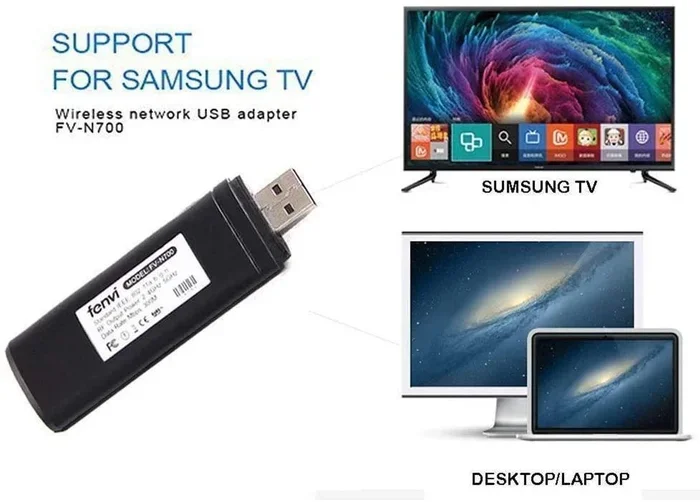
A USB WiFi adapter is a small dongle that plugs into a USB port. It acts as a wireless receiver for your TV. Think of it as a tiny antenna that catches WiFi signals and sends them to your screen. Many people also call it a WiFi dongle, a wireless USB stick, or a WiFi receiver for TV.
These adapters come in different shapes and sizes. Some are tiny and barely stick out from the port. Others are larger and offer better range. The most common types include:
- Basic WiFi dongles: Small and affordable. They handle everyday streaming.
- High-gain adapters: Larger with stronger antennas. They pull in weak WiFi signals from far away.
- Dual-band adapters: Support both 2.4GHz and 5GHz frequencies for faster speeds.
The main job of a USB WiFi adapter is simple. It connects your TV to your home wireless network. Once connected, you can stream movies, browse apps, and browse the web just like you would on a phone or laptop.
How Does It Work?
When you plug the adapter into your TV, the TV recognizes it as a new network device. The TV’s software or operating system detects the adapter. It then shows WiFi options in the network settings. You pick your home network, enter the password, and boom. You are connected. The adapter handles all the wireless communication between your router and your TV.
Can You Plug a USB WiFi Adapter Into Any TV?
This is the question most people ask first. The honest answer is it depends. Not every TV supports USB WiFi adapters. But many modern TVs do. Here is what you need to know.
Smart TVs and USB WiFi Support
Most Smart TVs from brands like Samsung, LG, Sony, TCL, and Vizio have USB ports. These ports can power a WiFi adapter. However, not all Smart TVs allow you to install third-party WiFi adapters. Some brands lock down their USB ports to only work with their own accessories. Others are more open and let you use any compatible adapter.
Here is a quick look at popular TV brands and their USB WiFi support:
- Samsung: Many models support USB WiFi adapters. Look for models that mention “WiFi adapter support” in the manual.
- LG: LG TVs generally accept USB WiFi dongles. The webOS platform is fairly open to external adapters.
- Sony: Sony Android TVs often support USB WiFi adapters. Check the settings for network options.
- TCL: TCL Roku TVs may work with certain adapters. Roku’s system can be picky about third-party devices.
- Vizio: Vizio Smart TVs sometimes support USB WiFi adapters. Check the specific model first.
Non-Smart TVs and Monitors
Even if your TV is not a Smart TV, you can still use a USB WiFi adapter. You just need a streaming device like a Roku, Fire Stick, or Chromecast. Some streaming devices accept USB WiFi adapters. This lets you connect to wireless internet even if the streaming box only has an ethernet port.
USB monitors and display screens can also benefit from WiFi adapters. If you use a monitor as a TV, a USB WiFi adapter can give it internet access for apps and browsing.
How to Check If Your TV Supports USB WiFi
Before you buy anything, check your TV’s manual or the manufacturer’s website. Look for these clues:
- Does the TV mention “WiFi adapter support” or “USB network adapter”?
- Can you find a network settings menu that shows WiFi options?
- Does the TV have a USB port that provides power (most do)?
If your TV has a USB port and a network settings menu, there is a good chance it will work. But always double-check compatibility before spending money.
Benefits of Using a USB WiFi Adapter for Your TV
So why would you want to plug a USB WiFi adapter into your TV? There are several strong reasons. Let us break them down.
1. Better WiFi Signal Strength
Many TVs have weak built-in WiFi chips. The signal may drop during streaming. A USB WiFi adapter often has a better antenna. It pulls in a stronger signal. This means fewer buffering moments and smoother playback. If your router is in another room, a high-gain adapter can make a big difference.
2. No Ethernet Cables Needed
Running an ethernet cable across the room is a hassle. A USB WiFi adapter frees you from that. You get a clean wireless connection without drilling holes or pulling cables through walls. This is especially helpful for TVs mounted on walls.
3. Affordable Upgrade
A USB WiFi adapter costs much less than buying a new TV. Most adapters range from $10 to $40. That is a small price to pay for wireless internet on a big screen. Compare that to the cost of a new Smart TV. The adapter wins every time.
4. Portable and Easy to Move
Need to set up a TV in a different room? Just unplug the adapter and plug it into the new TV. It is that simple. This makes USB WiFi adapters great for rentals, dorm rooms, or seasonal setups.
5. Works with Multiple Devices
A USB WiFi adapter is not just for TVs. You can use it with computers, monitors, and even some gaming consoles. One adapter can serve multiple devices. This makes it a versatile tool for your home network.
How to Set Up a USB WiFi Adapter on Your TV
Setting up a USB WiFi adapter on your TV is easier than you think. Most people finish in under 10 minutes. Here is a step-by-step guide.
Step 1: Choose the Right Adapter
Not all USB WiFi adapters work with TVs. Look for adapters that are compatible with your TV brand. Check the adapter specifications for supported operating systems. Many TV USB WiFi adapters work with Android, Linux, and Windows-based Smart TVs.
Quick tips for choosing the right adapter:
- Pick a dual-band adapter for the best speed.
- Choose a compact design that fits snugly into your TV USB port.
- Make sure the adapter supports your TV’s operating system.
- Read user reviews to confirm TV compatibility.
Step 2: Plug It In
Find an available USB port on your TV. Plug the adapter in gently. If your TV has a USB port on the side and back, the side port is usually easier to access. Some adapters come with a USB extension cable. Use it if the port is hard to reach.
Step 3: Wait for Detection
Your TV should recognize the adapter within a few seconds. You may see a notification on screen. If nothing happens, try unplugging and plugging it back in. Some TVs need a restart to detect new USB devices.
Step 4: Connect to WiFi
Go to your TV settings. Find the network or WiFi section. Your TV should now show available wireless networks. Select your home network. Enter the password. Wait for the connection to establish. You should see a WiFi icon on your TV screen once connected.
Step 5: Test the Connection
Open a streaming app like Netflix or YouTube. Play a video and check for buffering. If the video plays smoothly, you are all set. If the connection is slow, try moving the router closer or using a high-gain adapter.
Best USB WiFi Adapters for TVs in 2025
Not all USB WiFi adapters are created equal. Some work great with TVs. Others are better suited for laptops. Here are some of the best options for connecting your TV to WiFi wirelessly.
| Adapter | Type | Speed | Best For |
|---|---|---|---|
| TP-Link Archer T3U | Dual-band | AC1300 | Most Smart TVs |
| ASUS USB-AC53 Nano | Dual-band | AC1200 | Compact fit |
| Netgear A6210 | Dual-band | AC1200 | High-gain needs |
| Amazon Basics USB WiFi | Single-band | 150Mbps | Budget option |
| Wavlink AC1200 | Dual-band | AC1200 | LG and Samsung TVs |
When choosing the best WiFi adapter for TV, consider your needs. If you stream in 4K, go for a dual-band adapter. If you just browse apps, a basic single-band adapter works fine. Always check the adapter’s compatibility list before buying.
Common Problems and How to Fix Them
Plugging in a USB WiFi adapter is usually smooth. But sometimes things go wrong. Here are the most common issues and how to solve them.
TV Does Not Detect the Adapter
This happens more often than you think. Try these fixes:
- Unplug the adapter and plug it into a different USB port.
- Restart your TV and try again.
- Check if the adapter is compatible with your TV model.
- Update your TV’s firmware to the latest version.
Weak WiFi Signal After Connecting
If your signal is weak, try these steps:
- Move the router closer to the TV.
- Use a high-gain USB WiFi adapter with an external antenna.
- Switch to the 2.4GHz band for better range.
- Remove any objects blocking the signal path.
Streaming Buffers or Stutters
Buffering can ruin your movie night. Here is how to fix it:
- Check your internet speed. You need at least 25Mbps for 4K streaming.
- Reduce the number of devices using your network.
- Switch to the 5GHz band for faster speeds if close to the router.
- Restart both the adapter and the router.
Adapter Overheats
Some adapters get warm during long use. This is normal. But if it gets too hot:
- Use a USB extension cable to improve airflow.
- Do not plug the adapter into a USB port that is enclosed or tight.
- Buy an adapter with a built-in fan or heat sink.
USB WiFi vs Ethernet for TVs
You might wonder if a USB WiFi adapter is as good as an ethernet cable. Both have pros and cons. Let us compare them.
Ethernet gives you the most stable connection. The speed is consistent and there is no interference. If you are a serious gamer or stream in 4K, ethernet is the gold standard. But it requires a cable, and that can be limiting.
A USB WiFi adapter gives you freedom from cables. The setup is fast and clean. Modern dual-band adapters can deliver speeds close to ethernet. For most people, the difference is barely noticeable during streaming.
Here is a quick comparison:
- Speed: Ethernet is faster and more stable. USB WiFi is close but can vary with signal strength.
- Convenience: USB WiFi wins. No cables to run. Just plug and play.
- Reliability: Ethernet wins. WiFi can be affected by walls, distance, and interference.
- Cost: USB WiFi adapters are cheaper than running ethernet cables through walls.
For most home setups, a USB WiFi adapter is more than enough. It balances speed, convenience, and cost perfectly.
Can You Use a USB WiFi Adapter with a Streaming Device?
Yes, you can. Some streaming devices like Fire TV Stick or Chromecast work better with a USB WiFi adapter. These devices plug into your TV’s HDMI port. They often rely on the TV’s USB port for power. If the TV’s WiFi is weak, adding a USB WiFi adapter can improve the streaming device’s connection.
For example, if you use an Amazon Fire TV Stick in a room with poor WiFi, a USB WiFi adapter can boost the signal. The adapter connects to the TV’s USB port. The Fire Stick uses that connection for streaming. This setup can eliminate buffering and improve your viewing experience.
Not all streaming devices support external WiFi adapters. Check the device manual before buying. But for many setups, this combination works really well.
Expert Tips for the Best WiFi Experience on Your TV
Want to get the most out of your USB WiFi adapter? Follow these expert tips.
- Place your router centrally: The closer your router is to the TV, the stronger the signal.
- Use a dual-band adapter: The 5GHz band is faster. The 2.4GHz band reaches farther. Choose based on your setup.
- Keep the adapter upright: Position the adapter vertically for the best signal reception.
- Update your TV firmware: Manufacturers often improve WiFi performance through software updates.
- Avoid USB hubs: Plug the adapter directly into the TV USB port for the best power supply.
- Restart regularly: A simple restart of the adapter and router can fix most connection issues.
These small steps can make a huge difference in your TV’s wireless performance. You will notice fewer disconnects and faster load times.
Is a USB WiFi Adapter Worth It?
For most people, the answer is yes. A USB WiFi adapter is a simple, affordable way to bring wireless internet to your TV. It solves the problem of weak signals, missing WiFi, and messy cables. Whether you have a Smart TV or a basic monitor, this little device can transform your setup.
The key is to choose the right adapter. Check compatibility first. Pick the right type for your needs. Follow the setup steps carefully. And do not be afraid to troubleshoot if something goes wrong.
With the right USB WiFi adapter, your TV can connect to the internet anywhere in your home. No cables. No hassle. Just clean, reliable wireless streaming.
Conclusion
So can you plug a USB WiFi adapter into your TV? Absolutely. Most modern TVs support USB WiFi adapters. They are easy to set up, affordable, and effective. A USB WiFi adapter gives your TV a wireless internet connection in minutes. It is one of the best budget upgrades you can make for your home entertainment setup.
Whether you want to fix a weak WiFi signal, avoid running ethernet cables, or bring internet to a non-Smart TV, a USB WiFi adapter is the answer. Pick the right one for your TV, follow the setup steps, and enjoy seamless streaming on the big screen.
Take action today. Check your TV’s USB port. Find a compatible adapter. Plug it in and get online. Your next movie night will thank you.
Frequently Asked Questions
Can any USB WiFi adapter work with my TV?
Not all USB WiFi adapters work with every TV. You need to check compatibility with your specific TV brand and model. Look for adapters that list your TV brand in their supported devices. Android-based Smart TVs tend to have the widest compatibility.
Do I need to install drivers for a USB WiFi adapter on my TV?
Most modern USB WiFi adapters are plug and play. They do not require manual driver installation. However, some older or less common adapters may need drivers. Always check the product description before buying to confirm driver-free setup.
Will a USB WiFi adapter slow down my TV’s performance?
No, a USB WiFi adapter should not slow down your TV. It only uses a small amount of power from the USB port. In fact, it can improve performance by giving you a stronger and more stable WiFi connection than your TV’s built-in WiFi chip.
Can I use a USB WiFi adapter with a non-Smart TV?
Yes, you can use a USB WiFi adapter with a non-Smart TV if the TV has a USB port and supports network connections. Some non-Smart TVs allow you to connect to WiFi through a USB adapter. This lets you use streaming apps or screen mirroring features that require internet access.
How fast is a USB WiFi adapter compared to built-in TV WiFi?
A good USB WiFi adapter can be just as fast or even faster than built-in TV WiFi. Many TVs have older WiFi chips that support only 802.11n standards. Modern USB adapters support 802.11ac or WiFi 6 standards, which are significantly faster and more reliable.
Can I leave the USB WiFi adapter plugged in all the time?
Yes, you can leave the adapter plugged in permanently. USB WiFi adapters are designed for continuous use. They use very little power and generate minimal heat. Just make sure the adapter has good airflow and is not blocked by other objects behind the TV.
=== CONCLUSION ===
A USB WiFi adapter is one of the simplest and most affordable ways to bring wireless internet to your TV. Whether your TV is missing built-in WiFi or the signal is too weak, a small adapter can solve the problem in minutes. The process is straightforward. Plug it in, connect to your network, and start streaming. This guide has covered everything you need to know about using a USB WiFi adapter with your TV. From compatibility checks to setup steps, common problems, and the best adapters on the market. We hope this helps you make the right choice for your setup.