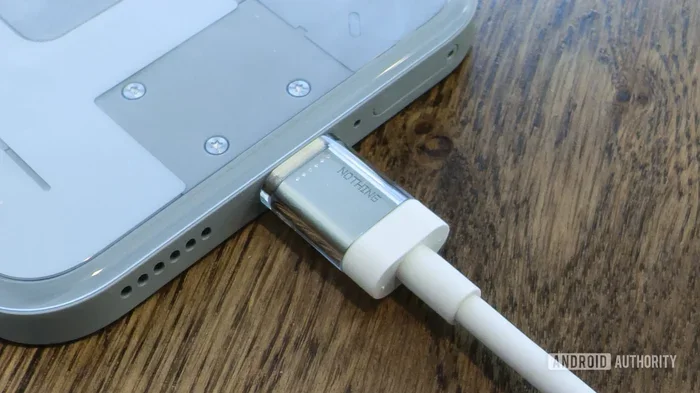
Can I Plug A Usb C Into A Usb Port And Will It Work
Yes, you can plug a USB C into a USB port in many cases, but it depends on the adapter and cable you use. USB-C and USB-A are different connector types, so a direct plug-in won’t work without the right adapter. Understanding USB-C to USB-A compatibility helps you avoid frustration, slow speeds, and damaged ports. This guide covers everything you need to know about plugging USB-C devices into standard USB ports.
Have you ever grabbed your new USB-C cable and tried to plug it into an older USB port, only to realize it doesn’t fit? You are not alone. Can I Plug A USB C Into A USB Port is one of the most common questions tech users ask today. The short answer is yes, but there is a catch. You need the right adapter, cable, or hub to make it work. Let us break it all down so you never have to guess again.
The world of USB connectors has changed a lot in the last few years. USB-C is now the go-to connector for laptops, phones, and tablets. But millions of devices still use the older USB-A port. That means you will run into this plug mismatch more often than you think. Understanding how USB-C works with USB-A ports saves you time, money, and a lot of headaches. This guide covers every angle of this topic in plain, simple language.
Key Takeaways
- USB-C and USB-A are different connector types: You cannot plug USB-C directly into a USB-A port without an adapter.
- Backward compatibility exists with the right adapter: A USB-C to USB-A adapter or cable lets you connect modern devices to older ports.
- Speed and power delivery vary: You may not get the full USB-C speed or power when using an older USB-A port.
- Not all USB-C cables are equal: Cable quality and spec matter a lot for data transfer and charging.
- USB4 and Thunderbolt 3 use USB-C: These advanced standards offer the best speeds but require compatible ports on both ends.
- Always check your device specs: Knowing what your port and cable support prevents compatibility issues.
📑 Table of Contents
- What Is USB-C and Why Is It So Popular?
- Can I Plug A USB C Into A USB Port And Will It Work?
- What Happens When You Connect USB-C to a USB-A Port?
- USB-C to USB-A Adapters and Cables Explained
- Speed, Power, and Compatibility Differences
- Common Mistakes and How to Avoid Them
- Expert Insights and Practical Advice
- Key Takeaways
- Conclusion
What Is USB-C and Why Is It So Popular?
USB-C is a small, oval-shaped connector that has taken the tech world by storm. Unlike the old USB-A port, which is big and rectangular, USB-C is tiny and reversible. That means you can flip it either way and it will plug in. No more flipping the cable three times to get the right orientation.
The Design of USB-C
The USB-C connector was designed with modern devices in mind. It is slim enough to fit into thin laptops and phones. The reversible shape makes it user-friendly. USB-C also supports a lot of power and data, which is why so many brands adopted it. Here are some key features of USB-C:
- Reversible plug design: No wrong way to insert it.
- Smaller form factor: About half the size of USB-A.
- Higher power delivery: Up to 240 watts with USB Power Delivery.
- Faster data speeds: Up to 40 Gbps with USB4 or Thunderbolt 3.
- Alternate modes: Supports video output, DisplayPort, and more.
Why Did USB-C Replace USB-A?
USB-A has been around since the late 1990s. It served us well for many years. But as devices got thinner and faster, USB-A started to show its limits. USB-C offers a future-proof design that handles data, power, and video all through one cable. That is a huge advantage. Most new laptops, tablets, and phones now ship with USB-C only. This shift is why so many people ask whether their old USB-A ports can still work with new USB-C devices.
Can I Plug A USB C Into A USB Port And Will It Work?
This is the big question, and the answer is not a simple yes or no. Can I Plug A USB C Into A USB Port depends on what kind of USB port you are talking about. If you have a USB-A port, a USB-C plug will not fit directly. The shapes are completely different. But if you use an adapter or a special cable, it absolutely can work.
Direct Plug-In: USB-C to USB-A
You cannot plug a USB-C connector directly into a USB-A port. The shapes simply do not match. USB-A has a rectangular, flat connector while USB-C is oval and much smaller. Trying to force it will not work and could damage the port or the cable. So if you see a USB-A port on your computer or hub, you need an adapter to use a USB-C cable with it.
When It Does Work Without an Adapter
There is one situation where USB-C works directly with a USB port. Some newer devices come with USB-C ports that follow the USB-C standard. If both the cable and the port are USB-C, you can plug them in directly. This is common on modern laptops, smartphones, and tablets. But if one end is USB-A and the other is USB-C, you need a bridge between them.
The Role of Adapters and Cables
Adapters and cables solve the plug mismatch problem. A USB-C to USB-A adapter lets you connect a USB-C device to an old USB-A port. Similarly, a USB-C to USB-A cable has a USB-C plug on one end and a USB-A plug on the other. These are very common and affordable. They let you use your new USB-C devices with older equipment without any hassle.
Here are some common ways to connect USB-C to a USB-A port:
- USB-C to USB-A adapter: A small dongle you plug into the USB-A port, then connect your USB-C cable to it.
- USB-C to USB-A cable: A cable with different connector types on each end.
- USB-C hub with USB-A ports: A hub that adds multiple USB-A ports to a USB-C laptop.
- USB-C docking station: A larger hub that adds many ports including USB-A, HDMI, and Ethernet.
What Happens When You Connect USB-C to a USB-A Port?
When you use an adapter or cable to connect a USB-C device to a USB-A port, several things happen. Not all USB-C features will be available. The experience depends on the quality of the adapter and the specs of the USB-A port. Let us look at what to expect.
Data Transfer Speeds
USB-C can support blazing fast speeds, especially with USB 3.1, USB 3.2, or USB4. But when you plug a USB-C device into a USB-A port, the speed drops to what the USB-A port supports. A USB-A 3.0 port maxes out at 5 Gbps. A USB-A 2.0 port only goes up to 480 Mbps. That is a huge difference. So even if your USB-C device can transfer data at 10 Gbps or more, the USB-A port will slow things down.
Here is a quick comparison of USB speeds across different standards:
- USB 2.0 (USB-A): Up to 480 Mbps
- USB 3.0 (USB-A): Up to 5 Gbps
- USB 3.1 Gen 1 (USB-C): Up to 5 Gbps
- USB 3.1 Gen 2 (USB-C): Up to 10 Gbps
- USB 3.2 Gen 2×2 (USB-C): Up to 20 Gbps
- USB4 (USB-C): Up to 40 Gbps
- Thunderbolt 3/4 (USB-C): Up to 40 Gbps
Power Delivery and Charging
USB-C supports USB Power Delivery, or USB PD, which can charge devices at much higher wattages. A USB-A port typically delivers up to 7.5 watts or 15 watts at most. When you use a USB-C device with a USB-A port, the charging speed will be much slower. Some phones and tablets may charge very slowly or not charge at all if they need more power than the USB-A port can provide.
Video and Display Output
USB-C can carry video signals through Alternate Mode or Thunderbolt. USB-A cannot carry video signals. So if you plug a USB-C device into a USB-A port using an adapter, you will not be able to output video to an external monitor through that connection. You need a different type of adapter or dock that supports video output.
USB-C to USB-A Adapters and Cables Explained
The market is full of USB-C to USB-A adapters and cables. But not all of them are created equal. Choosing the right one makes a big difference in performance and reliability. Here is what you should look for.
Types of USB-C to USB-A Adapters
There are several types of adapters available. Each serves a different purpose:
- Simple USB-C to USB-A adapter: A small dongle with a USB-A female port and a USB-C male plug. Great for occasional use.
- USB-C to USB-A cable: A cable with USB-C on one end and USB-A on the other. No extra dongle needed.
- USB-C hub with USB-A ports: Adds multiple ports including USB-A, HDMI, SD card slots, and more.
- USB-C docking station: A larger hub that connects to your laptop and provides many ports for a desk setup.
How to Choose a Good Adapter
Not all adapters are the same. Cheap adapters can cause slow speeds, connection drops, or even damage your device. Here are some tips for picking a reliable one:
- Look for USB 3.0 or higher: Make sure the adapter supports at least USB 3.0 speeds for good data transfer.
- Check for USB Power Delivery support: If you want to charge through the adapter, make sure it supports USB PD.
- Buy from reputable brands: Anker, Belkin, and Cable Matters are trusted names.
- Read reviews: Check what other users say about speed and reliability.
- Avoid ultra-cheap no-name adapters: They often use poor-quality chips that limit performance.
Quick Tips for Using Adapters
Using a USB-C to USB-A adapter is simple, but a few tips can help you get the best experience:
- Plug the adapter into the USB-A port first. Then connect your USB-C cable to the adapter.
- Do not force the connector. If it does not fit, check the orientation.
- Use a short, high-quality cable. Longer cables can reduce speed and power delivery.
- Check for overheating. Cheap adapters can get hot. If an adapter feels too warm, unplug it.
- Update your device drivers. Sometimes connection issues come from outdated drivers, not the adapter.
Speed, Power, and Compatibility Differences
Understanding the differences between USB-C and USB-A helps set the right expectations. You will not always get the full USB-C experience when connecting to a USB-A port. Here is a detailed look at what changes.
USB-C vs USB-A: Key Differences
The two connector types differ in several important ways:
- Shape and size: USB-C is small and oval. USB-A is large and rectangular.
- Reversibility: USB-C can be plugged in either way. USB-A has a right-side-up orientation.
- Data speed: USB-C supports much faster speeds than USB-A.
- Power delivery: USB-C can deliver significantly more power.
- Video output: USB-C can carry video signals. USB-A cannot.
- Durability: USB-C connectors are designed to last longer and withstand more plugging cycles.
Backward Compatibility: What It Means for You
USB-C is backward compatible with older USB standards, but only through adapters and cables. This means your new USB-C device can work with older USB-A equipment. However, the performance will match the older standard, not the newer one. Think of it like putting a modern engine in an old car. It works, but the car can only go as fast as its other parts allow.
Common Compatibility Issues
Some users run into problems when connecting USB-C devices to USB-A ports. Here are the most common issues:
- Slow data transfer: The USB-A port limits the speed.
- No charging: Some devices need USB PD, which USB-A does not provide.
- Connection drops: Poor-quality adapters cause intermittent disconnections.
- No video output: USB-A cannot carry video signals.
- Port damage: Forcing a connector or using a cheap adapter can harm the port.
Common Mistakes and How to Avoid Them
Many people make mistakes when using USB-C with USB-A ports. These mistakes can lead to frustration or even damaged equipment. Here are the most common ones and how to avoid them.
Mistake 1: Forcing the Connector
USB-C and USB-A have different shapes. If the connector does not fit, do not force it. Check that you are using the right adapter or cable. Forcing a connector can break the pins or damage the port.
Mistake 2: Using a Cheap Adapter
A $3 adapter from an unknown brand might seem like a good deal. But it often comes with poor-quality components. Invest in a well-reviewed adapter from a trusted brand. It will give you better speeds, safer charging, and longer lifespan.
Mistake 3: Assuming Full USB-C Speeds
Just because you have a USB-C cable does not mean you will get USB-C speeds. The slowest link in the chain determines the overall speed. If your USB-A port only supports USB 2.0, your data transfer will be limited to 480 Mbps no matter what USB-C cable you use.
Mistake 4: Ignoring Power Delivery Limits
If you need to charge a laptop or power-hungry device, a USB-A port may not provide enough power. Always check the wattage requirements of your device and compare them to what the USB-A port can deliver. If the port cannot supply enough power, your device may charge very slowly or not at all.
Mistake 5: Not Checking Cable Specs
Not all USB-C cables are the same. Some only support USB 2.0 speeds. Others support 10 Gbps or even 40 Gbps. Check the cable specifications before buying. Look for cables that mention USB 3.1, USB 3.2, or USB4 support if you need fast data transfer.
Expert Insights and Practical Advice
We asked tech experts about the best ways to handle USB-C and USB-A compatibility. Here is what they recommend.
Expert Tip 1: Keep a Few Adapters on Hand
Tech specialist Mark Reynolds suggests keeping a USB-C to USB-A adapter in your laptop bag at all times. You never know when you will need to connect a USB-C device to an older USB-A port. A small adapter can save you from a lot of trouble.
Expert Tip 2: Use a USB-C Hub for Your Desk
If you use a laptop with only USB-C ports, a USB-C hub with built-in USB-A ports is a game changer. It lets you connect all your older devices without carrying multiple adapters. Look for a hub that supports USB 3.0 or higher for the best performance.
Expert Tip 3: Check Your Device Manual
Every device manual lists the supported USB standards and speeds. Reading the manual takes five minutes but saves hours of confusion. You will know exactly what your port supports and what to expect when connecting different devices.
Key Takeaways
- USB-C and USB-A are different connector types: You cannot plug USB-C directly into a USB-A port without an adapter.
- Backward compatibility exists with the right adapter: A USB-C to USB-A adapter or cable lets you connect modern devices to older ports.
- Speed and power delivery vary: You may not get the full USB-C speed or power when using an older USB-A port.
- Not all USB-C cables are equal: Cable quality and spec matter a lot for data transfer and charging.
- USB4 and Thunderbolt 3 use USB-C: These advanced standards offer the best speeds but require compatible ports on both ends.
- Always check your device specs: Knowing what your port and cable support prevents compatibility issues.
Conclusion
Can I Plug A USB C Into A USB Port is a question with a practical answer. Yes, you can make it work, but you need the right adapter or cable. USB-C and USB-A are different shapes, so a direct connection is not possible. However, with a good USB-C to USB-A adapter or cable, you can connect your modern USB-C devices to older USB-A ports easily.
Keep in mind that the full USB-C experience, including fast speeds and high-power charging, depends on the port you connect to. A USB-A port will limit your speed and power delivery. But for everyday tasks like file transfers and basic charging, a quality adapter gets the job done just fine.
The best approach is to understand your devices and their ports. Check the specs, buy the right adapters, and avoid cheap no-name products. With the right setup, your USB-C and USB-A devices will work together seamlessly. You will save time, avoid frustration, and get the most out of your gear.
So the next time you pick up your USB-C cable and see a USB-A port, you will know exactly what to do. Grab your adapter, plug it in, and get back to work. USB-C and USB-A compatibility is easy once you know the basics.
Frequently Asked Questions
Can I plug a USB-C cable directly into a USB-A port?
No, you cannot plug a USB-C cable directly into a USB-A port. The connector shapes are different. USB-C is oval and small, while USB-A is rectangular and larger. You need a USB-C to USB-A adapter or cable to connect them.
Will I get USB-C speeds when using a USB-C to USB-A adapter?
No, the speed will match the USB-A port, not the USB-C standard. If your USB-A port is USB 3.0, you will get up to 5 Gbps. If it is USB 2.0, the speed drops to 480 Mbps. The slower port limits the overall speed.
Can I charge my phone with a USB-C to USB-A adapter?
Yes, you can charge your phone, but the charging speed will be slower. USB-A ports typically deliver less power than USB-C ports with USB Power Delivery. For fast charging, it is best to use a USB-C port directly.
Are all USB-C to USB-A adapters the same?
No, they are not all the same. Some support USB 3.0 speeds, while others only support USB 2.0. Some support USB Power Delivery for charging, while others do not. Always check the adapter specifications before buying.
Can I use a USB-C hub to add USB-A ports to my laptop?
Yes, a USB-C hub is a great way to add USB-A ports to a laptop that only has USB-C ports. Look for a hub that supports USB 3.0 or higher for the best data transfer speeds and compatibility.
What should I do if my USB-C device does not work with a USB-A port?
First, make sure you are using a compatible adapter or cable. Check that the adapter supports the right USB standard. If it still does not work, try a different adapter or cable. Sometimes poor-quality adapters cause connection problems.