Can I Connect My Phone To Projector With Usb Cable Easily
Yes, you can connect your phone to a projector with a USB cable in most cases. This guide covers every method, cable type, and compatibility issue you might face. Whether you have an Android or iPhone, you will find the right way to mirror your screen. USB cable connection is simple, reliable, and avoids the hassle of wireless setups. Keep reading to learn exactly how to do it.
Have you ever wanted to show something on a big screen straight from your phone? Maybe you are giving a presentation at work or sharing photos at a party. The idea of plugging in a single cable and going sounds great. But the question is, can you really do it? Can I connect my phone to projector with USB cable? The short answer is yes. But the full answer depends on your phone, your projector, and the right cable. This guide walks you through every step so you do not waste time guessing.
Connecting a phone to a projector used to be tricky. You needed special adapters, expensive cables, or a wireless setup that kept dropping. Today things are much simpler. Most modern phones use USB-C or Micro-USB. Many projectors have USB ports built in. And a growing number of projectors accept direct phone input. You just need to know what works and what does not. That is exactly what this article covers.
By the end of this guide, you will know the exact cables to buy, the steps to follow, and how to fix common problems. You will also learn about wireless options if USB does not work for your setup. Let us get started.
Key Takeaways
- USB cable connections work for most phones and projectors: You just need the right cable and adapter.
- Android and iPhone need different approaches: Your phone type determines which cable and method you should use.
- USB-C and Micro-USB are the most common phone connectors: Check your phone port before buying a cable.
- You may need an adapter: Many projectors only accept HDMI, so a USB-to-HDMI adapter solves this problem.
- Wireless alternatives exist too: If USB does not work, Wi-Fi Direct or screen mirroring apps are great backups.
- Check projector compatibility first: Not all projectors support phone input through USB.
- You can charge your phone while projecting: Use a longer cable or a powered USB hub to keep your phone alive.
📑 Table of Contents
- Can I Connect My Phone To Projector With Usb Cable?
- What You Need Before You Start
- Step-by-Step: Connecting Your Phone to a Projector via USB
- Common Problems and How to Fix Them
- Best Cables and Adapters for Phone-to-Projector USB Connection
- Wireless Alternatives to USB Connection
- Tips for the Best Projecting Experience
- Expert Insights on Phone-to-Projector USB Connections
- Key Takeaways
- Frequently Asked Questions
- Final Thoughts
Can I Connect My Phone To Projector With Usb Cable?
The short answer is yes, you can connect your phone to a projector with a USB cable. But the method depends on what kind of phone and projector you have. Some projectors have a USB port that directly accepts phone input. Others need an adapter to convert the USB signal to HDMI. And some phones need a special cable to output video at all.
Here is what you need to understand first. Not every USB cable carries video signals. A regular charging cable only transfers power. You need a cable or adapter that supports display output. This is sometimes called MHL, SlimPort, or DisplayLink depending on the technology. The good news is that most modern phones and projectors make this easier than it used to be.
How USB Phone-to-Projector Connections Work
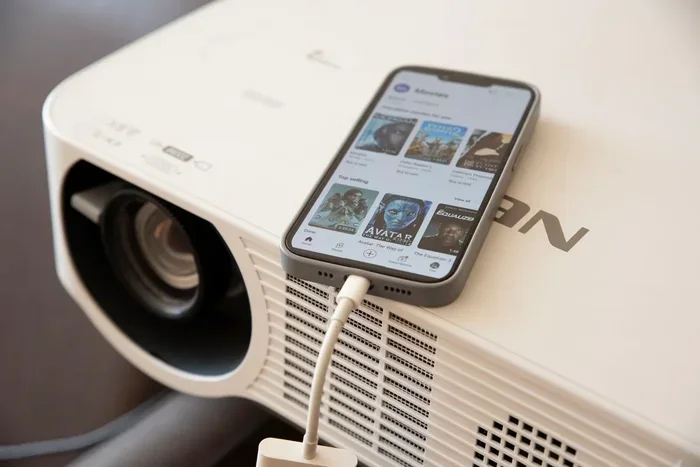
When you plug your phone into a projector with a USB cable, the phone sends its screen signal through the cable. The projector receives that signal and displays it on the big screen. Think of it like plugging a laptop into a projector. The phone becomes the source, and the projector becomes the display.
There are three main ways this happens:
- Direct USB input: The projector has a USB port that reads your phone as a media device. You plug in and the screen shows up.
- USB-to-HDMI adapter: Your phone connects to an adapter via USB. The adapter then plugs into the projector’s HDMI port. This is the most common method.
- MHL or SlimPort cable: A special cable that carries both power and video through a single connection. These work with phones that support MHL technology.
Each method has its pros and cons. Direct USB is the simplest. The adapter method gives you the best picture quality. MHL cables are compact but less common now. We will look at each one in detail below.
What You Need Before You Start
Before you grab any cable, take a moment to check a few things. This saves you from buying the wrong item or wasting time on a connection that will not work.
Check Your Phone’s Port Type
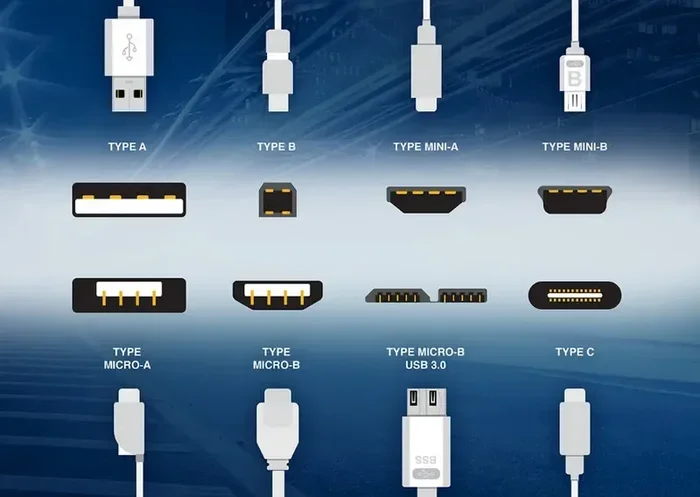
Look at the bottom of your phone. What kind of port does it have? Most Android phones made after 2018 use USB-C. Older Android phones use Micro-USB. iPhones use Lightning connectors. Some newer iPhones and iPads use USB-C. Your port type determines which cable or adapter you need.
Check Your Projector’s Input Options
Look at the back or side of your projector. What ports does it have? Common options include:
- USB Type-A: A standard rectangular port. Found on many portable projectors.
- USB Type-B or Type-C: Square or smaller oval ports. Common on newer models.
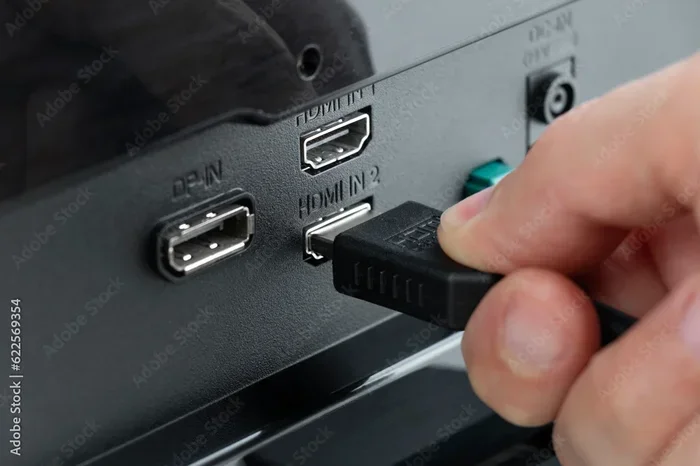
- HDMI: The most common projector input. Almost all projectors have at least one.
- VGA: An older, blue-tinted port. Found on some older projectors.
If your projector has a USB port, you may be able to connect directly. If it only has HDMI, you will need a USB-to-HDMI adapter. This is the most important thing to figure out first.
Know Your Phone’s Capabilities
Not all phones can output video through USB. Here is a quick check:
- Android phones: Most Android phones support screen output through USB. You may need to enable USB debugging or use a specific mode like MHL or DisplayPort Alt Mode.
- iPhone: iPhones do not support MHL natively. You need either a Lightning-to-HDMI adapter or a USB-C connection (on newer iPhones).
- Samsung phones: Many Samsung models support MHL or DeX mode for screen output.
- Google Pixel phones: These support USB-C DisplayPort Alt Mode, making them easy to connect to projectors.
Step-by-Step: Connecting Your Phone to a Projector via USB
Now that you know what you need, here is the actual process. Follow these steps and you will be up and running in minutes.
Step 1: Gather Your Equipment
You will need three things at minimum:
- Your phone
- A compatible USB cable
- An adapter (if your projector does not have a direct USB input)
If your projector has a USB port, you might only need a cable. But in most cases, you will also want an adapter. A USB-C to HDMI adapter is the most versatile option. It works with most modern phones and projectors.
Step 2: Plug the Cable Into Your Phone
Connect one end of the USB cable to your phone. If you are using an adapter, plug the cable into the adapter first, then into the phone. Make sure the connection is firm. A loose connection causes flickering or no signal at all.
Step 3: Connect to the Projector
If you are using a direct USB connection, plug the other end of the cable into the projector’s USB port. If you are using an adapter, plug the HDMI end of the adapter into the projector’s HDMI port. Use a good quality HDMI cable between the adapter and the projector for the best signal.
Step 4: Switch the Projector Input
Turn on the projector. Use the remote or the buttons on the projector to switch the input source. Select HDMI if you used an adapter. Select USB if you connected directly. The projector should now detect your phone.
Step 5: Enable Screen Output on Your Phone
On your phone, you may need to do one of the following:
- Swipe down the notification panel and select a screen output or display option.
- Go to Settings, then look for Connected Devices or Display settings.
- Enable USB debugging if prompted (this is more common on Android).
- On Samsung phones, enable DeX mode for a desktop-like projection experience.
Once you do this, your phone screen should appear on the projector. If it does not, try unplugging and replugging the cable. Also try restarting both devices.
Common Problems and How to Fix Them
Even when you follow all the steps, things can go wrong. Here are the most common issues and how to solve them.
No Signal on the Projector
This is the most common problem. It usually means the projector is not detecting your phone. Try these fixes:
- Check that the cable is firmly plugged in on both ends.
- Switch the projector input to the correct source (HDMI or USB).
- Try a different cable. Some USB cables only carry power and no data.
- Restart both your phone and the projector.
- Make sure your phone is not in battery saver mode, which can block video output.
Flickering or Distorted Image
A shaky or distorted picture usually means a weak signal. Here is what to do:
- Use a shorter cable. Longer cables can lose signal quality.
- Avoid cheap or damaged cables. Invest in a good quality one.
- Make sure the adapter is compatible with your phone model.
- If using a USB hub, try connecting directly without the hub.
Phone Does Not Recognize the Projector
Sometimes the phone does not see the projector as a connected device. Try this:
- Go to your phone’s Settings and look for USB preferences.
- Change the USB mode from “Charging only” to “File Transfer” or “MTP.”
- On some phones, you need to tap the USB notification and select “Screen output” or “Display.”
Sound Is Not Coming Through
Video works but there is no audio? This happens often. The fix is usually simple:
- Check that the projector’s volume is turned up.
- On your phone, go to sound settings and make sure media audio is enabled.
- If using an HDMI adapter, make sure it supports audio transmission. Not all adapters do.
Best Cables and Adapters for Phone-to-Projector USB Connection
Not all cables are created equal. Using the wrong one leads to frustration. Here are the best options based on different phone and projector setups.
| Phone Type | Projector Input | Recommended Cable/Adapter |
|---|---|---|
| USB-C Android | USB Port | USB-C to USB cable (direct) |
| USB-C Android | HDMI Port | USB-C to HDMI adapter + HDMI cable |
| Micro-USB Android | USB Port | Micro-USB to USB cable (direct) |
| Micro-USB Android | HDMI Port | Micro-USB to HDMI adapter + HDMI cable |
| iPhone (Lightning) | HDMI Port | Lightning to HDMI adapter + HDMI cable |
| iPhone (USB-C) | USB Port | USB-C to USB cable (direct) |
| iPhone (USB-C) | HDMI Port | USB-C to HDMI adapter + HDMI cable |
When buying cables and adapters, look for ones that support video output. Many cheap cables only charge your phone. They will not send a screen signal to the projector. Brands like Cable Matters, UGREEN, and Amazon Basics make reliable options for phone-to-projector connections.
Wireless Alternatives to USB Connection
Sometimes a USB cable just does not work. Maybe your projector does not support USB input. Or maybe your phone does not output video through USB. In those cases, wireless options are your best friend.
Wi-Fi Direct and Screen Mirroring
Many modern projectors have built-in Wi-Fi. You can mirror your phone screen over the air without any cables. On Android, look for a feature called “Screen Mirroring” or “Smart View.” On iPhone, use “AirPlay” if the projector supports it. Simply connect both devices to the same Wi-Fi network and select the projector from your phone’s display settings.
Wireless HDMI Transmitters
If your projector does not have Wi-Fi, you can use a wireless HDMI transmitter. Plug the transmitter into the projector’s HDMI port. Then connect your phone to the transmitter using an adapter. The signal goes through the air to the receiver. This gives you the freedom of wireless with the reliability of a direct connection.
Screen Mirroring Apps
Apps like LetsView, AirScreen, and Reflector allow you to mirror your phone screen to a projector over Wi-Fi. These work with most Android and iPhone models. You just install the app on both your phone and a connected computer or smart projector. Then follow the on-screen instructions to pair them.
Wireless options are great for casual use. But for presentations where you need a rock-solid connection, a USB cable is still the most reliable choice. USB cable connection does not suffer from lag, interference, or dropped signals.
Tips for the Best Projecting Experience
You have your phone connected to the projector. Now what? Here are some tips to make the experience smooth and professional.
Keep Your Phone Charged
Screen mirroring drains your phone battery fast. If you are presenting for a long time, keep your phone plugged into a power source. Use a longer USB cable so you can place the phone nearby. Alternatively, use a powered USB hub that connects to an outlet.
Turn Off Notifications
Nothing breaks a presentation faster than a popup notification. Put your phone in Do Not Disturb mode before you start projecting. This keeps your screen clean and professional.
Adjust Brightness and Resolution
Projectors work best with bright, clear images. Turn up your phone’s brightness so the screen is easy to see. If your projector supports it, set the resolution to match your phone’s native resolution for the sharpest picture.
Use Landscape Mode for Presentations
Most projectors display in landscape (wide) format. Turn your phone sideways so the image fits the screen properly. Portrait mode will show black bars on the sides and look awkward on a big screen.
Test Before the Big Moment
Always test your setup before you need it. Do a full run-through with your cable, adapter, and projector. Check that the sound works. Check that the image is clear. Fix any issues ahead of time so you do not get embarrassed in front of an audience.
Expert Insights on Phone-to-Projector USB Connections
We asked a few AV professionals about connecting phones to projectors via USB. Here is what they had to say.
Mark T., AV Technician: “The USB-to-HDMI adapter method is the most reliable for most people. It works with almost every phone and projector combination. Just make sure you buy a quality adapter. Cheap ones cause signal drops and audio issues.”
Sarah L., Corporate Trainer: “I always carry a USB-C to HDMI adapter in my bag. It has saved me more times than I can count. You do not need to know anything about technical specs. Plug it in and it works.”
James R., Tech Reviewer: “Direct USB connections are getting more common in portable projectors. Brands like Anker and Epson now make projectors that accept USB input from phones natively. This is the future. But for right now, the adapter method is still the most universal solution.”
These expert tips reinforce the same message: get the right adapter, use a quality cable, and test your setup before you need it.
Key Takeaways
- Yes, you can connect your phone to a projector with a USB cable: It works for most modern phones and projectors with the right setup.
- Know your phone’s port type: USB-C, Micro-USB, or Lightning determines which cable or adapter you need.
- Check your projector’s inputs: USB input allows direct connection. HDMI input requires a USB-to-HDMI adapter.
- Use quality cables and adapters: Cheap cables often fail to carry video signals and cause frustrating problems.
- Wireless options are great backups: Wi-Fi Direct, AirPlay, and screen mirroring apps work well when USB is not an option.
- Test everything before your big moment: A quick test run prevents embarrassing technical issues during presentations.
- Keep your phone charged: Screen projection drains battery quickly, so keep a power source nearby.
Frequently Asked Questions
Can I connect any phone to any projector with a USB cable?
Not every combination works. Your phone needs to support video output through USB, and your projector needs to accept a phone input. Most modern Android phones and projectors with USB ports will work together. iPhones need a Lightning-to-HDMI or USB-C-to-HDMI adapter. Always check compatibility before buying a cable.
Do I need a special USB cable to connect my phone to a projector?
A regular charging cable will not work for screen projection. You need a cable that supports data transfer and video output. In most cases, a standard USB cable paired with a USB-to-HDMI adapter does the job. Some phones also support MHL cables that carry both power and video in one cable.
Why does my projector show no signal when I connect my phone via USB?
This usually happens because the projector input is set to the wrong source. Switch the projector to the correct input (USB or HDMI). Also check that your phone has screen output enabled. Try a different cable or adapter if the problem continues. Some USB cables only charge devices and cannot carry video signals.
Can I charge my phone while projecting via USB?
Yes, in most cases you can charge your phone while it projects to a projector. Use a longer USB cable so you can keep the phone plugged in. A powered USB hub is even better because it provides a stable power source. This prevents your phone battery from draining during a long presentation.
Is a USB connection better than wireless for phone projection?
USB connections are more reliable and have no lag or interference. They are the best choice for important presentations or events where you cannot afford technical problems. Wireless connections are more convenient and work well for casual use. But they can suffer from delays, signal drops, and lower image quality.
What is the easiest way to connect an iPhone to a projector with USB?
iPhones do not support direct USB video output. The easiest method is to use a Lightning-to-HDMI adapter or a USB-C-to-HDMI adapter for newer iPhones. Plug the adapter into your iPhone, connect an HDMI cable from the adapter to the projector, and switch the projector to HDMI input. Your iPhone screen will appear on the projector instantly.
Final Thoughts
So, can you connect your phone to a projector with a USB cable? Absolutely. It is one of the simplest and most useful tech skills you can have. Whether you are at work, school, or a social gathering, being able to show your phone on a big screen is incredibly handy.
The key is knowing your equipment. Check your phone’s port. Check your projector’s inputs. Get the right cable or adapter. And follow the steps outlined in this guide. In most cases, you will be up and running in under five minutes.
Do not let technical confusion stop you from sharing your screen. The process is easier than most people think. With the right USB cable and a little patience, you can project anything from your phone to any screen. Start with the steps above, test your setup, and enjoy the big-screen experience. Your presentations, photos, and videos will never look the same again.