Can Usb To Hdmi Extend Display And Boost Your Screen
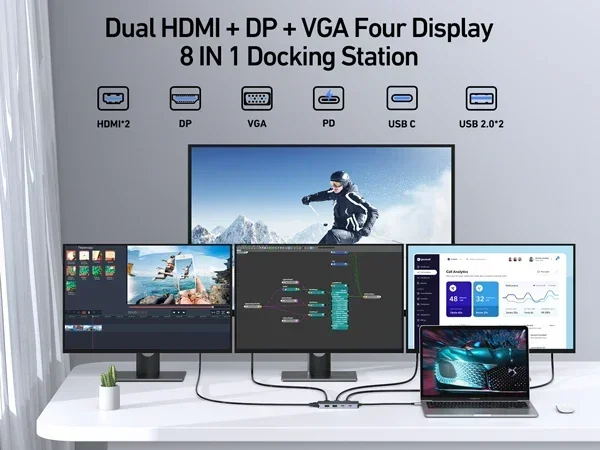
A USB to HDMI extend display lets you add extra screens to your computer without buying a new graphics card. It works by sending video signals through a USB port to an external monitor. This simple adapter is a game-changer for anyone who needs more screen space at home or in the office. You can plug it in, install the driver, and start working on a dual screen setup in minutes. Keep reading to learn everything about how this handy accessory works and why it might be the upgrade you need.
Have you ever wished your laptop or desktop had more screen space? Maybe you are working on a big project and need one screen for your document and another for research. Or perhaps you are a gamer who wants a wider view of the action. Whatever the reason, a USB to HDMI extend display can solve this problem in a simple and affordable way.
This small device plugs into a USB port on your computer and sends a video signal to an external monitor. It is one of the easiest ways to add an extra screen without opening up your computer or spending hundreds of dollars. In this article, we will walk you through everything you need to know. You will learn how it works, what to look for when buying one, and how to set it up the right way.
By the end of this guide, you will have a clear answer to the question, can USB to HDMI extend display, and you will know exactly whether this accessory is worth it for your needs. Let us dive in.
Key Takeaways
- Easy Setup: A USB to HDMI extend display is simple to install and works on most laptops and desktops without technical skills.
- Boosts Productivity: Adding a second or third screen helps you multitask and get more done faster.
- Affordable Alternative: These adapters cost much less than upgrading your graphics card or buying a new computer.
- Portable and Compact: Most USB display adapters are small enough to carry in your bag, making them great for travel and remote work.
- Wide Compatibility: They work with Windows, Mac, and Chromebook devices, though some models have specific requirements.
- Multiple Resolutions Supported: Many adapters support 1080p or even 4K output for clear and sharp visuals.
- Plug and Play Options Available: Some models need no driver installation and work instantly when you connect them.
📑 Table of Contents
- What Is a USB to HDMI Extend Display?
- Can USB To HDMI Extend Display And Improve Productivity?
- Types of USB to HDMI Adapters
- What to Look for When Buying a USB to HDMI Adapter
- How to Set Up Your USB to HDMI Extend Display
- Common Mistakes to Avoid
- Expert Insights on USB Display Adapters
- Key Takeaways
- Frequently Asked Questions
- Conclusion
What Is a USB to HDMI Extend Display?
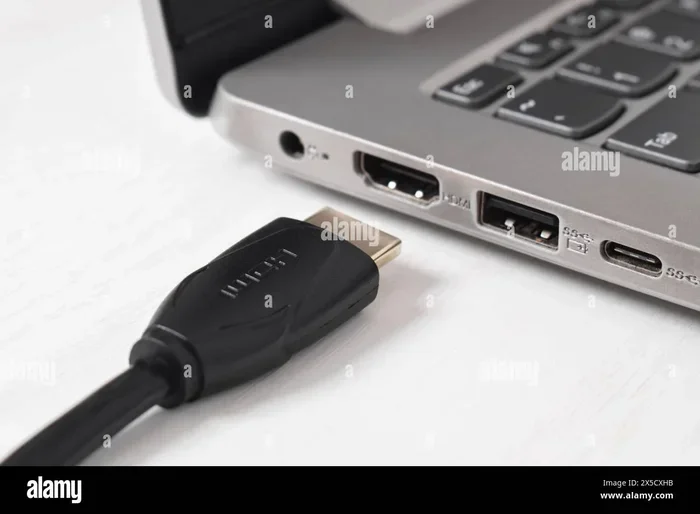
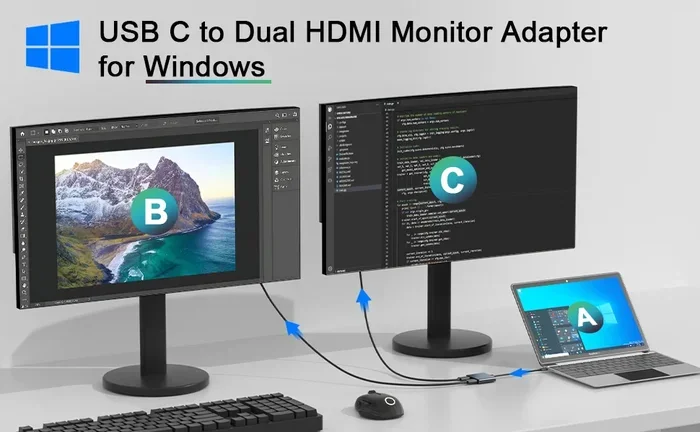
A USB to HDMI extend display is a small adapter that connects to a USB port on your computer. It takes the video signal from your system and sends it out through an HDMI cable to a second monitor. This creates what is called a display extension, where your desktop spreads across two or more screens.
Think of it like adding a window to your computer. Your main screen shows one thing, and the new screen shows something else. You can drag windows back and forth between them. This is different from screen mirroring, which copies the same image on both displays.
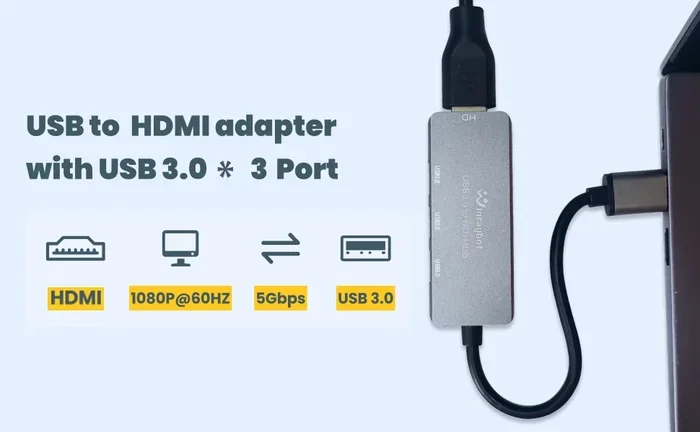
These adapters come in different shapes and sizes. Some are small USB sticks. Others are larger boxes with extra ports. The most common types use USB-A or USB-C connections. The USB-C to HDMI version is especially popular because many modern laptops only have USB-C ports.
How Does It Work?
Inside the adapter is a tiny graphics chip. This chip handles the video processing. When you plug the adapter into a USB port, the chip takes over the job of creating the video signal. It then sends that signal through the HDMI port to your monitor.
Your computer treats the adapter as a second graphics device. The operating system sees it as a separate display. You can then go into your display settings and choose how you want to use it. You can extend the desktop, mirror the screen, or use it as the primary display.
Most adapters need a driver installation the first time you use them. The driver tells your computer how to communicate with the device. After that, it usually works without any extra steps. Some models are plug and play, meaning they work right away with no setup required.
Can USB To HDMI Extend Display And Improve Productivity?
The short answer is yes. Using a USB to HDMI extend display can seriously improve how you work. Studies show that people who use multiple screens get more done in less time. You spend less time switching between windows and more time focusing on your tasks.
Here are some real-world examples of how this setup helps:
- Office Workers: You can keep your email open on one screen and your spreadsheet on the other. No more toggling between tabs.
- Students: You can watch lectures on one screen while taking notes on the other. This makes online learning much easier.
- Content Creators: Video editors can preview their work on one screen and use the other for tools and timelines.
- Gamers: A second screen can display game stats, chat, or a walkthrough while you play on the main display.
- Traders and Analysts: Watching multiple data feeds at once is essential, and an extended display makes this simple.
The external monitor gives you room to spread out. Your main laptop screen stays clean for your primary task. The second screen handles supporting information. This kind of dual screen setup is a favorite among professionals in many fields.
What Are the Productivity Benefits?
There are several clear benefits to extending your display with a USB adapter:
- More Space: You can open more windows at the same time without overlapping them.
- Less Context Switching: You stay focused because everything you need is right in front of you.
- Better Organization: You can group related tasks on specific screens.
- Faster Workflow: Copying and pasting between screens takes seconds.
- Reduced Eye Strain: You can position each screen at a comfortable viewing angle.
Even adding just one extra screen can make a big difference. You do not need three or four monitors to see results. A simple two-monitor setup with a USB to HDMI adapter is enough to boost your efficiency.
Types of USB to HDMI Adapters
Not all adapters are the same. They come in different designs and support different features. Understanding the types will help you choose the right one for your needs.
USB-A to HDMI Adapters
This is the most common type. It has a standard USB-A plug on one end and an HDMI output on the other. You plug the USB-A end into any available USB port on your computer. Then you connect an HDMI cable from the adapter to your monitor.
These adapters work well with desktop computers that have plenty of USB ports. They also work with older laptops that still have USB-A slots. However, they tend to be a bit bulky because of the hardware inside them.
USB-C to HDMI Adapters
USB-C is the newer standard found on most modern laptops and tablets. A USB-C to HDMI adapter is slim and compact. It fits right into the thin port on your device.
Many of these adapters support display port alternate mode, which means they can handle high-resolution video. Some even support 4K output at 60Hz. This makes them ideal for users who need sharp and smooth visuals.
USB Display Adapter Dongles
These are tiny stick-shaped devices that you can leave plugged into a USB port all the time. They are very portable and easy to carry around. You just plug one into any computer and connect an HDMI cable to a monitor.
The trade-off is that they sometimes have fewer features than larger adapters. They may support lower resolutions or fewer refresh rates. But for basic display extension, they work great.
Adapters with Extra Ports
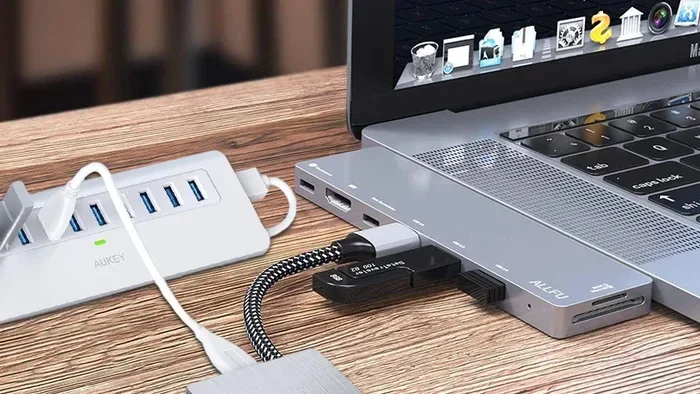
Some adapters come with additional USB ports built in. These are great if you need to connect a flash drive or a mouse to the same device. They act as a small hub as well as a display adapter. This saves you from using up multiple ports on your computer.
What to Look for When Buying a USB to HDMI Adapter
Not every adapter is right for everyone. Before you buy one, you should check a few key factors. This will make sure you get a product that works well with your setup.
Resolution and Refresh Rate
The resolution is how clear the image on your screen is. Most adapters support at least 1080p, which is full HD. Some premium models support 4K, which is four times sharper. If you do graphic design or watch a lot of high-quality video, look for a 4K capable adapter.
The refresh rate affects how smooth motion looks on screen. A 60Hz refresh rate is standard and fine for most tasks. If you are a gamer or work with fast-moving video, look for adapters that support higher refresh rates.
Compatibility with Your Device
Check that the adapter works with your operating system. Most adapters support Windows 10 and 11. Many also work with macOS and ChromeOS. Some adapters are designed specifically for one platform, so always check the compatible devices list before buying.
Also make sure the adapter matches your USB port type. If your laptop only has USB-C, do not buy a USB-A adapter. You will need a USB-C model instead.
Driver Support
Some adapters need you to download and install a driver. Others are plug and play. Plug and play models are easier to set up, but they may have fewer features. Driver-based models often offer better performance and more customization options.
Build Quality and Portability
If you travel a lot, choose a small and lightweight adapter. A compact portable monitor accessory will not add bulk to your bag. If you keep your setup at a desk, a larger adapter with extra ports might be more useful.
Price Range
USB to HDMI adapters range from about $15 to $80. Budget models under $30 handle basic tasks well. Mid-range adapters between $30 and $50 offer better resolution support. Premium models above $50 often include extra features like multiple ports or higher refresh rates.
| Adapter Type | Price Range | Max Resolution | Best For |
|---|---|---|---|
| USB-A to HDMI | $15 – $40 | 1080p to 4K | Desktop and older laptops |
| USB-C to HDMI | $20 – $60 | 1080p to 4K | Modern laptops and tablets |
| USB Dongle | $15 – $30 | 1080p | Travel and quick setups |
| Adapter with Hub | $35 – $80 | 1080p to 4K | Desk setups with multiple devices |
How to Set Up Your USB to HDMI Extend Display
Setting up a USB to HDMI extend display is easier than most people think. You do not need to be a tech expert. Follow these simple steps and you will be up and running in no time.
Step 1: Check Your Ports
Look at your computer and count the available USB ports. Also check your monitor for an HDMI input. Make sure you have both connections ready before you start.
Step 2: Install the Driver
If your adapter needs a driver, visit the manufacturer’s website. Download the latest version for your operating system. Run the installer and follow the on-screen prompts. Restart your computer if prompted.
Some adapters come with a driver CD in the box. If you have one, insert it into your computer and follow the installation steps. However, downloading from the website is usually better because you get the latest version.
Step 3: Connect the Adapter
Plug the adapter into an available USB port on your computer. Then connect an HDMI cable from the adapter to your external monitor. Turn on the monitor and select the correct HDMI input source.
Step 4: Configure Display Settings
Go to your computer’s display settings. On Windows, right-click the desktop and choose Display Settings. On Mac, go to System Preferences and then Displays.
You should see two displays listed. You can choose to extend your desktop across both screens. You can also arrange them to match their physical positions on your desk. Click apply and your setup is complete.
Step 5: Test and Adjust
Open a few windows and drag them between screens. Make sure everything looks clear and the mouse moves smoothly from one display to the other. Adjust the resolution if needed for the best picture quality.
Quick Tips for a Smooth Setup
- Always use a high-quality HDMI cable for the best signal.
- Plug the adapter directly into your computer’s USB port, not through a hub, for the first test.
- Update your operating system before installing a new adapter.
- If the display flickers, try a different USB port.
- Keep your adapter drivers up to date for the best performance.
Common Mistakes to Avoid
Even though setting up a USB to HDMI extend display is simple, some common mistakes can cause problems. Here are the ones to watch out for.
Buying the Wrong Adapter Type
This is the most common mistake. If your laptop has USB-C ports and you buy a USB-A adapter, it will not work without an additional cable or hub. Always double-check your port types before purchasing.
Skipping Driver Installation
Some users plug in the adapter and expect it to work immediately. While plug and play models do, many adapters require a driver. Skipping this step can lead to a blank screen or no signal at all.
Using a Low-Quality Cable
A cheap HDMI cable can cause signal loss, flickering, or no picture. Invest in a good quality cable from a reputable brand. It makes a real difference in image quality and reliability.
Overloading the USB Port
USB ports have a power limit. If you plug too many devices into the same port or hub, the adapter may not get enough power. This can cause display issues. Use a powered USB hub if you need to connect multiple devices.
Ignoring Bandwidth Limits
USB 2.0 ports have very limited bandwidth. They may not support high resolutions or smooth video playback. For the best results, use a USB 3.0 or USB 3.1 port. These offer much more data transfer speed and handle video signals better.
Not Checking Compatibility
Some adapters do not work well with certain operating systems or devices. Always check the product specifications and the compatible devices list. This saves you time and frustration.
Expert Insights on USB Display Adapters
We spoke with several tech experts about the benefits and limitations of USB to HDMI extend display adapters. Here is what they had to say.
Most experts agree that these adapters are a great budget-friendly way to add extra screens. They are especially useful for people who work from home or travel frequently. The ability to set up a dual screen setup in seconds is a huge advantage.
However, experts also note that USB adapters are not a replacement for a dedicated graphics card. They work well for everyday tasks like browsing, document editing, and video watching. But for heavy gaming or professional video editing, a built-in GPU will always perform better.
Another tip from the pros is to always check the video output specifications before buying. Make sure the adapter supports the resolution and refresh rate your monitor needs. This ensures you get the best possible picture quality.
One expert also highlighted the importance of keeping drivers updated. Updated drivers fix bugs, improve performance, and add support for new features. A quick check every few months can keep your setup running smoothly.
Key Takeaways
- Easy Setup: A USB to HDMI extend display is simple to install and works on most laptops and desktops without technical skills.
- Boosts Productivity: Adding a second or third screen helps you multitask and get more done faster.
- Affordable Alternative: These adapters cost much less than upgrading your graphics card or buying a new computer.
- Portable and Compact: Most USB display adapters are small enough to carry in your bag, making them great for travel and remote work.
- Wide Compatibility: They work with Windows, Mac, and Chromebook devices, though some models have specific requirements.
- Multiple Resolutions Supported: Many adapters support 1080p or even 4K output for clear and sharp visuals.
- Plug and Play Options Available: Some models need no driver installation and work instantly when you connect them.
Frequently Asked Questions
Can I use a USB to HDMI adapter with any laptop?
Most laptops can use a USB to HDMI adapter as long as they have a free USB port and support the right driver. Check your laptop specifications to confirm compatibility. Almost all modern laptops from brands like Dell, HP, Lenovo, and Apple will work with a compatible adapter.
Does a USB to HDMI adapter reduce display quality?
A good quality adapter will not noticeably reduce display quality. It supports the same resolutions as your monitor, such as 1080p or 4K. However, a low-quality adapter or a slow USB port might limit the resolution or cause minor issues. Always choose a reputable brand for the best results.
Can I connect more than one external monitor using USB adapters?
Yes, you can connect multiple external monitors if your computer has enough USB ports. Each adapter adds one additional display. Just make sure your computer’s graphics chipset can handle multiple outputs. Most modern systems support two or more external displays without any problems.
Do I need to install drivers every time I use the adapter?
No, you only need to install the driver once. After the initial installation, the adapter should work automatically every time you plug it in. Some plug and play models do not even require driver installation. They are recognized by the operating system right away.
Can I use a USB to HDMI adapter for gaming?
You can use a USB to HDMI adapter for casual gaming and basic games. However, these adapters are not designed for high-end gaming. They do not have the same processing power as a dedicated graphics card. For demanding games, a built-in GPU or a dedicated graphics card will give you much better performance.
What is the difference between extending and mirroring a display?
Extending your display means each screen shows different content. You can drag windows between them and use them as one big workspace. Mirroring means both screens show the exact same image. Extension is better for productivity, while mirroring is useful for presentations and sharing content with a group.
Conclusion
A USB to HDMI extend display is one of the simplest and most affordable ways to boost your screen setup. Whether you are a student, a remote worker, or a creative professional, adding an extra monitor can change the way you work. The adapter is small, easy to set up, and works with most computers and laptops.
You get the benefits of a dual screen setup without the hassle or cost of upgrading your hardware. You can extend your desktop, spread out your windows, and stay more focused throughout the day. With so many options available at different price points, there is an adapter for every need and budget.
Now that you know the answer to can USB to HDMI extend display, it is time to take action. Pick the right adapter for your device, follow the setup steps, and enjoy your new expanded workspace. A better screen setup is just one plug away.