Can Usb Type C Be Used For Display And Video Output
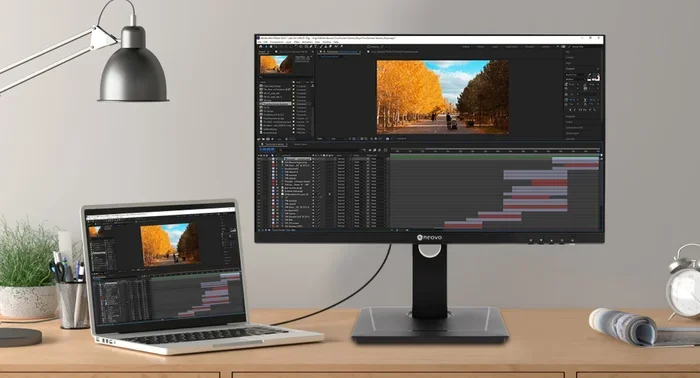
Yes, USB Type C can be used for display and video output. This small, reversible connector supports high-resolution displays through USB-C Alt Mode and Thunderbolt protocols. Whether you need to connect a laptop to a monitor, use a USB-C docking station, or enjoy 4K video on the go, USB-C makes it simple and fast.
You have a USB Type C cable in your hand. You plug it into your laptop. And then you stare at your monitor. Nothing happens. Sound familiar? You are not alone. Many people wonder whether USB Type C can be used for display and video output. The short answer is yes. But the full story is a bit more interesting.
USB-C has changed the way we connect devices. It is small, reversible, and incredibly fast. But not every USB-C cable carries video. Not every port supports it. And not every adapter works the same way. This guide breaks it all down. You will learn exactly how USB-C video output works, what you need, and how to avoid common mistakes.
Whether you are a student, a professional, or someone who just wants to cast your laptop to a bigger screen, this article has you covered. Let us dive in.
Key Takeaways
- USB Type C supports video output: Through Alt Mode and Thunderbolt, USB-C can deliver high-resolution video to external displays.
- You need the right cable or adapter: Not all USB-C cables support video. Look for cables rated for display and data transfer.
- Thunderbolt offers the best performance: Thunderbolt 3 and 4 provide the highest bandwidth for 4K and even 8K displays.
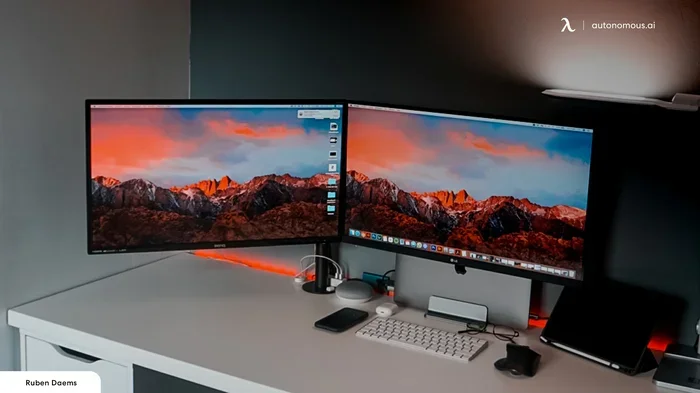
- USB-C docking stations expand your setup: A single cable can power your laptop, charge your device, and connect to multiple monitors.
- Check your device compatibility: Not every USB-C port supports video output. Always verify your device specifications before buying.
📑 Table of Contents
- Understanding USB Type C and Its Role in Display Technology
- How USB Type C Handles Video Output
- USB-C Alt Mode and Display Protocols Explained
- Thunderbolt 3 and Thunderbolt 4 for Display
- USB-C Docking Stations and Adapters
- USB-C vs Traditional Display Connections
- Common Problems and How to Fix Them
- Quick Tips for the Best USB-C Display Experience
- Final Thoughts
Understanding USB Type C and Its Role in Display Technology
What Makes USB Type C Different
USB Type C is a connector standard. It is not a protocol. It is not a cable type either, at least not on its own. Think of it as a shape. A small, oval-shaped port that fits in either direction. You do not have to flip it. You do not have to guess. Just plug it in.
This reversible connector has become the universal connector for many modern devices. Laptops, tablets, smartphones, and even some desktops now use USB-C. It carries power, data, and, in many cases, video signals all through one tiny port.
The rise of USB-C is part of a bigger shift in how devices communicate. From value-added networks for electronic commerce communication to modern USB-C standards, connectivity has evolved rapidly. What once required multiple cables and ports now often needs just one.
The Rise of the Universal Connector
For years, we dealt with a mess of ports. VGA. DVI. HDMI. DisplayPort. USB-A. Each one served a different purpose. Then USB-C arrived and changed the game. It is compact. It is fast. And it can do a lot more than older ports.
Here is what makes USB-C so appealing for display use:
- Compact size: It is much smaller than older USB-A or HDMI ports.
- Reversible design: No more flipping the cable to find the right orientation.
- High data speeds: USB 3.1 and USB 3.2 offer fast data transfer rates.
- Power delivery: USB-C can charge your device while transmitting video.
- Versatility: One port can handle multiple tasks at once.
Because of these benefits, USB-C has become the go-to port for display connection on many modern laptops and tablets. But here is the catch. Not every USB-C port can output video. You need to check your device specifications to be sure.
How USB Type C Handles Video Output
The Basics of Video Signal Transmission
So how does USB Type C actually carry a video signal? It comes down to something called Alt Mode. Alt Mode is a feature built into the USB-C specification. It allows the port to carry non-USB data, like video, through the same connector.
When a USB-C port supports Alt Mode, it can send video signals directly to an external display. This means you can connect your laptop to a monitor, a TV, or a projector using just a USB-C cable or a simple adapter.
The video signal travels through the USB-C cable’s high-speed data lanes. The number of lanes used determines the maximum resolution and refresh rate. More lanes mean better video bandwidth and higher quality output.
What Resolutions Can USB-C Support
The resolution you can achieve depends on several factors. These include the USB version, the Alt Mode used, and the cable quality. Here is a quick breakdown:
- USB 3.1 Gen 1 (5 Gbps): Supports up to 4K at 30Hz.
- USB 3.1 Gen 2 (10 Gbps): Supports up to 4K at 60Hz.
- USB 3.2 Gen 2×2 (20 Gbps): Supports up to 4K at 120Hz or 8K at 60Hz.
- Thunderbolt 3 (40 Gbps): Supports up to 4K at 120Hz or dual 4K at 60Hz.
- Thunderbolt 4 (40 Gbps): Same as Thunderbolt 3 but with stricter certification requirements.
As you can see, the resolution support varies widely. A basic USB-C cable might handle 1080p just fine. But if you want 4K display output at 60Hz or higher, you need the right port, the right cable, and the right protocol.
USB-C Alt Mode and Display Protocols Explained
What Is Alt Mode
Alt Mode is the key technology that allows USB Type C to carry video. Without Alt Mode, a USB-C port can only transfer data and power. It cannot send a video signal to an external screen.
When Alt Mode is active, the USB-C port dedicates some of its pins to carry a display protocol. The most common ones are DisplayPort Alt Mode and HDMI Alt Mode. Both allow video output, but they work a little differently.
Most modern laptops from Apple, Dell, HP, and Lenovo support DisplayPort Alt Mode. This means you can connect them to a monitor using a USB-C to DisplayPort cable or a USB-C to HDMI adapter. The process is simple. Plug in the cable, and your external display should show the same image as your laptop screen.
DisplayPort Alt Mode vs HDMI Alt Mode
DisplayPort Alt Mode is more common on USB-C devices. It offers great video bandwidth and supports high resolutions. HDMI Alt Mode is less common but still found on some devices. Both get the job done, but DisplayPort tends to offer better performance for high refresh rate displays.
Here is a simple comparison:
- DisplayPort Alt Mode: Most widely supported. Great for 4K and high refresh rates. Uses a USB-C to DisplayPort cable or adapter.
- HDMI Alt Mode: Found on some devices. Good for connecting to TVs and HDMI monitors. Uses a USB-C to HDMI cable or adapter.
If you are buying a USB-C to HDMI adapter, make sure it supports the resolution and refresh rate you need. Cheap adapters often limit you to 1080p or 4K at 30Hz. If you want smoother video, invest in a quality adapter.
Thunderbolt 3 and Thunderbolt 4 for Display
Thunderbolt 3 Capabilities
Thunderbolt 3 is one of the best ways to get video output through USB-C. It uses the same connector shape as standard USB-C but offers much more bandwidth. With 40 Gbps of speed, Thunderbolt 3 can drive multiple high-resolution displays from a single port.
Here are the key benefits of Thunderbolt 3 for display use:
- 4K at 120Hz: Smooth, fluid visuals on compatible monitors.
- Dual display support: Connect two 4K monitors at 60Hz from one port.
- Daisy chaining: Connect multiple displays in a chain using one Thunderbolt port.
- Power delivery: Charge your laptop while using external displays.
Thunderbolt 3 is found on many Apple MacBooks, Intel-based laptops, and some high-end Windows machines. If your device has a Thunderbolt 3 port, you have excellent display and video output capabilities.
Thunderbolt 4 and Beyond
Thunderbolt 4 builds on Thunderbolt 3. It offers the same 40 Gbps bandwidth but adds stricter requirements for certification. This means every Thunderbolt 4 cable and dock must meet a minimum standard. You get better reliability and consistent performance.
Thunderbolt 4 supports the same display capabilities as Thunderbolt 3. It also adds features like support for sleeping and charging displays. If you are buying a new laptop or dock, Thunderbolt 4 is the way to go. It future-proofs your setup and ensures compatibility with a wide range of peripheral devices.
USB-C Docking Stations and Adapters
Choosing the Right Adapter
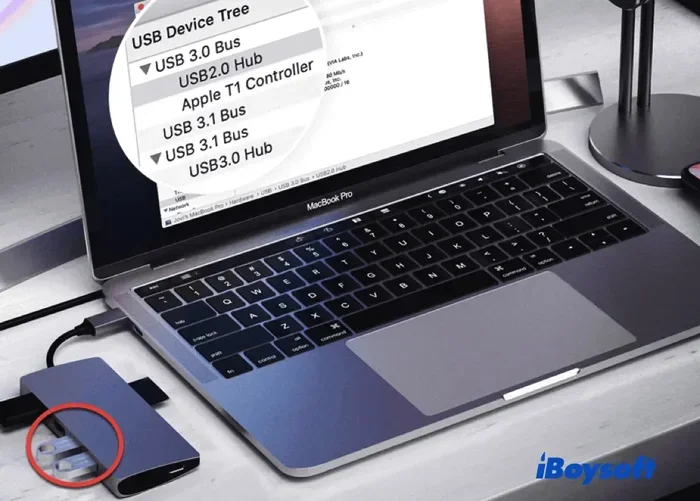
A USB-C docking station is one of the most useful accessories you can own. It turns a single USB-C port into a full workstation. You get video output, USB ports, Ethernet, and sometimes even SD card readers. All through one small dock.
But not all docks are created equal. Here are some things to look for when choosing one:
- Video output support: Make sure the dock supports the resolution and refresh rate you need.
- Number of displays: Some docks support one monitor, others support two or three.
- Power delivery: Look for a dock that can charge your laptop while you work.
- Data transfer speeds: USB 3.0 or USB 3.1 ports on the dock ensure fast file transfers.
- Build quality: A well-built dock lasts longer and performs more reliably.
In professional environments, including healthcare where computers are used in medicine for diagnostics and imaging, reliable display connections matter. A stable USB-C docking station ensures that medical professionals can view patient data and imaging results on large, high-resolution monitors without interruption.
Setting Up Your USB-C Display
Setting up an external display with USB-C is usually straightforward. Here is a quick step-by-step guide:
- Check your laptop: Make sure your laptop has a USB-C port that supports video output. Look for the Thunderbolt or DisplayPort logo next to the port.
- Choose your connection: Decide whether you need a direct cable or a dock. A direct cable works for simple setups. A dock is better for multi-monitor or multi-device setups.
- Get the right cable or adapter: Buy a cable or adapter that matches your monitor’s input. USB-C to DisplayPort, USB-C to HDMI, or USB-C to USB-C (if your monitor has a USB-C input).
- Plug it in: Connect the cable to your laptop and the monitor. The display should activate automatically.
- Adjust settings: Go to your display settings and choose the display mode. Duplicate, extend, or use the external display as your primary screen.
That is it. In most cases, you will be up and running in under a minute. The simplicity of USB-C makes display connection easier than ever before.
USB-C vs Traditional Display Connections
USB-C vs HDMI
HDMI has been the standard for TV and monitor connections for years. It is reliable and widely supported. But USB-C offers several advantages over HDMI:
- Reversible connector: No more flipping the HDMI cable to get it right.
- Power delivery: USB-C can charge your device while sending video. HDMI cannot do this.
- Smaller size: USB-C is much more compact than HDMI, making it ideal for thin laptops and tablets.
- Faster data speeds: USB-C supports higher data transfer rates than standard HDMI cables.
However, HDMI still has its place. Many TVs and projectors only have HDMI inputs. In those cases, a USB-C to HDMI adapter is the best solution. You get the best of both worlds.
USB-C vs DisplayPort
DisplayPort is another popular display connection, especially for PC monitors. It offers excellent video bandwidth and supports high refresh rates. USB-C with DisplayPort Alt Mode can match or even exceed standard DisplayPort performance.
The main advantage of USB-C over traditional DisplayPort is convenience. You use one cable for power, data, and video. With DisplayPort, you need separate cables for power and video. USB-C simplifies your setup and reduces cable clutter.
Common Problems and How to Fix Them
No Signal Issues
You plug in your USB-C cable. Your monitor turns on. But there is no signal. What went wrong? Here are the most common causes:
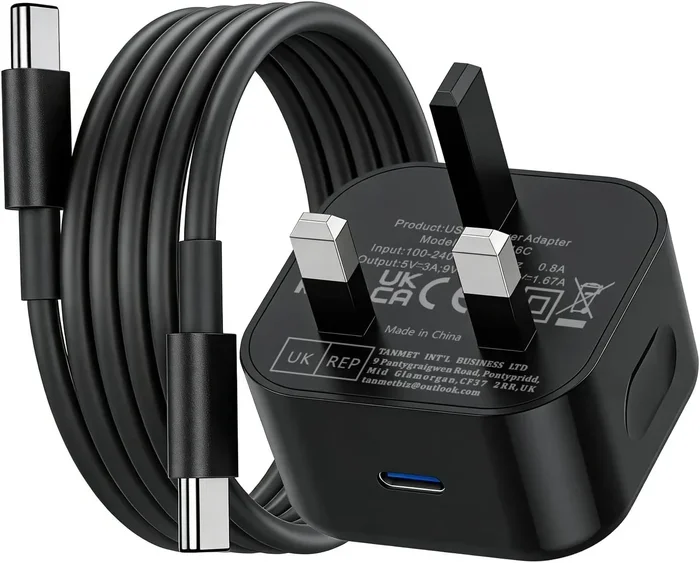
- The cable does not support video: Some USB-C cables are charge-only. They carry power but not data or video. Check your cable specifications.
- The port does not support Alt Mode: Not every USB-C port can output video. Check your device manual or specifications.
- Wrong adapter: Using an incompatible adapter can prevent video from reaching your monitor. Make sure your adapter matches your monitor’s input type.
- Driver issues: Sometimes your laptop needs updated display drivers. Check for updates in your device manager.
Poor Image Quality
If your external display looks blurry or has low resolution, try these fixes:
- Use a high-quality cable: Cheap cables can limit video bandwidth and reduce image quality.
- Check your resolution settings: Go to your display settings and select the native resolution of your monitor.
- Update your graphics drivers: Outdated drivers can cause display issues. Visit your GPU manufacturer’s website for the latest drivers.
- Try a different port: Some USB-C ports on your device may not support video. Try a different port if available.
Quick Tips for the Best USB-C Display Experience
Here are some quick tips to get the most out of your USB-C display setup:
- Always use cables and adapters rated for the resolution you want.
- Look for the Thunderbolt or DisplayPort logo on your USB-C port.
- Keep your cables short for the best signal quality.
- Invest in a good docking station if you use external displays regularly.
- Check your device manual for supported video protocols and resolutions.
Final Thoughts
USB Type C can be used for display and video output, and it has become one of the most versatile connection options available today. From streaming 4K video to connecting dual monitors, USB-C handles it all. The key is understanding what your specific device and cable can do.
Make sure your port supports Alt Mode or Thunderbolt. Use the right cable or adapter. And always check your resolution and refresh rate requirements before you buy. With the right setup, USB-C delivers a clean, simple, and powerful display experience.
The world of connectivity keeps evolving. And USB Type C is leading the way. Whether you are working from home, presenting in a boardroom, or setting up a medical workstation, USB-C gives you the flexibility and performance you need. Embrace it. You will not regret it.
Frequently Asked Questions
Can all USB Type C ports output video?
No, not all USB-C ports support video output. Some ports are charge-only and cannot transmit a display signal. Look for the DisplayPort or Thunderbolt logo next to the port to confirm video support.
Do I need a special cable to use USB-C for display?
Yes, you need a cable that supports data and video transfer. Charge-only USB-C cables will not work for display output. Check the cable specifications to make sure it supports video and data.
Can USB-C connect to an HDMI monitor?
Yes, you can connect a USB-C device to an HDMI monitor using a USB-C to HDMI adapter or cable. Make sure the adapter supports your desired resolution and refresh rate.
What is the difference between USB-C and Thunderbolt 3?
Thunderbolt 3 uses the same USB-C connector but offers much higher bandwidth at 40 Gbps. It supports dual displays and higher resolutions compared to standard USB-C. Not all USB-C ports are Thunderbolt ports.
Can I use USB-C to connect two monitors?
Yes, if your device supports Thunderbolt 3 or Thunderbolt 4, you can connect two external monitors. Some USB-C docks also support dual displays. Check your device specifications for multi-monitor support.
Does USB-C to DisplayPort work for gaming?
Yes, USB-C to DisplayPort works well for gaming, especially with Thunderbolt 3 or 4. You can achieve high refresh rates and low latency. Make sure your cable and adapter support the bandwidth needed for your target resolution and frame rate.
=== CONCLUSION ===
USB Type C can be used for display and video output in most modern devices. It offers a simple, fast, and versatile way to connect your laptop to external monitors. With the right cable, adapter, or dock, you can enjoy high-resolution video on any screen. Just remember to check your device compatibility and invest in quality accessories. The future of display connections is USB-C, and it is already here.
=== INTERNAL LINKS ===
For more on how connectivity standards have evolved, check out our article on the advantages and disadvantages of using a value-added network for electronic commerce communication.
If you are interested in how technology is applied in healthcare settings, read our piece on 10 ways computers are used in medicine.
Understanding broader connectivity infrastructure matters too. Our guide on value-added networks for electronic commerce communication offers insights into how data networks support modern business operations.