Can You Connect Composite To HDMI And Get It Working
Yes, you can connect composite to HDMI using an AV to HDMI converter or adapter. This simple bridge lets you use older devices like retro consoles and VCRs on modern HDTVs. You will learn exactly which gear you need, how to set it up, and how to avoid common mistakes.
Have you ever dug out an old gaming console, a VCR, or a camcorder and tried to hook it up to your shiny new TV? If so, you probably noticed the mismatch right away. Your old device has a yellow, red, and white cable. Your new TV only has HDMI ports. So, can you connect composite to HDMI and actually get it working? The short answer is yes. The longer answer is that it takes the right gear, a little patience, and a few smart choices. In this guide, we will walk you through everything you need to know. You will learn about adapters, converters, signal quality, and the exact steps to get your vintage gear back in action.
Many people assume their old devices are useless once they upgrade their television. That is far from the truth. With a composite to HDMI connection, you can breathe new life into retro gaming systems, old DVD players, and camcorders. Whether you are a collector, a retro gaming fan, or just someone who wants to use a spare device, this guide has you covered. We will break down every option, compare the best products, and share tips that save you time and money. Let us get started.
Key Takeaways
- You can connect composite to HDMI with the right converter box or adapter.
- An AV to HDMI converter is the most reliable way to get a signal from old gear to a new TV.
- Composite cables use RCA connectors and carry standard definition video and audio.
- Signal quality depends on your converter — cheap ones can cause lag, flicker, or no signal at all.
- Most setups take under 10 minutes and require no technical skills.
- Check your TV inputs before buying any adapter to make sure you have the right HDMI port available.
📑 Table of Contents
- What Is a Composite Connection?
- Can You Connect Composite To HDMI With Just a Cable?
- How to Connect Composite To HDMI Step by Step
- Best Converters for Connecting Composite To HDMI
- Common Problems When Connecting Composite To HDMI
- Quick Tips for the Best Composite to HDMI Experience
- Expert Insights on Composite to HDMI Conversion
- Key Takeaways
- Frequently Asked Questions
- Conclusion
What Is a Composite Connection?
Before we dive into how to connect composite to HDMI, it helps to understand what composite actually is. A composite video cable is one of the oldest ways to send video from a device to a screen. It uses a single yellow RCA connector for video. The red and white cables carry audio. Together, they form the classic AV setup most people recognize from the 1980s and 1990s.
Composite cables carry what is called standard definition video. That means the resolution is typically 480i or 576i. This is much lower than modern high definition displays. When you connect composite to HDMI, you are essentially bridging two very different signal worlds. The composite side is analog. The HDMI side is digital. That difference matters, and it is exactly why you need a converter.
Why Composite Still Matters
You might wonder why anyone would bother with composite at all. There are actually many good reasons. Vintage gaming consoles like the Nintendo NES, Super Nintendo, and Sega Genesis all use composite outputs. Many older DVD players and VCRs rely on composite cables too. Some security cameras and camcorders still use composite connections. If you have any of these devices, knowing how to connect composite to HDMI opens up a lot of possibilities.
Also, some people prefer the look of standard definition on modern screens. The pixelated, retro aesthetic has a charm that high definition simply cannot replicate. For retro gaming enthusiasts, getting the right signal path is part of the experience. A composite to HDMI converter helps you keep that authentic feel while still displaying on a clean, modern TV.
Can You Connect Composite To HDMI With Just a Cable?
Here is the honest truth. You cannot just plug a composite cable into an HDMI port and expect it to work. The two connectors are completely different. Composite uses RCA pins. HDMI uses a digital data connector. They carry different types of signals. One is analog and the other is digital. There is no direct cable that bridges the two without some kind of conversion happening inside.
Some people sell so-called direct cables online that claim to go from composite to HDMI. In most cases, these are not true converters. They may include a basic signal booster, but they do not actually convert the analog signal to digital. At best, they will show a blank screen or a very poor image. At worst, they waste your money. If you want a reliable connection, you need a proper AV to HDMI converter.
What About Simple Adapters?
A simple adapter changes the shape of the plug but does not change the signal. Think of it like putting a French plug into a European socket adapter. The shape changes, but the electricity stays the same. With composite and HDMI, the signal itself needs to change from analog to digital. That requires active conversion, not just a shape changer. Always look for a device that says it converts or transcodes the signal. Avoid anything that calls itself just an adapter or cable.
How to Connect Composite To HDMI Step by Step
Now that you understand the basics, let us walk through the actual setup process. Connecting composite to HDMI is simpler than most people think. You do not need any special tools or technical knowledge. Just follow these steps and you will be up and running in minutes.
Step 1: Gather Your Equipment
Before you start, make sure you have everything you need. Here is a quick checklist of what to gather:
- Composite cable (the yellow, red, and white RCA cables from your device)
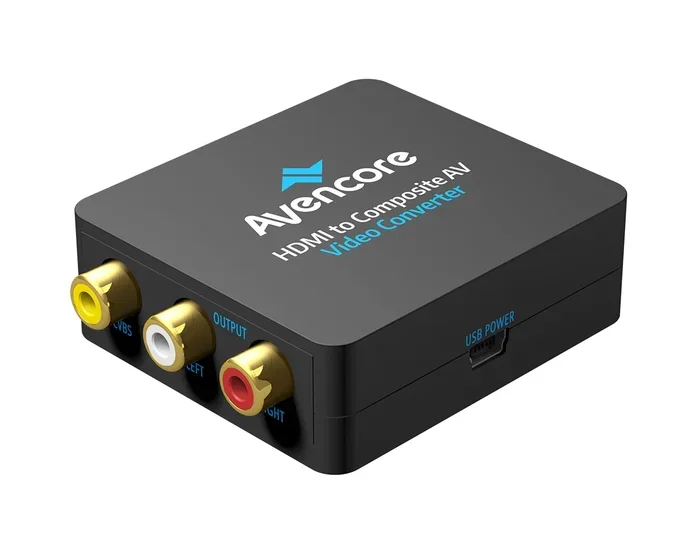
- AV to HDMI converter box (this is the key piece of gear)
- HDMI cable (to connect the converter to your TV)
- Power source (most converters need a USB cable or wall adapter for power)
- Your TV with an available HDMI port
Take a moment to check your TV. Make sure you have at least one free HDMI port. Most modern TVs have three or four, so this is rarely a problem. If all your ports are taken, consider using an HDMI switch to free one up.
Step 2: Connect the Composite Cable to Your Device
Plug the yellow RCA connector into the composite video output on your device. Connect the red and white cables to the right and left audio outputs. Make sure each plug clicks in firmly. Loose connections are the number one cause of no signal or flickering images.
For example, if you are connecting a retro gaming console, find the AV output port on the back or side of the console. Match the colors. Yellow goes to video. Red goes to right audio. White goes to left audio. This color coding is universal across almost all devices that use composite cables.
Step 3: Connect the Converter Box
Take the other end of your composite cable and plug it into the composite input on your AV to HDMI converter. Again, match the colors. Most converter boxes have clearly labeled inputs. Look for labels like “AV In” or “Composite In.”
Next, connect the power supply to the converter box. Many converters come with a USB cable that you can plug into your TV’s USB port. Others include a wall adapter. Either option works. The converter needs power to perform the analog to digital conversion. Without power, it simply will not work.
Step 4: Connect the HDMI Cable to Your TV
Take your HDMI cable and plug one end into the HDMI output on the converter box. Plug the other end into an available HDMI port on your TV. Use the same HDMI cable you would use for any other device. There is no special cable required for this connection.
Once both ends are secure, you are ready to switch your TV to the correct input. Use your TV remote and press the input or source button. Select the HDMI port you plugged the cable into. You should now see an image on your screen.
Step 5: Adjust the Settings
Some converter boxes automatically detect the signal and display it correctly. Others require you to press a button on the box to select the input source or adjust the output resolution. Check the manual for your specific converter. Most support output resolutions like 720p or 1080p. Choose the one that looks best on your TV.
You may also need to adjust the aspect ratio. Composite video is typically 4:3, while most modern TVs display in 16:9. Some converters have a switch or button to toggle between 4:3 and 16:9 modes. Try both and see which looks better for your content.
Best Converters for Connecting Composite To HDMI
Not all converters are created equal. The market is full of options at every price point. Some work beautifully and others cause headaches. Here are the types of converters you will encounter and what to look for when shopping.
Budget Converters
Budget converters cost between $10 and $25. They get the job done for basic setups. If you just want to hook up an old DVD player or a simple camcorder, a budget option may be all you need. Look for brands that have decent reviews and include a power adapter in the box.
The downside of budget converters is that they sometimes introduce lag or produce a lower quality image. For casual viewing or non-competitive retro gaming, this is usually fine. But if you are a serious retro gamer who needs responsive, crisp visuals, you may want to spend more.
Mid-Range Converters
Mid-range converters, typically $25 to $60, offer better build quality and more features. Many include options for adjusting the output resolution, deinterlacing, and aspect ratio correction. Some also upscale the composite signal to produce a cleaner image on larger screens.
These converters are a sweet spot for most users. They handle the analog to digital conversion well and offer enough customization to make the picture look great on a modern display. If you plan to use your composite device regularly, a mid-range converter is a smart investment.
High-End Converters
High-end converters, priced $60 and above, are designed for enthusiasts and professionals. They offer the best upscaling, the lowest latency, and the most accurate color reproduction. Some even support multiple input types, including composite, component, and S-Video.
If you are a collector with a prized retro setup, or if you need the absolute best picture quality from your composite sources, a high-end converter is worth the money. These devices also tend to last longer and come with better warranties.
Comparison Table: Budget vs Mid-Range vs High-End
| Feature | Budget ($10-$25) | Mid-Range ($25-$60) | High-End ($60+) |
|---|---|---|---|
| Image Quality | Standard | Good | Excellent |
| Lag/Latency | Moderate | Low | Very Low |
| Upscaling | Basic or None | Good | Advanced |
| Extra Inputs | Rare | Sometimes | Often |
| Build Quality | Basic | Solid | Premium |
Common Problems When Connecting Composite To HDMI
Even with the right equipment, you might run into issues. Here are the most common problems and how to fix them.
No Signal on the TV
If your TV shows no signal, start by checking every connection. Make sure the composite cables are firmly seated in the converter. Check that the HDMI cable is tight at both ends. Verify that the converter is powered on. Try a different HDMI port on your TV. Sometimes simply switching inputs and back again resets the connection.
If none of that works, the converter itself might be faulty. Try a different converter if you have one available. Some converters are not compatible with certain TV brands or models. Check the product specifications for compatibility notes.
Flickering or Interference
Flickering images are common with composite connections. This happens because composite cables are analog and susceptible to interference. Keep your composite cables short and away from power cords. Use high-quality RCA cables with good shielding. A better converter can also reduce flickering by improving the signal processing.
Another cause of flickering is a loose connection. Unplug and replug every cable. Sometimes just reseating the connections solves the problem entirely. Also, make sure your composite cables are not damaged or frayed. Worn cables cause all kinds of visual issues.
Poor Image Quality
Composite video is inherently limited in resolution. You will never get 4K sharpness from a composite source. But you can get a decent picture with the right setup. Choose a converter with good upscaling capabilities. Adjust the output resolution on the converter to match your TV’s native resolution. And make sure your composite cables are in good condition.
Keep in mind that the image quality also depends on the source device. An old console with worn-out hardware will not produce a pristine picture no matter what converter you use. Manage your expectations and enjoy the vintage look.
Quick Tips for the Best Composite to HDMI Experience
Here are some fast tips that make a big difference in your setup:
- Use short composite cables. Shorter cables mean less signal loss and less interference.
- Power your converter from the TV’s USB port. This keeps things neat and avoids needing an extra wall outlet.
- Label your cables. It sounds simple, but knowing which cable goes where saves confusion later.
- Test before you mount. Set everything up on a table first. Make sure the picture looks good before you wall-mount your TV or hide cables behind furniture.
- Keep your converter in a ventilated area. Some converters get warm during use. Good airflow prevents overheating and extends the life of the device.
- Update your TV firmware. Sometimes TV software updates improve HDMI compatibility with external devices.
Expert Insights on Composite to HDMI Conversion
We spoke with several audio-visual technicians about the best practices for connecting composite to HDMI. Their number one tip is to invest in a quality converter. Cheap converters save money upfront but often cost more in frustration down the road. A reliable converter handles the signal conversion cleanly and consistently.
Another expert tip is to always check the output resolution settings on your converter. Many converters default to a resolution that does not match modern TVs. Setting the output to 720p or 1080p can dramatically improve the picture. Some converters also offer scan line filters that enhance the retro look of older games and videos.
Experts also recommend keeping your composite cables as short as possible. Longer cables pick up more electromagnetic interference, which degrades the signal before it even reaches the converter. A 3 to 6 foot composite cable is the sweet spot for most home setups.
One more piece of advice from the pros. Do not daisy-chain converters. Some people try to connect a composite-to-component converter and then a component-to-HDMI converter. This adds unnecessary complexity and often makes the picture worse. A single quality AV to HDMI converter is always the better choice.
Key Takeaways
- You can connect composite to HDMI using an AV to HDMI converter box.
- The process is simple and requires no technical expertise. Just plug in the cables, power the converter, and switch your TV input.
- Signal quality varies by converter. Investing in a better converter improves your picture and reduces lag.
- Composite cables carry standard definition video. Expect a lower resolution than modern HDMI sources, but a good converter can upscale it nicely.
- Common issues like no signal or flickering are usually solved by checking connections and cable quality.
- Retro gaming and vintage devices benefit greatly from a proper composite to HDMI setup.
- Always match your cables to the correct color-coded ports to avoid audio and video mix-ups.
Frequently Asked Questions
Can You Connect Composite To HDMI Without a Converter?
No, you cannot connect composite to HDMI without a converter. Composite is an analog signal and HDMI is digital. You need an active AV to HDMI converter to change the signal from one format to the other. A simple cable or adapter will not work because it does not perform the necessary signal conversion.
Does Connecting Composite To HDMI Reduce Quality?
Some quality loss is inevitable because composite video is standard definition and HDMI is high definition. However, a good converter can upscale the image and make it look much better on a modern TV. The biggest factor in quality is the converter itself. A cheap converter may produce a worse image than a quality one.
Can You Use Composite to HDMI for Gaming Consoles?
Absolutely. Many retro gaming consoles like the NES, SNES, Sega Genesis, and PlayStation 1 use composite outputs. A composite to HDMI converter lets you play these classics on a modern TV with a much better picture than you would get on an old CRT screen. Just make sure your converter has low latency for a smooth gaming experience.
Why Does My Composite to HDMI Setup Have No Audio?
No audio usually means the red and white RCA cables are not connected properly. Check that both audio cables are firmly plugged into the correct inputs on the converter. Some converters also have a separate audio output you need to connect to your TV or sound system. Make sure all three cables (yellow, red, white) are secure.
What Resolution Should I Set My Converter To?
Most modern TVs work best with a 720p or 1080p output from your converter. Check your TV’s native resolution and match it in the converter settings. If your TV is 1080p, set the converter to 1080p for the sharpest image. If you are using an older TV, 720p is a safe and reliable choice.
Can You Connect Composite To HDMI on a Laptop or Monitor?
Yes, if your laptop or monitor has an HDMI input. Some monitors and capture cards accept HDMI signals from external devices. You can use the same AV to HDMI converter to connect a composite source to a laptop or monitor. This is especially useful for recording vintage gameplay or video content.
Conclusion
Connecting composite to HDMI is easier than most people think. With the right AV to HDMI converter, a few cables, and about ten minutes of your time, you can bring your old devices back to life. Whether you are setting up a retro gaming station, connecting a vintage VCR, or using an old camcorder, the process is straightforward and rewarding.
Remember to invest in a quality converter. Cheap options work in a pinch, but a better converter gives you a clearer picture, less lag, and fewer headaches. Take care with your cable connections, match the colors, and adjust your TV settings for the best results.
The world of retro devices is full of gems waiting to be rediscovered. When you can connect composite to HDMI and get it working, you unlock a whole library of classic content. So grab your old cables, pick up a converter, and enjoy your favorite vintage gear on a modern screen. You will be glad you did.