Can You Add A USB Hub To A PC And Boost Your Productivity
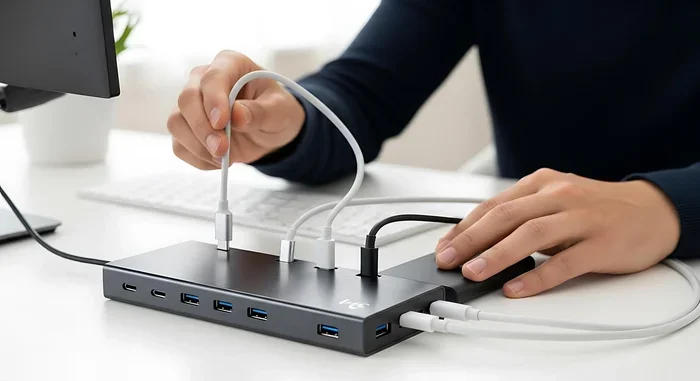
Yes, you can add a USB hub to your PC and instantly expand your connectivity options. A USB hub lets you connect multiple devices at once, saving you time and reducing cable clutter. Whether you use a laptop or a desktop, adding a USB hub is one of the simplest ways to boost your productivity and streamline your workspace.
Have you ever run out of USB ports on your computer? You plug in your mouse, keyboard, external hard drive, and phone charger, and suddenly there are no ports left. This is a common problem for many PC users. The good news is that you can add a USB hub to a PC and solve this issue quickly. A USB hub is a small device that expands your computer’s connectivity. It gives you extra ports so you can plug in more devices at the same time.
In this guide, we will walk you through everything you need to know about adding a USB hub to your PC. We will cover the different types of hubs, how to choose the right one, and how to set it up. By the end, you will know exactly how a USB hub can transform your daily computing experience and help you work more efficiently.
Key Takeaways
- Easy Setup: Plugging in a USB hub is simple and usually requires no extra software or drivers.
- More Ports: A hub gives you extra USB ports to connect keyboards, mice, external drives, and more.
- Boosts Productivity: With more devices connected, you can work faster and switch between tasks seamlessly.
- Two Main Types: Powered hubs provide their own electricity, while unpowered hubs draw power from your PC.
- Check Compatibility: Make sure your hub matches your PC’s USB version for the best performance.
- Watch for Limitations: Too many devices on one hub can slow down data transfer speeds.
📑 Table of Contents
- What Is a USB Hub and Why Do You Need One?
- Types of USB Hubs You Can Add to a PC
- How to Choose the Right USB Hub for Your PC
- Step-by-Step Guide to Adding a USB Hub to Your PC
- Benefits of Using a USB Hub to Boost Productivity
- Common Mistakes to Avoid When Using a USB Hub
- Expert Tips for Getting the Most Out of Your USB Hub
- Can You Add A USB Hub To A PC: The Bottom Line
What Is a USB Hub and Why Do You Need One?
A USB hub is a device that adds extra USB ports to your computer. Think of it like a power strip for your USB devices. You plug the hub into one port on your PC, and then you can connect multiple devices to the hub. This is especially helpful if your laptop only has two or three ports.
Here are some common situations where a USB hub becomes essential:
- You work from home and need to connect a monitor, keyboard, mouse, webcam, and external drive all at once.
- You travel frequently and need to connect different devices on the go.
- You use your PC for creative work like photo editing or video production and need multiple peripherals.
- You want to charge your phone and use a flash drive at the same time without unplugging anything.
Adding a USB hub to your setup is one of the easiest ways to improve your workflow. It removes the frustration of constantly plugging and unplugging devices. Instead, everything stays connected and ready to go.
How Does a USB Hub Work?
A USB hub connects to your PC through a single USB port. Once connected, it creates additional ports that share the same connection to your computer. The hub acts as a middleman between your PC and your devices. When data flows between your computer and a connected device, it passes through the hub.
Most modern hubs support plug and play functionality. This means you do not need to install any special software. Windows and most other operating systems recognize the hub automatically. If you use a proprietary operating system on your device, you may need to check compatibility before purchasing a hub.
Types of USB Hubs You Can Add to a PC
Not all USB hubs are the same. Understanding the different types helps you choose the best one for your needs. Here are the main categories you will come across when shopping.
Powered vs. Unpowered USB Hubs
This is the most important distinction when choosing a hub. A powered USB hub has its own power supply, usually through an AC adapter. It provides full power to every connected device. This is ideal for devices that need a lot of energy, like external hard drives or charging tablets.
An unpowered USB hub draws power directly from your computer’s USB port. It works well for low-power devices like keyboards, mice, and flash drives. However, if you connect too many power-hungry devices, the hub may not provide enough juice.
Here is a quick comparison:
- Powered hubs: Best for external drives, monitors, and multiple charging devices. They cost a bit more but offer reliable performance.
- Unpowered hubs: Great for simple setups with keyboards, mice, and flash drives. They are portable and usually cheaper.
USB 2.0, USB 3.0, and USB-C Hubs
USB hubs also come in different speeds and connector types. USB 2.0 hubs are the oldest and slowest. They work fine for basic tasks like typing or using a mouse, but they are not great for transferring large files.
USB 3.0 hubs offer much faster data transfer speeds. They are backward compatible, so you can still use older USB 2.0 devices with them. If you want the best performance for external drives and backups, a USB 3.0 hub is the way to go.
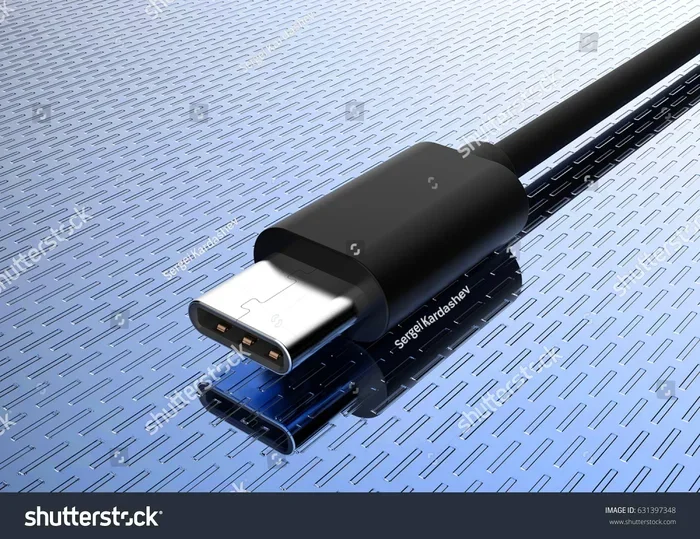
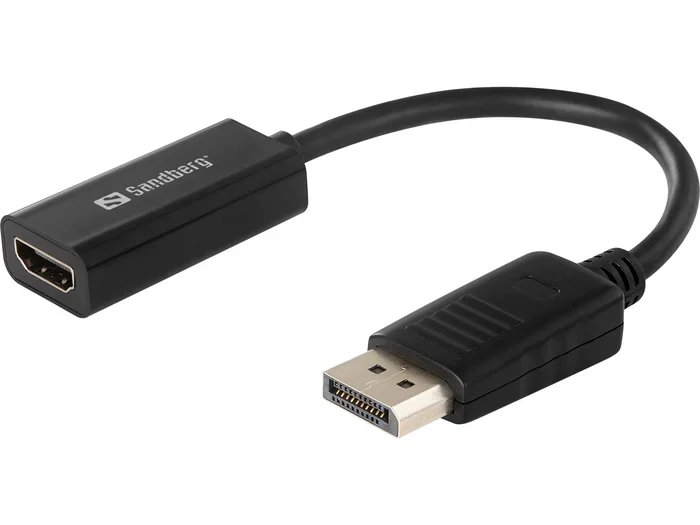
USB-C hubs are the newest option. They feature the reversible USB-C connector and often support even faster speeds. Many modern laptops come with USB-C ports, so a USB-C hub is a natural choice for these machines. Some hubs also include HDMI or DisplayPort outputs, letting you connect an external monitor directly.
Compact vs. Full-Size Hubs
Compact hubs are small and portable. They usually have 3 to 5 ports and fit easily in a laptop bag. They are perfect for people who travel or work from different locations.
Full-size hubs are larger and offer more ports. They often sit on your desk and may include features like Ethernet ports, SD card readers, or built-in power adapters. These are great for permanent workstation setups where you connect many devices every day.
How to Choose the Right USB Hub for Your PC
Choosing the right hub can feel overwhelming because there are so many options. Here are the key factors to consider before you buy.
Check Your PC’s USB Ports
First, look at what USB ports your PC already has. If your computer only has USB-A ports, you will need a hub with USB-A outputs. If your PC has USB-C ports, you can get a USB-C hub for the best compatibility and speed.
Also, check how many ports you actually need. Make a list of all the devices you want to connect. This simple step prevents you from buying a hub that is too small or unnecessarily large.
Consider Your Power Needs
Think about what devices you will plug in. If you plan to connect power-hungry devices like external hard drives or a webcam that requires extra power, go with a powered hub. Trying to run these devices on an unpowered hub can lead to disconnections or slow performance.
Look for Build Quality
A well-built hub lasts longer and stays cool under load. Look for hubs with metal housings or sturdy plastic. Cheap plastic hubs can break easily and may overheat when multiple devices are connected. Reading reviews from other users gives you a good sense of build quality before you buy.
Think About Portability
If you carry your laptop around, a small and lightweight hub is a smart choice. Some hubs are so compact they fit on a keychain. Others are designed to stay on your desk. Decide based on how and where you use your PC most often.
Brand Reputation and Warranty
Stick with reputable brands when buying a USB hub. Brands like Anker, Sabrent, and UGREEN are well-known for quality products. A good warranty also gives you peace of mind. If the hub fails early, you can get a replacement without hassle.
Step-by-Step Guide to Adding a USB Hub to Your PC
Setting up a USB hub is incredibly simple. Follow these steps and you will be up and running in minutes.
Step 1: Choose the Right Spot
Find a flat, stable surface near your PC where you want to place the hub. If you use a powered hub, make sure the power adapter has easy access to a wall outlet. Keep the hub away from heat sources to avoid overheating.
Step 2: Connect the Hub to Your PC
Plug the USB cable from the hub into an available port on your computer. If your hub came with a USB-C cable, use a USB-C port. For USB-A hubs, use any standard USB-A port. Your operating system should recognize the hub within seconds.
On Windows, you can check if the hub is recognized by opening Device Manager. On Mac, go to System Information. If the hub does not show up, try a different cable or port.
Step 3: Connect Your Devices
Now plug your devices into the hub’s ports. Start with the most important ones, like your keyboard and mouse. Then add other devices one at a time. This helps you identify if any single device causes problems.
Step 4: Test Everything
Test each connected device to make sure it works properly. Try copying a file to an external drive, typing on your keyboard, or moving your mouse. If everything works, you are all set.
Step 5: Organize Your Cables
Use cable ties or a cable management tray to keep cords tidy. A clean workspace reduces stress and makes it easier to troubleshoot issues later. You can also use a snipping tool toolbar to quickly capture screenshots of any setup problems for troubleshooting purposes.
Benefits of Using a USB Hub to Boost Productivity
Adding a USB hub to your PC does more than just give you extra ports. It can genuinely improve how you work every day. Here are the key benefits you will notice.
Fewer Cable Changes
Without a hub, you constantly plug and unplug devices. This wastes time and wears out your ports. With a hub, everything stays connected. You sit down at your desk and all your devices are ready to go. This small convenience adds up to significant time savings over weeks and months.
Better Workspace Organization
A hub keeps all your connections in one place. Instead of cables running in different directions, they converge at the hub. This makes your desk cleaner and more organized. A tidy workspace helps you focus better and feel more in control of your environment.
Faster Task Switching
When all your devices are connected, switching between tasks becomes effortless. You can quickly transfer files to an external drive, answer a video call, and charge your phone without ever unplugging anything. This seamless workflow keeps you in the zone and reduces distractions.
Enhanced Connectivity Options
Many modern hubs include ports beyond standard USB. You might find Ethernet jacks for wired internet, HDMI outputs for monitors, or SD card slots for photographers. These extra options mean you can connect a wider range of devices without buying separate adapters. This is especially useful for users who rely on stable connectivity for remote work or online collaboration.
Future-Proofing Your Setup
As technology evolves, you may need to connect new devices. A good USB hub gives you the flexibility to adapt. When you buy a new external drive or a smart home gadget, you already have a spare port ready. This forward-thinking approach saves you money and hassle in the long run.
Common Mistakes to Avoid When Using a USB Hub
While USB hubs are simple devices, some common mistakes can cause problems. Avoid these pitfalls to get the best performance from your hub.
- Overloading an unpowered hub: Connecting too many power-hungry devices to an unpowered hub can cause devices to disconnect or stop working. Always check the power requirements of your devices before connecting them.
- Ignoring USB version compatibility: Plugging a USB 3.0 device into a USB 2.0 hub limits the speed. Make sure your hub supports the speed your devices need.
- Buying a cheap hub from an unknown brand: Low-quality hubs can damage your devices or cause data loss. Invest in a reputable brand even if it costs a little more.
- Placing the hub near heat sources: Hubs can generate heat, especially when multiple devices are connected. Keep them in a well-ventilated area.
- Using damaged cables: Frayed or bent cables can cause intermittent connections. Replace damaged cables promptly to avoid frustration.
Expert Tips for Getting the Most Out of Your USB Hub
Here are some practical tips from experienced users and tech professionals to help you get the best results from your USB hub setup.
Tip 1: Label Your Ports. Use small colored stickers or labels to mark which port connects to which device. This saves you time when you need to unplug and replug specific devices.
Tip 2: Update Your Drivers. Even though most hubs work without extra software, keeping your USB drivers up to date ensures the best performance. Check for updates through your operating system’s device manager regularly.
Tip 3: Use a Powered Hub for Heavy Tasks. If you regularly transfer large files or connect multiple power-hungry devices, a powered hub is worth the extra cost. It provides stable power and prevents data transfer interruptions.
Tip 4: Keep Your Hub Firmware Updated. Some premium hubs receive firmware updates that improve compatibility and fix bugs. Check the manufacturer’s website periodically for updates.
Tip 5: Avoid Daisy Chaining Hubs. Connecting one hub to another can work, but it often leads to bandwidth issues and instability. One hub per PC is usually the best approach for reliable performance.
Tip 6: Match Your Hub to Your Workflow. Think about your daily tasks and choose a hub that supports them. If you are a graphic designer, prioritize hubs with fast transfer speeds. If you are a writer, a simple compact hub with a few ports may be all you need.
Can You Add A USB Hub To A PC: The Bottom Line
The answer is a clear yes. You can add a USB hub to a PC and enjoy more connectivity, better organization, and improved productivity. A USB hub is one of the most affordable and practical computer accessories you can buy. It solves the problem of limited ports and makes your daily workflow smoother.
Whether you choose a compact portable hub or a full-size desk hub, the setup process is quick and painless. Most hubs work right out of the box with no extra software needed. Just plug it in, connect your devices, and you are good to go.
Remember to choose a hub that matches your power needs, your PC’s port types, and your daily workflow. Avoid common mistakes like overloading unpowered hubs or ignoring USB version compatibility. With the right hub, your PC becomes more versatile and capable than ever before.
A well-chosen USB hub transforms how you interact with your computer. It removes bottlenecks, reduces cable clutter, and gives you the freedom to connect everything you need. If you have been thinking about adding one to your setup, now is the perfect time to make the switch.
Start by assessing your current port needs and browsing the available options. You will be surprised at how much better your computing experience can be with just one simple addition. A USB hub is a small investment that delivers big returns in convenience and productivity.
Frequently Asked Questions
Can I connect a USB hub to any PC?
Yes, you can connect a USB hub to almost any PC. Modern computers come with USB ports that support hubs. Whether you use Windows, Mac, or Linux, USB hubs work across all major operating systems. Just make sure the hub matches your port type, such as USB-A or USB-C.
Will a USB hub slow down my PC?
A USB hub itself does not slow down your PC. However, connecting too many power-hungry devices to an unpowered hub can cause issues. Also, older USB 2.0 hubs are slower than USB 3.0 hubs for data transfer. Choose the right hub for your needs to avoid any slowdown.
Do I need to install drivers for a USB hub?
Most USB hubs do not require driver installation. They use plug and play technology, which means your operating system recognizes them automatically. In rare cases, a hub with special features may need a driver, but this is uncommon with modern hubs.
How many devices can I connect to a USB hub?
This depends on the hub. Most hubs offer 4 to 10 ports. However, the number of devices you can reliably connect also depends on your PC’s power supply and the hub’s power capacity. A powered hub handles more devices better than an unpowered one.
Can I use a USB hub with an external hard drive?
Yes, you can use a USB hub with an external hard drive. For the best results, use a powered hub. External hard drives need steady power, and an unpowered hub may not provide enough. A powered hub ensures your hard drive stays connected and runs smoothly.
Is it safe to leave a USB hub plugged in all the time?
Yes, it is safe to leave a USB hub plugged in all the time. Most hubs are designed for continuous use. Just make sure the hub stays in a well-ventilated area and does not overheat. If you notice the hub getting warm, unplug it for a short while to let it cool down.
=== CONCLUSION ===
Adding a USB hub to your PC is one of the simplest and most effective ways to improve your setup. It solves the problem of limited ports, reduces cable clutter, and helps you work more efficiently. Whether you are a student, a professional, or a casual user, a USB hub brings real value to your daily computing routine.
Choose the right type of hub based on your power needs, port compatibility, and workflow. Follow the setup steps outlined in this guide, and you will be enjoying a more connected and organized workspace in no time. The small investment pays off quickly in saved time and reduced frustration.
So go ahead and explore the options available today. A better, more productive computing experience is just one hub away.