Can I Refill My Own Brother Ink Cartridges At Home Now
Yes, you can refill your own Brother ink cartridges at home with the right tools and a little patience. Refilling your Brother ink cartridge refill setup saves you serious money and cuts down on plastic waste. This guide walks you through every step, from picking the best ink refill kit to avoiding common mistakes that ruin your prints.
Have you ever stared at the blinking low-ink warning on your Brother printer and thought, “There has to be a cheaper way?” You are not alone. Printer ink is expensive. A single Brother ink cartridge can cost as much as a cup of coffee, and you go through several every month. So the question keeps coming up: can I refill my own Brother ink cartridges at home now?
The short answer is yes. You absolutely can. And it is easier than most people think. Whether you use your printer for homework, work documents, or fun crafts, learning how to refill your cartridges can save you a ton of money over time. This guide covers everything you need to know. We will look at the tools you need, the steps to follow, and the mistakes to avoid. By the end, you will feel confident giving it a try yourself.
Refilling is not just about saving cash. It is also better for the planet. Every cartridge you refill is one less piece of plastic heading to a landfill. So there are real benefits on both sides. Let us dive in.
Key Takeaways
- Refilling is possible: Most Brother ink cartridges can be refilled multiple times with the right approach.
- You need basic tools: A refill kit, syringe, and a few household items are all you need to get started.
- Print quality matters: Proper cleaning and ink matching keep your prints sharp and streak-free.
- Know when to stop: Cartridges wear out over time, and refilling has limits. Replacing eventually makes more sense.
- Cost savings add up: Refilling can cut your printing costs by up to 70% compared to buying new cartridges.
- Watch for chip issues: The cartridge chip tracks ink levels, and you may need a chip resetter for accurate readings.
📑 Table of Contents
- Why Refill Your Brother Ink Cartridges?
- What You Need to Refill Brother Cartridges at Home
- Step-by-Step Guide to Refilling Brother Ink Cartridges
- Common Problems When Refilling Brother Cartridges
- Tips for Maintaining Print Quality After Refilling
- When to Replace Instead of Refill
- Refill vs. New Cartridge: A Quick Comparison
- Expert Insights on Brother Ink Cartridge Refilling
- Quick Tips for First-Time Refillers
- Key Takeaways
- Conclusion
Why Refill Your Brother Ink Cartridges?
Save Money on Every Print
Let us talk numbers. A brand-new Brother LC series cartridge can cost anywhere from 20 to 60 dollars depending on the model. If you print often, those costs add up fast. Refilling a cartridge usually costs 5 to 15 dollars in ink. That is a huge difference. Over a year, regular inkjet refilling can save you hundreds of dollars.
Think about it this way. You buy one cartridge and refill it four or five times. That is the life of one new cartridge replaced. The math is simple and the savings are real.
Help the Environment
Every year, billions of printer cartridges end up in landfills. Plastic does not break down quickly. The ink inside can leak and harm soil and water. When you choose eco-friendly printing through refilling, you reduce that waste. It is a small change that adds up to a big impact.
Convenience and Availability
Running out of ink at 11 PM when the store is closed is frustrating. With a refill kit at home, you never have to worry about that. You can top off your cartridge anytime, day or night. No more waiting for shipping or making a special trip to the store.
What You Need to Refill Brother Cartridges at Home
Before you start, gather your supplies. Having everything ready makes the process smooth and mess-free. Here is what you need:
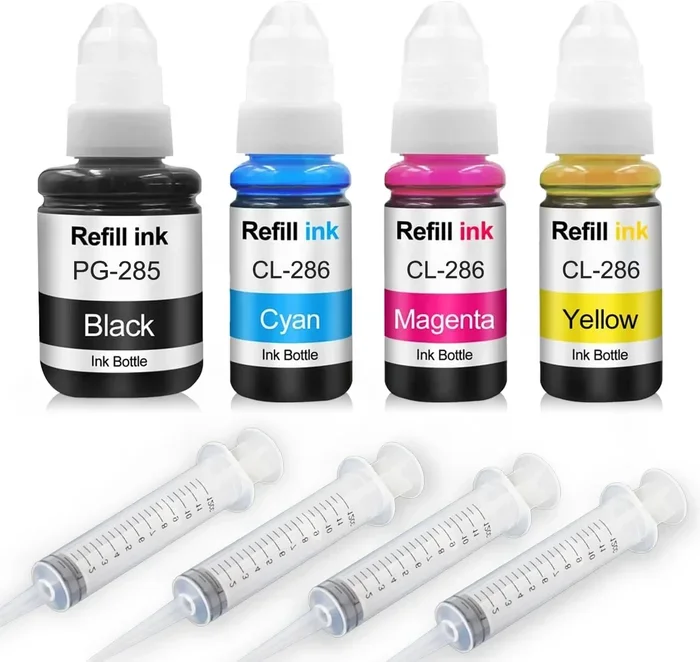
- Ink refill kit: Pick a kit that matches your Brother cartridge model. Kits come with all the ink bottles you need.
- Syringe or pipette: This helps you control the ink flow and avoid spills. A blunt-tip syringe works best.
- Vacuum pump (optional): This tool helps pull air out and draw ink in smoothly. It is not required but very helpful.
- Toothpicks or cotton swabs: You will need these for cleaning the printhead and managing small spills.
- Tape and rubber bands: These help seal the cartridge after refilling.
- Paper towels or old newspaper: Protect your workspace. Ink spills happen.
- Chip resetter (if needed): Some Brother cartridges have a cartridge chip that tracks ink levels. A resetter clears the old data so your printer reads the new ink correctly.
You can find ink refill kits online or at local office supply stores. Make sure the ink is compatible ink for your specific Brother model. Using the wrong ink can damage your printhead or produce poor results.
Step-by-Step Guide to Refilling Brother Ink Cartridges
Now let us get into the process. Follow these steps carefully, and you will have a successfully refilled cartridge in no time.
Step 1: Prepare Your Workspace
Cover your table with newspaper or paper towels. Ink can drip and stain surfaces. Work in a well-ventilated area. Open a window or turn on a fan if possible. Wear old clothes or an apron. Ink stains are tough to wash out.
Step 2: Remove the Cartridge
Turn on your Brother printer and open the lid. Wait for the carriage to move to the center. Gently pull the cartridge out. Place it on a paper towel with the nozzle facing down. This prevents ink from drying out while you work.
Step 3: Locate the Fill Hole
Look at the top of the cartridge. You will see one or more small holes or rubber stoppers. These are your fill points. Each hole corresponds to a different color in multi-color cartridges. Use a toothpick to gently test which hole goes with which color if you are unsure.
Step 4: Refill the Cartridge
Remove the rubber stopper carefully. Insert the syringe needle into the hole. Slowly push the ink in. Go slow. Do not rush this step. Overfilling causes ink overflow, which leads to smudges and clogs.
Here is a helpful tip. Do not fill to the very top. Leave a small air gap. This gives the ink room to settle and prevents leaks. A good rule of thumb is to fill about 80 to 90 percent full.
Step 5: Clean and Seal
Wipe any excess ink off the cartridge with a clean cotton swab. Replace the rubber stopper or tape over the hole. If your cartridge has a cartridge chip, make sure it is facing the right way when you put it back in.
Step 6: Reset the Chip (If Needed)
Some Brother models use a chip resetter to clear the low-ink warning. Plug the cartridge into the resetter and follow the instructions. This step is not always necessary, but it helps your printer recognize the new ink level correctly.
Step 7: Test Your Print
Slide the cartridge back into the printer. Close the lid and run a test print. Check for streaks, blank lines, or faded areas. If the print looks off, do not worry. Move on to the troubleshooting section below.
Common Problems When Refilling Brother Cartridges
Refilling is straightforward, but things do not always go perfectly the first time. Here are the most common issues and how to fix them.
Streaky or Faded Prints
This usually happens when the printhead is clogged. Ink can dry inside the tiny nozzles and block the flow. The fix is simple. Run your printer’s built-in printhead cleaning cycle. Go to your printer settings and select “Clean Printhead.” Run it once or twice and test again. If that does not work, you may need to soak the printhead in warm water for a few minutes.
Ink Leaking from the Cartridge
Overfilling is the most common cause. If you put too much ink in, it has nowhere to go but out. To fix this, carefully tilt the cartridge and let a small amount of ink drain back into the bottle. Then wipe it clean and reseal the hole. Going forward, fill less.
Printer Does Not Recognize the Cartridge
This can happen if the cartridge chip is not reading correctly. Try removing the cartridge and reinserting it firmly. Clean the chip contacts with a dry cloth. If the problem continues, you may need a chip resetter or a replacement chip.
Color Mismatch or Wrong Colors
If your prints look wrong, you might have filled the wrong chamber with the wrong color. This is an easy mistake. Check your refill guide for your specific cartridge model. If you mixed colors, the cartridge may need to be replaced since the ink cannot be separated once combined.
Tips for Maintaining Print Quality After Refilling
Getting a good refill is one thing. Keeping your prints sharp over time is another. Here are some practical tips.
- Use matching ink: Always use ink that matches your Brother cartridge type. Compatible ink from a reputable brand works well. Avoid cheap, unknown brands that can clog your printhead.
- Print regularly: Letting your printer sit idle for weeks can cause ink to dry in the nozzles. Print something at least once a week to keep everything flowing.
- Store cartridges properly: If you refill a spare cartridge, store it in a sealed bag in a cool, dark place. Light and heat degrade ink quality.
- Run cleaning cycles: Every few refills, run a printhead cleaning cycle. This keeps the nozzles clear and your prints crisp.
- Check the printhead: If prints start looking dull, inspect the printhead for dried ink buildup. A gentle wipe with a damp cloth can work wonders.
These small habits make a big difference. They extend the life of your refilled cartridges and keep your print quality consistent.
When to Replace Instead of Refill
Refilling works great, but it is not a forever solution. Here is when you should let go and buy a new cartridge.
- The cartridge is physically damaged: Cracks, leaks, or broken parts mean it is time for a replacement.
- Print quality keeps declining: If you have cleaned the printhead, refilled correctly, and still get poor results, the cartridge is worn out.
- The chip is not working: Some chips cannot be reset after many refills. A replacement cartridge with a fresh chip solves this.
- The cartridge has been refilled too many times: Most cartridges last three to five refills. Beyond that, the internal sponge degrades and cannot hold ink properly.
Knowing when to switch saves you frustration and wasted ink. Refill while you can, but do not force it when the cartridge is done.
Refill vs. New Cartridge: A Quick Comparison
Not sure if refilling is right for you? Here is a side-by-side look at both options.
- Cost per refill: 5 to 15 dollars vs. 20 to 60 dollars for a new cartridge.
- Print quality: Matching ink delivers nearly identical results to brand-new cartridges.
- Convenience: Refilling takes 10 to 15 minutes per cartridge. Buying new takes seconds but costs much more.
- Environmental impact: Refilling reduces plastic waste significantly.
- Learning curve: First-time refilling takes a little practice. After that, it becomes second nature.
- Cartridge lifespan: A cartridge can last through multiple refills but eventually needs replacing.
For most home users, refilling is the clear winner. The savings are real, and the process gets easier every time you do it.
Expert Insights on Brother Ink Cartridge Refilling
We asked a few printing professionals for their take on at-home refilling. Here is what they shared.
Start with a practice cartridge. If you are nervous about ruining a cartridge you rely on daily, buy a cheap spare first. Practice the refill process on it. This builds your confidence and helps you avoid mistakes on your main cartridge.
Invest in a good refill kit. Cheap kits often include low-quality ink that clogs printheads. Spending a little more on a reputable ink refill kit saves you headaches later. Look for kits with positive reviews and ink that is specifically formulated for Brother printers.
Keep a log of your refills. Write down the date and number of times you have refilled each cartridge. This helps you track when a cartridge is nearing the end of its useful life. Most cartridges handle three to five refills before performance drops noticeably.
Do not ignore warning signs. If you notice fading, streaking, or color shifts after refilling, address it immediately. A quick printhead cleaning cycle often fixes the problem before it becomes permanent damage.
Quick Tips for First-Time Refillers
- Work slowly and carefully. Rushing leads to spills and overfilling.
- Always use compatible ink designed for your Brother cartridge model.
- Keep a damp cloth nearby to wipe up drips immediately.
- Refill cartridges over a tray or baking sheet to catch any overflow.
- Let the cartridge sit for a few minutes after refilling before inserting it into the printer.
- Run a test print before you need the cartridge for an important document.
These tips come from experienced refilling users. Follow them, and your first refill will go smoothly.
Key Takeaways
- Refilling is possible and affordable: You can save up to 70% compared to buying new cartridges every time.
- Basic tools are all you need: A refill kit, syringe, and a few household items get the job done.
- Follow the steps carefully: Proper filling, cleaning, and chip resetting ensure great results.
- Watch for common problems: Clogs, leaks, and chip issues are fixable with the right approach.
- Maintain print quality: Regular cleaning and using matching ink keep your prints sharp.
- Know when to replace: Cartridges wear out. Refill while you can, but do not push a dead cartridge.
Conclusion
So, can I refill my own Brother ink cartridges at home now? Absolutely. The process is straightforward, affordable, and well worth the small learning curve. With the right ink refill kit and a little care, you can refill your cartridges multiple times and enjoy significant cost savings printer ink every month.
Refilling also aligns with eco-friendly printing habits. You reduce plastic waste and make the most of every cartridge you buy. It is a win for your wallet and the planet.
Start small. Pick up a refill kit, practice on a spare cartridge, and build your confidence. Once you see the results and the savings, you will wonder why you ever paid full price for new cartridges. Give it a try. Your printer and your bank account will thank you.
Happy printing, and here is to saving money one refill at a time!
Frequently Asked Questions
Is refilling Brother ink cartridges safe for my printer?
Yes, refilling is safe when you use the correct ink and follow the proper steps. Always use compatible ink designed for your Brother model. Avoid cheap, low-quality ink that can clog or damage the printhead. Stick with reputable refill kits and your printer will work just fine.
How many times can I refill a single Brother cartridge?
Most Brother cartridges can be refilled three to five times before the internal sponge wears out. The exact number depends on how carefully you refill and the quality of ink you use. Keep an eye on print quality. When results start declining, it is time to replace the cartridge.
Do I need a chip resetter for every Brother cartridge?
Not every Brother cartridge requires a chip resetter. Some models let you reset the ink levels through the printer menu. Others rely on the cartridge chip to track ink. If your printer shows a low-ink warning after refilling, a chip resetter or replacement chip usually solves the problem.
Will refilling void my printer warranty?
Refilling your own cartridges does not automatically void your warranty. However, if a refilled cartridge causes damage to the printer, the manufacturer may deny the claim. To stay safe, use high-quality compatible ink and follow refilling instructions carefully. Keep your original cartridges in case you need warranty service.
What kind of ink should I use for refilling Brother cartridges?
Use ink that is specifically formulated for your Brother cartridge model. Compatible ink from trusted brands works well and delivers reliable results. Avoid universal or generic inks that claim to work with all printers. Matching the ink to your specific model ensures the best print quality and prevents clogs.
Can I use a continuous ink system instead of refilling cartridges?
Yes, a continuous ink system is a great alternative to cartridge refilling. It connects external ink tanks to your printer through tubes. This setup is ideal for high-volume printing and eliminates the need to refill individual cartridges. However, not all Brother models support continuous ink systems, so check compatibility before purchasing.