Can I Plug Usb 3 0 Into 2 0 Port And See What Happens
Can I plug USB 3.0 into 2.0 port? Yes, it works! When you plug USB 3.0 into 2.0 port, the connection happens, but the speed drops to USB 2.0 levels. Backward compatibility means your devices will still function, but you won’t get the SuperSpeed benefits. Data transfer speed is the main thing that changes.
Key Takeaways
- It Works Safely: You can plug USB 3.0 into 2.0 port without breaking your device or the port.
- Speed Drops: Your data transfer speed will fall from SuperSpeed USB 3.0 rates down to USB 2.0 levels.
- Backward Compatible: USB 3.0 is designed to work with older USB 2.0 ports thanks to backward compatibility.
- Charging Might Be Slower: USB 2.0 ports provide less power, so charging speeds could be lower.
- Check Port Colors: Blue ports usually mean USB 3.0, while black or white ports are often USB 2.0.
- No Extra Gear Needed: You do not need special cables or adapters for basic physical connections.
📑 Table of Contents
What Happens When You Plug USB 3.0 Into 2.0 Port
Have you ever found yourself in a hurry, trying to copy a big file, only to realize you do not have the right port? Maybe you have a shiny new USB 3.0 flash drive. But the only port available on your laptop or desktop is an older USB 2.0 port. You look at the plug. You look at the port. You wonder, can i plug usb 3 0 into 2 0 port? The short answer is yes. You can absolutely plug a USB 3.0 device into a USB 2.0 port. It will fit, and it will work. But there is a catch. The connection will not run at the fastest speeds.
When you plug USB 3.0 into 2.0 port, the device and the computer will talk to each other. They will use the language they both understand. That language is the USB 2.0 standard. This is called backward compatibility. It means newer technology can still work with older technology. Your USB 3.0 device will not break. It will not get damaged. It will simply operate at the slower USB 2.0 level. This is a very important thing to know. Many people worry that mixing port types will ruin their gear. That is simply not true. The connection is completely safe. Your device will function normally. It just operates at a lower performance level.
The Physical Fit of the Connectors
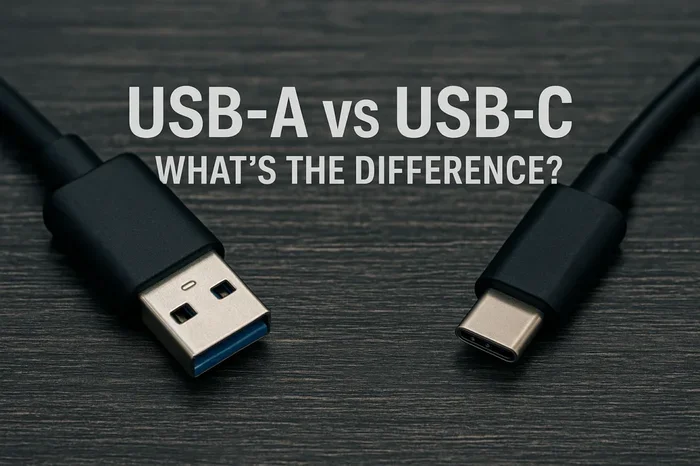
Let us talk about the physical shape of the plugs. The USB 3.0 plug and the USB 2.0 plug share the same basic shape for Type-A connectors. The Type-A plug is the classic rectangular shape. It is the one you plug into your computer. Because the shapes match, the USB 3.0 plug goes right into the USB 2.0 port. It fits snugly. There is no forcing needed. There is no risk of bending the pins. The plug and play system handles the rest. Your computer will recognize the device the moment you plug it in. It will just treat it as an older model.
Inside the plug, there is a difference. USB 3.0 plugs have more pins. USB 3.0 has nine pins inside the connector. USB 2.0 only has four pins. When you plug the USB 3.0 connector into the USB 2.0 port, only the four USB 2.0 pins make contact. The extra five pins on the USB 3.0 plug simply do not touch anything. They sit there unused. This is why the device falls back to USB 2.0 speeds. The hardware physically cannot use the faster USB 3.0 data lanes. It simply does not have the connection available.
Why Does the Speed Drop?
The speed drop happens because of how the two standards talk to each other. When a USB 3.0 device goes into a USB 2.0 port, it must use the older language. USB 2.0 can only handle so much data at once. It has a very low maximum bandwidth. The port type decides the maximum data rate. If the port is USB 2.0, the speed limit is set to USB 2.0. Even if your cable is brand new and capable of fast speeds, the port will hold it back.
Think of it like a highway. USB 3.0 is a big multi-lane highway. It lets lots of data move very fast. USB 2.0 is a small two-lane road. If you drive a sports car on the two-lane road, you cannot go as fast as the car is built to go. The car is fast, but the road limits you. The same thing happens with your cables and ports. The cable might be able to handle fast speeds. But the port type sets the limit. The data transfer speed will match the slowest part of the chain. If the port is the slowest part, the whole connection becomes slow.
Understanding USB 2.0 vs USB 3.0 Speeds
To really understand what happens, you need to look at the numbers. The speeds of these two standards are very different. Knowing the numbers helps you set the right expectations. When you plug USB 3.0 into 2.0 port, you need to know what you are giving up.
Real-World Speed Differences
USB 2.0 has a maximum theoretical speed of about 480 megabits per second. In real life, you usually get around 30 to 40 megabytes per second. That is fast enough for small files. But it is very slow for big files. USB 3.0 has a maximum theoretical speed of 5 gigabits per second. In real life, you can get 300 to 400 megabytes per second. That is ten times faster than USB 2.0. So when you plug a USB 3.0 device into a USB 2.0 port, your speed drops from hundreds of megabytes per second down to just a few dozen. A 10 gigabyte video file might take two minutes on USB 3.0. But on a USB 2.0 port, that same file could take twenty minutes or more.
This performance drop is the biggest downside. If you are just plugging in a mouse or a keyboard, you will not notice the difference. Those devices use very little data. But if you are moving large photos, videos, or backups, you will feel the wait. The waiting can be very frustrating. It makes you want to find a USB 3.0 port instead.
Bandwidth Limitations Explained
Bandwidth is the amount of data that can flow through the connection at one time. USB 2.0 has very limited bandwidth. It was designed many years ago. Back then, people were not moving huge 4K video files every day. USB 3.0 has much more bandwidth. It was built for the modern world. We now have big files and fast storage. When you hit the bandwidth limit of USB 2.0, the data queue gets backed up. This causes the slow transfer times. The device tries to send data as fast as it can. But the port can only accept so much. The result is a bottleneck. The data piles up and trickles out slowly. This is why your external hard drive feels sluggish when plugged into the wrong port.
Is It Safe to Plug USB 3.0 Into a 2.0 Port
Safety is always a big concern when mixing tech gear. You do not want to fry your expensive external hard drive. The good news is that plugging USB 3.0 into a USB 2.0 port is perfectly safe. The systems are designed to handle this. The voltage and power levels match up safely. Your computer will not shock the device. The device will not overheat. You can unplug it and plug it back in as many times as you want. There is no risk of permanent damage to the port or the device.
Power Delivery and Charging
Let us talk about power. When you plug a device in, it needs electricity to work and to charge. USB 2.0 ports provide up to 500 milliamps of power. USB 3.0 ports provide up to 900 milliamps. So if you plug a USB 3.0 device into a 2.0 port, it might charge slower. The charging speed will be lower. But it will still charge. Your device will get the power it needs. It just might take a little longer to fill the battery. If you have a phone or a portable battery pack, this is usually fine. You are not in a huge rush. But if you need a quick charge, the slower power delivery might be a small annoyance.
Device Compatibility and Plug and Play
Are all devices compatible? Most are. The plug and play system handles this automatically. You do not need to install special drivers. Your computer recognizes the device right away. Your external hard drive will work. Your flash drive will work. Your printer will work. The operating system knows how to talk to USB 2.0 devices. It does not matter if the plug is a newer USB 3.0 type. The operating system just sees a USB 2.0 connection. Sometimes, very specific devices need more power or special drivers. A powered USB hub is a good solution here. The hub gives you extra power and more ports. It bridges the gap between old and new tech. But for 99% of everyday devices, the connection just works out of the box.
Common Devices You Might Connect
People plug all kinds of things into their computers every day. Let us look at some common devices and how they behave when you plug USB 3.0 into 2.0 port. Understanding these everyday items helps you plan your work better.
Flash Drives and Thumb Drives
A flash drive is the most common thing people connect. You might have a USB 3.0 thumb drive in your pocket. You need to copy a presentation onto a work computer. The work computer only has USB 2.0 ports. You plug the drive in. It works. You can open the files. You can save the files. But the saving and copying will take longer than usual. For a small Word document, you will not notice the delay. For a large folder of photos, you will wait a bit longer. It is still much better than not having the port at all. The flash drive saves the day, even at slower speeds.
External Hard Drives
External hard drives are very popular for backups. They hold thousands of family photos and important work files. Many modern external drives use USB 3.0. They are much faster than the old USB 2.0 drives. If you plug a USB 3.0 external hard drive into a 2.0 port, the backup process slows down a lot. A full backup that takes one hour might take ten hours. That is a big difference. If you need to back up your device quickly, finding a USB 3.0 port is very important. Otherwise, you might leave the computer running overnight just to finish the backup.
USB-C Adapters and Cables
Many new devices use the USB-C connector. It is the small, oval-shaped plug. You might need a USB-C to USB-A adapter to connect to an older computer. The adapter has a USB-C side and a USB-A side. The USB-A side plugs into the old USB 2.0 port. The USB-C side plugs into your new device. This adapter works just like a direct plug. It will function at USB 2.0 speeds if the port is USB 2.0. The adapter does not magically make the port faster. It just changes the shape of the plug. So can i plug usb 3 0 into 2 0 port using an adapter? Yes. The same speed rules apply. The adapter just helps the physical connection match up.
Quick Tips and Common Mistakes
Using different USB port types is easy once you know the basics. Here are some quick tips to help you get the best experience. We also share common mistakes to avoid. This will save you time and frustration.
Quick Tips for Best Performance
- Check Port Colors: Blue ports usually mean USB 3.0. Black or white ports are often USB 2.0. Look before you plug.
- Use the Right Cable: A USB 3.0 cable has a blue insert inside the plug. A USB 2.0 cable usually has a black or white insert.
- Look for the SS Logo: SuperSpeed USB ports often have the letters “SS” next to them. This is a great visual clue.
- Check Your Device Manager: On Windows, you can open Device Manager. It will tell you the exact USB version your port supports.
- Use a Powered Hub: If you need to connect many devices, use a powered USB hub. It gives you more ports and better power delivery.
Common Mistakes to Avoid
- Forcing the Plug: USB plugs are designed to fit one way. If it does not go in easily, do not force it. Flip it over and try again.
- Expecting a USB 3.0 Cable to Speed Up a 2.0 Port: A fancy cable cannot make an old port faster. The port type is the limit.
- Ignoring Port Colors: Not checking the port color can lead to surprise slow speeds. Always take a second to look.
- Assuming It Is Broken: If your USB 3.0 device is slow in a 2.0 port, it is not broken. It is just working as intended. It is following the rules of backward compatibility.
Expert Insights on USB Connectivity
Tech experts always recommend checking your port types before a big file transfer. The universal serial bus standard has come a long way. But older ports are still everywhere. Laptops, desktops, printers, and TVs often have USB 2.0 ports. They are cheaper to make. They work fine for simple tasks like a mouse or a keyboard. But for data storage, they show their age. Experts suggest keeping a USB 3.0 hub in your bag. A small hub gives you fast USB 3.0 ports anywhere. You just plug the hub into the old USB 2.0 port. Then you plug your fast device into the hub. Wait, the hub is limited by the old port too. So the hub will also run at USB 2.0 speeds. But the hub gives you more physical ports. It also lets you charge your phone while you work. Knowing your port types helps you avoid the frustration of slow transfers.
The future of USB is moving forward fast. USB4 is becoming more common. It offers even faster speeds than USB 3.0. But for now, the mix of USB 2.0 and USB 3.0 is our reality. You will encounter both for many years to come. Understanding how they work together is a great tech skill. It saves you time. It saves you money. You do not need to buy a new computer just because you found an old port. You can just use what you have. And now you know exactly what happens when you plug USB 3.0 into 2.0 port.
Conclusion
So, can i plug usb 3 0 into 2 0 port? Yes, you absolutely can. It is safe, it is easy, and it works every time. The only thing you lose is the fast SuperSpeed data transfer. Your files will move at USB 2.0 rates instead of USB 3.0 rates. This is a great piece of knowledge to have in your back pocket. Next time you are in a situation where you only see a USB 2.0 port, do not panic. Just plug in your USB 3.0 device. It will work. It will just be a little slower. Always check your port colors if you can. Look for the blue USB 3.0 ports when speed matters. But if you only have a black USB 2.0 port, go ahead and use it. Your device will be just fine. The plug and play experience makes it all so simple. You now know more about your USB ports than most people do. Use that knowledge to get your work done quickly and efficiently.
Frequently Asked Questions
Will plugging a USB 3.0 device into a 2.0 port damage my computer?
No, it will not damage your computer at all. The USB standard is designed with backward compatibility in mind. The connection is completely safe. Your computer and your device will communicate just fine. The only difference is the speed. The device will simply run at the slower USB 2.0 data rate. There is no risk of electrical damage or hardware failure.
Why is my USB 3.0 flash drive so slow when plugged into a 2.0 port?
It is slow because the port limits the data transfer speed. The USB 2.0 port has a much lower bandwidth cap than USB 3.0. When the USB 3.0 flash drive connects to a 2.0 port, it drops down to the older standard. This means your files will copy at the slower USB 2.0 maximum speed. This is a normal and expected behavior.
Can I use a USB 3.0 cable with a 2.0 port to get faster speeds?
No, the cable cannot make the port faster. The port type sets the maximum speed limit. A USB 3.0 cable has the right pins to support fast speeds. But the USB 2.0 port can only use the USB 2.0 pins. The cable will work, but the speed will still be limited to USB 2.0 levels. The port is the bottleneck, not the cable.
Does the charging speed change when I plug a USB 3.0 device into a 2.0 port?
Yes, the charging speed might be a bit slower. USB 2.0 ports provide up to 500 milliamps of power. USB 3.0 ports provide up to 900 milliamps. So a device might charge slower on a 2.0 port. However, the device will still charge fully. It just takes a little longer to fill the battery. For most everyday devices like flash drives or small gadgets, this power difference does not matter much.
How can I tell if my port is USB 2.0 or USB 3.0?
You can usually tell by the color of the port. USB 3.0 ports are often blue inside or have the “SS” logo next to them. USB 2.0 ports are usually black or white inside. You can also check your device manager on a Windows computer. It will list the exact USB version for each port on your system.
What should I do if I only have USB 2.0 ports but need fast speeds?
If you need fast speeds and only have USB 2.0 ports, consider buying a USB 3.0 expansion card. You can install this card inside your desktop computer. It adds new USB 3.0 ports to your machine. Another option is to use a USB 3.0 hub, but remember the hub will still be limited by the original port speed if you plug the hub into a 2.0 port. For the fastest results, you need a true USB 3.0 port on the computer itself.