Can You Download Wi Fi For Pc And Get Free Internet
Many people wonder: can you download WiFi for PC and get free internet? The short answer is no — WiFi itself is a wireless signal, not a file you can download. However, you can download software that helps you find, manage, and share WiFi connections, and there are legitimate ways to access free internet on your computer. This guide breaks it all down in simple, practical terms.
You are sitting at your desk. Your internet is slow. Or maybe you have no internet at all. You type a simple question into Google — can you download WiFi for PC and get free internet? — and suddenly hundreds of links pop up. Some look helpful. Some look sketchy. You are not alone in this. Millions of people search for this every single month. And most of them leave more confused than when they started.
Here is the truth. WiFi is not a file you can download. It is a wireless signal that travels through the air from a router to your device. You cannot download a wireless signal like you download a PDF or a video. But here is the good news. There are many real, practical ways to improve your WiFi experience on a PC. You can find free internet. You can manage your connections better. You can even share internet from your phone to your computer. This guide covers everything you need to know, in plain and simple language.
We will walk you through how WiFi works on a PC, the best tools you can download, how to find free internet, and the mistakes to avoid. Whether you are at home, at a coffee shop, or somewhere with no internet at all, this article has you covered. Let us get started.
Key Takeaways
- WiFi is not a downloadable file: You cannot download WiFi itself, but you can download tools to manage wireless connections on your PC.
- Free internet options exist: Public WiFi hotspots, WiFi sharing apps, and free internet programs let you get online without paying an ISP.
- The right software matters: WiFi analyzer and manager tools help you find the best networks and optimize your signal strength.
- WiFi hotspot sharing works: You can share an existing internet connection from your phone or another device with your PC using WiFi tethering.
- Avoid scams: Many websites and apps claiming to “download WiFi” are fake or malicious. Stick to trusted sources.
- A WiFi adapter boosts connectivity: If your PC lacks built-in wireless capability, a USB WiFi dongle or adapter solves the problem easily.
- Security first: Always use a VPN and avoid unsecured networks when accessing free WiFi to protect your data.
📑 Table of Contents
What Does It Mean to Download WiFi for PC?
When people say they want to download WiFi, they usually mean one of three things. They want a file or app that gives them free internet. They want software to find and connect to wireless networks. Or they want to improve their WiFi signal on their computer. Understanding what they really mean helps us find the right solution.
Why the Confusion Exists
The internet is full of misleading ads. You see banners that say Download Free WiFi for PC in seconds. These are almost always scams. They promise the world and deliver nothing — or worse, they install malware on your computer. The term download WiFi has become a popular search phrase, which is why so many misleading pages exist.
Real WiFi tools do exist. But they do not give you internet out of thin air. They help you manage, analyze, and optimize the wireless connections you already have. Some apps let you see hidden networks. Others save WiFi passwords you have used before. A few even help you share your phone internet with your PC. Let us look at what these tools actually do.
What You Can Actually Download
You can download WiFi management software. You can download WiFi analyzer apps. You can download tools that scan for available wireless networks in your area. These are all legitimate and useful. Here are some examples of what you can get:
- WiFi analyzer apps that show signal strength and channel usage
- WiFi password recovery tools that display saved passwords on your PC
- WiFi hotspot software that turns your PC into a wireless router
- Network diagnostic tools that troubleshoot connection problems
- WiFi speed test apps that measure your internet performance
None of these give you free internet by magic. But they all make your wireless experience better. And some of them help you access free internet through legitimate means, which we will cover next.
How WiFi Works on Your PC
To understand how to get the best WiFi experience, it helps to know the basics. Wireless internet works through radio waves. Your router sends out a signal. Your PC’s wireless adapter picks up that signal. Together, they create a connection. That is it. No magic. No downloads. Just radio technology that has been around for decades.
The Role of Your WiFi Adapter
Every PC that can connect to wireless internet has a WiFi adapter. This is a small piece of hardware — either built into your motherboard or added as a USB dongle. The adapter is what receives the wireless signal from your router. If your adapter is old or weak, your connection will suffer. Upgrading to a better WiFi adapter can make a huge difference.
Most modern laptops have WiFi adapters built in. Desktop computers often do not. If you have a desktop PC and want wireless internet, you need either a USB WiFi dongle or an internal WiFi card. These are cheap and easy to install.
WiFi Standards You Should Know
WiFi technology has improved a lot over the years. Here are the main standards you will encounter:
- WiFi 4 (802.11n) — older but still works fine for basic tasks
- WiFi 5 (802.11ac) — faster and more reliable for streaming and gaming
- WiFi 6 (802.11ax) — the newest standard with better speed and range
If your adapter supports a newer standard, you will get faster speeds. You can check your adapter details in your PC’s Device Manager under Network Adapters. Look for the WiFi or wireless LAN entry.
Best Software Tools to Manage and Find WiFi Networks
Now let us talk about the tools you can actually download. These apps help you find networks, analyze signals, and get the most out of your wireless connection. All of them are safe and widely used.
WiFi Analyzer Apps
A WiFi analyzer shows you all the wireless networks around you. It displays signal strength, channel numbers, and even how crowded each channel is. This is incredibly useful if your home WiFi is slow. You can use the analyzer to pick the best channel for your router, which often improves speed significantly.
Some popular free WiFi analyzers include NetSpot, WiFi Analyzer for Windows, and inSSIDer. These tools are easy to use and give you real-time data about your wireless environment.
WiFi Hotspot Software
WiFi hotspot software turns your PC into a wireless router. This means other devices can connect to your PC’s internet through WiFi. This is great if you have a wired internet connection but want to share it wirelessly with phones or tablets.
Connectify Hotspot and mHotspot are two well-known options. They let you set a network name and password, then share your connection instantly. This is one of the most practical uses of WiFi software for PC.
Network Diagnostic and Speed Tools
If your WiFi feels slow or keeps dropping, diagnostic tools can help. These apps test your speed, check for interference, and suggest fixes. Some even run automatic repairs when they detect a problem. Using these tools regularly keeps your wireless connection running smoothly.
Can You Get Free WiFi for Your PC?
This is the question most people really care about. Can you get free internet on your PC without paying a monthly bill? The answer is yes — but with some important caveats. Let us look at the real ways people access free WiFi.
Public WiFi Hotspots
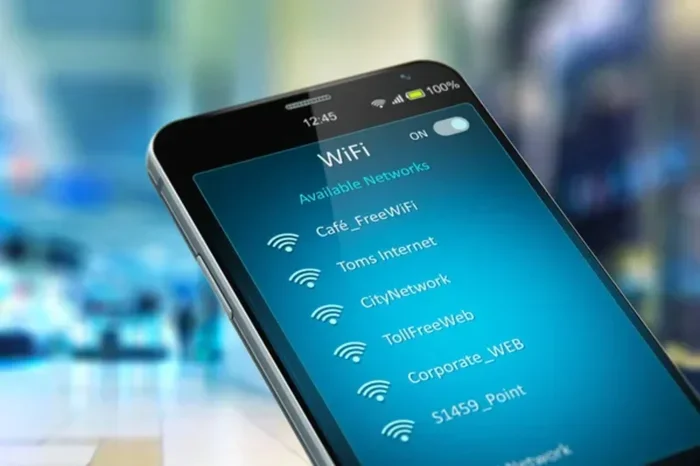
Libraries, coffee shops, malls, and airports often offer free WiFi. These are open wireless networks that anyone can join. All you need is a PC with a working WiFi adapter. Just look for the network name, click connect, and you are online. Keep in mind that public WiFi is less secure, so avoid doing banking or entering passwords on these networks.
Free Internet Programs and ISPs
Some internet service providers offer free or low-cost internet for qualifying households. Programs like the FCC’s Affordable Connectivity Program (or its successors) help people get connected. Local governments and nonprofits also run initiatives to provide free internet in certain areas. It is worth checking what is available in your community.
Sharing Internet from Your Phone
If you have a smartphone with a data plan, you can share that internet with your PC. This is called WiFi tethering or mobile hotspot. On most phones, you go to Settings, then Hotspot or Tethering, and turn it on. Your PC will see the phone’s WiFi network and can connect to it. This gives your PC internet access anywhere you have phone signal.
This method works well when you are traveling or when your home internet goes down. It is not a permanent solution, but it is very practical for emergencies or on-the-go needs.
Community WiFi Networks
Some neighborhoods and towns build community WiFi networks. These are wireless networks set up by local groups or municipalities. They offer free or low-cost internet to residents. Check with your local government or community center to see if this is available where you live.
WiFi Map Apps
Apps like WiFi Map and Instabridge show you free WiFi hotspots around the world. These apps are crowd-sourced, meaning users share the locations and passwords of free networks. They are handy when you are traveling or looking for a place to work outside your home.
Setting Up a WiFi Hotspot on Your PC
Turning your PC into a WiFi hotspot is easier than most people think. You do not need expensive software. Windows 10 and 11 have a built-in feature called Mobile Hotspot that does the job. Here is how to set it up.
Using Windows Built-In Hotspot
First, open your Settings app. Go to Network and Internet. Click on Mobile Hotspot. Turn it on. Choose the connection you want to share — this could be your Ethernet or WiFi connection. Set a network name and password. That is it. Other devices can now find your PC’s hotspot and connect to it.
Using Third-Party Hotspot Software
If the built-in tool does not work for you, third-party apps are an option. Connectify Hotspot is one of the most popular. It lets you share any internet connection through WiFi. The free version has some limits, but it works well for basic sharing. Another option is mHotspot, which is lightweight and easy to set up.
When setting up a hotspot, always use a strong password. This keeps unauthorized users from connecting and slowing down your network. A password also protects your data from potential snoopers.
Common Problems and How to Fix Them
Even with the best setup, WiFi problems happen. Here are the most common issues and simple fixes that work.
Slow WiFi Speeds
Slow internet is frustrating. Before you blame your provider, try these steps. Move closer to your router. Walls and furniture block wireless signals. Restart your router by unplugging it for 30 seconds. Check if other devices are using up bandwidth. Run a speed test to see what you are actually getting. If the speed is still bad, try changing your WiFi channel using an analyzer app.
WiFi Keeps Disconnecting
If your connection drops often, the problem could be your adapter drivers. Open Device Manager and update your WiFi adapter driver. You can also try forgetting the network and reconnecting. Sometimes interference from other electronics causes disconnects. Move your router away from microwaves, cordless phones, and baby monitors.
PC Cannot Find Any WiFi Networks
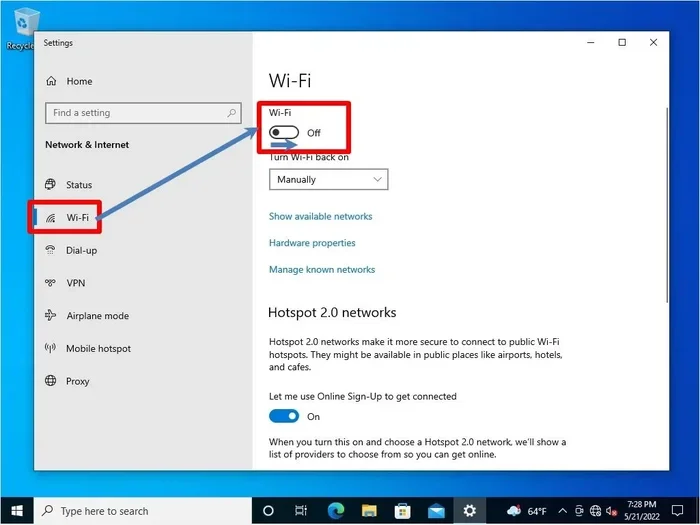
This usually means your WiFi adapter is turned off or not working. Check the physical switch on your laptop — some models have a WiFi toggle. In Windows, go to Settings and make sure Airplane Mode is off. If the adapter still does not show up, try uninstalling and reinstalling the driver. A USB WiFi dongle is a cheap backup option if nothing else works.
Can Not Connect to a Specific Network
If you can see networks but cannot connect to one, the password may be wrong. Try forgetting the network and reconnecting with the correct password. If it still fails, the router may be using a security type your PC does not support. Check the router settings or contact the network owner.
Expert Tips to Boost Your WiFi Signal
Want better WiFi on your PC without spending a lot? Try these proven tips that actually work.
- Place your router in a central location. Signals spread outward. A router in the corner of your home leaves dead zones in the opposite corner.
- Keep your router elevated. Putting it on a shelf or mounting it on a wall improves signal distribution.
- Update your router firmware. Manufacturers release updates that improve performance and fix bugs. Check your router admin panel regularly.
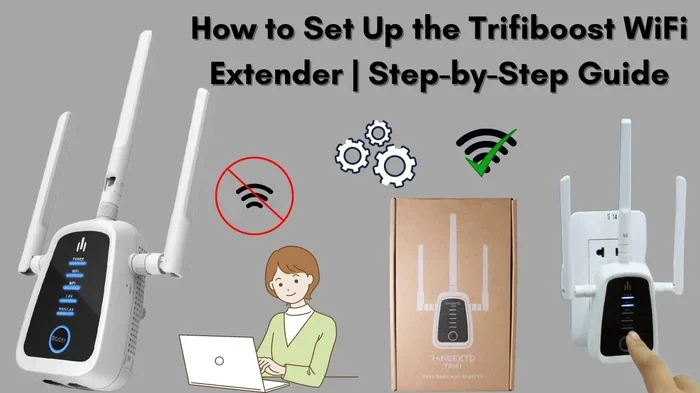
- Use a WiFi extender or mesh system. These devices boost your signal to areas that are too far from the router.
- Switch to the 5GHz band. Most modern routers support two bands. The 5GHz band is faster and less crowded than the 2.4GHz band.
- Limit the number of connected devices. Too many devices on one network slows everyone down. Disconnect devices you are not using.
These tips apply to any wireless setup. They do not cost much, and they can dramatically improve your internet experience. Try them one by one and see which makes the biggest difference for your situation.
Key Takeaways
- WiFi is not a downloadable file: You cannot download WiFi itself, but you can download tools to manage wireless connections on your PC.
- Free internet options exist: Public WiFi hotspots, WiFi sharing apps, and free internet programs let you get online without paying an ISP.
- The right software matters: WiFi analyzer and manager tools help you find the best networks and optimize your signal strength.
- WiFi hotspot sharing works: You can share an existing internet connection from your phone or another device with your PC using WiFi tethering.
- Avoid scams: Many websites and apps claiming to “download WiFi” are fake or malicious. Stick to trusted sources.
- A WiFi adapter boosts connectivity: If your PC lacks built-in wireless capability, a USB WiFi dongle or adapter solves the problem easily.
- Security first: Always use a VPN and avoid unsecured networks when accessing free WiFi to protect your data.
Conclusion
So, can you download WiFi for PC and get free internet? You cannot download a wireless signal. But you can download tools that make your WiFi experience better. You can find free internet through public hotspots, phone tethering, and community programs. You can set up a hotspot on your PC and share connections with other devices. And you can use software to analyze, manage, and boost your wireless network.
The key is knowing what is real and what is not. Ignore the flashy ads that promise free WiFi through a simple download. They are almost always scams. Instead, focus on the practical, proven methods we covered in this guide. Use WiFi analyzer apps to optimize your network. Use hotspot software to share connections. Use public WiFi wisely and safely.
Your PC can connect to the internet in more ways than you might think. You just need the right knowledge and the right tools. Start with one or two tips from this article. See what works for your situation. Then build from there. Better WiFi and free internet are absolutely within your reach — no magic download required.
Take action today. Check your WiFi adapter. Download a reliable analyzer app. Look for free hotspots in your area. Small steps lead to big improvements. Your better, faster, and more affordable internet experience starts now.
Frequently Asked Questions
Can I really download WiFi for my PC?
No, WiFi is a wireless signal, not a file you can download. However, you can download WiFi management and analyzer tools that help you find, connect to, and optimize wireless networks on your PC. These apps make your internet experience better without promising impossible things.
Is it safe to use free WiFi on my PC?
Free public WiFi can be risky because these networks are often unsecured. Hackers can potentially intercept your data. To stay safe, use a VPN when connecting to public WiFi, avoid accessing sensitive accounts, and forget the network after you are done.
What is the best free WiFi software for PC?
Some of the best free WiFi tools include NetSpot for WiFi analysis, Connectify Hotspot for sharing connections, and Windows built-in Mobile Hotspot for creating your own network. All of these are trusted and widely used by millions of people.
How can I get free internet on my PC without an ISP?
You can use public WiFi hotspots at libraries, cafes, and malls. You can share internet from your smartphone using WiFi tethering. You can also check if your area has community WiFi programs or government-funded free internet initiatives for eligible households.
Do I need a WiFi adapter if my PC does not have WiFi?
Yes, if your PC does not have a built-in wireless adapter, you need one to connect to WiFi. A USB WiFi dongle is the easiest and cheapest option. Just plug it into a USB port, install the driver, and you can connect to wireless networks right away.
Will downloading WiFi software speed up my internet?
WiFi software itself does not speed up your internet plan. But WiFi analyzer tools can help you find less crowded channels and optimize your router settings, which can improve your actual speeds. Think of it as helping your existing connection work at its full potential.