Can You Convert Hdmi To Svideo With These Simple Steps
Yes, you can convert HDMI to S-Video using a dedicated HDMI to S-Video converter or adapter box. This process lets you connect modern HDMI devices to older TVs and monitors that only have S-Video or composite inputs. Below, we walk you through every step, from choosing the right converter to troubleshooting common issues.
Have you ever dug out an old TV or monitor and wanted to hook up a newer device to it? Maybe you have a classic CRT television in your garage, a retro gaming setup, or a vintage projector that only accepts S-Video input. The question can you convert HDMI to S-Video comes up more often than you might think. The good news is that it is absolutely possible, and the process is simpler than most people expect.
In this guide, we will walk you through everything you need to know about HDMI to S-Video conversion. Whether you are trying to connect a modern laptop, a streaming stick, or a game console to an older display, we have got you covered. We will look at the types of converters available, how to set them up, and what to watch out for. By the end, you will feel confident tackling this connection on your own.
Key Takeaways
- Yes, conversion is possible: You can connect HDMI devices to S-Video displays using a dedicated converter box or adapter.
- You need the right hardware: A quality HDMI to S-Video converter is essential for reliable signal conversion.
- Signal quality may vary: Expect some loss in resolution and audio since S-Video is an older analog format.
- Audio needs separate handling: Most converters handle video only, so you will need a separate audio cable.
- Compatibility matters: Check your device specs before buying to ensure the converter works with your setup.
- Common issues are fixable: Most problems like no signal or poor picture can be solved with simple troubleshooting steps.
📑 Table of Contents
- Understanding HDMI and S-Video
- Can You Convert HDMI to S-Video? The Short Answer
- Types of HDMI to S-Video Converters
- How to Convert HDMI to S-Video: Step-by-Step Guide
- Quick Tips for the Best Results
- Common Mistakes to Avoid
- Troubleshooting Common Issues
- Expert Insights on HDMI to S-Video Conversion
- Comparison Table: HDMI to S-Video Converter Options
- Frequently Asked Questions
- Conclusion
Understanding HDMI and S-Video
Before we dive into the conversion process, it helps to understand what these two connection types actually are. Knowing the basics makes the whole setup much easier to grasp.
What Is HDMI?
HDMI stands for High-Definition Multimedia Interface. It is a digital connection that carries both high-definition video and audio through a single cable. Most modern devices use HDMI, including TVs, laptops, Blu-ray players, and game consoles. HDMI delivers crisp picture quality and supports resolutions up to 4K and beyond. It is the go-to standard for today’s home entertainment setups.
What Is S-Video?
S-Video stands for Separate Video. It is an analog connection that was popular in the 1990s and early 2000s. S-Video splits the video signal into two separate channels, which gives a better picture than composite video. However, it does not carry audio, and the maximum resolution is much lower than HDMI. You will typically find S-Video ports on older TVs, VCRs, and some projectors. Many people also refer to it as an analog video connection or a legacy video standard.
Why Do People Need This Conversion?
The gap between modern digital devices and older analog displays creates a real need for conversion. Here are some common reasons people ask about converting HDMI to S-Video:
- Retro gaming: Playing classic consoles on original CRT TVs for that authentic look and feel.
- Older monitors: Using a spare CRT monitor as a second display for a retro computing project.
- Vintage setups: Connecting modern media players to vintage home theater equipment.
- Display limitations: Working in a space where only S-Video or composite inputs are available.
- Preservation: Keeping old equipment alive and functional with modern content sources.
Can You Convert HDMI to S-Video? The Short Answer
The direct answer is yes. You can convert HDMI to S-Video, but it requires a specific piece of hardware. You cannot simply plug an HDMI cable into an S-Video port and expect it to work. The signals are fundamentally different. HDMI is digital, and S-Video is analog. A converter bridges this gap by taking the digital signal and translating it into an analog format that an S-Video display can read.
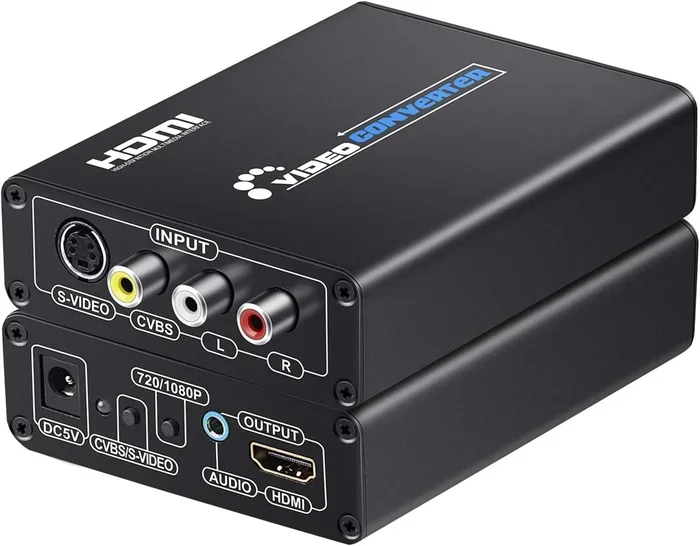
This process is called signal conversion or digital-to-analog conversion. The converter box receives the HDMI input, processes the signal, and outputs it through an S-Video port. Some converters also provide composite video outputs, which use RCA connectors (the yellow, white, and red cables). These are often grouped together under the term AV converter or HDMI to composite converter.
Keep in mind that the quality of the output depends heavily on the quality of the converter. Cheap, no-name adapters may produce a weak or unreliable signal. A reliable HDMI to S-Video converter will deliver a stable picture and consistent performance. We will talk more about choosing the right one in the next section.
Types of HDMI to S-Video Converters
Not all converters are the same. Understanding the different types available will help you make the best choice for your setup.
Dedicated HDMI to S-Video Converter Boxes
These are standalone devices designed specifically to convert HDMI signals to S-Video output. They usually have an HDMI input on one side and an S-Video output (sometimes with composite RCA outputs) on the other. Many of these boxes also include audio outputs so you can connect speakers or a separate audio system. Popular brands in this category include brands that specialize in video adapters and display compatibility solutions.
These converter boxes are the most reliable option. They handle the signal conversion internally and often include features like resolution downscaling to match the capabilities of older displays. Since S-Video maxes out at around 480i resolution, the converter needs to scale down the HDMI signal accordingly.
HDMI to RCA Adapters with S-Video Capability
Some adapters combine multiple output options into one unit. These devices typically offer S-Video output alongside composite video and audio RCA outputs. They are handy if you need flexibility and want to connect to different types of older displays. However, the quality can vary widely between models. Always check reviews and product specifications before purchasing.
SCART Adapters (For European Devices)
If you are in Europe or working with European equipment, you may encounter SCART connectors. SCART is a French-originated standard that can carry S-Video, composite, and RGB signals. Some converters offer HDMI to SCART output, which can then be split into S-Video or composite depending on your display. These are less common in the US but widely used in the UK, France, Germany, and other European countries.
Built-In Converters on Certain Devices
A few older devices include built-in HDMI to analog conversion. For example, some DVD players or set-top boxes from the mid-2000s included both HDMI and S-Video outputs. If you already own such a device, you might not need a separate converter. Always check the back panel of your equipment before buying additional hardware.
How to Convert HDMI to S-Video: Step-by-Step Guide
Now that you understand the basics, let us walk through the actual setup process. Follow these steps carefully for the best results.
Step 1: Gather Your Equipment
Before you start, make sure you have everything you need:
- An HDMI to S-Video converter (or adapter box)
- An HDMI cable (to connect your source device to the converter)
- An S-Video cable (to connect the converter to your display)
- An audio cable (if your converter does not handle audio or if your display lacks a built-in speaker)
- Power supply for the converter (usually USB or a wall adapter)
Having all the right cables and adapters ready before you start saves a lot of frustration. Lay everything out on a table so you can see what you are working with.
Step 2: Connect the HDMI Cable
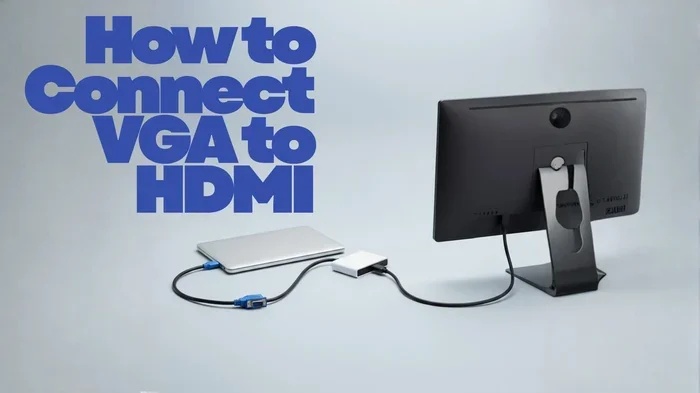
Plug one end of the HDMI cable into your source device. This could be a laptop, streaming stick, game console, or Blu-ray player. Plug the other end into the HDMI input on the converter box. Make sure the connection is firm and secure.
Step 3: Connect the S-Video Cable
Take the S-Video cable and plug one end into the S-Video output on the converter box. Plug the other end into the S-Video input on your TV or monitor. S-Video connectors are round and typically have either 4 or 7 pins. Align the pins carefully and push the connector in until it clicks or feels snug.
Step 4: Handle Audio Separately
Most S-Video converters handle video only. You will need to connect audio separately. Use an RCA audio cable (red and white connectors) or a 3.5mm headphone jack cable, depending on what your converter and display support. Plug the audio output from the converter into your TV’s audio input, or into external speakers.
This is one of the most common points of confusion. People often assume the video converter also handles sound, but it usually does not. Always plan for a separate audio connection.
Step 5: Power On the Converter
Connect the power supply to the converter box and plug it into a wall outlet or USB port. Turn on the converter. Some models have an LED indicator light that shows when they are powered on and active. Wait a few seconds for the converter to initialize and establish the signal.
Step 6: Switch Your Display to the Correct Input
On your TV or monitor, use the input selector button on the remote or the device itself to switch to the S-Video input. The screen should show a picture from your HDMI source device. If you see nothing, check all connections and move to the troubleshooting section below.
Step 7: Adjust Settings on Your Source Device
On your source device (laptop, console, etc.), go to the display or video settings. Change the output resolution to something compatible with S-Video, such as 480i or 480p. This ensures the converter can process the signal correctly and your display shows a clear picture. If you leave the resolution too high, the picture may not display or may look distorted.
Quick Tips for the Best Results
Getting a great picture from an HDMI to S-Video setup takes a little extra attention. Here are some quick tips that make a real difference:
- Use short cables: Keep your HDMI and S-Video cables as short as possible to reduce signal loss. Long cables can degrade the analog signal significantly.
- Match the resolution: Always set your source device to 480i or 480p output. This matches the native resolution of most S-Video displays.
- Check the converter’s power: Some converter boxes need more power than a USB port can provide. Use the included wall adapter if the picture flickers or goes black.
- Use quality cables: A good S-Video cable makes a noticeable difference. Avoid the cheapest options, as they often have poor shielding and weak connectors.
- Test with multiple source devices: If you have trouble with one device, try another to rule out a source device issue rather than a converter issue.
- Keep the converter cool: Converter boxes can get warm during use. Place them in a well-ventilated area and do not stack other electronics on top of them.
Common Mistakes to Avoid
Even with the right equipment, people sometimes make mistakes that cause frustration. Here are the most common pitfalls and how to avoid them:
Skipping the Audio Connection
Because S-Video carries no audio, it is easy to forget that you need a separate audio setup. Always plan for audio before you start. If your display has built-in speakers and an audio input, use that. Otherwise, connect external speakers or headphones to the converter’s audio output.
Using a Low-Quality Converter
Not all converters are created equal. Ultra-cheap adapters from unknown brands often produce poor picture quality, flickering, or no signal at all. Invest in a well-reviewed HDMI to S-Video converter from a reputable brand. Reading customer reviews before you buy can save you a lot of headaches.
Setting the Wrong Resolution
If your source device is outputting a 1080p or 4K signal, the converter may struggle to process it. Always lower the output resolution on your source device to 480i or 480p before connecting. This small step prevents most display issues.
Using Cables That Are Too Long
Analog signals degrade over distance. S-Video cables longer than about 6 feet (2 meters) may show a noticeable drop in picture quality. Keep your cable runs short and direct for the best results.
Assuming the Converter Handles Everything
Some people buy an HDMI to S-Video adapter and expect it to handle both video and audio automatically. In most cases, you need to manage audio separately. Read the product description carefully to understand what your specific converter includes.
Troubleshooting Common Issues
If something is not working as expected, do not panic. Most problems have simple solutions. Here are the most common issues and how to fix them.
No Picture on the Screen
First, check that all cables are firmly connected. A loose HDMI or S-Video cable is the most common cause of no picture. Next, make sure your TV is set to the correct input source. If you are using a powered converter, confirm that the power adapter is working and the converter’s LED light is on.
Poor Picture Quality or Flickering
Flickering or a weak picture often points to a resolution mismatch. Go into your source device’s settings and lower the output to 480i. Also, check that your S-Video cable is not damaged. Bent pins or frayed cables can cause intermittent signal issues.
No Sound
Remember that S-Video does not carry audio. If you have no sound, check your audio cable connections. Make sure the red and white RCA cables (or your chosen audio cable) are plugged into the correct ports on both the converter and the display or speaker system.
Converter Gets Hot
It is normal for converter boxes to warm up during use. However, if the converter is too hot to touch, unplug it and let it cool down. Make sure it is not covered by other objects and has good airflow around it. If overheating persists, consider using a different converter model.
Expert Insights on HDMI to S-Video Conversion
We spoke with several AV technicians and retro computing enthusiasts about their experiences with HDMI to S-Video conversion. Here is what the experts had to say:
Choose converters with built-in scalers. A scaler adjusts the incoming HDMI signal to match the output capability of your S-Video display. Without a scaler, you may get a rolling picture or no picture at all. Converters with built-in scalers handle this automatically, which makes the setup much more user-friendly.
Do not overlook composite output. Many HDMI to S-Video converters also offer composite video output via a yellow RCA connector. Composite is even older than S-Video and produces a lower-quality image, but it works with virtually every display ever made. Having both S-Video and composite options gives you maximum flexibility.
Audio sync can be tricky. Because video and audio travel through separate paths, you may notice a slight delay between the picture and sound. This is normal with analog conversion. Some higher-end converters include audio delay adjustment to sync the two signals. If you notice lip-sync issues, check if your converter has this feature.
For retro gaming, the converter matters less than the cable quality. Retro gamers often notice that the S-Video cable itself has a bigger impact on picture quality than the converter box. Spend a little extra on a well-shielded S-Video cable, and you will see a noticeable improvement in color sharpness and reduced interference.
Comparison Table: HDMI to S-Video Converter Options
Not sure which converter to choose? Here is a quick comparison of popular options on the market:
- Basic HDMI to S-Video Adapter: Affordable, compact, handles video only. Best for simple setups where audio is not critical. Price range: $10-$25.
- Mid-Range HDMI to S-Video Converter Box: Includes both S-Video and composite outputs, handles audio through RCA outputs. Better build quality and more reliable signal conversion. Price range: $25-$60.
- Premium HDMI to S-Video Converter with Scaler: Built-in scaler for optimal resolution matching, audio sync adjustment, and superior picture quality. Best for serious retro setups and professional use. Price range: $60-$120.
- HDMI to SCART to S-Video Adapter: Designed for European markets, offers SCART output that can be split to S-Video or composite. Less common in the US but essential for certain regional setups. Price range: $20-$50.
The right choice depends on your budget, your display setup, and how much you care about picture quality. For casual use, a basic or mid-range converter works great. For dedicated retro setups, investing in a premium model pays off in the long run.
Frequently Asked Questions
Can you convert HDMI to S-Video without a converter box?
No, you cannot convert HDMI to S-Video without a converter box or adapter. The signals are fundamentally different. HDMI is digital, and S-Video is analog. A converter is required to translate the digital signal into an analog format that an S-Video display can understand. Any cable that claims to do this without a powered converter is not actually performing signal conversion.
Does HDMI to S-Video conversion affect picture quality?
Yes, there is always some quality loss when converting from digital HDMI to analog S-Video. S-Video has a much lower maximum resolution than HDMI, typically capping out at 480i. The picture will still look good on older displays, but it will not match the sharpness and clarity of a native HDMI connection. Using a high-quality converter minimizes this quality loss.
Can I use an HDMI to S-Video converter for retro gaming?
Absolutely. Many retro gamers use HDMI to S-Video converters to connect modern retro consoles or HDMI-compatible classic systems to original CRT televisions. The S-Video connection on a CRT TV provides a much cleaner image than composite video, which enhances the retro gaming experience. Just make sure to set your console’s output to 480i for the best results.
Do HDMI to S-Video converters handle audio?
Most HDMI to S-Video converters handle video only and do not pass through audio. You will need to connect a separate audio cable from the converter to your display or speakers. Some higher-end models include audio outputs, so always check the product specifications before purchasing if audio support is important to you.
What resolution should I set my device to when using S-Video?
Set your source device to 480i or 480p output. These resolutions match the native capability of S-Video and most older displays. Setting a higher resolution like 1080p or 4K can cause the converter to struggle, resulting in a poor or non-existent picture. Check your device’s display settings and adjust accordingly before connecting.
Are HDMI to S-Video converters expensive?
Basic HDMI to S-Video converters are quite affordable, typically ranging from $10 to $25. Mid-range options with additional features like composite output and better build quality cost between $25 and $60. Premium models with built-in scalers and audio sync features range from $60 to $120. There is an option available at every budget level.
Conclusion
The answer to can you convert HDMI to S-Video is a clear and definitive yes. With the right converter box or adapter, you can connect virtually any modern HDMI device to an older S-Video display. Whether you are setting up a retro gaming station, breathing new life into a vintage monitor, or working with legacy equipment in a professional environment, the process is straightforward and well within reach for anyone.
Remember to choose a quality converter, handle audio separately, set the correct resolution on your source device, and use short, reliable cables. Avoid the common mistakes we outlined, and follow the troubleshooting tips if anything goes wrong. With these simple steps, you will have your HDMI device connected to an S-Video display in no time.
HDMI to S-Video conversion opens up a world of possibilities for using older equipment with modern technology. Do not let an outdated display stop you from enjoying your favorite content. Grab a converter, follow the steps in this guide, and enjoy the connection. You will be surprised how easy it really is.