Can You Convert Usb Video To Hdmi With This Simple Guide
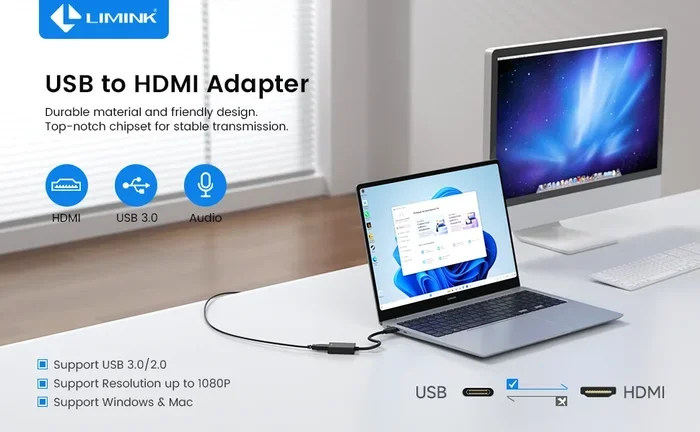
Can You Convert Usb Video To Hdmi? Yes, you absolutely can! With the right USB to HDMI adapter or video capture device, you can turn any USB video source into a high-definition HDMI output. This simple guide walks you through every step, from choosing the right gear to fixing common problems.
Have you ever plugged a USB video device into your TV and wondered if it would work? Maybe you have an old camera, a capture card, or a USB stick with video files. You want to watch them on a bigger screen through HDMI. But you are not sure how to make it happen.
The good news is that Can You Convert Usb Video To Hdmi is a question with a clear answer. Yes, you can do it. And it is easier than most people think. This guide will show you exactly how. You will learn about the different types of adapters, what to look for, and how to set everything up in just a few minutes.
Whether you want to stream content from a laptop to a TV or connect a USB video source to a monitor, this simple guide covers it all. No tech degree needed. Just follow along and you will be up and running in no time.
Key Takeaways
- USB to HDMI conversion is possible: You can connect USB video devices to HDMI displays using the right adapter or capture card.
- Several types of adapters exist: USB-A to HDMI, USB-C to HDMI, and external capture cards all serve different needs.
- Driver software matters: Some converters need drivers to work, while others are plug and play.
- Video quality depends on your gear: The adapter you choose directly affects resolution, frame rate, and audio support.
- Common issues are easy to fix: Problems like no signal or low resolution usually have simple solutions.
- Check compatibility first: Make sure your device and display both support the conversion method you choose.
📑 Table of Contents
- What Is USB Video and How Does It Work
- Why You Might Need to Convert USB Video to HDMI
- How USB to HDMI Converters Work
- Types of USB to HDMI Adapters and Cables
- Step-by-Step Guide to Converting USB Video to HDMI
- Common Problems and How to Fix Them
- How to Choose the Best USB to HDMI Adapter
- Expert Tips for the Best USB to HDMI Experience
- Final Thoughts
What Is USB Video and How Does It Work
Understanding USB Video Signals
USB stands for Universal Serial Bus. It is one of the most common connection types in the world. You use USB to charge phones, transfer files, and connect all kinds of devices. But did you know USB can also carry video signals?
When we talk about USB video, we mean any video content that travels through a USB connection. This could be from a webcam, a USB video capture device, or even a USB stick with video files. The video data moves through the USB cable to your computer or device.
However, USB was not originally designed for high-quality video. It was made for data transfer. So the video quality you get over USB depends on the USB version you are using. USB 3.0 and USB 3.1 can handle much better video than older USB 2.0 ports. This matters a lot if you want smooth playback and sharp picture quality.
How HDMI Differs from USB
HDMI stands for High-Definition Multimedia Interface. It was built specifically for audio and video. When you plug an HDMI cable into your TV, you get both picture and sound in one cable. HDMI carries uncompressed digital signals, which means great quality.
USB and HDMI work very differently. USB is a data protocol. HDMI is a display protocol. So you cannot just plug a USB cable into an HDMI port and expect it to work. You need a video converter or an adapter to bridge the gap between these two different technologies.
Why You Might Need to Convert USB Video to HDMI
Common Use Cases for USB to HDMI Conversion
There are many reasons people need to convert USB video to HDMI. Here are some of the most common ones:
- Watching videos on a bigger screen: You have video files on a USB drive and want to play them on your TV through HDMI.
- Streaming from a laptop: You want to mirror or extend your laptop screen to an HDMI monitor or TV.
- Gaming setups: You use a USB capture card to game on a bigger display with better visuals.
- Video conferencing: You want to display your webcam feed on a large HDMI screen for meetings.
- Presentations: You need to show USB-based video content during a presentation on an HDMI projector.
Benefits of Using HDMI Over USB for Display
HDMI offers several advantages when it comes to displaying video. First, HDMI supports much higher resolutions. Most modern HDMI cables can handle 4K and even 8K content. USB video alone usually cannot match that level of quality without a proper converter.
Second, HDMI carries audio and video together. With USB, you might need a separate audio connection. HDMI simplifies everything into one cable. This makes setup faster and your workspace less cluttered.
Third, HDMI displays tend to have lower input lag than USB-connected monitors. This is important for gamers and anyone who needs real-time video playback.
How USB to HDMI Converters Work
The Role of the Converter Chip
A USB to HDMI adapter has a small chip inside it. This chip does the heavy lifting. It takes the USB data signal and converts it into an HDMI signal that your TV or monitor can understand.
Think of it like a translator. The USB device speaks one language (data), and the HDMI display speaks another (video). The converter chip bridges that gap. It processes the incoming USB video data and outputs it as a clean HDMI signal.
Driver Software vs Plug and Play
Not all USB to HDMI adapters work the same way. Some require you to install driver software before they work. Others are plug and play, meaning you just plug them in and they start working right away.
Plug and play adapters are the easiest to use. You do not need to download anything or change any settings. Just connect the adapter, plug in the HDMI cable, and you are good to go. These are great for people who want a quick and simple setup.
Driver-based adapters offer more features and better compatibility with certain devices. They might support higher resolutions or special video formats. But they do require a bit more setup time. You will need to visit the manufacturer’s website and install the correct driver.
Types of USB to HDMI Adapters and Cables
USB-A to HDMI Adapters
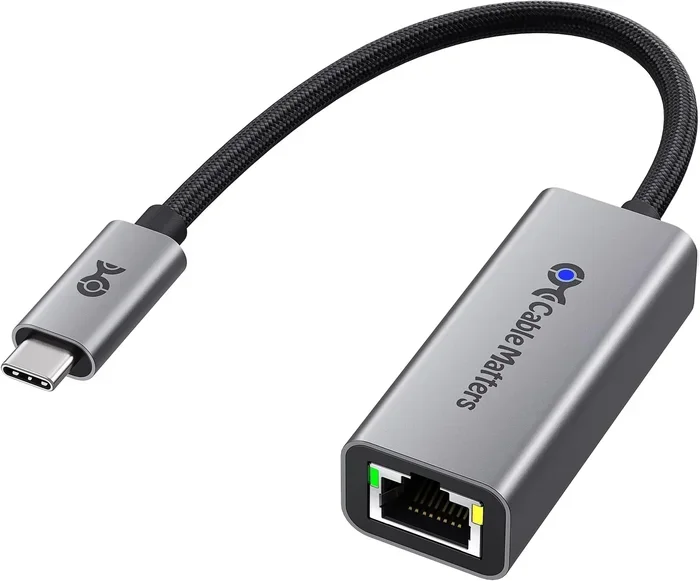
The most common type is the USB-A to HDMI adapter. USB-A is the flat, rectangular USB port you see on most computers and laptops. These adapters plug into a USB-A port on one end and output HDMI on the other end.
They are widely available and affordable. You can find them online or at most electronics stores. They work well for basic video output from laptops, desktops, and even some tablets.
USB-C to HDMI Adapters
USB-C is the newer, smaller, oval-shaped connector. Many modern laptops, phones, and tablets use USB-C. A USB-C to HDMI adapter lets you connect these devices directly to an HDMI display.
USB-C to HDMI adapters are very popular right now. They are compact, fast, and support high resolutions. Many of them are truly plug and play, especially on devices that support DisplayPort over USB-C.
External USB Video Capture Cards
Another option is an external capture card. These are small devices that plug into a USB port and accept HDMI input. They are usually used in reverse, but some models can also output USB video to HDMI.
Capture cards are great for streaming and recording. They often come with software that lets you adjust video settings. If you are a content creator or a streamer, a capture card might be exactly what you need.
Step-by-Step Guide to Converting USB Video to HDMI
Step 1: Check Your Devices
Before you buy anything, check what ports your devices have. Look at your computer or video source. Do you have a USB-A port or a USB-C port? Now look at your TV or monitor. Does it have an HDMI input?
This step is simple but important. If you get the wrong type of adapter, it will not work. Make sure you know exactly what ports you are working with.
Step 2: Choose the Right Adapter
Now it is time to pick your USB to HDMI adapter. Here are a few things to keep in mind:
- Compatibility: Make sure the adapter works with your device and operating system.
- Resolution support: Look for adapters that support at least 1080p. If you want 4K, make sure the adapter specifically supports it.
- Audio support: Check if the adapter carries audio along with video. Most modern adapters do.
- Driver requirements: Decide if you want plug and play or if you are okay installing drivers.
Step 3: Install the Adapter
Once you have your adapter, plug it into the USB port on your device. If it needs drivers, install them now. Restart your computer if prompted. Then connect the HDMI cable from the adapter to your TV or monitor.
Switch your TV or monitor to the correct HDMI input. You should see the video signal appear on the screen. If it does not, do not worry. Move on to the next step.
Step 4: Adjust Display Settings
Go to your display settings on your computer. You may need to change the display mode. You can choose to mirror your screen or extend it to the HDMI display. Both options work well depending on what you need.
You might also need to adjust the resolution. Set it to match your HDMI display for the best picture quality. Most adapters will automatically detect the right settings, but it never hurts to double-check.
Step 5: Test and Enjoy
Play a video or open an application on your USB video source. Watch it on the HDMI display. Check the audio and video quality. If everything looks and sounds good, you are all set.
If you notice any issues, refer to the troubleshooting tips in the next section. Most problems have simple fixes.
Common Problems and How to Fix Them
No Signal on the HDMI Display
This is the most common issue. If your HDMI display shows no signal, try these fixes:
- Check that the HDMI cable is securely plugged in on both ends.
- Make sure the adapter is fully seated in the USB port.
- Try a different USB port on your device.
- Switch the TV or monitor to the correct HDMI input channel.
- Restart your computer and the display device.
Low Video Quality or Flickering
If your video looks blurry or flickers, the problem is usually the cable or the adapter quality. Cheap adapters may not support high resolutions. Try using a shorter, high-quality HDMI cable. Also check that your adapter supports the resolution you are trying to use.
No Audio Through HDMI
Sometimes the video works but the sound does not. Go to your computer’s sound settings. Make sure the HDMI output is set as the default audio device. Some adapters need you to manually select the audio output.
Adapter Not Recognized by the Computer
If your computer does not detect the adapter, it might need a driver update. Visit the manufacturer’s website and download the latest driver for your specific model. Uninstall the old driver first if needed, then install the new one.
How to Choose the Best USB to HDMI Adapter
Things to Look For
Not all adapters are created equal. Here are the key factors to consider when shopping:
- Build quality: Metal adapters tend to last longer than plastic ones.
- Brand reputation: Stick with well-known brands like Sabrent, UGREEN, or Cable Matters.
- User reviews: Check what other buyers say about reliability and performance.
- Price: You do not need to spend a fortune, but very cheap adapters often have problems.
Quick Comparison Table
| Adapter Type | Best For | Resolution | Plug and Play |
|---|---|---|---|
| USB-A to HDMI | Desktops and older laptops | Up to 4K | Most models |
| USB-C to HDMI | Modern laptops and tablets | Up to 4K or 8K | Most models |
| External Capture Card | Streaming and recording | Up to 1080p or 4K | Varies by model |
Expert Tips for the Best USB to HDMI Experience
Here are some tips from people who use USB to HDMI adapters every day:
- Use a powered USB hub if needed. Some adapters draw too much power from a single USB port. A powered hub solves this problem.
- Keep your drivers updated. Even plug and play adapters benefit from driver updates. Check the manufacturer’s website periodically.
- Avoid long USB cables. Longer cables can weaken the signal. Keep your USB connection as short as possible.
- Test with multiple HDMI inputs. Sometimes a specific HDMI port on your TV has issues. Try a different port to rule that out.
Final Thoughts
So, can you convert USB video to HDMI? Absolutely. With the right USB to HDMI adapter, you can connect almost any USB video source to an HDMI display. The process is straightforward and does not require advanced technical skills.
Whether you want to watch videos on a bigger screen, extend your laptop display, or set up a streaming station, USB to HDMI conversion makes it all possible. The key is choosing the right adapter for your specific needs and following the setup steps carefully.
Remember to check compatibility, update drivers if needed, and do not be afraid to troubleshoot if something goes wrong. Most issues are easy to fix and do not require professional help.
Now that you have this knowledge, you are ready to set up your own USB to HDMI connection. Grab the right adapter, follow this guide, and enjoy your video on the big screen. Happy viewing!
Frequently Asked Questions
Do I need special software to convert USB video to HDMI?
Some adapters require driver software, but many are plug and play. Check the product description before you buy. If drivers are needed, they are usually free and easy to download from the manufacturer’s website.
Can I convert USB video to HDMI on a Mac?
Yes, most USB to HDMI adapters work with Mac computers. Make sure the adapter is compatible with macOS. Check the product listing for supported operating systems before purchasing.
What is the best USB-C to HDMI adapter for high resolution?
Adapters from brands like UGREEN, Sabrent, and Cable Matters are highly rated. Look for one that explicitly supports 4K resolution at 60Hz for the best results. Reading user reviews helps you find reliable options.
Why is my USB to HDMI adapter not working?
Try unplugging the adapter and plugging it into a different USB port. Restart your computer and check the HDMI input on your display. If the issue persists, update the adapter drivers or test the adapter on another device.
Can I use a USB to HDMI adapter for gaming?
Yes, but look for adapters with low input lag and high refresh rates. USB-C to HDMI adapters tend to perform better for gaming. Make sure your setup supports the resolution and frame rate you need for a smooth experience.
Is USB video to HDMI conversion lossy?
There can be a slight loss in quality depending on the adapter and cable quality. Using a high-quality adapter and short cables minimizes any signal loss. Most modern adapters deliver excellent picture and sound quality for everyday use.