Can I Convert Usb To Usb C A Simple Step By Step Guide
Yes, you can convert USB to USB C using adapters, cables, or hubs. This guide walks you through every option step by step so you can connect your older devices to modern USB-C ports without any hassle. You will learn about adapter types, compatibility, speed differences, and common mistakes to avoid.
You have an older USB device. Maybe it is a flash drive, a printer, or a keyboard. And now you have a shiny new laptop or phone with only USB-C ports. So the big question is, can I convert USB to USB C? The short answer is yes. You absolutely can. And it is way easier than you might think.
In this guide, we will walk you through everything you need to know. From the different types of adapters to speed considerations and common mistakes, you will find it all here. Whether you are a tech beginner or someone who just wants a quick answer, this guide has you covered.
The world of USB connectors has changed a lot over the years. USB-A was the standard for decades. It is the flat, rectangular plug you have seen on almost every computer and charger. But now, USB-C is taking over. It is smaller, reversible, and faster. So how do you bridge the gap between these two worlds? That is exactly what we will explain in this article.
Key Takeaways
- USB to USB-C conversion is simple: You just need the right adapter or cable to connect older USB devices to modern USB-C ports.
- Multiple adapter types exist: USB-A to USB-C cables, USB-A to USB-C adapters, and USB hubs all serve different needs.
- Speed and power delivery vary: Not all adapters support the same data transfer speeds or power delivery levels, so choose wisely.
- Device compatibility matters: Check your device specs before buying an adapter to ensure it works with your setup.
- Quality adapters prevent problems: Cheap or poorly made adapters can cause slow transfers, overheating, or connection drops.
- USB-C is the future: More devices are switching to USB-C, so adapters are a smart short-term investment.
- Plug and play setup: Most USB to USB-C adapters work instantly without installing extra software or drivers.
📑 Table of Contents
- Understanding USB and USB-C Connectors
- Can I Convert USB to USB C? Yes, Here Is How
- Speed and Data Transfer Considerations
- Power Delivery and Charging Through USB-C
- Device Compatibility: What Works with What
- Common Mistakes to Avoid When Converting USB to USB-C
- Best Adapters and Accessories for USB to USB-C Conversion
- Frequently Asked Questions
- Final Thoughts
Understanding USB and USB-C Connectors
Before you buy any adapter, it helps to understand what you are working with. Let us break down the two main types of USB connectors you will encounter.
What Is USB-A?
USB-A is the classic rectangular connector. It has been around since the late 1990s. You will find it on desktop computers, older laptops, gaming consoles, and many peripherals. It comes in different versions like USB 2.0 and USB 3.0. The USB 3.0 version is usually blue inside to tell it apart from USB 2.0.
USB-A connectors are not reversible. That means you have to flip them a few times to get the right orientation. They also only carry data and power in one direction. Despite being older, USB-A is still widely used in many devices today.
What Is USB-C?
USB-C is the newer connector standard. It is small, oval-shaped, and reversible. You can plug it in either way, which is a huge convenience. USB-C supports faster data transfer speeds and higher power delivery compared to USB-A.
USB-C is not just one thing though. It is a connector shape that can support different USB protocols. For example, USB 3.1 and USB 3.2 use the USB-C connector. Thunderbolt 3 and Thunderbolt 4 also use USB-C. This means a single USB-C port can do many things. It can charge your device, transfer data, and even connect to external displays.
The key takeaway here is that USB-C is a connector type, not just a speed standard. And that is why adapters exist to help older USB-A devices work with USB-C ports.
Can I Convert USB to USB C? Yes, Here Is How
So let us get to the main question. Can I convert USB to USB C? Absolutely. There are several ways to do it, and each method fits different needs and budgets.
Method 1: USB-A to USB-C Cable
This is the simplest option. A USB-A to USB-C cable has a standard USB-A plug on one end and a USB-C plug on the other. You plug the USB-A end into your older device and the USB-C end into your new device. It works like a charm for most basic tasks.
These cables are great for charging and data transfer. They come in different lengths and quality levels. A good USB-A to USB-C cable supports USB 3.0 speeds, which means up to 5 Gbps data transfer. That is fast enough for most everyday uses like moving photos or backing up files.
When shopping for this type of cable, look for ones that are USB-IF certified. This ensures the cable meets official standards for safety and performance. Cheap knockoff cables may not deliver the promised speeds or could even damage your devices.
Method 2: USB-A to USB-C Adapter
If you already have cables you want to keep using, an adapter is a great choice. A USB-A to USB-C adapter plugs into your USB-A port, and then you connect your USB-C cable to the adapter. This gives you flexibility because you can use your existing USB-C cables.
Adapters are small and portable. You can keep one in your laptop bag and use it whenever you need to connect an older device. They are also useful when you have multiple USB-C devices but only a few USB-A ports available.
One thing to watch out for is the build quality. A flimsy adapter can wobble loose and disconnect during data transfer. Look for adapters with a snug fit and metal housing for better durability.
Method 3: USB Hub with USB-C Connection
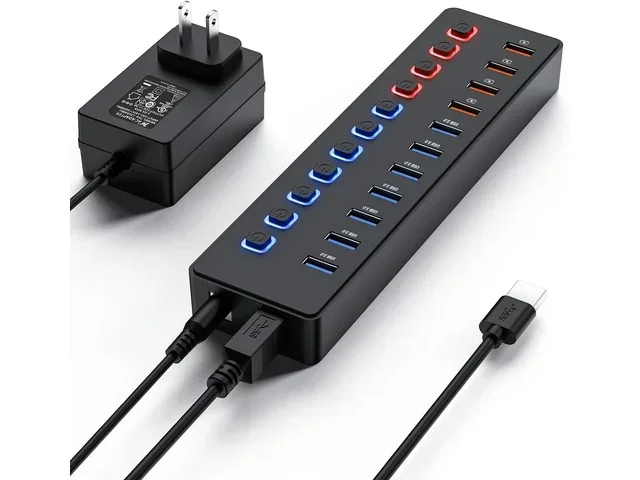
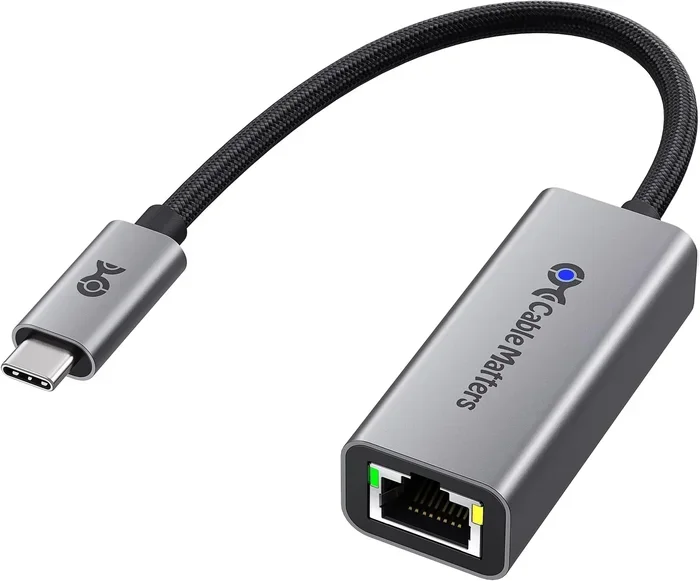
A USB hub is a fantastic option if you need multiple ports. A USB hub with a USB-C connection plugs into your laptop or device. Then it gives you several USB-A ports plus other useful connections like HDMI, SD card slots, and Ethernet.
This is ideal for people who work with many different peripherals. You can connect your old USB flash drive, a USB mouse, a printer, and more all at once through one USB-C port on your laptop.
USB hubs come in powered and unpowered versions. A powered hub has its own power source and can charge devices while passing data. An unpowered hub draws power from your computer and works best for low-power devices like keyboards and flash drives.
Speed and Data Transfer Considerations
Not all USB to USB-C conversions are created equal when it comes to speed. The speed you get depends on several factors.
USB 2.0 vs USB 3.0 vs USB 3.1 vs USB 3.2
These numbers represent different USB standards, and they matter a lot for your conversion experience. USB 2.0 is the oldest and slowest standard. It supports up to 480 Mbps data transfer. That is fine for charging or moving small files, but it will feel painfully slow for large transfers.
USB 3.0, also called USB 3.1 Gen 1, supports up to 5 Gbps. USB 3.1 Gen 2 doubles that to 10 Gbps. And USB 3.2 can reach even higher speeds depending on the configuration. When you buy an adapter or cable, check which USB standard it supports.
Here is a quick comparison to help you understand the differences:
- USB 2.0: Up to 480 Mbps. Fine for charging and basic tasks.
- USB 3.0 (USB 3.1 Gen 1): Up to 5 Gbps. Great for everyday file transfers.
- USB 3.1 Gen 2: Up to 10 Gbps. Fast enough for large video files.
- USB 3.2 Gen 2×2: Up to 20 Gbps. Best for professionals who move huge files.
Thunderbolt and USB-C
Thunderbolt is a technology that uses the USB-C connector. Thunderbolt 3 supports up to 40 Gbps data transfer and can connect to external GPUs and high-resolution displays. Thunderbolt 4 builds on that with even better performance.
If you have a Thunderbolt-enabled device, make sure your adapter or cable supports Thunderbolt if you want to take advantage of those speeds. Not all USB-C adapters are Thunderbolt compatible, so always check the product specifications before buying.
Power Delivery and Charging Through USB-C
One of the biggest advantages of USB-C is its power delivery capability. USB-C can support up to 100 watts of power delivery through USB Power Delivery (PD) technology. This means you can charge laptops, tablets, and even some desktop monitors through a single USB-C cable.
When you convert USB to USB C for charging, the power delivery depends on both the adapter and the charger. A basic USB-A to USB-C cable from a standard USB-A port on a computer will typically deliver around 2.5 watts. That is enough for a phone but too slow for a laptop.
If you want fast charging, use a USB-A charger that supports USB PD and pair it with a USB-A to USB-C cable that supports PD as well. This setup can deliver up to 18 watts or more, depending on your device.
For the best charging experience, look for adapters and cables that are labeled with their power delivery ratings. This ensures you get the fastest and safest charging possible.
Device Compatibility: What Works with What
Not every USB to USB-C conversion will work with every device. Compatibility depends on several factors that you should understand before making a purchase.
Checking Your Device Ports
Before buying an adapter, look at the ports on your devices. Does your laptop have USB-C ports? Does your flash drive have a USB-A connector? If yes, then a simple USB-A to USB-C adapter or cable will work.
Some newer devices only have USB-C ports and no USB-A ports at all. This is where adapters become essential. You simply cannot use your older USB-A devices directly without one.
Operating System Support
Most USB to USB-C adapters work on all major operating systems including Windows, macOS, ChromeOS, and Linux. They are plug and play, which means you do not need to install any drivers or software.
However, some advanced features like Thunderbolt or DisplayPort over USB-C may require specific drivers or built-in support from your operating system. Always check your device manufacturer’s website for compatibility details if you plan to use advanced features.
Peripheral Compatibility
Most USB peripherals work fine through USB to USB-C adapters. This includes keyboards, mice, printers, external hard drives, and flash drives. However, some specialized devices like certain audio interfaces or gaming controllers may have specific driver requirements that do not work well through adapters.
If you are unsure, check the device manufacturer’s website or contact their support team. They can tell you whether the device works with USB-C adapters or requires a direct connection.
Common Mistakes to Avoid When Converting USB to USB-C
Making the switch from USB to USB-C is straightforward, but there are some common mistakes that can cause frustration. Here are the ones to watch out for.
Buying the Wrong Adapter Type
This is the most common mistake. There are many different adapter types, and it is easy to grab the wrong one. Make sure you know exactly what connectors your devices have before you shop. A USB-A to USB-C adapter is different from a USB-C to USB-C cable. They are not interchangeable.
Ignoring Speed Ratings
Not all adapters and cables are created equal. Some support USB 3.0 speeds while others only support USB 2.0. If you need fast data transfer, check the speed rating before buying. A USB 2.0 adapter will severely limit your transfer speeds even if your devices support USB 3.0 or higher.
Using Low-Quality Adapters
Cheap adapters from unknown brands may seem like a good deal, but they can cause real problems. They may overheat, disconnect randomly, or even damage your devices. Stick with reputable brands and look for USB-IF certification or similar quality marks.
Forgetting About Power Delivery
If you plan to charge devices through your adapter, make sure it supports adequate power delivery. A basic data-only adapter will not charge your laptop efficiently. Look for adapters that explicitly mention power delivery support and check the wattage rating.
Best Adapters and Accessories for USB to USB-C Conversion
The market is full of options, and choosing the right one can feel overwhelming. Here are some tips to help you pick the best adapter for your needs.
For everyday use, a simple USB-A to USB-C cable is all you need. Brands like Anker, Belkin, and Cable Matters offer reliable options at reasonable prices. Look for cables that are at least 1 meter long so you have flexibility in how you use your devices.
If you need multiple ports, invest in a USB-C hub. A good hub gives you USB-A ports, HDMI output, and sometimes even Ethernet. This is perfect for people who work from home and need to connect many peripherals to a laptop with only USB-C ports.
For professionals who need the fastest speeds, look for Thunderbolt 3 or Thunderbolt 4 adapters. These support up to 40 Gbps data transfer and are ideal for video editing, large file transfers, and connecting to external monitors.
Frequently Asked Questions
Can I convert USB-A to USB-C without an adapter?
No, you cannot directly connect a USB-A device to a USB-C port without an adapter or a cable that has both connector types. The shapes are different, so you need a USB-A to USB-C cable or adapter to bridge the gap between the two.
Does converting USB to USB-C slow down data transfer?
It can, depending on the adapter or cable you use. If your adapter only supports USB 2.0, your transfer speed will drop to 480 Mbps even if your devices support faster standards. Always check the speed rating of your adapter or cable to ensure you get the best performance possible.
Can I charge my laptop using a USB-A to USB-C adapter?
Yes, but it depends on the power delivery. A standard USB-A port on a computer usually delivers around 2.5 watts, which is too slow for most laptops. To charge a laptop efficiently, use a USB-A wall charger that supports USB Power Delivery and pair it with a compatible USB-A to USB-C cable.
Are USB to USB-C adapters safe to use?
Yes, adapters from reputable brands are safe to use. They are designed to handle the power and data requirements of your devices. However, cheap or uncertified adapters can pose risks like overheating or short circuits. Always buy from trusted manufacturers and look for quality certifications.
Do I need drivers for USB to USB-C adapters?
Most USB to USB-C adapters are plug and play, which means you do not need any drivers. They work instantly when you connect them. However, some advanced features like Thunderbolt or DisplayPort over USB-C may require specific drivers or OS support. Check your device specifications to be sure.
Can I use a USB-C to USB-C cable instead of an adapter?
Yes, if both of your devices have USB-C ports, you can use a USB-C to USB-C cable directly. This is the simplest and most reliable option. Adapters are only needed when one device has a USB-A port and the other has a USB-C port.
Final Thoughts
So, can I convert USB to USB C? The answer is a clear and definitive yes. With the right adapter, cable, or hub, you can easily connect your older USB devices to modern USB-C ports. The process is simple, affordable, and works with almost any device you own.
The key is to understand your needs. Do you just need to charge a phone? A simple USB-A to USB-C cable will do the job. Do you need to transfer large files quickly? Invest in a USB 3.0 or higher rated cable or adapter. Do you work with many peripherals? A USB-C hub will keep everything connected and organized.
Remember to avoid the common mistakes we discussed. Check your speed ratings, buy quality adapters, and always verify compatibility before you purchase. A little bit of research goes a long way in saving you time, money, and frustration.
The transition from USB-A to USB-C is happening fast. More and more devices are dropping the older connector in favor of USB-C. Having a few good adapters on hand is a smart move that keeps your older devices working with your new technology. So go ahead, make the switch, and enjoy the convenience that USB-C brings to your setup.