Can HDMI Transfer Data A Complete Guide For Beginners
Can HDMI transfer data? Absolutely yes. HDMI cables do much more than just carry video and audio. They also transfer internet signals, control commands, and even power in some cases. This guide breaks down everything beginners need to know about HDMI data transfer in simple, easy-to-understand terms.
You plug in an HDMI cable every day. You watch movies. You play games. You connect your laptop to the TV. But have you ever stopped and wondered, can HDMI transfer data? It is a simple question, but the answer is more interesting than you might think.
HDMI stands for High-Definition Multimedia Interface. It is one of the most common cable types in the world. From your living room TV to your office computer, HDMI cables are everywhere. But what exactly do they carry? And how much data can they really move? This guide answers all of that and more.
Whether you are a total beginner or someone who just wants to fill in the gaps, you are in the right place. We will walk through everything step by step. No confusing tech jargon. No fluff. Just clear, practical information about HDMI data transfer that you can actually use.
Key Takeaways
- HDMI carries both video and audio: A single cable handles high-definition visuals and surround sound simultaneously.
- HDMI can transfer internet data: The HDMI Ethernet Channel lets devices share a connection without extra cables.
- Different HDMI versions matter: HDMI 2.0 and HDMI 2.1 support different data speeds and resolutions like 4K and 8K.
- Cable length affects signal quality: Longer cables can weaken the data signal, so choose the right length.
- HDMI supports ARC and eARC: These features let audio travel back from your TV to a soundbar or receiver.
- Not all HDMI cables are equal: Premium High Speed cables handle more data than standard cables.
- HDMI works with many devices: Gaming consoles, laptops, streaming boxes, cameras, and more all use HDMI for data transfer.
📑 Table of Contents
- What Is HDMI and How Does It Work?
- Can HDMI Transfer Data? The Short Answer
- Different HDMI Versions and Their Data Capabilities
- How HDMI Transfers Internet Data
- HDMI and Gaming: How Data Transfer Impacts Your Experience
- HDMI ARC and eARC: Audio Data Going Backwards
- Common Problems with HDMI Data Transfer
- How to Choose the Right HDMI Cable for Data Transfer
- Can HDMI Transfer Files Between Devices?
- Frequently Asked Questions
- Final Thoughts
What Is HDMI and How Does It Work?
HDMI is a digital connection standard. It was first introduced in 2003. The goal was simple: replace the messy bundle of cables behind your entertainment setup. Before HDMI, you needed separate cables for video and audio. HDMI combined them into one neat cable.
But HDMI does not just carry video and audio. It also transfers data. This is the part many people overlook. The cable sends digital signals from one device to another. These signals can be video frames, audio samples, internet packets, or control commands. All of this happens at lightning speed through a single small port.
The Anatomy of an HDMI Cable
Inside an HDMI cable, there are multiple twisted wire pairs. Each pair has a specific job. Some carry the video signal. Some carry the audio signal. One pair handles the clock signal, which keeps everything synchronized. Another pair handles the HDMI Ethernet Channel. That is right, your HDMI cable has a built-in internet connection.
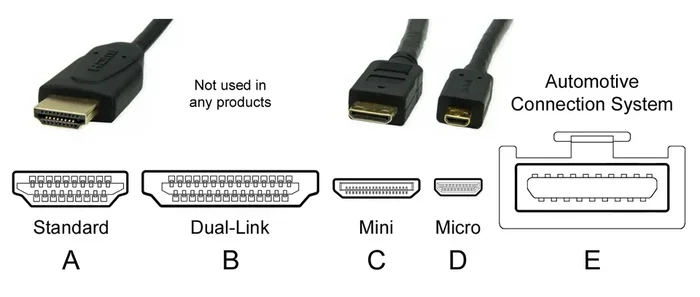
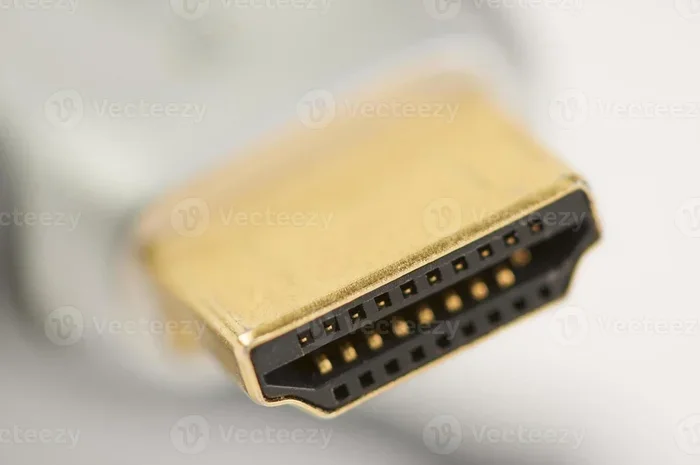
The connector itself comes in a few types. The standard Type A is what you see on most TVs and laptops. There is also the smaller Type C (mini HDMI) and Type D (micro HDMI). Then there is the Type B (dual link), which is rare but carries even more data. Each type supports the same digital protocol, just different sizes for different devices.
Can HDMI Transfer Data? The Short Answer
Yes. HDMI absolutely transfers data. But the type of data it transfers goes beyond just video and audio. When you ask, can HDMI transfer data, the real answer is yes, and in several different ways.
Here is a quick breakdown of the types of data an HDMI cable can carry:
- Uncompressed video signals: From 480i up to 8K resolution, depending on the HDMI version.
- Uncompressed audio signals: Including Dolby Atmos, DTS:X, and other surround sound formats.
- Internet data: Through the HDMI Ethernet Channel, devices can share an internet connection.
- Control signals: CEC (Consumer Electronics Control) lets you control multiple devices with one remote.
- Return audio channels: ARC and eARC send audio from your TV back to a sound system.
- Device identification data: EDID (Extended Display Identification Data) tells the source device what the display can handle.
That is a lot of information moving through a single cable. And it all happens without any noticeable delay. This is why HDMI has become the go-to standard for home entertainment and professional displays.
Different HDMI Versions and Their Data Capabilities
Not all HDMI cables are the same. Over the years, the HDMI standard has evolved. Each new version brought faster data speeds and better features. Understanding these versions helps you pick the right cable for your needs.
HDMI 1.4
HDMI 1.4 was a big step forward. It introduced the HDMI Ethernet Channel, which allows two HDMI-connected devices to share an internet connection. This version also added support for 3D content and the ARC feature. The bandwidth maxed out at 10.2 Gbps, which was enough for 4K at 30Hz.
HDMI 2.0
HDMI 2.0 doubled the bandwidth to 18 Gbps. This meant 4K resolution at 60Hz became possible. It also expanded support for High Dynamic Range (HDR) content. If you have a 4K TV and a streaming box, you likely need at least an HDMI 2.0 cable to get the full picture.
HDMI 2.1
HDMI 2.1 is the latest major version. It supports a massive 48 Gbps of bandwidth. This allows 8K resolution at 60Hz or 4K at 120Hz. It introduced features like Variable Refresh Rate (VRR) and Auto Low Latency Mode (ALLM). These are huge for gamers. If you have a PlayStation 5 or Xbox Series X, HDMI 2.1 cables unlock the best performance.
Comparison Table: HDMI Versions at a Glance
| Version | Max Bandwidth | Max Resolution | Key Feature |
|---|---|---|---|
| HDMI 1.4 | 10.2 Gbps | 4K @ 30Hz | Ethernet Channel, ARC |
| HDMI 2.0 | 18 Gbps | 4K @ 60Hz | HDR, expanded audio |
| HDMI 2.1 | 48 Gbps | 8K @ 60Hz / 4K @ 120Hz | VRR, ALLM, eARC |
When choosing a cable, always check which version it supports. A cable labeled “Premium High Speed HDMI” will handle HDMI 2.0 and above. This matters because using an older cable with a newer device can limit the data transfer and reduce quality.
How HDMI Transfers Internet Data
One of the coolest features of HDMI is the Ethernet Channel. This built-in data pathway lets two HDMI devices share an internet connection. You do not need a separate Ethernet cable or Wi-Fi setup. Just connect both devices with an HDMI cable, and they can share the internet.
Here is how it works in real life. Imagine you have a smart TV and a Blu-ray player. Both are connected to your home router using HDMI cables. The Blu-ray player gets the internet through the TV using the HDMI Ethernet Channel. This saves you from running extra cables or setting up a network bridge.
However, there is a catch. Both devices must support the HDMI Ethernet Channel feature. Not all HDMI devices do. Also, the data speed over this channel is relatively modest. It is fine for basic streaming and software updates. But do not expect gigabit internet speeds from it.
Quick Tips for Using HDMI Internet Sharing
- Check that both devices list HDMI Ethernet Channel support in their specs.
- Use a high-quality HDMI cable to ensure a stable connection.
- This feature works best for simple tasks like firmware updates and streaming.
- Do not rely on HDMI Ethernet for heavy downloads or large file transfers.
HDMI and Gaming: How Data Transfer Impacts Your Experience
Gamers care a lot about HDMI data transfer. The reason is simple. Every frame, every sound effect, and every online packet travels through that cable. A slow or outdated cable can cause lag, blur, or dropped audio. And in competitive gaming, even a small delay can cost you a match.
Modern gaming consoles like the PS5 and Xbox Series X support HDMI 2.1. This means they can output 4K graphics at 120 frames per second. To get this, you need an Ultra High Speed HDMI cable. These cables handle the 48 Gbps bandwidth required for smooth, tear-free gameplay.
PC gamers also benefit from HDMI data transfer. Many graphics cards now include HDMI 2.1 outputs. This lets you connect your PC directly to a 4K 120Hz monitor. The result is buttery smooth visuals with minimal input lag. If you are building a gaming setup, investing in the right HDMI cable is not optional. It is essential.
Common HDMI Gaming Mistakes to Avoid
- Using an old HDMI 1.4 cable with a 4K 120Hz TV. You will not get the full experience.
- Ignoring cable length. Long cables can degrade the signal and cause flickering.
- Buying cheap, uncertified cables. They may not support the data speeds you need.
- Forgetting to enable HDMI 2.1 features in your console settings.
HDMI ARC and eARC: Audio Data Going Backwards
Most people think HDMI only sends data in one direction. But that is not true. HDMI has features that let audio travel in reverse. This is where ARC and eARC come in.
ARC stands for Audio Return Channel. It allows your TV to send audio back to a soundbar or home theater receiver. So when you watch a show on your smart TV, the sound can travel from the TV to your sound system through the same HDMI cable. No extra audio cable needed.
eARC is the enhanced version. It supports higher-quality audio formats like Dolby Atmos and DTS:X. If you have a premium sound system, eARC is the way to go. It provides a much wider audio data bandwidth compared to standard ARC.
When to Use ARC vs. eARC
- Use ARC if: You have a basic soundbar and watch regular TV shows and movies.
- Use eARC if: You have a Dolby Atmos sound system and want the best possible audio quality.
Not all HDMI ports on your TV support ARC or eARC. Look for ports labeled ARC or eARC on the back of your TV. Using a non-ARC port will mean you need a separate audio cable, which defeats the purpose of a clean setup.
Common Problems with HDMI Data Transfer
Even though HDMI is reliable, problems can happen. Understanding these issues helps you troubleshoot faster and avoid frustration.
Signal Loss Over Long Cables
HDMI signals can weaken over long distances. A standard HDMI cable works well up to about 15 feet. Beyond that, you may notice a drop in picture quality or a complete signal loss. If you need a longer run, consider using an HDMI signal booster or an active fiber optic HDMI cable.
Handshake Failures
Sometimes, when you connect two HDMI devices, they do not communicate properly. This is called a handshake failure. The devices cannot agree on the data format, so you get a blank screen. The fix is usually simple. Unplug both ends of the cable. Wait 30 seconds. Plug them back in. The devices will renegotiate and the signal should return.
Incompatible Cable Versions
This is one of the most common issues. You plug a 4K TV into a 4K source device and get a blurry picture. Why? Because the HDMI cable cannot handle the data rate. Always match your cable version to your devices. If your TV supports HDMI 2.1, use an Ultra High Speed HDMI cable.
Expert Insight: HDMI certification matters. Look for cables that are officially certified by HDMI Licensing. These cables have been tested to meet specific data transfer standards. A certified cable gives you peace of mind and ensures reliable performance every time.
How to Choose the Right HDMI Cable for Data Transfer
With so many HDMI cables on the market, choosing the right one can feel overwhelming. But it does not have to be. Here is a simple guide to help you pick the best cable for your needs.
Step 1: Check Your Devices
Look at the HDMI ports on your TV, monitor, or source device. What version do they support? If your devices have HDMI 2.1 ports, you need an Ultra High Speed cable. If they only have HDMI 2.0, a Premium High Speed cable will work fine.
Step 2: Consider What You Will Connect
Think about what you plan to do. Are you watching 4K movies? Gaming at 120Hz? Just connecting a cable box? The more demanding the task, the higher the cable standard you need.
Step 3: Choose the Right Length
Measure the distance between your devices. Buy a cable that is just long enough. Longer cables are more expensive and can cause signal issues. If you must go long, use an active cable or a signal repeater.
Step 4: Look for Certifications
Buy certified cables from reputable brands. Avoid super cheap cables from unknown sellers. They often do not meet the data transfer standards they claim to support.
Quick Tips for HDMI Cable Shopping
- Do not pay extra for gold-plated connectors unless you have corrosion issues.
- Thick cables are not always better. The internal construction matters more.
- Flat HDMI cables are great for running under carpets or along walls.
- If you need to run a cable longer than 50 feet, go with a fiber optic HDMI cable.
Can HDMI Transfer Files Between Devices?
This is a question many people ask. Can you plug two laptops together with an HDMI cable and transfer files? The short answer is no. HDMI is a display connection, not a file transfer connection. It sends video and audio data, not data files like documents or photos.
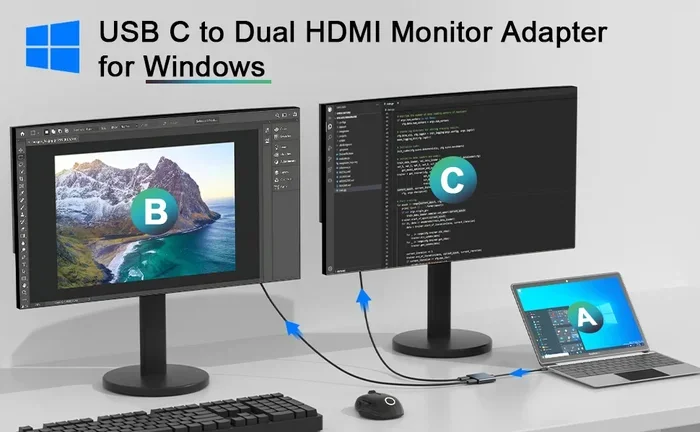
However, there are workarounds. If you connect your laptop to a TV via HDMI, you can mirror your screen. Then you can use USB drives or cloud services to move files. Some devices also support HDMI docking stations that add USB data connections. But HDMI alone does not transfer files directly.
So when someone asks, can HDMI transfer data, the answer depends on what kind of data. HDMI transfers video, audio, internet, and control signals. But it does not transfer regular computer files. Keep this distinction in mind when planning your setup.
Frequently Asked Questions
Can HDMI transfer data without an internet connection?
Yes. HDMI transfers video, audio, and control signals even without an internet connection. The HDMI Ethernet Channel requires an active internet source, but basic data transfer like video and audio does not need Wi-Fi or a router.
Can HDMI transfer data to a projector?
Absolutely. Projectors with HDMI ports receive the same data as a TV would. This includes video, audio, and in some cases, internet data through the HDMI Ethernet Channel. Just make sure your projector supports the HDMI version of your source device.
Can HDMI transfer data between a laptop and a TV?
Yes. When you connect a laptop to a TV with an HDMI cable, it sends video and audio data from the laptop to the TV. You can also use HDMI ARC to send audio back from the TV to external speakers. However, HDMI does not transfer computer files between the two devices.
Does HDMI cable length affect data transfer speed?
Yes, to some extent. Standard HDMI cables work well up to about 15 feet. Beyond that, signal quality can degrade. For longer runs, use active HDMI cables or fiber optic HDMI cables, which are designed to maintain data integrity over greater distances.
Can HDMI transfer 4K data?
Yes, but only with the right cable and HDMI version. HDMI 2.0 and later support 4K resolution. For 4K at 60Hz, you need an HDMI 2.0 cable. For 4K at 120Hz, you need an HDMI 2.1 Ultra High Speed cable. Using an older cable may limit the resolution or frame rate.
Is HDMI better than USB for data transfer?
HDMI and USB serve different purposes. HDMI is designed for audio and video data between display devices. USB is designed for general data transfer, including files and peripherals. They are not interchangeable. Use HDMI for connecting devices to screens and USB for file transfers and device connections.
Final Thoughts
So, can HDMI transfer data? We have covered a lot of ground. The answer is a clear and definitive yes. HDMI cables carry video, audio, internet signals, control commands, and much more. They are one of the most versatile connection tools in modern technology.
Understanding how HDMI data transfer works helps you make better choices. You can pick the right cable. You can troubleshoot problems faster. You can get the most out of your devices. Whether you are setting up a home theater, connecting a gaming console, or hooking up a projector, knowing your HDMI options makes a real difference.
The next time you plug in an HDMI cable, remember what is happening behind the scenes. A complex stream of digital data is flowing through that small cable. It is delivering stunning visuals, immersive sound, and even internet connectivity. That is the power of HDMI. And now you know exactly how it works.
Take what you have learned here and apply it. Check your current cables. Upgrade if needed. And enjoy a better, cleaner, more connected entertainment setup. Your devices will thank you for it.