Can You Get A Hdmi To Dp Cable Everything You Need To Know
Yes, you can get an HDMI to DP cable, but there is a catch. Most cables on the market are actually active adapters, not true cables, and they convert signals in one direction only. Understanding how HDMI to DP conversion works helps you avoid buying the wrong product. This guide covers everything from compatibility and signal conversion to the best options for gaming, home theater, and professional displays.
This is a comprehensive guide about Can You Get A Hdmi To Dp Cable.
Key Takeaways
- HDMI to DP cables exist but are rare: Most products are active adapters that convert signals in one direction only.
- Direction matters: HDMI to DP and DP to HDMI are not the same, and the conversion works differently depending on the source device.
- Active vs passive adapters: Active adapters require power and handle signal conversion, while passive adapters simply re-route signals.
- Resolution and refresh rate depend on the version: HDMI 2.0 and DP 1.4 support 4K at 60Hz, while newer versions handle higher specs.
- Check your devices first: Always verify the output and input ports on both your source and display before purchasing.
- Gaming and professional use demand higher bandwidth: Choose adapters that support the resolution and refresh rate your setup requires.
[FEATURED_IMAGE_PLACEHOLDER]
Can You Get A Hdmi To Dp Cable Everything You Need To Know
If you have ever stared at the back of your computer or TV and wondered how to connect two devices with different ports, you are not alone. The question can you get a HDMI to DP cable comes up all the time, and the answer is more nuanced than a simple yes or no. Let us break it all down so you never buy the wrong adapter again.
DisplayPort and HDMI are two of the most common display connectivity standards in use today. Your graphics card might output DisplayPort, while your monitor only has HDMI. Or maybe your laptop has HDMI, but your TV uses DP. Whatever the mismatch, you need a way to bridge the gap. HDMI to DP cables and adapters make that possible.
But here is the thing most people do not realize. Not all cables are created equal. Some are true cables that carry signals directly. Others are active adapters that convert one signal type into another. And the difference matters a lot when it comes to picture quality, resolution, and whether your setup works at all. This guide walks you through every detail you need to know.
We will cover how these cables work, which ones to buy, common mistakes to avoid, and expert tips for getting the best performance from your display signal conversion setup. By the end, you will feel confident choosing the right HDMI to DP solution for your needs.
Understanding HDMI and DisplayPort Basics
Before diving into cables and adapters, it helps to understand what HDMI and DisplayPort actually are. Both are digital display interfaces that carry video and audio signals from a source device to a display. But they were designed with different goals in mind.
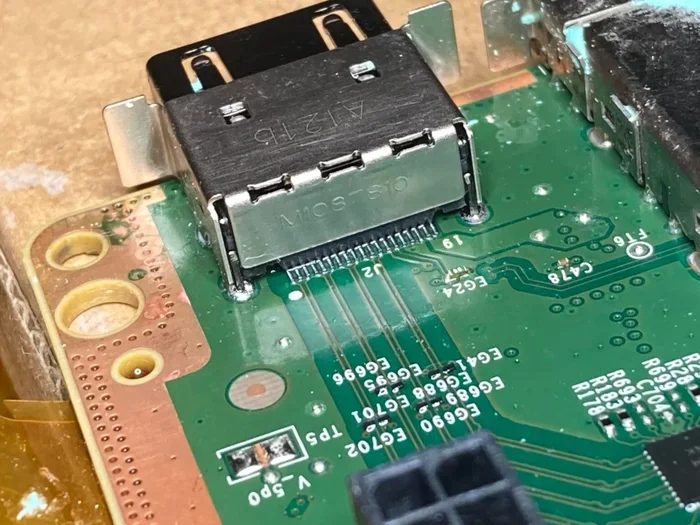
HDMI, which stands for High-Definition Multimedia Interface, has been around since the early 2000s. It was built to connect consumer electronics like TVs, Blu-ray players, and game consoles. HDMI cables carry both high-definition video and multi-channel audio through a single cable. That is why your TV only needs one port to deliver a complete home theater experience.
DisplayPort, on the other hand, was developed by VESA, a group of display industry professionals. It was designed primarily for computer monitors and professional displays. DP offers higher bandwidth in many versions, which means it can handle greater resolution and refresh rate combinations. Gamers and creative professionals often prefer DisplayPort because of its superior performance at high specs.
Here is a quick comparison of the two standards:
- HDMI 2.0: Supports 4K at 60Hz with up to 18 Gbps bandwidth.
- HDMI 2.1: Supports 4K at 120Hz and 8K at 60Hz with up to 48 Gbps bandwidth.
- DisplayPort 1.4: Supports 4K at 60Hz and 8K at 60Hz with up to 32.4 Gbps bandwidth.
- DisplayPort 2.0: Supports 8K at 60Hz and 16K at 60Hz with up to 77.37 Gbps bandwidth.
Now you can see why the HDMI to DP conversion landscape gets complicated. You are not just connecting two wires. You are bridging two different standards with different capabilities. The adapter or cable you choose needs to handle the signal properly.
How HDMI to DP Signal Conversion Works
When you use an HDMI to DP adapter, something interesting happens behind the scenes. The adapter takes the HDMI signal from your source device and converts it into a DisplayPort signal that your monitor can understand. This process is called signal conversion, and it requires a chip inside the adapter to do the work.
Not all adapters perform this conversion the same way. Some are active adapters that need external power, usually through a USB port. Others are passive adapters that simply reroute the signal without converting it. The type you need depends on what devices you are connecting.
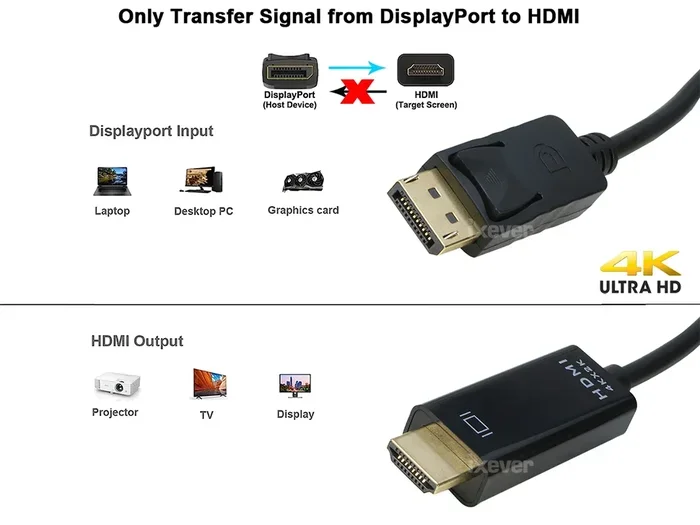
One important thing to know. Most HDMI to DP adapters work in one direction only. They convert HDMI output to DP input. If you need to go the other way, from DP to HDMI, you need a different adapter. Always check the adapter direction before making a purchase. Buying the wrong one means your setup will not work at all.
Types of HDMI to DP Cables and Adapters
The market offers several options for connecting HDMI devices to DP displays. Understanding the differences helps you choose the right one for your situation. Here are the main types available today.
Active HDMI to DP Adapters
Active adapters are the most common type you will find. They contain a conversion chip that translates the HDMI signal into a DisplayPort signal. Most active adapters also require a USB power connection to function properly.
These adapters work well for connecting a device with an HDMI output to a monitor with a DP input. They are popular among users who have a gaming console, media player, or laptop with HDMI and want to connect to a DisplayPort monitor.
Some active adapters support higher resolutions and refresh rates. Look for ones that support 4K at 60Hz or even 4K at 120Hz if you are a gamer. The better adapters also support HDR content, which gives you richer colors and better contrast.
Passive HDMI to DP Adapters
Passive adapters do not convert signals. Instead, they simply change the physical connector shape. These work when the source device and display speak the same language but use different cable shapes.
Passive adapters are cheaper and do not need external power. However, they only work in specific scenarios. If your graphics card supports both HDMI and DP natively, a passive adapter might do the trick. But if you need actual signal conversion, a passive adapter will not help.
USB-C to HDMI to DP Solutions
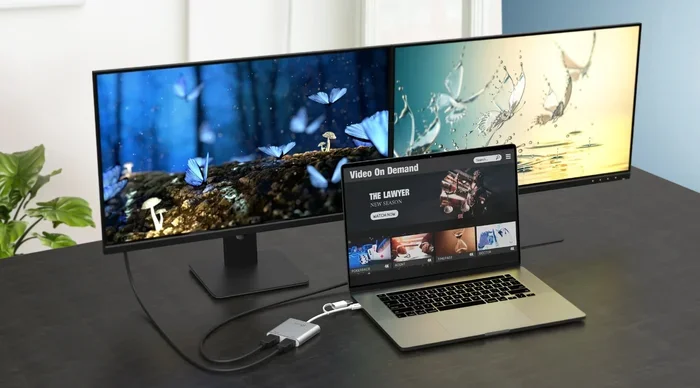
Many modern laptops and tablets use USB-C ports for video output. If your device has USB-C with DisplayPort Alt Mode, you can use a USB-C to DP cable directly. Or you can use a USB-C hub that offers both HDMI and DP outputs.
These multi-port hubs are very popular for workspace setups where you need to connect multiple displays. They let you switch between HDMI and DP displays without carrying multiple cables. Just make sure your device supports video output over USB-C before buying one.
How to Choose the Right HDMI to DP Cable
Choosing the right HDMI to DP cable or adapter can feel overwhelming with so many options on the market. But if you focus on a few key factors, the decision becomes much simpler. Here is what you should consider.
Check Your Device Ports
Start by looking at the ports on both your source device and your display. What type of output does your computer or console have? What type of input does your monitor or TV accept? Write down both and make sure the adapter matches.
For example, if your laptop has HDMI 2.0 output and your monitor has DP 1.4 input, you need an adapter that supports HDMI 2.0 to DP 1.4 conversion. This ensures you get the best possible resolution and refresh rate from your setup.
Consider Resolution and Refresh Rate
What resolution do you need? If you just browse the web and watch videos, 1080p or 4K at 60Hz is plenty. But if you game at high refresh rates or work with video editing, you need an adapter that supports 144Hz or higher.
Always check the adapter specifications for the maximum resolution and refresh rate it supports. Do not assume that because the cable looks thick or expensive, it will handle 4K at 120Hz. Read the specs carefully and match them to your display capabilities.
Look for HDR and Audio Support
If you want the best picture quality, choose an adapter that supports High Dynamic Range (HDR). HDR delivers brighter highlights, deeper blacks, and a wider color gamut. It makes a huge difference in movies and games.
Audio support is also important. Most HDMI to DP adapters pass audio through the DP connection, but not all of them do. If you need sound from your display, check that the adapter supports audio transmission along with the video signal.
Build Quality and Brand Reputation
Cheap adapters often have problems with signal drops, flickering, or no signal at all. Investing in a reputable brand saves you from frustration. Look for adapters from well-known manufacturers or those with good customer reviews.
Build quality matters too. A sturdy connector that does not wobble or break easily will last much longer. Gold-plated contacts resist corrosion and provide better signal conductivity over time.
Common Problems and How to Fix Them
Even with the right HDMI to DP cable, you might run into issues. These problems are usually easy to fix once you know what to look for.
No Signal or Flickering Display
If your screen goes black or flickers, the first thing to check is the power connection. Many active adapters need USB power to work. Plug the adapter into a USB port and try again. If you are using a USB hub, try connecting directly to a computer port instead.
Another common cause is a loose connection. Make sure both ends of the cable are firmly seated in their ports. A slightly loose HDMI or DP connector can cause intermittent signal loss.
Wrong Resolution or Refresh Rate
If your display looks blurry or the refresh rate feels low, check your display settings. Windows and macOS both let you adjust the resolution and refresh rate manually. Go to your display settings and select the highest supported option for your monitor.
Sometimes the adapter itself limits the resolution. If your adapter only supports 1080p, you will not get 4K no matter what your monitor can handle. Check the adapter specs and upgrade if needed.
Audio Not Working
If you get video but no sound, check the audio output settings on your device. Make sure the DisplayPort connection is set as the default audio output. Some adapters need you to manually switch the audio route in your system settings.
Also, make sure your monitor or display has speakers or is connected to an audio system. Not all displays have built-in speakers, so you might need external speakers or headphones.
Compatibility Issues with Operating Systems
Some adapters work better with certain operating systems than others. Windows, macOS, and Linux all handle display connectivity slightly differently. If you are running a proprietary operating system, check whether your adapter is fully supported. Some adapters rely on specific drivers or firmware that may not be available for every platform.
Before buying, check the manufacturer’s website for a list of compatible operating systems. This simple step can save you from buying an adapter that does not work with your setup.
Expert Tips for Best Performance
Getting the most out of your HDMI to DP setup comes down to a few smart choices. Here are expert tips that make a real difference.
- Always update your graphics drivers: Updated drivers improve compatibility with adapters and unlock better resolution and refresh rate options.
- Use the shortest cable possible: Longer cables can lose signal quality, especially at higher resolutions. Keep your HDMI to DP adapter cable under 6 feet for best results.
- Avoid daisy-chaining adapters: Connecting multiple adapters in a row degrades the signal. Use one direct adapter whenever possible.
- Test your setup before mounting: Set up your adapter and test the display before you wall-mount or permanently position your monitor. This saves a lot of headaches later.
- Consider your electronic communication setup: If you are using your setup for online gaming or streaming, the value added network for your electronic communication matters. A stable display connection reduces latency and improves your overall experience.
These small steps might seem obvious, but they are the ones most people skip. Taking a few extra minutes to optimize your setup pays off in a smoother, more reliable experience every single day.
Frequently Asked Questions
Can You Get A Hdmi To Dp Cable That Supports 4K at 60Hz?
Yes, many HDMI to DP adapters support 4K at 60Hz. Look for adapters that are rated for HDMI 2.0 or higher and DisplayPort 1.2 or higher. Always check the product specifications before buying to confirm the resolution and refresh rate support.
Do I Need an Active or Passive HDMI to DP Adapter?
You almost always need an active adapter for HDMI to DP conversion. Passive adapters only change the connector shape and do not convert the signal. Active adapters contain a chip that translates HDMI signals into DisplayPort signals, and most require USB power to work.
Can I Use an HDMI to DP Cable for Gaming?
Yes, you can use an HDMI to DP adapter for gaming. Choose one that supports high refresh rates like 144Hz or 165Hz at your target resolution. Make sure the adapter supports the bandwidth your GPU and monitor require for smooth gameplay without screen tearing.
Why Does My HDMI to DP Adapter Need USB Power?
Active HDMI to DP adapters need USB power because the signal conversion chip requires electricity to work. The chip takes the HDMI signal, converts it to DisplayPort, and sends it to your monitor. Without power, the adapter cannot perform this conversion.
Is HDMI to DP Conversion Lossy?
Good quality HDMI to DP adapters do not significantly degrade the signal. However, very cheap or poorly designed adapters might introduce minor quality loss. Stick with reputable brands and check reviews to ensure you get a reliable adapter that preserves your picture and sound quality.
Can I Connect Multiple Displays Using HDMI to DP Adapters?
Yes, you can connect multiple displays using individual HDMI to DP adapters for each monitor. Just make sure your graphics card supports multiple outputs and that each adapter matches the correct port type on both the source and display sides.
Final Thoughts
So, can you get a HDMI to DP cable? The short answer is yes, but you need to understand what you are actually buying. Most products labeled as HDMI to DP cables are really active adapters that convert signals from one format to another. They work, but only if you choose the right one for your devices and needs.
The key is knowing your ports, understanding your resolution and refresh rate needs, and picking an adapter that supports both. Take the time to read specifications, check compatibility, and invest in a quality product from a trusted brand. A good HDMI to DP adapter opens up a world of display flexibility and lets you connect any device to any monitor without hassle.
Whether you are setting up a gaming rig, a home theater, or a professional workspace, the right HDMI to DP connection makes all the difference. Follow the tips in this guide, avoid the common mistakes, and you will enjoy a seamless, high-quality display experience every time.
Frequently Asked Questions
What is Can You Get A Hdmi To Dp Cable?
Can You Get A Hdmi To Dp Cable is an important topic with many practical applications.