Can You Use HDMI For A Computer Monitor Right Here Today
Yes, you can absolutely use HDMI for a computer monitor. HDMI is one of the most popular and widely supported connection types for desktop PCs, laptops, and gaming setups. This guide walks you through everything you need to know, from choosing the right cable to troubleshooting common issues. Whether you are setting up a new display or upgrading your current one, understanding HDMI basics saves you time, money, and frustration.
Can you use HDMI for a computer monitor? The short answer is yes. HDMI has been the go-to connection for displays, TVs, and computer monitors for many years now. Whether you are building a new PC or just plugging in an old laptop, HDMI makes the process simple and straightforward.
But there is more to it than just plugging a cable in. Different HDMI versions support different resolutions. Cable quality affects your picture. And sometimes things just do not work the way they should. That is where this guide comes in. We will walk you through everything step by step.
By the end of this article, you will know exactly how to connect your computer to a monitor using HDMI. You will understand which cable to buy, what to expect in terms of picture quality, and how to fix the most common problems. Let us get started.
Key Takeaways
- HDMI works with most computer monitors: Nearly all modern monitors come with HDMI ports built in.
- You need the right cable version: HDMI 1.4, 2.0, and 2.1 support different resolutions and refresh rates.
- Adapters are available when needed: DisplayPort to HDMI or USB-C to HDMI converters work great for older or newer devices.
- Audio travels through HDMI too: You get both video and sound on a single cable.
- Cable length matters for signal quality: Keep cables under 15 feet for the best performance.
- Common problems are easy to fix: Most HDMI issues can be solved with a simple reset or cable swap.
📑 Table of Contents
- What Is HDMI and Why Does It Matter for Monitors?
- Different HDMI Versions and What They Support
- How to Connect Your Computer to a Monitor Using HDMI
- When You Need an Adapter or Converter
- Benefits of Using HDMI for Your Computer Monitor
- Common HDMI Problems and How to Fix Them
- Quick Tips for the Best HDMI Monitor Experience
- HDMI vs. DisplayPort: Which Is Better for Monitors?
- Can You Use HDMI for a Laptop Monitor Setup?
- Can You Use HDMI for a Gaming Monitor?
- Expert Insights: Getting the Most from HDMI
- Final Thoughts
What Is HDMI and Why Does It Matter for Monitors?
HDMI stands for High-Definition Multimedia Interface. It is a digital connection that carries both video and audio signals through a single cable. This makes it incredibly convenient for computer users who want a clean setup without extra wires hanging around.
Almost every modern monitor includes at least one HDMI port. The same goes for desktop computers, laptops, and graphics cards. Because of this wide availability, HDMI has become the standard connection for most PC setups.
The beauty of HDMI is its simplicity. You do not need special drivers or software. You just plug the cable in, and your computer recognizes the monitor. It works the same way whether you are using Windows, Mac, or Linux.
How HDMI Connects Your PC to Your Screen
When you plug an HDMI cable into your computer, the graphics card sends a digital signal through the cable to the monitor. The monitor then displays that signal as a clear picture. This digital connection means you get a sharp image with no signal loss along the way.
The process takes just seconds. You do not need to adjust any complex settings in most cases. Your computer automatically detects the connected display and applies the right resolution.
Different HDMI Versions and What They Support
Not all HDMI cables are the same. Over the years, the HDMI standard has evolved to support higher resolutions and faster refresh rates. Understanding these versions helps you choose the right cable for your setup.
HDMI 1.4
HDMI 1.4 is the older version that still appears on many budget monitors. It supports up to 1080p resolution at 60Hz. This is perfectly fine for everyday tasks like browsing the web, working on documents, and watching videos.
However, HDMI 1.4 may struggle with 1440p or 4K content. If you have a high-resolution monitor, you will want to look at a newer cable version.
HDMI 2.0
HDMI 2.0 is the sweet spot for most current setups. It supports 1440p at 144Hz and 4K at 60Hz. This makes it ideal for gaming monitors and creative work where color accuracy and smooth motion matter.
Most mid-range and high-end monitors today use HDMI 2.0 or higher. When shopping for a cable, look for one that is labeled “High Speed HDMI” or “Premium High Speed” to ensure it can handle the bandwidth.
HDMI 2.1
HDMI 2.1 is the newest standard. It supports 4K at 120Hz and even 8K at 60Hz. This version is designed for serious gamers and professionals who need the highest possible performance.
HDMI 2.1 cables are backward compatible. That means you can plug an HDMI 2.1 cable into an HDMI 2.0 port, and it will work fine. The connection simply defaults to the highest version both devices support.
How to Connect Your Computer to a Monitor Using HDMI
Setting up an HDMI connection is one of the easiest things you can do. Here is a simple step-by-step guide that works for most computers and monitors.
Step 1: Check Your Ports
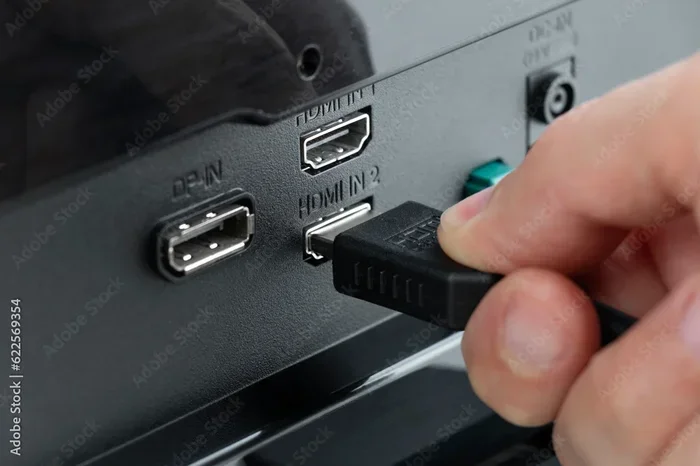
Look at the back of your computer and your monitor. You should see HDMI ports on both devices. They are rectangular and slightly tapered on one side. If your computer does not have an HDMI port, do not worry. We will cover adapters in a moment.
Step 2: Choose the Right Cable
Pick an HDMI cable that matches your needs. For basic 1080p use, a standard HDMI cable works fine. For 1440p or 4K, grab a High Speed HDMI cable. If you are a gamer chasing high refresh rates, invest in a Premium High Speed or Ultra High Speed cable.
Step 3: Plug It In
Connect one end of the cable to your computer and the other end to your monitor. Make sure the cable clicks in firmly. A loose connection can cause flickering or no signal at all.
Step 4: Switch the Monitor Input
Most monitors have multiple input sources. Use the buttons on the monitor or the remote to select the HDMI input that matches the port you plugged into. Your screen should light up with a signal right away.
Step 5: Adjust Display Settings
On Windows, go to Settings and then Display. On macOS, open System Preferences and click Displays. From there, you can adjust the resolution, orientation, and scaling to match your monitor perfectly.
When You Need an Adapter or Converter
Not every computer has an HDMI output. Some newer laptops only offer USB-C or Thunderbolt ports. Some older desktops may only have VGA or DVI connections. The good news is that adapters solve this problem easily.
A DisplayPort to HDMI adapter is one of the most popular options. Many desktop graphics cards include DisplayPort outputs, and this adapter lets you connect to any HDMI monitor without any hassle.
USB-C to HDMI adapters are also widely available. These are perfect for laptops and ultrabooks that rely on USB-C for all their connections. Just plug the adapter into your laptop, connect the HDMI cable, and you are good to go.
For older monitors with VGA or DVI ports, you can find VGA to HDMI or DVI to HDMI converters. Keep in mind that these analog-to-digital converters may not deliver the same crisp image quality as a pure digital connection.
Benefits of Using HDMI for Your Computer Monitor
There are many reasons why HDMI remains the top choice for connecting computer monitors. Here are the biggest advantages:
- Easy to use: Plug and play. No software or drivers needed.
- Carries audio and video: One cable handles both, which keeps your desk tidy.
- Widely available: Nearly every monitor and computer made in the last decade has HDMI.
- Affordable cables: High-quality HDMI cables cost just a few dollars.
- Good signal quality: Digital signals do not degrade over short distances.
- Backward compatible: Newer HDMI cables work with older ports and vice versa.
Common HDMI Problems and How to Fix Them
Even though HDMI is simple, you might run into issues from time to time. Here are the most common problems and their solutions.
No Signal on the Monitor
This is the most frequent complaint. First, check that both ends of the cable are firmly plugged in. Then make sure the monitor is set to the correct HDMI input. If that does not work, try a different HDMI port on your computer or monitor.
Flickering or Intermittent Display
A loose cable or a damaged port often causes flickering. Try a different cable first. If the problem persists, check the cable length. Very long HDMI cables, anything over 15 feet, can lose signal strength. A shorter cable or an active HDMI extender usually fixes this.
Wrong Resolution or Blurry Image
If your monitor looks blurry, go to your display settings and manually select the native resolution of your monitor. This is usually listed on the back of the monitor box or in the user manual.
No Audio Through HDMI
Sometimes the sound does not come through the HDMI connection. On Windows, right-click the speaker icon in the taskbar and select your monitor as the audio output device. On macOS, go to Sound Preferences and choose the HDMI output.
Quick Tips for the Best HDMI Monitor Experience
Follow these simple tips to get the most out of your HDMI connection:
- Buy certified cables: Look for HDMI Premium Certified cables. They are tested to handle the bandwidth they advertise.
- Keep cables short: Under 6 feet is ideal for desktop setups. Longer runs can introduce signal issues.
- Update your graphics drivers: Even though HDMI is plug and play, updated drivers can improve compatibility and performance.
- Check your monitor settings: Some monitors have game modes or color profiles that enhance the picture when using HDMI.
- Use a quality cable for 4K: Cheap cables may claim to support 4K but fail under load. Spend a few extra dollars on a reputable brand.
HDMI vs. DisplayPort: Which Is Better for Monitors?
Many people wonder whether they should use HDMI or DisplayPort for their computer monitor. Both are excellent digital connections, but they have different strengths.
HDMI is more common on TVs and budget monitors. It is great for casual users and general computing. DisplayPort is more common on high-end gaming monitors and professional displays. It often supports higher refresh rates and resolutions on the same cable version.
For most everyday computer users, HDMI is perfectly fine. If you are a serious gamer or a creative professional working with 4K video, DisplayPort might give you a slight edge. But in most cases, the difference is barely noticeable.
Can You Use HDMI for a Laptop Monitor Setup?
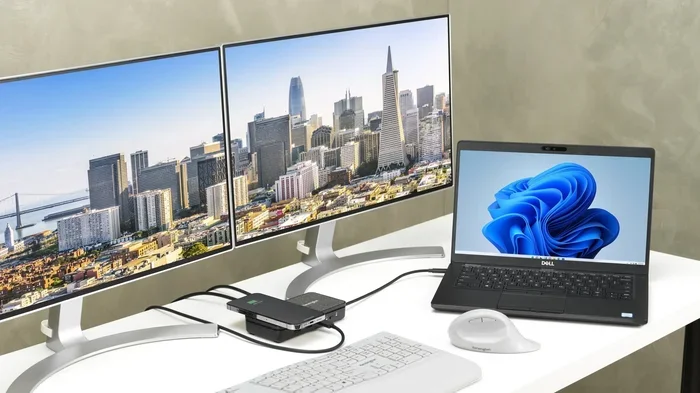
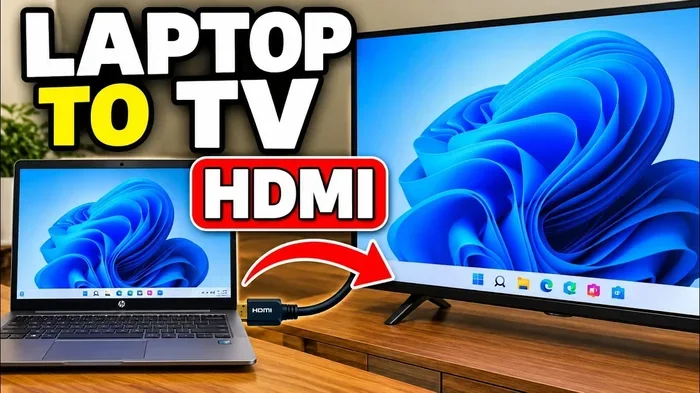
Absolutely. Many people use HDMI to connect their laptops to external monitors for a bigger workspace. Most modern laptops include at least one HDMI output. If yours does not, a USB-C to HDMI adapter fills the gap.
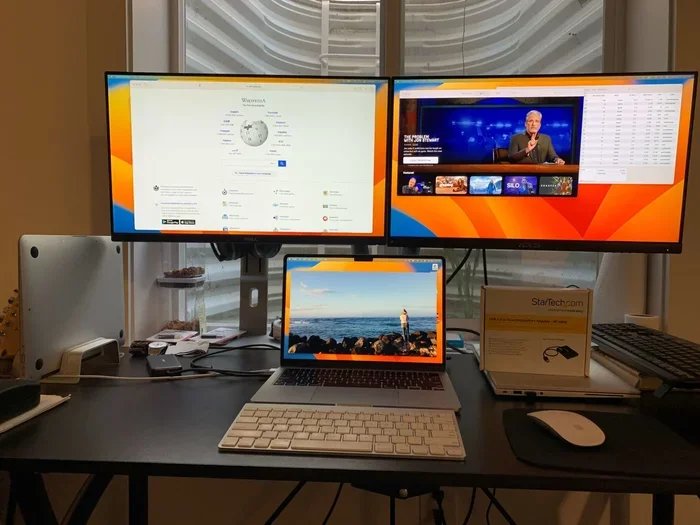
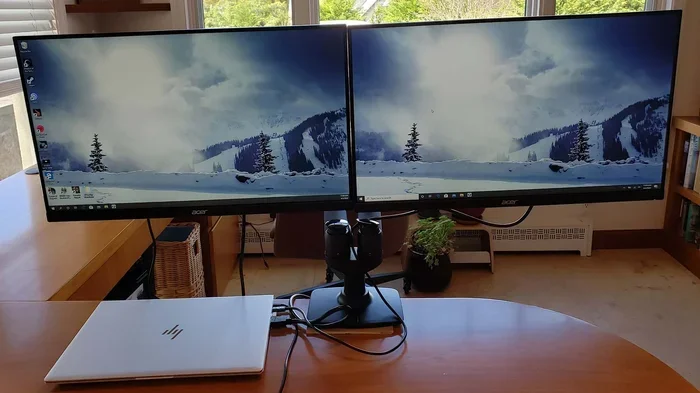
This setup is incredibly popular among remote workers, students, and anyone who wants more screen real estate. You plug in the HDMI cable, extend your display, and instantly have a dual-screen workspace.
The experience is nearly identical to connecting a desktop PC. The laptop recognizes the external monitor, and you can choose to mirror or extend your display from the settings menu.
Can You Use HDMI for a Gaming Monitor?
Yes, HDMI works great for gaming monitors. Many popular gaming monitors come with HDMI 2.0 or HDMI 2.1 ports. These support high refresh rates and fast response times that gamers love.
If you are building a gaming PC, make sure your graphics card has an HDMI output. Most modern GPUs from both NVIDIA and AMD include at least one HDMI port alongside DisplayPort outputs.
For the best gaming experience over HDMI, use an HDMI 2.1 cable if your monitor and graphics card support it. This gives you access to 4K at 120Hz and features like Variable Refresh Rate (VRR) for smoother gameplay.
Expert Insights: Getting the Most from HDMI
Experienced PC builders and display technicians agree on a few key points about HDMI connections. First, always match your cable version to your display capabilities. Using an HDMI 1.4 cable on a 4K monitor will limit you to 30Hz, which feels sluggish.
Second, do not underestimate cable quality. A well-built HDMI cable with proper shielding reduces interference and delivers a cleaner signal. Brands like Cable Matters, Belkin, and Monoprice offer reliable options at reasonable prices.
Finally, keep your firmware updated. Both monitors and graphics card manufacturers occasionally release firmware updates that improve HDMI compatibility and performance. A quick check online can save you from unexpected issues.
Final Thoughts
Using HDMI for a computer monitor is simple, reliable, and effective. It is the easiest way to connect almost any computer to any modern display. Whether you are setting up a home office, a gaming rig, or a creative workstation, HDMI gets the job done.
Now that you know the different HDMI versions, how to choose the right cable, and how to troubleshoot common issues, you are fully prepared to set up your monitor with confidence. Grab the right cable, plug it in, and enjoy your display.
The world of computer connections can feel overwhelming at times. But HDMI keeps things simple. It just works. And that is exactly why it remains the most popular choice for connecting computers to monitors around the world.
Frequently Asked Questions
Can any monitor use HDMI?
Most monitors made in the last ten years include at least one HDMI port. Check the back or side of your monitor for the HDMI input. If you do not see one, you can use an adapter to convert from another connection type.
Do I need a special HDMI cable for 4K?
Yes, standard HDMI cables may not support 4K resolution. Look for a High Speed HDMI cable or an Ultra High Speed HDMI cable. These are designed to handle the bandwidth needed for 4K and higher resolutions.
Can I use HDMI to connect two monitors to one computer?
You can, as long as your computer has multiple HDMI outputs or you use adapters. Many graphics cards support two or more displays simultaneously. Check your graphics card specifications to confirm.
Does HDMI carry sound from a computer monitor?
Yes, HDMI carries both video and audio on the same cable. If your monitor has built-in speakers, you will get sound automatically. If not, you can route the audio to external speakers or headphones through the HDMI connection.
What is the best HDMI cable length for a computer monitor?
For most desktop setups, a cable between 3 and 6 feet works perfectly. If you need a longer run, stay under 15 feet to maintain signal quality. Beyond that, consider an active HDMI extender or signal booster.
Is HDMI better than USB-C for monitors?
It depends on your devices. HDMI is universally supported and very reliable. USB-C with DisplayPort Alt Mode offers similar performance and is more common on newer laptops. Both work great, so choose based on what your computer and monitor support.
=== CONCLUSION ===
Can you use HDMI for a computer monitor? The answer is a clear and definitive yes. HDMI is one of the simplest, most reliable, and most widely supported ways to connect your computer to a display. Whether you are using a desktop PC, a laptop, or a gaming setup, HDMI delivers excellent picture and sound through a single cable.
Choose the right HDMI version for your needs. Use a quality cable. And do not be afraid to use adapters when your devices do not match. With the knowledge you have gained from this guide, you are ready to set up your monitor and enjoy a great display experience today.