Can You Hook Up A Monitor To A Laptop And Use Both Screens
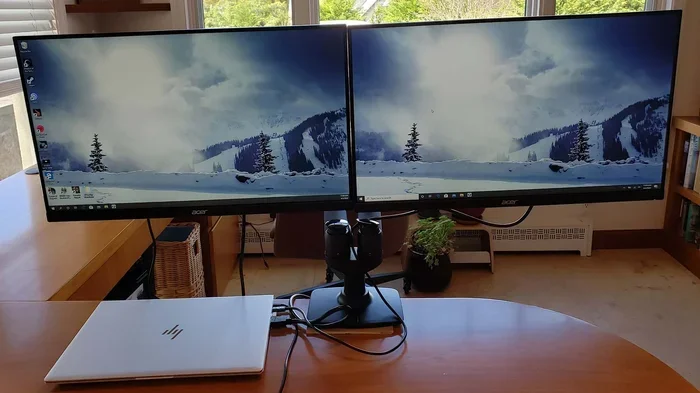
Yes, you can absolutely hook up a monitor to a laptop and use both screens. A dual monitor setup gives you more screen space, boosts productivity, and creates a better desktop experience. Whether you use HDMI, USB-C, or a display adapter, connecting a second screen to your laptop is simple and affordable.
Key Takeaways
- Dual monitor setups work with most laptops: Nearly every modern laptop supports connecting an external display through HDMI, USB-C, or display adapters.
- Extended display vs. mirror display: You can either expand your workspace across two screens or mirror the same content on both.
- Connection options are varied: HDMI, DisplayPort, USB-C, and docking stations all offer viable ways to hook up a monitor.
- Productivity increases significantly: Studies show that dual monitor users complete tasks faster and with fewer errors.
- Setup takes minutes: Most connections are plug-and-play and require no special software or drivers.
- Troubleshooting is straightforward: Common issues like no signal or blurry display usually have simple fixes.
- Right monitor matters: Choosing a monitor with compatible ports and resolution makes a big difference in your experience.
📑 Table of Contents
- Can You Hook Up a Monitor to a Laptop and Use Both Screens?
- Why Hook Up a Monitor to Your Laptop?
- How to Connect a Monitor to Your Laptop
- Setting Up Extended Display vs. Mirror Display
- Best Monitors for a Dual Screen Setup
- Tips for Optimizing Your Dual Monitor Experience
- Common Mistakes When Setting Up Dual Monitors
- Troubleshooting Common Dual Monitor Issues
- Who Benefits Most From a Dual Monitor Setup?
- Final Thoughts
Can You Hook Up a Monitor to a Laptop and Use Both Screens?
If you have ever stared at a small laptop screen and wished you had more room, you are not alone. The short answer is yes, you can hook up a monitor to a laptop and use both screens. Almost every laptop made in the last decade supports this. You just need the right cable, the right settings, and a little bit of know-how.
A dual monitor setup transforms the way you work, game, or create content. Instead of juggling tabs on one small screen, you spread things across two displays. It feels like upgrading to a desktop computer without actually buying a desktop. The best part? You do not need expensive gear or technical skills to make it happen.
In this guide, we will walk you through everything. You will learn how to connect a monitor, what settings to use, which monitors work best, and how to fix any problems that pop up. Let us get started.
Why Hook Up a Monitor to Your Laptop?
Before we dive into the technical stuff, let us talk about why this is worth your time. A second screen changes the way you interact with your laptop. It is not just about having more space. It is about working smarter.
The Productivity Boost
Research from the University of Utah found that dual monitor setups improve productivity by 20 to 30 percent. Workers made fewer mistakes and finished tasks faster when they had two screens. The reason is simple. You can keep your main work on one screen and reference materials, chats, or tools on the other.
Think about it. You are writing a report on your laptop screen. On your second monitor, you have your research open, a spreadsheet, and your email. No more constant switching. No more lost tabs. Just smooth, focused work.
Better Multitasking
Multitasking on a single screen feels cramped. Windows overlap. You shrink everything to fit. With two screens, each window gets room to breathe. You can drag files between screens, compare documents side by side, and keep communication apps visible without hiding your main work.
A More Comfortable Workspace
Laptop screens are typically 13 to 17 inches. That is small for long work sessions. An external display gives you a bigger, clearer view. You can adjust the height and angle to reduce neck strain. It turns your laptop into a powerful desktop experience without the bulk.
How to Connect a Monitor to Your Laptop
Connecting a monitor to your laptop is easier than you think. Most laptops have at least one video output port. If yours does not, you can use an adapter or a docking station. Let us look at each method.
Using an HDMI Cable
HDMI is the most common way to hook up a monitor. Most laptops and monitors have an HDMI port. Just plug one end into your laptop and the other into your monitor. The connection is instant. Your laptop should detect the external display automatically.
HDMI supports both video and audio through a single cable. That is a big plus. You do not need separate cables for sound. Modern HDMI cables support 4K resolution at 60Hz, which is more than enough for work and most gaming.
Using USB-C or Thunderbolt
Many newer laptops use USB-C or Thunderbolt ports for display output. These ports can carry video, data, and power through one cable. If your laptop has a USB-C port that supports video output, you can connect directly to a compatible monitor.
USB-C docking stations are another great option. They plug into your laptop and give you multiple ports, including HDMI, USB-A, and Ethernet. This is a clean, tidy solution if you want to connect several peripherals at once.
Using a Display Adapter
If your laptop has a different port type than your monitor, a display adapter bridges the gap. Common adapters include:
- USB-C to HDMI adapters — Great for newer laptops with USB-C ports and older monitors with HDMI inputs.
- Mini DisplayPort to HDMI adapters — Common on older business laptops.
- VGA adapters — Older but still functional for basic display needs.
Adapters are inexpensive and widely available. Just make sure you pick one that matches your laptop port and your monitor input.
Using a Docking Station
A docking station is a hub that sits on your desk. You connect it to your laptop and it provides multiple display outputs, USB ports, charging, and more. This is ideal if you want a permanent dual monitor setup and want to plug in and unplug your laptop with one cable.
Docking stations work best with laptops that support Thunderbolt or USB-C with display output. They range from budget-friendly options to premium models with multiple 4K display support.
Setting Up Extended Display vs. Mirror Display
Once your monitor is connected, you need to choose how your laptop uses the two screens. You have two main options: extended display or mirror display. Each serves a different purpose.
Extended Display Mode
Extended display mode turns your two screens into one large workspace. Your desktop spans both monitors. You can move windows from one screen to the other. This is the most popular choice for productivity.
For example, you might keep your word processor on your laptop screen and your web browser on the external monitor. You can also drag images, files, and text between screens. It gives you a true dual screen workspace that feels natural and spacious.
Mirror Display Mode
Screen mirroring shows the same content on both displays. Your laptop screen and your monitor display identical images. This is useful when you are presenting or sharing your screen with others.
For instance, if you are giving a meeting, you can mirror your laptop to a large monitor or projector. Your audience sees the same thing you see. It is also handy for watching content on a bigger screen while keeping your laptop screen available for notes.
How to Switch Between Modes
Switching is quick and easy on both Windows and Mac.
- On Windows: Press Windows key + P. A panel appears on the right side of your screen. Choose between PC screen only, Duplicate (mirror), Extend (extended), and Second screen only.
- On Mac: Go to System Settings > Displays. Click the arrangement tab. You can choose to mirror or extend your displays. Drag the white menu bar to set your primary screen.
Quick Tip
When setting up extended display, drag the white bar at the top of your displays to match their physical arrangement on your desk. This makes your mouse move smoothly between screens. If the bar is off, your cursor will jump awkwardly.
Best Monitors for a Dual Screen Setup
Not all monitors are created equal. Some are better for work, others for gaming, and some for general use. Here are things to consider when picking a monitor to hook up to your laptop.
Screen Size
Most people choose a 24-inch or 27-inch monitor for a second screen. These sizes are large enough to be useful but not so big that they overwhelm your desk. If you want a monitor that matches or exceeds your laptop screen, a 24-inch option works well.
Resolution
Resolution affects how sharp your image looks. Here is a quick comparison:
| Resolution | Also Called | Best For | Recommended Size |
|---|---|---|---|
| 1920 x 1080 | Full HD (1080p) | General use, budget setups | 24 inches |
| 2560 x 1440 | QHD (1440p) | Work and gaming | 27 inches |
| 3840 x 2160 | 4K (2160p) | Content creation, premium display | 27-32 inches |
For most users, a 1440p monitor hits the sweet spot. It looks sharp and does not demand too much from your laptop’s graphics card.
Panel Type
- IPS panels offer great color accuracy and wide viewing angles. They are ideal for work and general use.
- VA panels provide deep contrast and good color. They are a solid all-around choice.
- TN panels are fast but have poorer color and viewing angles. Best for competitive gaming.
Refresh Rate
For work, 60Hz is perfectly fine. If you game, consider a 144Hz or higher refresh rate for smoother motion. Make sure your laptop’s graphics card can handle higher refresh rates at your chosen resolution.
Expert Insight
According to display specialists, you do not need a high-end monitor to enjoy a dual monitor setup. A budget-friendly 1080p or 1440p IPS monitor delivers excellent results for productivity. Save your money for other upgrades like an ergonomic chair or a better keyboard.
Tips for Optimizing Your Dual Monitor Experience
Once everything is connected, a few tweaks can make your dual screen workspace feel much better. Here are some practical tips.
Arrange Your Displays Properly
Go to your display settings and make sure the monitors are arranged to match your physical setup. If your laptop is on the left and your monitor is on the right, set that in the display arrangement. This makes mouse movement feel natural.
Set Your Primary Display
Decide which screen is your main one. On Windows, go to Display Settings and check the box that says “Make this my main display.” On Mac, drag the menu bar to your preferred screen. Your taskbar and new windows will open on this display by default.
Match Screen Resolutions
Try to set both displays to their native screen resolution. This ensures text and images look crisp on both screens. If one monitor is 1080p and the other is 1440p, set each to its recommended resolution separately.
Adjust Scaling
If your monitors are different sizes, you may need to adjust display scaling. For example, a 27-inch monitor at 100% scaling might look larger than a 15-inch laptop at 150% scaling. Play with the scaling settings until text sizes feel comfortable on both screens.
Use Keyboard Shortcuts
Learn a few shortcuts to move windows between screens quickly:
- Windows + Shift + Left/Right Arrow: Moves the active window to the adjacent screen.
- Windows + Left/Right Arrow: Snaps the window to half the screen.
- Command + Option + M (Mac): Rearranges windows across displays.
Quick Tip
If you use your laptop on battery often, remember that an external display uses more power. You may want to switch to single-screen mode when unplugged. You can do this quickly with Windows key + P.
Common Mistakes When Setting Up Dual Monitors
Even simple setups can go wrong. Here are some common mistakes and how to avoid them.
Using the Wrong Cable
Not all cables carry video. A standard USB-C cable might not support display output. Always check that your cable supports video transmission. Look for cables labeled “DisplayPort Alt Mode” or “HDMI certified.”
Ignoring Driver Updates
Sometimes your laptop does not detect the second screen because your graphics drivers are outdated. Update your graphics card drivers before troubleshooting. Visit your laptop manufacturer’s website or use your system’s update tool.
Choosing Monitor Mode Instead of Extended Mode
A common mix-up is leaving your system in mirror display mode when you wanted extended mode. If your screens look identical and you cannot move windows between them, press Windows key + P and select Extend.
Forcing the Wrong Resolution
Setting a monitor to a resolution it does not support leads to blurry or distorted images. Always use the recommended resolution listed in your display settings. Your monitor’s manual or product page will list supported resolutions.
Common Mistake Alert
Do not plug your monitor into your laptop’s USB-A port expecting video output. USB-A ports do not carry video unless you use a special adapter. Only USB-C or Thunderbolt ports can output video directly.
Troubleshooting Common Dual Monitor Issues
Even with the right setup, problems can occur. Here are the most common issues and how to fix them.
Monitor Shows “No Signal”
This is the most common complaint. Try these steps:
- Unplug the cable and plug it back in firmly.
- Try a different cable or port.
- Make sure your monitor input matches the cable type (e.g., HDMI in for HDMI out).
- Restart your laptop.
- Check that your laptop is set to output to an external display (Windows key + P).
Blurry or Distorted Image
Go to Display Settings and set the resolution to the recommended value. If the image looks stretched, check that the aspect ratio matches your monitor. Update your graphics card drivers as well.
Laptop Does Not Recognize the Monitor
Try updating your display drivers. On Windows, open Device Manager, expand Display Adapters, right-click your graphics card, and select Update Driver. On Mac, your system should update drivers automatically. You can also try resetting the display settings by disconnecting the monitor, adjusting settings, and reconnecting.
Flickering or Refresh Rate Problems
Go to Display Settings > Advanced Display Settings and adjust the refresh rate. Make sure both your cable and monitor support the rate you are trying to use. A loose cable can also cause flickering, so check all connections.
Expert Insight
Display experts recommend always testing your setup with a simple task first. Open a browser, stretch it across both screens, and confirm mouse movement flows naturally. If that works, your monitor connection is solid. Then move on to more demanding tasks like video editing or gaming.
Who Benefits Most From a Dual Monitor Setup?
A dual monitor setup is not just for tech professionals. Many types of users benefit greatly.
Remote Workers and Freelancers
If you work from home, two screens help you stay organized. Keep your work apps on one screen and communication tools on the other. It reduces distractions and keeps you focused on your dual screen workspace.
Gamers
Gamers can run their game on the large monitor and keep their game chat, walkthroughs, or system monitors on the second screen. It adds immersion and practicality at the same time.
Content Creators
Video editors, photographers, and designers benefit from extra screen real estate. Keep your editing timeline on one screen and your preview window on the other. This workflow improvement is significant.
Students
Students can keep lecture notes or research on one screen and their writing tool on the other. It makes studying more efficient and less stressful. A second screen is a worthwhile investment for anyone who spends long hours at a desk.
Final Thoughts
Can you hook up a monitor to a laptop and use both screens? Absolutely. It is one of the easiest and most cost-effective upgrades you can make. Whether you use HDMI, USB-C, a display adapter, or a docking station, the process is straightforward. Your laptop and monitor will communicate seamlessly once you set the right display settings.
A dual monitor setup boosts your productivity, improves your workflow, and gives your laptop a desktop experience that feels premium. You do not need top-tier hardware or a huge budget. A basic external display and the right cable are all it takes.
Now that you know how to connect, configure, and troubleshoot your multiple monitors setup, it is time to try it yourself. Grab your laptop, pick up a compatible monitor, and expand your screen. You will wonder how you ever worked with just one.
Frequently Asked Questions
Can I use any monitor with my laptop?
Most monitors work with most laptops as long as you have the right cable or adapter. Check your laptop’s video output port (HDMI, USB-C, or DisplayPort) and match it with your monitor’s input. If the ports do not match, a simple adapter or docking station solves the problem.
Do I need a special graphics card to run two monitors?
No. Most modern laptop graphics cards support dual display output. Even integrated graphics from Intel or AMD can handle two screens easily. You only need a dedicated graphics card if you plan to run demanding games or video editing software across both displays.
Will using two screens slow down my laptop?
Not significantly. Driving an external display uses minimal processing power for everyday tasks like browsing, writing, and coding. Heavy workloads like gaming at high resolutions on both screens may tax your system more, but for productivity, the impact is negligible.
Can I use a wireless connection for my second monitor?
Yes, but with limitations. Technologies like Miracast and Apple AirPlay allow screen mirroring over Wi-Fi. However, wireless connections typically have higher latency and lower image quality than wired setups. For serious work or gaming, a wired monitor connection is always better.
How do I stop my laptop screen from turning off when I connect a monitor?
Go to Power Settings on your laptop and change the display timeout to never or a longer duration. On Windows, search for “Power & Sleep Settings” and adjust the screen timeout. This keeps your laptop second screen active even when the lid is closed, provided you set “Do nothing” when closing the lid.
Is a dual monitor setup worth it for casual use?
Yes, even for casual use. Watching a video on your monitor while browsing social media on your laptop is more enjoyable. Having a second screen for reference material, streaming, or video calls while using your laptop for other tasks makes everyday computing more comfortable and efficient.
=== CONCLUSION ===
Setting up a dual monitor setup with your laptop is simple, affordable, and incredibly rewarding. You can hook up a monitor to a laptop in minutes using HDMI, USB-C, or a display adapter. The key is choosing the right connection method, configuring your display settings correctly, and avoiding common setup mistakes.
Your second screen opens up a world of productivity and comfort. Whether you are working, gaming, creating content, or just browsing, having more screen space makes everything easier. Follow the tips in this guide, troubleshoot any issues confidently, and enjoy your expanded dual screen workspace.
The takeaway is clear: connecting a monitor to your laptop is one of the best upgrades you can make. Start today and experience the difference for yourself.