Can I Use A Tv As A Second Monitor For Gaming And Work
Can I use a tv as a second monitor? Absolutely! Using your television as an extended desktop is a great way to boost your workspace ergonomics and enjoy a bigger screen for both gaming performance and office tasks. Whether you want a dual monitor setup or a massive display for streaming, a 4k resolution TV can transform your computer experience. However, you need to consider factors like input lag and pixel density to get the best results.
Have you ever looked at your big flat screen TV and wondered if you could use it as a computer display? The idea of turning your living room into a home office or a gaming arena is incredibly appealing. Many people ask, “Can I use a tv as a second monitor?” The short answer is yes. But the full answer involves understanding how your computer talks to your TV, what cables you need, and whether your TV is built for fast-paced gaming or reading tiny text all day.
Using a television as a second monitor changes the way you interact with your computer. Instead of staring at a small 24-inch box, you get a massive 55-inch or 65-inch canvas. This setup can seriously improve your workspace ergonomics and make multitasking feel effortless. Whether you are a hardcore gamer or a remote worker, knowing the ins and outs of this setup is essential before you buy a new hdmi cable. You will learn how to avoid eye strain, boost your gaming performance, and create the ultimate streaming setup right from your desk.
Many folks think a TV is just for watching movies. But modern televisions are incredibly smart. They have the same inputs as expensive computer monitors. They can display sharp images and smooth motion. The key is setting things up correctly. If you just plug it in and walk away, you might run into problems like blurry text or slow cursor movement. But do not worry. We will walk you through everything you need to know about using your TV as a second monitor. You will also learn how to save money by using a TV you already own instead of buying a huge computer monitor.
The trend of using a TV as a display has grown massively in recent years. More people work from home, and bigger screens help us stay productive. Gamers love the cinematic feel of a big TV. Streamers love the extra space for their chat and alerts. Whatever your reason, using a tv as a second monitor is a fantastic idea. Let us dive into the details and make sure your setup is a success.
Key Takeaways
- Easy Connectivity: Most modern TVs connect easily via an hdmi cable or display port.
- Great for Gaming: Large screens offer immersive gaming performance, but check for input lag.
- Work Friendly: A TV provides ample space for multitasking, though text clarity can vary.
- Cable Choice Matters: Using the right cable ensures the best 4k resolution and refresh rate.
- Adjust Settings: Always tweak your extended desktop settings to avoid a mirrored screen.
📑 Table of Contents
Why Use A Tv As A Second Monitor?
There are many reasons to connect your tv as a second monitor. It is not just about having a bigger screen. It is about how that bigger screen changes your daily computing routine. Let us look at the main benefits of this popular dual monitor setup.
The Benefits Of An Extended Desktop
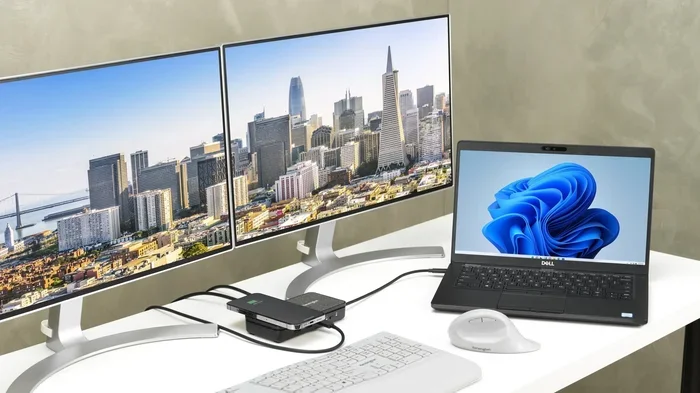
When you set up a dual monitor setup, you spread your workspace across two screens. If one of those screens is a TV, you gain a lot of real estate. You can keep your email open on the TV while you write reports on your laptop. This is a game changer for productivity. People who work from home love having extra space to spread out their windows.
Imagine editing a video while keeping your timeline visible on the big screen. Or maybe you are a programmer who needs to see your code and the output side by side. A large TV makes this possible without squinting at tiny windows. The extended desktop feature allows you to use the TV as a completely separate workspace. You are not stuck with screen mirroring, where the exact same image shows on both screens. Instead, you get two independent screens that work together.
For those who enjoy a streaming setup, a TV is perfect. You can watch your favorite shows while browsing the web. You can keep an eye on a live chat while you work. The possibilities are endless when you have a big screen right next to your main display. It also makes video calls much easier. You can see your colleagues on the big TV while keeping your notes visible on your laptop.
Gaming On A Bigger Screen
For gamers, a TV offers a level of immersion that a standard computer monitor simply cannot match. Playing your favorite game on a 65-inch screen feels completely different. The visuals pop, and the sense of scale is much more dramatic. You feel like you are inside the game world.
Many modern TVs also support high refresh rate speeds. If you have a powerful graphics card that can push out high frames, a gaming TV can deliver smooth visuals. You do not have to buy an expensive ultrawide monitor to get that cinematic feel. A standard smart TV can do the job just as well. The big screen makes racing games and shooters feel much more exciting.
However, you must be careful. Not all TVs are good for fast-paced games. Some TVs have a lot of input lag. This is the delay between pressing a button and seeing the action on screen. We will talk more about how to fix this in a moment. Always check the specs before you buy a TV for gaming.
How To Connect Your Tv To Your Computer
Setting up your TV as a monitor is easier than you might think. Most modern computers and TVs share the same connection standards. You just need the right gear and a little patience. You do not need to be a tech expert to figure this out.
Choosing The Right Cable
The most common way to connect a PC to a TV is through an hdmi cable. This single cable carries both video and audio. Almost every computer and TV made in the last decade has an HDMI port. Simply plug one end into your PC and the other into the TV.
If you want the highest quality, look for an HDMI 2.1 cable. This supports 4k resolution at high frame rates. If your PC has a display port, you can also use a DisplayPort to HDMI adapter. Just make sure the cable can handle the bandwidth you need for your desired refresh rate. A cheap cable might limit your picture quality, so always buy a good one from a reputable brand.
Good cable management is also important. A messy tangle of wires behind your desk looks bad and can be a safety hazard. Use cable ties or a cable tray to keep things neat. This makes your setup look professional and helps you focus on your work or game. You can also use a wireless option like Chromecast, but a wired HDMI connection is always better for low lag and stable performance.
Adjusting Display Settings
Once the physical connection is made, you need to tell your computer how to use the TV. By default, Windows or Mac might just mirror your main screen. You want an extended desktop instead. Mirroring is great for a screen mirroring presentation, but it is not useful for daily computing.
On Windows, right-click your desktop and select Display Settings. Look for the Multiple Displays dropdown. Choose “Extend these displays.” On a Mac, go to System Settings and click Displays. Turn off the mirror checkbox. Now your TV acts as a true second screen. You can drag windows between your PC and the TV just like you would with two regular monitors.
Make sure to identify which screen is which in the settings. You can click the “Identify” button to see numbers on your screens. Then, drag the monitor icons to match the physical layout of your desk. This makes moving your mouse between screens feel natural and easy.
Gaming Vs Work: Which One Is It For?
Not all TVs are created equal when it comes to computer use. Your needs for gaming performance are very different from your needs for writing emails. Let us compare the two scenarios so you can decide what is best for you.
Evaluating Input Lag For Gaming
Input lag is the delay between pressing a button and seeing the action on screen. For fast-paced shooters, this delay is a dealbreaker. Many TVs have a “Game Mode” that drastically reduces input lag. When you turn on Game Mode, the TV bypasses heavy image processing. This makes the picture respond much faster to your controller or keyboard.
Before you buy a TV for gaming, check its input lag specs. A good gaming TV will have less than 20 milliseconds of input lag. Some high-end models even go below 10 milliseconds. This makes them feel just as responsive as a dedicated gaming monitor. You will not notice any delay when you are aiming at your enemies or trying to hit a fast-moving target.
Also, look for TVs that support FreeSync or G-Sync. These technologies reduce screen tearing. Screen tearing happens when the TV and your graphics card are out of sync. It looks like a horizontal line cutting through your game. A TV with these features will give you a much smoother and more enjoyable experience.
Text Clarity For Office Work
Using a TV for work has one big downside: text clarity. TVs have much lower pixel density than computer monitors. This means text can look a bit fuzzy or jagged, especially on smaller TVs. If you plan to use the TV for reading documents or coding, you need a large screen.
A 55-inch TV or larger will make text readable from a normal desk distance. You can also adjust the scaling in Windows to make everything bigger and sharper. A 4k resolution TV helps a lot with text sharpness. The extra pixels pack more detail into the screen, making small letters easier to read. On a 1080p TV, text might look a bit soft. On a 4K TV, it looks much crisper.
Think of pixel density like this. A monitor has tiny, tightly packed pixels. A TV has larger, more spread out pixels. When you sit close to a TV, you can sometimes see those individual pixels. This is called the “screen door effect.” To avoid this, sit further back or choose a 4K TV. The higher pixel density makes the image look smooth and professional.
Quick Comparison Table
| Feature | Best For Gaming | Best For Work |
|---|---|---|
| Screen Size | 55 to 75 inches | 55 inches or larger |
| Resolution | 4K with 120Hz | 4K for text clarity |
| Input Lag | Under 20ms (Game Mode) | Not a major concern |
| Refresh Rate | 120Hz or higher | 60Hz is fine |
| Pixel Density | Good enough for action | Higher is better for text |
Setting Up Your Tv As A Monitor (Quick Tips And Common Mistakes)
Once you have your TV connected, a few tweaks can make the experience much better. Many people set up their TV and wonder why it looks or feels wrong. Avoid these common pitfalls with these simple tips. A little preparation goes a long way toward a great setup.
Quick Tips For A Better Setup
- Turn on Game Mode: Even if you are not gaming, Game Mode reduces input lag and makes the cursor feel more responsive.
- Adjust the height: Your TV should be at eye level. Use a monitor stand or a TV mount to raise it. Looking down at a big screen for hours causes neck strain.
- Manage your cables: Run your cable management behind your desk. A messy setup looks bad and can be a safety hazard.
- Calibrate the picture: TVs often have vivid colors out of the box. Switch to a natural or standard picture profile for a more accurate view while working.
- Check the distance: Sitting too close to a large TV for work can cause eye strain. Keep a reasonable distance from the screen.
Common Mistakes To Avoid
The biggest mistake people make is using a small TV as a computer monitor. If your TV is under 40 inches, text will be too small to read comfortably. Another mistake is forgetting to change the audio settings. When you use a TV as a monitor, your computer audio will usually play through the TV speakers. If you use headphones, you might need to change your default audio output in Windows.
Also, do not ignore the distance between your eyes and the screen. Sitting too close to a large TV for work can cause eye strain. Keep a reasonable distance, and make sure your workspace ergonomics are on point. A good monitor stand can help you position the TV perfectly. Ergonomics is not just about comfort. It is also about preventing long-term injuries like back pain or carpal tunnel syndrome.
Expert Insights On Tv Monitors
We spoke with a few tech experts about the trend of using TVs as monitors. Their advice highlights both the joys and the limitations of this setup. It is always good to hear from the pros before you make a big purchase.
“A TV is a fantastic secondary screen for media and gaming,” says one expert. “But for serious text-heavy work, a dedicated ultrawide monitor still wins.” The consensus is that a TV works best when you use it for what it does well: big, bright visuals. It is not meant to replace your primary monitor entirely, but it is a great addition to any setup.
Experts also recommend checking your graphics card capabilities. If you have an older GPU, it might struggle to push 4K content to a TV. In those cases, a 1080p TV might be a better choice. Always match your display to your PC’s power. This ensures smooth gaming performance and clear text for your streaming setup. Your PC should be able to keep up with the TV’s capabilities.
Another expert pointed out that TV sizes are growing while monitor sizes are staying the same. A 32-inch monitor used to be considered large. Now, a 55-inch TV is standard. The value of a TV per inch is much better than a monitor. If you want a big screen on a budget, a TV is the way to go.
Conclusion
So, can I use a tv as a second monitor? Yes, you absolutely can. It is a fantastic way to expand your extended desktop and enjoy a more immersive experience. Whether you are looking for a gaming performance boost or just more space for your work apps, a TV delivers.
Just remember to pick the right hdmi cable, adjust your settings, and be mindful of text clarity and input lag. With the right setup, your TV becomes a powerful tool for both play and productivity. Give it a try, and you might never go back to a tiny screen again. Your workspace ergonomics will thank you for the extra space. Start planning your dual monitor setup today and enjoy the big screen!
Frequently Asked Questions
Do I need a special graphics card to use a TV as a second monitor?
You do not need a special card, but you do need one with an HDMI or DisplayPort output. Most modern graphics cards can easily handle a TV. If you want 4K resolution at 120Hz, make sure your card supports that bandwidth. Check your card specs to be sure.
Can I use a smart TV as a computer monitor?
Yes, you can use any TV with an HDMI port as a computer monitor. Smart TVs have the same inputs as non-smart TVs. The smart features do not affect how it works as a display. Just ignore the TV’s smart interface when you are using it as a monitor.
Why does my TV look blurry when connected to my PC?
This usually happens because of low pixel density or incorrect scaling. TVs have larger pixels than monitors. To fix this, go to your Windows display settings and change the scale to 150% or 200%. This makes text and icons bigger and sharper on the big screen.
Is using a TV as a monitor bad for your eyes?
It can be if you sit too close or use a small TV. The low pixel density forces your eyes to work harder to read small text. To avoid eye strain, use a large TV (55 inches or more) and keep a good distance. Also, take regular breaks to rest your eyes.
What is the best TV size for a second monitor?
A 55-inch to 65-inch TV is usually the sweet spot. It is big enough to see clearly from a desk, but not so big that you have to move your head constantly. Consider your desk space and viewing distance before you buy.
Can I use a TV as a second monitor for video editing?
Yes, a TV is great for video editing, especially for checking color and watching timelines. However, you want a TV with good color accuracy. Look for models with wide color gamut and 4K resolution. This ensures your edits look correct on the big screen.