Can I Attach an External DVD Player to My Laptop Easily
Yes, you can attach an external DVD player to your laptop using a USB cable or HDMI connection. Most modern external DVD drives work plug-and-play with Windows and Mac laptops. This guide covers setup, software needs, best devices, and common fixes so you can start watching DVDs right away.
Can I attach an external DVD player to my laptop? The short answer is yes. Whether your laptop lost its built-in disc drive or you just want a portable way to watch DVDs, an external DVD player solves the problem fast. You do not need to be a tech expert to set one up. In this guide, we walk you through everything you need to know about connecting an external DVD player to your laptop.
Many newer laptops no longer include a built-in optical drive. This trend started years ago when manufacturers made devices thinner and lighter. While this design choice saved space and weight, it left many users without a way to play DVDs. An external DVD drive fills this gap perfectly. You simply plug it in, insert your disc, and start watching.
This article covers the full process step by step. We will look at connection types, best devices, software requirements, and common problems. By the end, you will feel confident hooking up your own external DVD player to your laptop. Let us dive in.
Key Takeaways
- Easy Connection: External DVD players connect to laptops via USB or HDMI in just a few minutes.
- Wide Compatibility: Most USB DVD drives work with both Windows and Mac laptops without extra setup.
- Software Matters: You may need DVD playback software like VLC or Windows DVD Player for smooth viewing.
- Region Codes Exist: DVDs have region locks that can affect playback on your laptop.
- Troubleshooting Helps: Most connection issues have simple fixes like updating drivers or trying a different USB port.
- Multiple Options Available: From budget drives to premium multi-format players, there is an external DVD player for every need.
📑 Table of Contents
- Can You Attach an External DVD Player to a Laptop?
- How to Connect an External DVD Player to Your Laptop
- Best External DVD Players for Laptops
- Software You Need for DVD Playback
- Common Problems When Attaching an External DVD Player
- Tips for Getting the Best DVD Experience on Your Laptop
- Frequently Asked Questions
- Conclusion
Can You Attach an External DVD Player to a Laptop?
The answer is a clear yes. You can attach an external DVD player to your laptop in most cases. External DVD drives connect through USB ports, which nearly every laptop has. Some models also support HDMI output for connecting to a larger screen.
Before you buy a drive, check a few things. First, look at your laptop’s available USB ports. Most external DVD players use a standard USB-A or USB-C connection. Second, confirm your laptop operating system. The vast majority of external drives work with Windows 10, Windows 11, macOS, and even ChromeOS. Third, consider what types of discs you want to play. Some drives handle CDs, DVDs, and Blu-ray discs, while others only read DVDs.
Another important factor is whether your laptop has enough power. External DVD players draw power from the USB port. Most laptops supply enough power through standard USB ports. However, some slim laptops may need a powered USB hub if the drive does not get enough juice. This is rare but worth knowing.
USB vs. HDMI Connection Options
Most external DVD players for laptops use a USB connection. USB is the simplest and most common method. You plug the drive into a USB port, and your laptop recognizes it almost instantly. No extra cables or adapters are usually needed.
HDMI connections work differently. With an HDMI-compatible external DVD player, you connect the drive to your laptop using an HDMI cable. This method sends video and audio directly to your laptop screen. HDMI is great if you want to watch DVDs on a bigger display or connect to a TV. However, not all external DVD players have HDMI output. Check the product specs before buying.
Some users prefer USB because it is more versatile. A USB DVD drive can also burn discs, back up files, and install software from discs. HDMI-only setups are more limited in function. For most people, a USB connection is the best choice.
How to Connect an External DVD Player to Your Laptop
Setting up an external DVD player is straightforward. Follow these steps and you will be watching DVDs within minutes.
- Unbox your external DVD drive and check that all parts are included. Most kits come with the drive, a USB cable, and a quick-start guide.
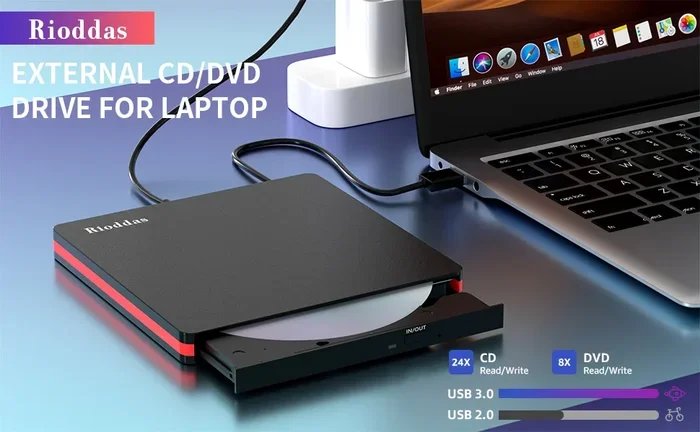
- Plug the USB cable into the external DVD drive and then into an available USB port on your laptop.
- Wait for your laptop to recognize the drive. Most operating systems install the necessary drivers automatically. You may see a notification pop up on your screen.
- Insert a DVD into the tray of the external drive. Push the tray gently until it clicks.
- Open your media player or DVD software. The disc should start playing automatically in most cases.
If your laptop does not recognize the drive, do not panic. Try a different USB port first. If that does not work, check the device manager on Windows or system preferences on Mac. Sometimes a simple restart fixes the issue.
Setting Up on Windows Laptops
Windows laptops make the setup process very easy. Windows 10 and Windows 11 come with built-in support for most external DVD drives. Once you plug in the drive, Windows should install the drivers automatically.
After the drive is recognized, you can use the built-in Windows DVD Player app. Note that this app may require a small purchase in the Microsoft Store. Alternatively, free software like VLC Media Player handles DVD playback excellently. VLC supports most disc formats and does not charge any fees.
For laptops that do not have the Windows DVD Player, VLC is the go-to solution. It plays DVDs, CDs, and Blu-ray discs. The interface is simple and beginner-friendly. You just open VLC, click Media, select Open Disc, and your DVD starts playing.
Setting Up on Mac Laptops
Mac laptops also support external DVD players with ease. Apple MacBooks have excellent USB compatibility. When you plug in an external DVD drive, macOS usually recognizes it right away.
However, Macs do not include a built-in DVD player app anymore. You will need to download third-party software. VLC Media Player works perfectly on Mac and is free. Another popular option is Elmedia Player, which also handles DVDs smoothly.
Some Mac users report that certain DVD region codes cause issues. DVDs are coded by region, and your Mac may prompt you to select a region. Choose the region that matches your DVD. You only get a limited number of region changes on macOS, so pick carefully.
Best External DVD Players for Laptops
Not all external DVD players are the same. Some models offer extra features like Blu-ray support, faster reading speeds, or sleeker designs. Here are some top options to consider when you want to attach an external DVD player to your laptop.
| Model | Connection | Disc Support | Price Range |
|---|---|---|---|
| ASUS Ultra Slim DVD Drive | USB 2.0/3.0 | DVD, CD | $20 – $30 |
| LG GH60NU Super-Multi | USB 3.0 | DVD, CD, Blu-ray | $50 – $70 |
| Samsung SE-208BW Portable | USB 2.0 | DVD, CD | $25 – $35 |
| Dell DVDRW Ultra Slim | USB 3.0 | DVD, CD, Blu-ray | $40 – $55 |
| Yunmai USB-C External Drive | USB-C | DVD, CD, Blu-ray | $35 – $50 |
The ASUS Ultra Slim drive is a popular budget choice. It is lightweight, fast, and reliable for everyday DVD playback. The LG GH60NU stands out because it reads Blu-ray discs, which is rare at its price point. Samsung’s portable model is compact and great for travel.
When choosing a drive, think about what you need most. If you only watch DVDs, a basic model works fine. If you want to burn discs or watch Blu-rays, invest in a multi-format drive. Also consider build quality and warranty. A reliable drive saves you headaches down the road.
Software You Need for DVD Playback
Having the right software makes a big difference when you attach an external DVD player to your laptop. Without proper software, your laptop may not know how to read the DVD content.
Most external DVD drives come with a free trial of DVD playback software. These trials usually last 15 to 30 days. After that, you need to either purchase the software or switch to a free alternative.
VLC Media Player
VLC is the most popular free media player in the world. It plays DVDs, CDs, Blu-rays, and hundreds of other formats. The best part is that it is completely free and open source. VLC works on Windows, Mac, and Linux laptops.
To play a DVD with VLC, simply insert the disc and open VLC. Go to Media, then Open Disc, and select your DVD drive. The movie starts playing immediately. VLC also lets you adjust subtitle settings, audio tracks, and playback speed.
Windows DVD Player
Windows users can download the official Windows DVD Player from the Microsoft Store. It costs a small one-time fee of about $15. This app is designed specifically for DVD playback on Windows laptops. It works smoothly and integrates well with the operating system.
The Windows DVD Player supports most commercial DVDs. However, it does not always play burned or homemade DVDs. For those, VLC is a better option. Many users keep both apps installed for different situations.
Other Software Options
Beyond VLC and Windows DVD Player, several other options exist. Leawo Blu-ray Player handles both DVDs and Blu-rays for free. PotPlayer is another lightweight option with excellent format support. CyberLink PowerDVD is a premium choice with advanced features like 3D playback and 4K upscaling.
Choose software based on your needs. If you just want to watch regular DVDs, VLC is all you need. If you have a large DVD collection and want advanced features, consider a paid option like PowerDVD.
Common Problems When Attaching an External DVD Player
Even with the best setup, you may run into issues. External DVD players are generally reliable, but problems do happen. Here are the most common ones and how to fix them.
Laptop Does Not Recognize the Drive
This is the most frequent issue. If your laptop does not detect the external DVD drive, try these steps. First, unplug the USB cable and plug it into a different port. USB ports can sometimes fail or lose connection. Second, try a different USB cable if one is available. Third, restart your laptop and let the operating system re-detect the hardware.
On Windows, open Device Manager and look for the DVD drive under Disk Drives or CD/DVD Drives. If you see a yellow warning icon, right-click it and select Update Driver. On Mac, check System Preferences under Disc Burning or CD/DVD settings.
DVD Will Not Play or Keeps Stuttering
A DVD that stutters or freezes during playback can be frustrating. This usually happens for a few reasons. The DVD itself may be scratched or dirty. Clean the disc with a soft cloth before inserting it. The external drive lens may also be dirty. Use a lens cleaning disc occasionally to keep the drive in good shape.
Software issues can also cause playback problems. Make sure your DVD playback software is up to date. Outdated software may not support newer disc formats or codecs. Updating VLC or Windows DVD Player often fixes stuttering and freezing issues.
Region Code Errors
DVDs are encoded with region codes to control where they can be played. If you insert a DVD from a different region, your laptop may show an error message. This is a common issue for international travelers or people who buy DVDs online.
Most DVD playback software lets you change the region setting a limited number of times. After those changes are used up, the region locks permanently. To avoid this, set your region to match the DVDs you watch most often.
Drive Makes Unusual Noises
Some noise during DVD playback is normal. The spinning disc creates a gentle humming sound. However, loud clicking or grinding noises signal a problem. This could mean the disc is damaged or the drive mechanism is failing. Stop using the drive immediately if you hear unusual sounds to prevent further damage.
Tips for Getting the Best DVD Experience on Your Laptop
Once you have your external DVD player connected, you can enhance your viewing experience with a few simple tips.
First, use a USB 3.0 port whenever possible. USB 3.0 transfers data faster than USB 2.0, which means smoother DVD playback and quicker disc reading. If your laptop only has USB 2.0 ports, the drive will still work but may be slower.
Second, keep your laptop plugged in while watching DVDs. DVD playback uses some processing power, and running on battery can cause slowdowns. Plugging in ensures smooth, uninterrupted viewing.
Third, adjust your laptop display settings for the best picture quality. Go to your display settings and set the resolution to your laptop’s native resolution. This gives you the sharpest picture possible when watching DVDs on a laptop screen.
Fourth, use headphones or external speakers for better audio. Laptop speakers are small and often produce flat sound. A pair of USB headphones or a portable Bluetooth speaker dramatically improves the audio experience.
Fifth, keep your external DVD drive clean and stored properly when not in use. Dust can build up on the lens and affect performance. Use a protective case when traveling with your drive. These simple habits extend the life of your equipment.
Can You Burn DVDs with an External Drive?
Yes, many external DVD players double as DVD burners. If you want to back up files or create your own DVDs, look for a drive labeled as a Super Multi burner. These drives can read and write DVDs and CDs. Burning DVDs is useful for archiving photos, creating movie collections, or installing software from discs.
To burn a DVD, you need blank DVD-R or DVD+R discs and burning software. Windows comes with built-in disc burning tools. On Mac, you can use the built-in Disk Utility or download free software like ImgBurn. The process is similar to copying files to a USB drive, just with a disc instead.
Frequently Asked Questions
Do I need special software to use an external DVD player with my laptop?
Not always. Many laptops recognize external DVD drives automatically and use built-in media players. However, some laptops, especially MacBooks, need third-party software like VLC Media Player. VLC is free and handles DVD playback perfectly. Most external DVD drives also come with free trial software you can use.
Can I use an external DVD player with a MacBook that has no disc drive?
Yes, you can. MacBooks do not include built-in disc drives, but they support external DVD players through USB. Simply plug in the drive, install VLC or another media player, and you can watch DVDs. Make sure to select the correct region code for your DVDs in your media player settings.
Why does my laptop not recognize my external DVD drive?
This usually happens because of a loose connection, outdated driver, or USB port issue. Try plugging the drive into a different USB port first. If that does not work, restart your laptop and check Device Manager on Windows or System Preferences on Mac. Updating the USB drivers often resolves the problem.
Can I watch Blu-ray discs with an external DVD player?
Only if your external drive specifically supports Blu-ray. Not all external DVD players read Blu-ray discs. Look for drives labeled as Super Multi or Blu-ray compatible. Keep in mind that Blu-ray drives cost more than standard DVD-only drives. You will also need a Blu-ray-capable media player like VLC or PowerDVD.
Is it safe to leave an external DVD drive plugged in all the time?
Yes, it is generally safe. External DVD drives are designed for continuous use. However, leaving them plugged in may slightly reduce your laptop’s battery life. If you are not using the drive, it is fine to unplug it. Store it in a protective case to prevent dust buildup and physical damage.
Can I connect an external DVD player to a Chromebook?
Yes, most Chromebooks support external DVD drives through USB. Chromebooks recognize the drive automatically and use built-in or Linux-compatible media players. You may need to enable Linux development mode on your Chromebook for some DVD playback software. VLC Media Player works well on Chromebooks for DVD playback.
Conclusion
Can I attach an external DVD player to my laptop? Absolutely. It is one of the simplest and most useful upgrades you can make to a modern laptop. Whether you need to watch movies, install software from discs, or back up your files, an external DVD drive gets the job done quickly.
The process is simple. Plug the drive into a USB port, install the right software, and you are ready to go. Most setups take less than ten minutes from unboxing to first playback. With the wide range of affordable options available today, there is no reason to go without DVD playback on your laptop.
Remember to choose a drive that matches your needs. Consider disc types, connection options, and build quality. Use free software like VLC for the best playback experience. And follow our troubleshooting tips if you run into any issues along the way.
An external DVD player brings back the convenience of disc-based media. It is reliable, portable, and easy to use. So go ahead and connect your external DVD player to your laptop today. You will not regret it.