Can I Add An External Hard Drive To My Laptop Easily
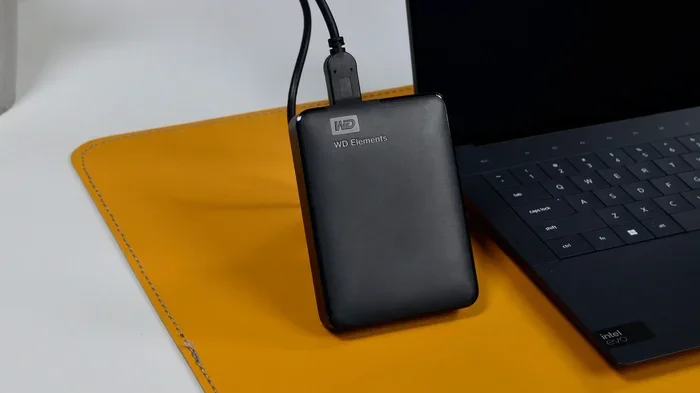
Yes, you can add an external hard drive to your laptop easily, and it is one of the simplest ways to expand your storage without opening the machine. Whether you need extra space for photos, videos, backups, or work files, an external drive plugs right into your USB port and works instantly. This guide covers everything from choosing the right drive to setting it up and avoiding common mistakes. You will learn about HDD vs SSD options, USB types, formatting, and cross-platform compatibility. By the end, you will feel confident adding external storage to any laptop.
Running low on space on your laptop? You are not alone. Many of us fill up our laptops quickly with photos, videos, games, and work files. The good news is that you can add an external hard drive to your laptop easily. It is one of the fastest and most affordable ways to give your laptop a storage boost. You do not need to be a tech expert either. In this guide, we will walk you through everything you need to know. From picking the right drive to setting it up, we have you covered.
Adding external storage to your laptop opens up a world of possibilities. You can store old files you do not use every day. You can back up your most important documents. You can even run large programs directly from the external drive. Let us dive into why this matters and how you can do it today.
Key Takeaways
- Easy Setup: Adding an external hard drive to your laptop is simple and requires no technical expertise.
- Two Main Types: HDDs offer more storage for less money, while SSDs are faster and more durable.
- Plug and Play: Most external drives work immediately when you connect them via USB.
- Backup and Expand: External drives help you back up important data and free up space on your laptop.
- Avoid Common Mistakes: Always safely eject your drive, format it correctly, and keep it away from extreme temperatures.
📑 Table of Contents
- Why You Might Need More Laptop Storage
- How To Connect An External Hard Drive To Your Laptop
- Types of External Hard Drives
- How To Set Up And Use Your External Drive
- Common Mistakes To Avoid
- Expert Tips For Getting The Most From Your External Drive
- Is It Safe To Use An External Hard Drive Every Day?
- What If Your Laptop Does Not Recognize The Drive?
- Conclusion
Why You Might Need More Laptop Storage
Laptops come with a fixed amount of storage built in. Once you fill it up, there is no easy way to add more inside the machine unless you replace the internal drive. That is where an external hard drive comes in handy. It gives you extra space without opening your laptop or spending a fortune.
Here are some clear signs that you need more storage:
- Your laptop warns you that disk space is running low.
- Files take longer to save or open.
- You cannot download new apps or save new photos.
- Your system runs slowly because the drive is almost full.
- You need a separate place to store backups.
When your laptop storage fills up, it affects more than just your ability to save files. A full drive can slow down your entire system. Programs take longer to load. Updates fail. Even basic tasks like opening a folder can lag. Adding an external hard drive to your laptop easily solves all of these problems. You move old or large files off your laptop and free up space for the things that matter most.
Many people also use external drives for data backup. Keeping a copy of your important files on a separate device protects you if your laptop is lost, stolen, or damaged. It is one of the simplest and most effective ways to keep your data safe.
The Role of Storage Capacity
When choosing an external drive, storage capacity matters a lot. Drives come in sizes ranging from 256GB all the way up to 18TB or more. Here is a quick guide to help you decide:
- 256GB to 500GB: Great for light users who just need extra room for documents and a few photos.
- 1TB to 2TB: Ideal for most users. This holds thousands of photos, videos, and documents.
- 4TB and above: Best for professionals who work with large files like video editing or gaming libraries.
Think about what you plan to store. If you only need a little extra space, a smaller drive works fine. If you want to back up your entire laptop, go for a larger one. You can always start small and upgrade later.
How To Connect An External Hard Drive To Your Laptop
Connecting an external hard drive to your laptop is straightforward. Most modern laptops have USB ports that work with external drives right out of the box. Here is how it works step by step.
First, plug the external drive into an available USB port on your laptop. Most laptops have at least one USB-A port or a USB-C port. If your drive uses USB-C and your laptop only has USB-A, you can grab a simple adapter. These cost just a few dollars and make the connection easy.
Once plugged in, your laptop should recognize the drive automatically. This is what people mean by plug and play. A notification will pop up on your screen. You may see the new drive appear in your file explorer or Finder window.
On Windows, look for the drive under “This PC” or “My Computer.” On Mac, it will show up on your desktop or in the Finder sidebar. If the drive does not appear right away, try unplugging it and plugging it into a different port.
Understanding USB Ports and Speeds
Not all USB ports are the same. The type of port you use affects how fast your external drive transfers files. Here is a quick breakdown:
- USB 3.0: Very common and fast enough for most tasks. Transfer speeds reach up to 5Gbps.
- USB 3.1 and USB 3.2: Even faster. Great for moving large files quickly.
- USB-C: The newest standard. It is reversible and supports high speeds.
- USB 2.0: Older and slower. Still works but takes more time for large file transfers.
If you want the best performance, look for a drive that supports USB 3.0 or higher. The speed difference is noticeable, especially when you are copying large video files or backing up your entire laptop.
Types of External Hard Drives
Not all external drives are the same. There are two main types you should know about. Each has its own strengths and weaknesses.
HDD (Hard Disk Drive)
An HDD uses spinning disks to read and write data. These drives have been around for decades and offer a lot of storage for a low price. A typical external HDD costs less per gigabyte than any other option.
Pros of HDDs:
- Lower cost per gigabyte.
- Available in very large sizes (up to 18TB).
- Good for storing large amounts of data you do not access often.
Cons of HDDs:
- Slower read and write speeds.
- More fragile because of moving parts.
- More prone to damage if dropped.
SSD (Solid State Drive)
An SSD has no moving parts. It uses flash memory to store data, which makes it much faster and more durable than an HDD. External SSDs are becoming more popular because of their speed and reliability.
Pros of SSDs:
- Much faster file transfer speeds.
- More durable and shock-resistant.
- Compact and lightweight.
Cons of SSDs:
- More expensive per gigabyte.
- Available in smaller maximum sizes compared to HDDs.
HDD vs SSD Comparison
| Feature | HDD | SSD |
|---|---|---|
| Speed | Slower | Much faster |
| Durability | Lower (moving parts) | Higher (no moving parts) |
| Price | Lower cost per GB | Higher cost per GB |
| Best For | Bulk storage, backups | Fast file access, portability |
| Size Options | Up to 18TB | Up to 4TB typically |
If you want speed and durability, go with an SSD. If you need maximum storage on a budget, an HDD is the better choice. Many people use both — an SSD for quick access files and an HDD for long-term storage.
How To Set Up And Use Your External Drive
Once you have connected your external hard drive to your laptop, there are a few steps to make sure everything works properly. Setting it up correctly helps you avoid problems down the road.
Step 1: Format the Drive
When you first plug in a new external drive, it may need to be formatted. Formatting prepares the drive to work with your operating system. Windows uses NTFS format, while Macs use APFS or Mac OS Extended.
If you use both Windows and Mac, you can format the drive as exFAT. This format works on both systems and lets you share files between computers easily. Just keep in mind that formatting erases all data on the drive, so back up anything important first.
Step 2: Organize Your Files
Once your drive is ready, start moving files over. You can drag and drop files just like you would on your laptop’s internal drive. Some people create folders like “Photos,” “Videos,” “Documents,” and “Backups” to stay organized.
You can also use your external drive for file transfer between devices. For example, you can plug the drive into your laptop, copy files, then plug it into a desktop computer to move them over. This makes sharing large files much easier than emailing them or using cloud storage.
Step 3: Set Up Automatic Backups
One of the best uses for an external drive is automatic backup. Windows has a built-in tool called File History that backs up your files to an external drive on a schedule. Mac users can use Time Machine, which does the same thing.
Setting up automatic backups takes just a few minutes. Once it is running, your files get backed up in the background without you doing anything. This gives you peace of mind knowing your important data is always safe.
Running Programs From an External Drive
You can also install and run some programs directly from an external hard drive. This works best with SSDs because of their faster speeds. It is a great option if your laptop’s internal storage is full but you still want to use certain apps.
Keep in mind that not all programs work well on external drives. Games and heavy software may run slower if the drive is connected through USB 2.0. For the best experience, use a USB 3.0 or USB-C connection with an SSD.
Common Mistakes To Avoid
Adding an external hard drive to your laptop is easy, but there are a few mistakes that can cause problems. Here are the ones to watch out for.
- Forgetting to eject the drive safely. Always use the “Safely Remove” option before unplugging your drive. Pulling it out while data is being written can corrupt files.
- Not formatting the drive correctly. A drive formatted for Mac will not work well on Windows, and vice versa. Choose the right format for your needs.
- Using a cheap or slow drive. Very inexpensive drives may use low-quality components. They can fail or lose data over time.
- Ignoring drive health. External drives can wear out. Check your drive periodically and keep backups of important files.
- Storing the drive in extreme conditions. Heat, moisture, and dust can damage your external drive. Keep it in a safe, dry place when not in use.
Avoiding these simple mistakes will help your external drive last longer and keep your data safe. A little care goes a long way.
Expert Tips For Getting The Most From Your External Drive
Here are some practical tips from people who use external drives every day. These small habits make a big difference.
- Use a drive enclosure for internal drives. If you have an old internal HDD or SSD, you can place it in a hard drive enclosure and turn it into an external drive. This saves money and gives new life to old hardware.
- Label your cables. If you have multiple external drives, label the USB cables so you always know which cable goes with which drive.
- Keep your laptop clean too. Use a disk cleanup tool to remove temporary files and free up space on your internal drive. This works hand in hand with your external storage.
- Consider cloud storage as a backup. An external drive is great for local backup. Pairing it with a cloud service like Google Drive or Dropbox adds an extra layer of protection.
- Check cross-platform compatibility. If you switch between Windows and Mac, make sure your drive format supports both systems.
These tips help you get the most value from your external storage. They are simple to follow and make your experience much smoother.
Is It Safe To Use An External Hard Drive Every Day?
Yes, it is safe to use an external hard drive every day. Most external drives are built to handle regular use. However, they are not meant to replace your laptop’s internal drive entirely. Think of an external drive as a companion to your laptop, not a replacement.
SSDs are especially safe for daily use because they have no moving parts. HDDs can also handle daily use but need a bit more care since they contain spinning disks. Handle both types gently and store them properly when not in use.
One thing to keep in mind is that external drives can be lost or stolen since they are portable. Always keep a backup of your most important files in at least two places. This could be your external drive plus a cloud storage service. That way, you are never left without access to your data.
What If Your Laptop Does Not Recognize The Drive?
Sometimes your laptop may not detect the external hard drive when you plug it in. This can happen for a few reasons. Try these troubleshooting steps:
- Try a different USB port on your laptop.
- Use a different USB cable.
- Restart your laptop and plug the drive back in.
- Check your disk management tool (Windows) or Disk Utility (Mac) to see if the drive appears there.
- Update your laptop’s USB drivers if needed.
Most of the time, the issue is a simple fix like a loose connection or a bad port. If the drive still does not show up, it could be a problem with the drive itself. In that case, contact the manufacturer for support or consider getting a replacement.
Conclusion
So, can you add an external hard drive to your laptop easily? Absolutely. It is one of the simplest and most effective ways to expand your storage, back up your files, and keep your laptop running smoothly. Whether you choose an HDD for bulk storage or an SSD for speed, the process is the same. Plug it in, set it up, and start using it.
Remember to format your drive correctly, eject it safely, and keep it in good condition. These small habits will help your external drive last for years. You will wonder how you ever managed without the extra space.
Adding an external hard drive to your laptop is not just convenient. It is a smart investment in protecting your data and keeping your computer running at its best. Start today and feel the difference it makes.
Frequently Asked Questions
Can I add an external hard drive to any laptop?
Yes, you can add an external hard drive to virtually any laptop that has a USB port. Modern laptops come with USB-A or USB-C ports, which are compatible with most external drives. If your laptop only has USB-C and your drive uses USB-A, a simple adapter solves the problem. The drive will work on Windows, Mac, and even Chromebooks with no special setup required.
Do I need to install any software to use an external hard drive?
No, most external hard drives do not require any software installation. They work on a plug and play basis, meaning you just connect the drive and it is ready to use. Some drives come with backup software or encryption tools, but these are optional. Your operating system already has built-in tools to manage and use the external drive.
Will an external hard drive slow down my laptop?
No, an external hard drive will not slow down your laptop. In fact, it can speed things up by freeing up space on your internal drive. When your laptop storage gets full, the system slows down. Moving files to an external drive helps your laptop breathe and run faster. The only time you might notice a slight slowdown is if you are transferring very large files directly from the external drive.
Can I use an external hard drive on both Windows and Mac?
Yes, you can use an external hard drive on both Windows and Mac if you format it correctly. The exFAT file system works on both operating systems and lets you read and write files on either one. Just be careful when formatting because it erases all existing data on the drive. Always back up your files before changing the format.
How long do external hard drives last?
External hard drives typically last between three and five years with regular use. SSDs tend to last longer than HDDs because they have no moving parts. Proper care helps extend the lifespan. Keep the drive in a cool, dry place, handle it gently, and always eject it safely. Backing up your data regularly also ensures you never lose important files even if the drive fails.
Can I run games or heavy software from an external hard drive?
Yes, you can run games and heavy software from an external hard drive, but performance depends on the drive type and connection speed. SSDs connected via USB 3.0 or USB-C work best for this purpose. HDDs can also run software but will be slower. Some games may require the drive to be connected for the game to work, so keep that in mind when you are on the go.