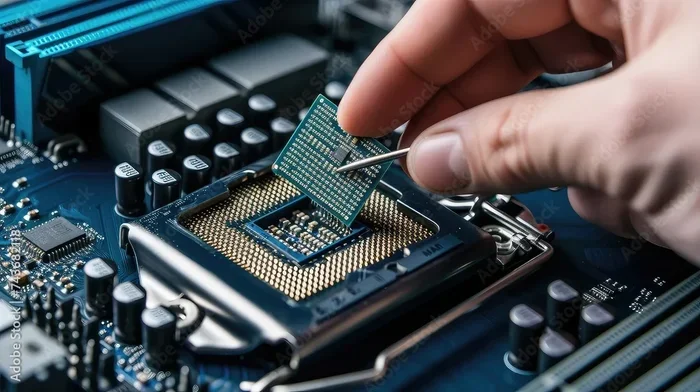
Can I Change My Laptop Processor From Amd To Intel
Changing your laptop processor from AMD to Intel is possible in rare cases, but it is not a simple swap. Most modern laptops have soldered processors, meaning the chip is permanently attached to the motherboard. However, some older or specific models with socketed CPUs do allow a processor change if the motherboard, BIOS, and cooling system are compatible. In this guide, we will walk you through every step, from checking compatibility to understanding the risks and rewards.
Have you been wondering whether Can I Change My Laptop Processor From Amd To Intel is even a real possibility? Maybe your current AMD laptop is feeling slow, and you have heard that Intel chips offer better performance in certain tasks. Or perhaps you simply want to upgrade without buying a whole new machine. Whatever your reason, this is a question that many laptop users ask, and the answer is not as straightforward as you might hope.
The truth is that swapping a laptop processor between brands is one of the most complex hardware changes you can attempt. Unlike desktop computers, where swapping a CPU is often just a matter of removing a cooler, lifting a lever, and dropping in a new chip, laptops are built very differently. Their components are tightly packed, carefully integrated, and in most cases, permanently attached.
That does not mean it is impossible. There are specific laptops, mostly older or business-oriented models, that use socketed processors. These machines give you a real, though limited, path to a processor swap. But even then, going from AMD to Intel introduces a whole set of challenges that go far beyond just physically removing one chip and putting in another. In this guide, we will cover everything you need to know. We will look at why laptop processors are different, how to check if your machine supports a change, what can go wrong, and whether the effort is actually worth it.
Key Takeaways
- Most laptops cannot swap processors: The vast majority of modern laptops use soldered processors that cannot be removed or replaced.
- Socketed laptops offer a slim chance: Only specific models with removable CPUs and matching motherboard sockets allow a processor change.
- AMD to Intel swaps face major hurdles: Even if the socket fits, BIOS support, drivers, and thermal design can block a successful swap.
- Warranty and stability risks are real: Attempting a processor swap can void your warranty and cause system instability if done incorrectly.
- Better alternatives exist: In most cases, buying a new laptop or using an external GPU is a safer and more effective path to better performance.
- Research your exact model first: Always check your laptop model, motherboard specs, and BIOS support before attempting any hardware change.
- Thermal paste and cooling matter: If you do proceed, proper thermal paste application and cooling management are essential for system stability.
📑 Table of Contents
- Can I Change My Laptop Processor From Amd To Intel?
- Why Laptop Processors Are Not Like Desktop CPUs
- How to Check If Your Laptop Supports a Processor Change
- What Goes Wrong When You Try to Switch Brands
- Step-by-Step Guide to Changing Your Laptop Processor
- Is the Upgrade Worth Your Time and Money?
- Conclusion
Can I Change My Laptop Processor From Amd To Intel?
The direct answer depends almost entirely on your laptop model. Some laptops have processors that are soldered directly onto the motherboard. This means the chip is permanently fixed in place and cannot be removed without specialized equipment and serious risk of damage. If your laptop uses a soldered processor, then Can I Change My Laptop Processor From Amd To Intel has a very clear answer: no, you cannot.
However, certain laptops do use socketed processors. These are chips that sit in a physical socket on the motherboard and can be removed and replaced. Think of it like plugging in a USB device, except the connection is far more delicate and precise. If your laptop has a socketed processor, then a swap becomes technically possible. But even then, you still need to deal with compatibility issues between AMD and Intel architectures.
What Most People Do Not Realize
Many people assume that because both AMD and Intel make laptop processors, they should be interchangeable. This is not the case. AMD and Intel use different architectures, different instruction sets, and different socket designs. Even if two processors fit the same physical socket, the motherboard firmware, known as the BIOS or UEFI, may not support a processor from the other brand. This is one of the biggest hidden hurdles when attempting a processor swap between AMD and Intel.
Another thing people overlook is the laptop cooling system. AMD and Intel processors have different power consumption profiles and thermal design power, or TDP, ratings. An Intel chip might run hotter or draw more power than the AMD chip it replaces. If your laptop cooling system is not designed to handle that, you could face overheating issues, throttling, or even permanent hardware damage.
The Real-World Scenario
Let us say you have a laptop from around 2015 to 2018 with a socketed AMD processor. You find an Intel chip that fits the same socket. It sounds like a perfect upgrade, right? Not so fast. Even if the chip physically fits, the BIOS may not recognize it. The laptop might not boot at all. Or it might boot but crash randomly because of driver incompatibilities. The laptop processor upgrade path between brands is full of these kinds of surprises.
On the other hand, if you have a very recent laptop, the chances of a successful swap drop dramatically. Modern laptops from brands like Dell, HP, Lenovo, and ASUS almost universally use soldered processors. The era of easy processor swap in laptops is largely over. This is a key reason why most experts advise against attempting this kind of upgrade.
Why Laptop Processors Are Not Like Desktop CPUs
To understand why changing your laptop processor is so tricky, you need to understand how laptop hardware differs from desktop hardware. Desktops are built for expandability. They have large cases, generous cooling, and motherboards with multiple CPU sockets and RAM slots. Laptops, by contrast, are designed for portability and efficiency. Every component is chosen to be as small and energy-efficient as possible.
Soldered vs. Socketed Processors
This is the single most important factor in determining whether you can change your processor. A soldered processor is one that has been permanently attached to the motherboard using tiny solder balls. These connections are extremely small and precise. Removing a soldered chip requires specialized equipment like a hot air rework station, and even then, you risk destroying the motherboard entirely.
A removable processor, on the other hand, sits in a socket. The socket has tiny pins or contact points that align with corresponding pads on the bottom of the processor. You release a retention mechanism, lift the chip out, and can insert a new one. Socketed laptop processors are much less common today, but they do exist. They are typically found in certain business laptops, older gaming laptops, and some workstation models.
Here is a quick way to check which type your laptop has. Look up your exact laptop model online and search for its service manual or teardown guide. Websites like iFixit often have detailed teardown videos and guides that show you exactly what is inside. If the processor is clearly visible and not covered by a heat spreader that is bolted down, there is a chance it might be socketed.
Power and Thermal Design Differences
AMD and Intel processors handle power and heat differently. AMD chips, especially their Ryzen series, have become known for excellent multi-threaded performance and competitive power efficiency. Intel processors, particularly their newer Core Ultra and Core i-series chips, offer strong single-threaded performance and integrated graphics in some models.
When you swap from one brand to another, you are changing the thermal and power profile of your laptop. The laptop cooling system was designed for a specific TDP rating. If the new processor draws more power or runs hotter, the cooling system may not be adequate. This can lead to thermal throttling, where the processor slows itself down to avoid overheating. In worse cases, it can cause system instability or shutdowns.
Power consumption is another concern. A processor that draws more power will drain your battery faster and generate more heat. Your laptop was engineered around a specific power budget. Changing the processor changes that budget, and the results can be unpredictable.
How to Check If Your Laptop Supports a Processor Change
If you are serious about attempting a processor swap, your first step is to verify whether your laptop even supports it. Skipping this step is the most common mistake people make. They assume compatibility without checking, and then they end up with a laptop that will not turn on.
Check Your Laptop Model First
Start by identifying your exact laptop model. You can usually find this on a sticker on the bottom of the laptop, in the system BIOS, or by running a system information tool in Windows. Once you have the model number, search for it online along with terms like CPU compatibility or upgradeable processor. Look for official documentation from the manufacturer or detailed community guides.
Some manufacturers explicitly state whether a laptop model supports processor upgrades. Others are silent on the topic, which usually means they do not support it. If you cannot find any information confirming that your laptop supports a processor change, assume it does not.
Look at the Motherboard Socket
If you have confirmed that your laptop uses a removable processor, the next step is to identify the motherboard socket type. The socket type determines which processors are physically compatible. For example, older Intel mobile processors used sockets like Socket G1, G2, and G3. AMD used sockets like Socket FS1 and FS1r2 in their mobile lineup.
Even if the socket type matches between an AMD and Intel processor, that does not guarantee compatibility. The socket may be physically similar, but the pin configurations and electrical signals can differ. You need to verify that the motherboard supports the specific Intel processor you want to install. This information is usually found in the motherboard manual or on the manufacturer support page.
Review the BIOS and Firmware
The laptop BIOS is the firmware that initializes your hardware when you turn on the computer. It also controls which processors the motherboard will recognize and support. If the BIOS does not have microcode or support for an Intel processor, the laptop will not boot with that chip installed.
Check the manufacturer support page for your laptop model. Look for BIOS updates and see if any mention support for Intel processors. If the BIOS has never been updated to support Intel chips, there is a very good chance that a swap will not work. Some BIOS updates are specifically designed to add support for new processors, but these are usually for the same brand, not across brands.
What Goes Wrong When You Try to Switch Brands
Even if you manage to physically install an Intel processor in a laptop that originally had an AMD chip, there are several things that can go wrong. Understanding these risks before you start is essential.
Physical Compatibility Issues
The most basic problem is that the processors simply do not fit. Different generations of processors from the same brand can have different socket types. Going across brands makes this even more complicated. The pins on the bottom of the processor, the contacts in the socket, and the mechanical design must all align perfectly. Even a tiny mismatch can mean the chip will not seat properly or will damage the socket.
Some people assume that because both AMD and Intel use pin-based designs, a swap is possible. But the pin layouts, voltages, and signaling protocols are completely different. A processor from one brand simply cannot work in a socket designed for the other brand, even if the sockets look similar at first glance.
Software and Driver Problems
Assuming the processor physically installs and the laptop boots, you still face software challenges. The operating system, Windows in most cases, needs the correct drivers and microcode to run the processor properly. If the driver compatibility is not right, you may experience blue screens, crashes, or extremely poor performance.
AMD and Intel also use different instruction set extensions. Software that is optimized for AMD processors may not take full advantage of Intel hardware, and vice versa. This can lead to a situation where the processor swap does not actually improve performance at all, or in some cases, makes things worse.
Thermal and Power Concerns
As mentioned earlier, the thermal design of your laptop matters enormously. An Intel processor might have a higher TDP than the AMD chip it replaces. This means it generates more heat. If the heatsink and fan in your laptop are not up to the task, the processor will overheat.
Applying fresh thermal paste is essential whenever you remove a processor. The old thermal paste between the processor and the heatsink dries out over time and loses its effectiveness. When you install the new processor, you should clean off the old paste and apply a thin, even layer of new thermal paste. This helps ensure proper heat transfer and keeps the system stability intact.
Step-by-Step Guide to Changing Your Laptop Processor
If you have gone through all the checks and you are confident that your laptop supports a processor change, here is a general overview of the process. Please note that this is a high-risk procedure, and you should only proceed if you are comfortable working with delicate laptop hardware.
Gather Your Tools
Before you start disassembling your laptop, make sure you have the right tools. You will typically need a precision screwdriver set, a plastic spudger or pry tool, compressed air or a soft brush for cleaning, new thermal paste, and an anti-static wrist strap. The anti-static strap is important because static electricity can damage sensitive components like the processor and motherboard.
Also, make sure you have a clean, well-lit workspace. Lay down a soft cloth or mat to prevent scratching the laptop or losing small screws. Keep a small container or magnetic mat to organize the screws as you remove them. Losing a screw or mixing them up can cause problems during reassembly.
Disassemble the Laptop
Start by powering off the laptop completely and unplugging it. Remove the battery if it is removable. If the battery is internal, you may need to disconnect it from the motherboard after opening the back panel. Use the screwdriver to remove all the screws on the bottom of the laptop. Keep track of which screws came from which areas, as some may be different lengths.
Carefully pry open the bottom panel using the plastic spudger. Avoid using metal tools, as they can scratch or short-circuit components. Once the panel is off, you will have access to the internal hardware. Locate the processor, which is usually covered by a metal heat spreader or heatsink.
Remove the Old Processor
Before touching the processor, ground yourself by touching the anti-static wrist strap or a metal part of the laptop chassis. Disconnect the cooling fan cable from the motherboard. Then remove the screws or clips that hold the heatsink in place. Gently lift the heatsink off the processor.
Clean the old thermal paste from both the processor and the heatsink using isopropyl alcohol and a lint-free cloth. Be gentle and do not use excessive force. Once the surfaces are clean and dry, locate the processor retention mechanism. This is usually a small lever or clamp that holds the processor in the socket. Release it carefully, then lift the old processor straight out of the socket. Never twist or bend the processor.
Install the New Processor
Take the new compatible processor out of its packaging. Hold it by the edges to avoid touching the pins or contacts. Align the processor with the socket, matching the notches or markers on both the processor and the socket. Gently place it into the socket. Do not force it. It should drop in with minimal pressure.
Secure the processor with the retention mechanism. Reattach the heatsink and fan, making sure the fan cable is connected to the motherboard. Apply a pea-sized dot of fresh thermal paste to the center of the processor. When you reattach the heatsink, the paste will spread evenly under pressure. This is all you need, and using too much paste can actually cause problems.
Reassemble and Test
Put the laptop bottom panel back on and secure it with the screws. Reinsert the battery if you removed it. Plug in the power adapter and turn on the laptop. Enter the BIOS by pressing the appropriate key during startup, usually F2, F12, Del, or Esc, depending on your laptop brand.
Check if the BIOS recognizes the new processor. Look for the processor name, speed, and core count in the system information section. If the BIOS does not recognize the processor or shows errors, you may need to update the BIOS or the swap is simply not compatible with your hardware. If the BIOS recognizes the processor correctly, boot into Windows and run a stress test to check system stability and temperatures.
Is the Upgrade Worth Your Time and Money?
After reading through all the steps and risks, you might be wondering whether a processor swap is even worth attempting. The honest answer is that for most people, it is not. Let us look at when it might make sense and when you should walk away.
When It Makes Sense
There are a few situations where changing your laptop processor could be worthwhile. If you have an older business laptop with a socketed processor and the manufacturer explicitly supports upgrades, a swap might breathe new life into the machine. If the cost of the new processor is low and you already have the skills and tools to do the work, it can be a satisfying and cost-effective upgrade.
Another scenario is if you are a technician or hobbyist who enjoys working with hardware. For you, the process itself can be a learning experience, even if the performance gains are modest. Just be sure to accept the risks and do not attempt this on a laptop you rely on for daily work.
When to Walk Away
If your laptop is less than three years old, the processor is almost certainly soldered. In that case, do not waste your time or risk damaging your machine. If the cost of the new processor plus thermal paste and other supplies is close to the price of a budget laptop, it is simply not worth it. And if you need the laptop for work or important tasks, the risk of warranty void issues or permanent damage is too high.
Also, keep in mind that even a successful swap may not deliver the performance boost you are hoping for. The laptop motherboard, RAM, and storage are all part of the overall system performance. A faster processor in an otherwise outdated system will not magically make everything fast.
Better Alternatives to Consider
Before you commit to a processor swap, consider these alternatives. Adding more RAM can significantly improve multitasking performance. Switching to a solid-state drive, or SSD, can dramatically speed up boot times and application loading. Cleaning out the fans and replacing the thermal paste can address overheating issues that make the laptop feel slow.
If none of these options satisfy you, it might be time to consider purchasing a new laptop. Modern laptops offer vastly better performance, efficiency, and features compared to machines from even a few years ago. The laptop processor upgrade path from AMD to Intel is a niche endeavor that rarely makes sense for the average user.
Conclusion
So, Can I Change My Laptop Processor From Amd To Intel? The answer is technically yes in very specific cases, but practically no for the vast majority of laptops. Most modern machines use soldered processors that cannot be removed. Even in laptops with socketed CPUs, swapping between AMD and Intel introduces compatibility, BIOS, thermal, and driver challenges that can be difficult or impossible to overcome.
If you do decide to proceed, take the time to research your exact laptop model, verify compatibility, and understand the risks. Use proper tools, follow each step carefully, and never skip the thermal paste application. And most importantly, be prepared for the possibility that the swap simply will not work or that it will cause new problems.
For most laptop users, the smarter path is to explore simpler upgrades like adding RAM or switching to an SSD. These changes are safer, easier, and often deliver a more noticeable improvement in day-to-day performance. If your laptop is truly outdated, investing in a new machine will give you the best results with the least risk. The goal is to get the performance you need without unnecessary frustration or expense.
Frequently Asked Questions
Can I change my laptop processor from AMD to Intel if they use the same socket?
Even if the socket type matches, the swap is unlikely to work. AMD and Intel processors use different architectures, instruction sets, and BIOS requirements. The motherboard firmware must explicitly support the new processor brand, and in most cases, it does not support cross-brand swaps.
Will changing my laptop processor void the warranty?
Yes, in most cases, opening the laptop and changing the processor will void the manufacturer’s warranty. Any physical modification to internal hardware is typically considered unauthorized service. Check your warranty terms before attempting any hardware changes.
How can I tell if my laptop has a socketed or soldered processor?
Look up your laptop model online and search for a teardown guide or service manual. Websites like iFixit provide detailed disassembly videos that show whether the processor is removable or soldered. If the processor is covered by a heat spreader that is bolted down and cannot be lifted out easily, it is most likely soldered.
Do I need to replace the thermal paste when swapping processors?
Yes, absolutely. Whenever you remove a processor, the old thermal paste between the chip and the heatsink should be cleaned off and replaced with fresh thermal paste. This ensures proper heat transfer and helps maintain system stability and safe operating temperatures.
Can I upgrade from an older AMD laptop to an Intel processor for better performance?
It is possible only if your laptop has a socketed processor and the motherboard BIOS supports Intel chips. In most cases, the performance gain will be modest, and the risk of compatibility issues is high. It is usually better to invest in a new laptop for a meaningful performance boost.
What are the risks of swapping a laptop processor between brands?
The risks include physical damage to the motherboard or socket, BIOS incompatibility, driver conflicts, overheating due to mismatched thermal design, and voiding the warranty. There is also a chance the laptop simply will not boot or will be unstable after the swap.