Can A Laptop Overheat On A Desk And What To Do About It
Yes, a laptop can absolutely overheat on a desk, and it is more common than most people think. Poor ventilation, dust buildup, and desk placement all contribute to laptop overheating. This guide covers the causes, warning signs, and proven fixes to keep your device running cool and performing its best.
You sit down at your desk, open your laptop, and within minutes the bottom feels hot to the touch. The fan kicks in loud. The screen slows down. You wonder, can a laptop overheat on a desk? The short answer is yes, and it happens more often than you might think.
Whether you use your laptop for work, gaming, or casual browsing, heat is the silent enemy. Over time, excessive heat can damage internal components, slow down performance, and shorten your device’s lifespan. The good news is that understanding why overheating happens puts you in a great position to fix it.
In this article, we will walk through the real reasons laptops overheat on desks, how to spot the warning signs early, and the most effective steps you can take to keep your machine cool. You do not need to be a tech expert to follow along. We will keep things simple, practical, and actionable from start to finish.
Key Takeaways
- Overheating on a desk is real: Laptops can overheat even on flat surfaces due to blocked vents and poor airflow.
- Dust and debris are the biggest culprits: Regular cleaning prevents heat buildup inside your device.
- Desk surface matters: Hard desks can trap heat, while soft surfaces like beds block vents entirely.
- Cooling accessories help: Laptop stands and cooling pads improve airflow and reduce temperatures significantly.
- Software settings help too: Managing processor load and updating drivers can lower heat output.
- Know when to seek help: Persistent overheating may signal a failing fan or thermal paste issue.
📑 Table of Contents
Why Do Laptops Overheat on Desks?
Understanding the root cause is the first step toward a solution. Laptops are compact machines packed with powerful internal components. All of that power generates heat, and your laptop relies on a carefully designed system to manage it.
The Role of Internal Components
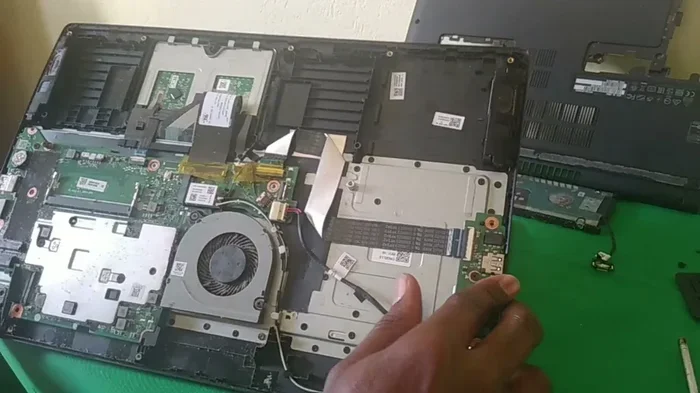
Inside your laptop sits a processor, a graphics chip, and a heat sink connected to a fan. These parts work together to pull heat away from the CPU and dissipate it into the air. When everything works as it should, you never even notice the process happening.
But several factors can disrupt this system:
- Dust buildup: Over weeks and months, dust accumulates inside the vents and fans. This creates a layer of insulation that traps heat inside the laptop.
- Aging thermal paste: The thermal paste between the processor and the heat sink dries out over time. When this happens, heat transfer becomes less efficient.
- Fan failure: A worn-out or blocked fan cannot spin fast enough to move hot air out of the laptop.
- High processor load: Running heavy applications like video editing software or games forces the CPU to work harder, which generates more heat.
All of these issues can cause laptop overheating even when the device sits on a perfectly good desk. The desk itself is rarely the sole problem, but it can make things worse depending on how you set up your workspace.
How Your Desk Setup Matters
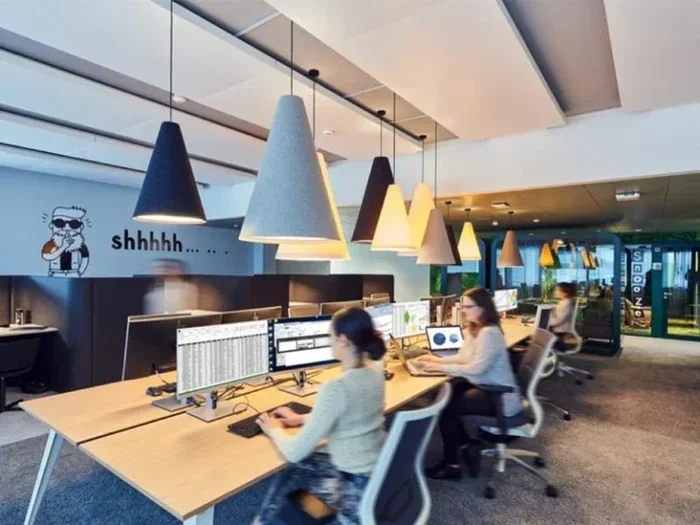
Where you place your laptop on the desk plays a bigger role than most people realize. The ventilation around your device determines how well heat escapes. If the vents sit against the desk surface or are blocked by objects, hot air gets trapped and the temperature rises fast.
Think of your laptop like a small engine. It needs room to breathe. A cluttered desk with papers, books, or accessories surrounding the laptop restricts the airflow it needs to stay cool. Even something as simple as placing your laptop near a wall can reduce cooling efficiency.
Also, the angle of your laptop matters. Most laptops are designed to sit flat or slightly tilted so the bottom vents can draw in cool air. If you use your laptop on a flat surface with no tilt, the intake vents may not get enough air to keep things running smoothly.
Common Signs Your Laptop Is Overheating
Overheating does not always announce itself with dramatic warnings. Often, the signs are subtle and easy to ignore. Learning to recognize them early can save you from serious damage.
Performance Drops and Lag
One of the first signs of thermal throttling is a sudden slowdown. When your laptop’s internal temperature rises too high, the processor automatically reduces its speed to prevent damage. This is called thermal throttling, and it directly impacts your laptop performance.
You might notice:
- Applications taking longer to open
- Videos stuttering or buffering
- Games dropping frames unexpectedly
- The cursor becoming sluggish
These symptoms often feel like your laptop is simply getting old. But in many cases, it is just overheating and trying to protect itself. If your device was fast yesterday but slow today, heat is a likely suspect.
Physical Warning Signs
Your body can tell you a lot about what is happening inside the laptop. Pay attention to these physical cues:
- Hot keyboard or bottom panel: If the surface temperature of your laptop becomes uncomfortable to touch, the internal temperature is probably too high.
- Loud or constant fan noise: The fan spinning at full speed all the time means it is working overtime to cool things down.
- Unexpected shutdowns: When the temperature crosses a dangerous threshold, the laptop will shut itself off to prevent hardware damage.
- Burning smell: This is a serious warning sign. Stop using the laptop immediately and let it cool down.
Do not ignore these signals. Acting early can prevent costly repairs or the need to replace your device entirely.
The Desk Factor: Surface Material and Placement
Not all desks are created equal when it comes to keeping your laptop cool. The material of your desk and the position of your device both play important roles in heat dissipation.
Hard vs Soft Surfaces
Hard desks made of wood, glass, or metal are generally better for laptop cooling than soft surfaces. A hard surface allows air to flow freely through the bottom vents. A soft surface like a pillow, blanket, or even a thick fabric desk mat can block those vents completely.
Here is a quick comparison of common desk surfaces:
| Surface Type | Airflow | Heat Buildup | Best For |
|---|---|---|---|
| Wood Desk | Good | Low | Everyday use |
| Glass Desk | Moderate | Moderate | Light tasks |
| Fabric Desk Mat | Poor | High | Mouse pad use only |
| Fabric/Bed | Very Poor | Very High | Not recommended |
| Metal Desk | Good | Low | Heavy workloads |
As you can see, the surface you place your laptop on directly affects how well it cools down. A simple fabric desk mat might look nice, but it could be trapping heat against your vents.
Ideal Desk Positioning
Where on the desk you place your laptop matters just as much as the desk material itself. Follow these tips for the best desk placement:
- Keep the laptop at least 4 inches from the wall or back of the desk.
- Place it on a hard, flat surface with no fabric or soft materials underneath.
- Ensure the rear vents are not blocked by papers or accessories.
- Position the laptop so the hinges face up, allowing the bottom intake vents to open fully.
- Avoid placing the laptop in direct sunlight or near heat sources like radiators.
These small adjustments can make a surprisingly big difference in keeping your laptop at a safe operating temperature.
Simple Fixes to Prevent Overheating
The good news is that most overheating problems are easy to fix with basic laptop maintenance and a few smart habits. You do not need expensive tools or technical skills to get started.
Cleaning and Maintenance
Dust is the number one enemy of a cool laptop. Over time, it builds up around the vents and clogs the fan. Regular cleaning keeps everything flowing smoothly.
Here is what you should do:
- Clean the vents regularly: Use a can of compressed air to blow dust out of the intake and exhaust vents. Do this at least once a month.
- Use a soft brush: A small soft brush can gently remove dust from the fan grill without damaging the components.
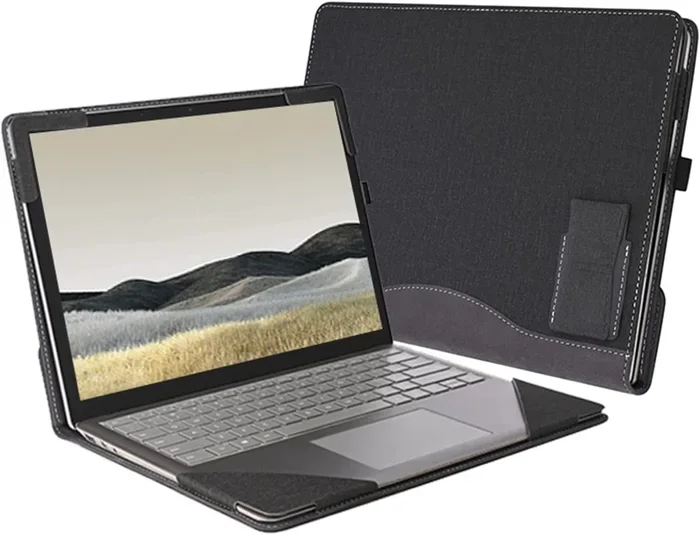
- Elevate the laptop: Placing your laptop on a stand raises it slightly, allowing more air to flow underneath.
- Replace thermal paste: If your laptop is more than two years old, the thermal paste may need replacing. This is a simple fix that can dramatically lower temperatures.
Quick Tip: Turn off your laptop and unplug it before cleaning. Never use water or liquid cleaners on internal components. Stick to compressed air and dry brushes only.
Using Cooling Accessories
If cleaning alone does not solve the problem, cooling accessories can help. These products are designed to improve airflow and lower the surface temperature of your laptop.
Laptop cooling pads are the most popular option. They sit underneath your laptop and feature built-in fans that push cool air up through the bottom of the device. They are affordable, portable, and easy to use.
Laptop stands offer a simpler solution. They tilt the laptop at an angle, which opens the bottom vents and improves natural airflow. Some stands even include built-in fans for extra cooling.
When choosing a cooling accessory, look for these features:
- Fan size and number (more fans generally means better cooling)
- Adjustable height or angle for comfortable use
- USB-powered options that plug directly into your laptop
- A size that matches your laptop (13-inch, 15-inch, 17-inch)
Managing Software and Processor Load
Sometimes the problem is not physical at all. It is software. Running too many programs at once or having a heavy processor load forces your laptop to work harder, which generates more heat.
Try these software-based fixes:
- Close unused programs and browser tabs: Every open tab and program uses processor resources.
- Check your task manager: On Windows, press Ctrl+Shift+Esc to see which programs are using the most CPU power. Close anything you do not need.
- Update your drivers: Outdated drivers can cause inefficient processing, which leads to excess heat.
- Adjust power settings: Switching from a high-performance mode to a balanced or power-saver mode reduces processor strain.
- Scan for malware: Malware can run hidden processes that overload your CPU without your knowledge.
When to Seek Professional Help
Most overheating issues can be solved with the tips above. But sometimes, the problem runs deeper than surface-level fixes.
You should consider professional help if:
- Your laptop shuts down frequently even after cleaning and using a cooling pad.
- The fan makes grinding or clicking noises, which may indicate a mechanical failure.
- You notice a burning smell that does not go away after cooling down the device.
- The laptop runs extremely hot even when performing simple tasks like browsing the web.
- The laptop battery swells or leaks, which can be a sign of internal heat damage.
A professional technician can open up your laptop, check the internal components, replace worn-out fans, and reapply thermal paste. This type of laptop maintenance can extend the life of your device by years.
Expert Insight: Many people wait too long before seeking professional help. By the time a laptop is running so hot that it burns your hands, the internal damage may already be significant. Early intervention is always the best approach.
Comparison: Popular Cooling Solutions
Not all cooling solutions work the same way. Here is a side-by-side look at the most common options to help you decide what fits your needs best.
| Solution | Cost | Ease of Use | Cooling Effectiveness | |
|---|---|---|---|---|
| Compressed Air Cleaning | Low ($5-$10) | Very Easy | High (prevents buildup) | Regular maintenance |
| Laptop Stand | Low ($10-$25) | Very Easy | Moderate | Everyday desk use |
| Cooling Pad | Medium ($20-$50) | Easy | High | Gaming and heavy tasks |
| Thermal Paste Replacement | Low ($5-$15) | Moderate | Very High | Aged laptops (2+ years) |
| Professional Service | High ($50-$150) | No Effort Required | Very High | Persistent or severe issues |
Each solution addresses a different aspect of the overheating problem. For the best results, combine several of these approaches. A clean laptop on a stand with a cooling pad will stay cooler than any single solution alone.
Quick Tips for Daily Use
Build these simple habits into your daily routine to keep your laptop cool without thinking about it:
- Give your laptop a break during long sessions. Let it cool down for 10 to 15 minutes every hour.
- Do not use your laptop on your lap for extended periods. The fabric blocks the vents.
- Keep your workspace clean and free of clutter that could block vents.
- Use a surge protector with built-in cooling if your laptop sits on a desk for hours.
- Restart your laptop regularly. This clears background processes that may be straining the CPU.
Common Mistakes That Cause Overheating
Avoid these common mistakes that many laptop users make without realizing the impact:
- Using the laptop on soft surfaces: Beds, couches, and pillows block vents and trap heat.
- Ignoring the fan noise: A loud fan is your laptop telling you it needs help. Do not just turn down the volume.
- Running too many startup programs: These run in the background and add unnecessary processor load.
- Placing the laptop near a window: Direct sunlight heats up the device faster than any internal process.
- Never cleaning the vents: Even a small amount of dust can reduce airflow significantly over time.
Final Thoughts
So, can a laptop overheat on a desk? Absolutely. But the good news is that overheating on a desk is almost always preventable with the right approach. Understanding the causes, recognizing the warning signs, and taking simple preventive steps can keep your laptop running cool and performing at its best for years to come.
Start with the basics. Clean your vents regularly, check your desk placement, and invest in a simple cooling pad or stand if needed. These small changes make a big difference. If the problem persists, do not hesitate to seek professional help before the heat causes permanent damage to your internal components.
Your laptop is a valuable tool. Treating it with care and paying attention to its temperature is one of the best investments you can make. Keep it cool, keep it clean, and it will keep up with you for a long time.
Frequently Asked Questions
Why does my laptop overheat even when I am not running heavy programs?
Even light tasks can cause overheating if the internal cooling system is not working properly. Dust buildup, dried-out thermal paste, or a failing fan can all cause your laptop to run hot regardless of what you are doing. Cleaning the vents and checking the fan are good first steps.
Is it safe to use my laptop on a desk if it feels warm?
A slightly warm laptop is normal during use. However, if it becomes too hot to touch comfortably or the fan runs constantly at full speed, that is a sign of a problem. Check the vents for dust and make sure the laptop has enough airflow around it.
How often should I clean my laptop to prevent overheating?
You should clean your laptop vents every two to four weeks. If you use your laptop in a dusty environment or have pets, you may need to clean it more often. Using compressed air regularly is the easiest and most effective method.
Do laptop cooling pads really work?
Yes, cooling pads can significantly reduce laptop temperatures, especially during heavy tasks like gaming or video editing. They work best when paired with other practices like regular cleaning and proper desk placement. Look for a cooling pad with fans that match your laptop size.
Can overheating damage my laptop permanently?
Yes, prolonged overheating can cause permanent damage to the processor, graphics chip, and battery. It can also cause the internal thermal paste to degrade faster. In severe cases, it can even lead to a swollen battery, which is a safety hazard. Taking steps to prevent overheating is essential for the longevity of your device.
What is the ideal temperature range for a laptop?
Most laptops operate safely between 50 and 95 degrees Fahrenheit (10 to 35 degrees Celsius). Temperatures above 95 degrees Fahrenheit during normal use indicate a cooling problem. You can check your laptop’s internal temperature using free software tools designed for monitoring CPU temperature.
=== CONCLUSION ===
Can a laptop overheat on a desk? Yes, but now you have the knowledge and tools to prevent it. From understanding the role of internal components and recognizing the early signs of overheating symptoms to implementing simple fixes like cleaning vents, using a laptop stand, and managing your processor load, you are fully equipped to keep your device running cool. Remember that laptop cooling is not just about comfort, it is about protecting your investment and ensuring your laptop performance stays strong for years. Start with the basics today, and your laptop will thank you tomorrow.