Can I Have Two Wifi Networks With The Same Name At Home
Yes, you can have two wifi networks with the same name at home. This setup is called using the same SSID on multiple routers or access points. It can simplify your wireless network but comes with trade-offs like roaming issues and signal conflicts. Understanding how to configure this properly helps you avoid common problems and keeps your home network running smoothly.
Have you ever wondered if you can have two wifi networks with the same name at home? Maybe you just bought a second router. Or perhaps your current signal doesn’t reach the backyard. Either way, the idea of using the same network name sounds simple enough. But is it really that easy? Let’s dive in and find out.
The short answer is yes. You absolutely can run two wifi networks with the same name under one roof. This technique is known as using the same SSID across multiple access points. It works well in many situations. But it also comes with a few surprises you should know about before you set it up. In this guide, we will walk through everything you need to understand. You will learn how it works, what the benefits are, and what pitfalls to avoid.
Setting up two routers with the same network name can make your home feel like it has one big, seamless wifi network. Your phone and laptop will connect without you thinking about it. But behind the scenes, things get a little more complex. Devices need to decide which router to use. Signals can overlap. And speeds can drop if you don’t plan things out carefully. This article covers all of that and more.
Key Takeaways
- Same SSID Setup Works: You can run two wifi networks with the same name by assigning the same SSID to multiple routers.
- Roaming Can Be Tricky: Devices may not switch between routers smoothly when both share the same network name.
- Channel Overlap Causes Problems: Placing two routers on the same channel leads to interference and slower speeds.
- Password Matching Matters: For seamless roaming, both networks must use the same security type and password.
- Mesh Systems Are Smoother: A mesh network handles same-name setups better than manually connecting two routers.
- Separate Bands Help: Using the same name on 2.4GHz and 5GHz bands is a common and effective approach.
- Test Your Setup: Always check signal strength and speed after configuring two routers with the same SSID.
📑 Table of Contents
- What Does It Mean to Have Two Wifi Networks With The Same Name?
- Why Would You Want Two Networks With The Same Name?
- Can You Really Use The Same SSID on Two Routers?
- How to Set Up Two Routers With The Same Network Name
- What Are the Pros and Cons of Using The Same Network Name?
- Common Mistakes People Make When Setting Up Two Routers
- How Does This Compare to a Mesh Network System?
- Does Having Two Networks With The Same Name Slow Down Your Internet?
- How to Troubleshoot Common Same-Name Network Problems
- Key Takeaways
- Conclusion
What Does It Mean to Have Two Wifi Networks With The Same Name?
When we talk about a wifi network name, we are really talking about something called the SSID. The SSID is the label your router broadcasts so your phone, tablet, and laptop can find it. Every wireless network has one. So when you use the same SSID on two different routers, both devices broadcast the same network name. Your phone sees only one network. It does not know there are two routers behind it.
This setup is different from having two networks with different names. If you name one “HomeWifi” and the other “HomeWifi2,” your phone sees two separate options. With the same name approach, your devices think they are connecting to a single network. The router or access point handles the rest behind the scenes.
People choose this setup for a few reasons. Some want to extend their wifi coverage. Others have a large home and need more than one router. And some just like the idea of one simple network name everywhere they go in the house. Whatever your reason, understanding the basics is the first step.
How SSID Sharing Works
SSID sharing is when two or more routers broadcast the same network name. Each router still operates independently. They each have their own IP address pool and their own settings. But to your devices, they look like one network. When you walk from one room to another, your phone should ideally switch from one router to the other. This is called roaming.
In theory, this sounds perfect. In practice, it can be hit or miss. Some devices handle roaming really well. Others stick to the first router they found, even if the signal is weak. This is why knowing the ins and outs matters so much.
Why Would You Want Two Networks With The Same Name?
There are several good reasons to set up two routers with the same SSID at home. Let us look at the most common ones.
Better Coverage Across Your Home. If your router sits in the living room, the bedroom upstairs might have a weak signal. Adding a second router with the same name extends your coverage. You get strong internet in more rooms without switching networks manually.
More Connected Devices. Modern homes have a lot of wifi devices. Smart TVs, phones, tablets, smart speakers, security cameras, and game consoles all compete for bandwidth. Two routers can share the load. This means less congestion on each individual router.
Simpler for Everyone in the House. Imagine your family members connecting to the wifi. With one network name, there is no confusion. Nobody has to pick between “HomeWifi” and “HomeWifi_2.” Everyone just connects to the same thing. This is especially helpful for kids and older family members who are not tech-savvy.
Seamless Roaming (When Done Right). A properly configured same-name setup lets your phone move between routers without dropping the connection. You can walk from the kitchen to the basement and stay online. That is a big win for streaming and video calls.
Can You Really Use The Same SSID on Two Routers?
Yes, you can. Most modern routers support this feature. You simply log into each router’s admin panel and set the same SSID and password on both. But there are important details you need to get right. Otherwise, you will run into problems fast.
First, make sure both routers use the same security type. If one router uses WPA2 and the other uses WPA3, your devices may struggle to connect. Second, set the same password on both routers. This is essential for seamless roaming. Third, pay close attention to the wifi channels each router uses. We will talk more about this in a moment.
Some people try to use the same SSID and password but forget about the channel settings. This causes interference. Both routers end up talking over each other on the same frequency. The result? Slower speeds and dropped connections. So channel planning is a big part of making this work.
Same SSID on 2.4GHz and 5GHz Bands
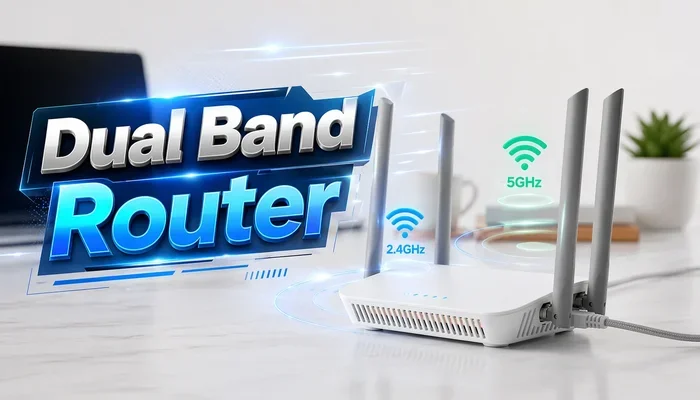
Many dual band routers let you set the same SSID for both the 2.4GHz and 5GHz bands. This is actually a very common setup. Your phone or laptop will automatically pick the best band based on signal strength and speed needs. This is different from running two separate routers. But it is worth mentioning because it is a form of having two networks with the same name.
The 2.4GHz band reaches farther but is slower. The 5GHz band is faster but has a shorter range. When both share the same SSID, your device switches between them automatically. This works really well in most homes. It is one of the easiest ways to improve your wireless network without buying extra equipment.
How to Set Up Two Routers With The Same Network Name
Setting up two routers with the same SSID is not hard. But you do need to follow the right steps. Here is a practical walkthrough you can follow at home.
Step 1: Connect Both Routers to Your Modem. Use an Ethernet cable to connect the second router to the first one. Plug one end into the LAN port on the main router and the other into the WAN port on the second router. This creates a wired backbone between the two devices.
Step 2: Access the Admin Panel of Each Router. Type your router’s IP address into a web browser. Common addresses are 192.168.1.1 or 192.168.0.1. Log in with your admin credentials. If you never changed them, check the sticker on the back of the router.
Step 3: Set the Same SSID on Both Routers. Go to the wireless settings page. Change the network name on the second router to match the first one exactly. Make sure the spelling and capitalization are identical.
Step 4: Set the Same Password and Security Type. Both routers need the same password and the same security protocol. Use WPA2 or WPA3. Avoid using WEP, as it is outdated and insecure.
Step 5: Assign Different Channels to Each Router. This is the step most people skip. Go to the channel settings and pick different channels for each router. For the 2.4GHz band, use channels 1, 6, or 11. These do not overlap. For the 5GHz band, you have more options, but still keep them far apart.
Step 6: Disable DHCP on the Second Router. Only one router should assign IP addresses to your devices. Turn off DHCP on the second router. This prevents IP conflicts that can break your network.
Step 7: Save Everything and Test. Reboot both routers. Walk around your home with your phone and check the signal strength. Try streaming a video in different rooms. See if your device switches between routers smoothly.
Quick Tips for a Smooth Setup
- Use a wired backhaul whenever possible. An Ethernet cable between routers gives the best performance.
- Place the second router halfway between the main router and the area with weak coverage.
- Restart both routers after making changes. This ensures the new settings take effect.
- Label your routers so you know which one is the main and which is the secondary.
- Update the firmware on both routers before you start. This fixes bugs and improves compatibility.
What Are the Pros and Cons of Using The Same Network Name?
Every setup has trade-offs. Let us look at the good and the bad of running two routers with the same SSID.
The Pros
- One Simple Network Name. No need to explain to guests which network to pick. Everyone connects to the same thing.
- Extended Coverage. You get wifi in rooms that were previously dead zones. The second router fills in the gaps.
- Easy for Beginners. Family members do not need to know there are two routers. Everything feels like one network.
- Better Device Distribution. With two routers, more devices can connect without overwhelming a single one.
- Cost Effective. You reuse an old router instead of buying expensive new equipment.
The Cons
- Roaming Issues. Some devices refuse to switch to the stronger router. They stay stuck on the weak one.
- Signal Interference. If both routers use the same channel, they fight with each other. This slows down your internet speed.
- IP Conflicts. If you forget to disable DHCP on the second router, devices may get duplicate addresses. This causes connection problems.
- Harder to Troubleshoot. When something goes wrong, it is harder to know which router is causing the issue.
- Security Risks. If one router has weaker security settings, it could expose your entire network.
Common Mistakes People Make When Setting Up Two Routers
Even with good intentions, people make mistakes when setting up two routers with the same SSID. Here are the most common ones and how to avoid them.
Mistake 1: Using the Same Channel on Both Routers. This is the number one cause of interference. When two routers broadcast on the same channel in the same area, they create signal overlap. Your devices suffer from slower speeds and dropped packets. Always choose different, non-overlapping channels.
Mistake 2: Forgetting to Disable DHCP. Two routers handing out IP addresses is a recipe for disaster. Your devices will get confused about which router to talk to. Turn off DHCP on the second router to keep things clean.
Mistake 3: Using Different Security Types. If one router uses WPA2-Personal and the other uses WPA2-Enterprise, your devices may not connect properly. Keep the security type identical on both routers.
Mistake 4: Placing Routers Too Close Together. If both routers sit next to each other, their signals overlap heavily. This creates more interference than coverage. Space them out so they cover different areas of your home.
Mistake 5: Ignoring the Gateway Settings. The second router needs a unique IP address on your network. Change the last digit of its IP so it does not clash with the main router. For example, if your main router is 192.168.1.1, set the second one to 192.168.1.2.
Mistake 6: Not Updating Firmware. Old firmware can cause compatibility issues between routers. Always update both routers before setting them up. Check the manufacturer’s website for the latest version.
Expert Insights on Same-Name Wifi Setups
Networking experts generally agree that using the same SSID on two routers works best when the routers are connected via Ethernet. A wired connection between the routers provides a stable backhaul. Wireless backhauling, where the second router connects to the first over wifi, cuts into available bandwidth. This can slow things down for devices connected to the second router.
Experts also recommend using a mesh wifi system if you want the smoothest experience. Mesh systems like those from Google Nest, Eero, or TP-Link Deco handle same-name setups automatically. They manage roaming, channel selection, and IP assignments for you. If you are not comfortable tweaking router settings manually, a mesh system is the easiest path to a strong home network.
Another expert tip is to enable 802.11k and 802.11v on your routers if they support it. These are wifi standards that help devices roam more efficiently between access points. They tell your phone when to switch routers based on signal strength. This makes a same-name setup feel much more seamless.
How Does This Compare to a Mesh Network System?
Many people wonder whether they should set up two routers with the same SSID or buy a mesh system instead. Both approaches have merit. Let us compare them side by side.
| Feature | Two Routers, Same SSID | Mesh Network System |
|---|---|---|
| Cost | Lower (uses existing routers) | Higher (requires mesh kit) |
| Setup Difficulty | Moderate to advanced | Easy, app-guided |
| Roaming | Hit or miss | Seamless and automatic |
| Coverage | Good with proper placement | Excellent, designed for whole-home |
| Management | Separate admin panels | Single app controls all nodes |
| Performance | Depends on backhaul type | Optimized for tri-band systems |
| Scalability | Limited to two routers | Easy to add more nodes |
If you already have two compatible routers, the same-SSID setup can save you money. But if you are starting fresh or want the best experience, a mesh system is hard to beat. Mesh systems are designed from the ground up to work as one unified network. They handle all the complex behind-the-scenes stuff for you.
Does Having Two Networks With The Same Name Slow Down Your Internet?
This is one of the most common questions people ask. The honest answer is: it depends. If you set things up correctly, you should not see a noticeable speed drop. But if you make mistakes like using the same channel or wireless backhauling, your speeds can suffer.
Here is what affects performance in a same-SSID setup. First, the distance between your device and the nearest router matters. If you are close to a router, you get full speed. If you are far away and connected to a weak signal, speeds drop. Second, the number of devices on each router matters. If one router handles 20 devices and the other handles only 2, the first one will be slower. Third, the type of backhaul matters. A wired connection does not reduce speed. A wireless connection does.
To get the best performance, use an Ethernet cable to connect your routers. Spread devices evenly between both routers. And always use different wifi channels for each router. Follow these tips and your network should run just as fast as a single router setup.
How to Troubleshoot Common Same-Name Network Problems
Even with careful setup, you might run into issues. Here are the most common problems and how to fix them.
Problem 1: Your Phone Stuck on the Wrong Router. If your phone stays connected to a weak router, try turning wifi off and back on. You can also forget the network and reconnect. Some phones have a setting called “Auto-Join” that you should enable. This lets the phone switch to the better signal automatically.
Problem 2: Devices Cannot Connect. This is often caused by IP conflicts. Check that DHCP is disabled on the second router. Also verify that both routers have unique IP addresses on your local network.
Problem 3: Slow Speeds on the Second Router. Check the channel settings. If both routers use the same channel, change one of them. Also make sure the second router is not too far from the first one if you are using wireless backhaul.
Problem 4: Intermittent Disconnections. This can happen when devices struggle to roam between routers. Enabling 802.11k and 802.11v on both routers can help. If your routers do not support these standards, consider using a wired connection between them.
Key Takeaways
- Same SSID Setup Works: You can run two wifi networks with the same name by assigning the same SSID to multiple routers.
- Roaming Can Be Tricky: Devices may not switch between routers smoothly when both share the same network name.
- Channel Overlap Causes Problems: Placing two routers on the same channel leads to interference and slower speeds.
- Password Matching Matters: For seamless roaming, both networks must use the same security type and password.
- Mesh Systems Are Smoother: A mesh network handles same-name setups better than manually connecting two routers.
- Separate Bands Help: Using the same name on 2.4GHz and 5GHz bands is a common and effective approach.
- Test Your Setup: Always check signal strength and speed after configuring two routers with the same SSID.
Conclusion
So, can you have two wifi networks with the same name at home? Absolutely. It is a practical and effective way to extend your wireless coverage and simplify your home network. Whether you are dealing with dead zones, too many connected devices, or just want one seamless network name throughout your house, this setup can work well.
The key is to get the details right. Use the same SSID and password on both routers, assign different channels, disable DHCP on the second router, and connect them properly. Take your time with the setup. Test the network in every room. Make adjustments as needed.
If you find manual configuration too daunting, consider a mesh wifi system. It gives you the same benefits of a unified network name with much less hassle. But if you are comfortable with router settings, the two-router same-SSID method is a great way to get more out of your existing equipment.
Your home network is the backbone of your digital life. Taking the time to set it up right pays off in faster speeds, better coverage, and fewer frustrations. Give it a try and see how much better your wifi can be.
Frequently Asked Questions
Can two routers have the same wifi name and password?
Yes, two routers can share the same SSID and password. This is the most common way to create a unified wireless network with multiple routers. Just make sure both routers use the same security type and password for the best results.
Will my phone automatically switch between two routers with the same name?
It depends on your phone and the router settings. Most modern phones support seamless roaming, but older devices may stick to the first router they found. Enabling 802.11k and 802.11v on your routers can improve switching behavior significantly.
Is it better to use different names for two routers?
Using different names gives you more control over which router your device connects to. But it also means manually switching networks as you move around your home. Same-name setups are more convenient for most households, even if they require more careful configuration.
Does having two routers slow down internet speed?
Not if you set them up correctly. Using a wired connection between routers and assigning different wifi channels keeps speeds strong. Wireless backhaul, where the second router connects to the first over wifi, can reduce available bandwidth.
What is the difference between same SSID and a mesh network?
A same-SSID setup uses two separate routers configured to broadcast the same network name. A mesh system is designed as a single unified network with smart roaming built in. Mesh systems are easier to set up and manage, but they cost more than using two existing routers.
Can I use an old router as a second access point with the same name?
Yes, you can repurpose an old router as a second access point. Connect it to your main router via Ethernet, set the same SSID and password, disable DHCP, and assign a unique IP address. This is a great way to extend your coverage without buying new equipment.
=== CONCLUSION ===
Having two wifi networks with the same name at home is not only possible but also practical. With the right setup, you can extend your coverage, support more devices, and enjoy a seamless wireless experience. The key is understanding how SSID sharing works and avoiding common pitfalls like channel overlap and IP conflicts. Whether you choose to configure two routers manually or invest in a mesh system, the goal is the same. A strong, reliable wifi network that covers every corner of your home. Start with the tips in this guide, test your setup, and enjoy a better internet experience today.