Does Hue Sync Box Work With All Your Favorite Tv Apps
The Hue Sync Box is a powerful entertainment device that syncs your Philips Hue lights with what you watch on TV. It works with most popular TV apps, including Netflix, YouTube, and gaming platforms, to create an immersive ambient lighting experience. Hue Sync Box TV app compatibility covers a wide range of services, but some limitations exist.
This is a comprehensive guide about Does Hue Sync Box Work With Tv Apps.
Key Takeaways
- Broad App Support: The Hue Sync Box works with most major streaming and gaming apps on your TV.
- Easy Setup: Connecting the Hue Sync Box to your TV and lights takes just a few simple steps.
- Multiple Modes: You can choose from different sync modes like Game, Movie, and Music for the best experience.
- HDMI Required: The Hue Sync Box needs a direct HDMI connection to your TV or source device for proper syncing.
- Limited to Hue Ecosystem: You need Philips Hue lights and the Hue Sync app to use the box fully.
- Some Apps May Not Sync: Certain apps that use DRM protection or unusual video output may not work perfectly with the Hue Sync Box.
[FEATURED_IMAGE_PLACEHOLDER]
The Hue Sync Box has become one of the most popular ways to bring your viewing experience to life. Whether you are binge-watching your favorite show or playing the latest game, ambient lighting can make everything feel more immersive. But one question keeps coming up: does the Hue Sync Box work with all your favorite TV apps?
The short answer is yes, for most apps. The longer answer involves a few details you should know before buying. This guide breaks down everything about Hue Sync Box TV app compatibility. You will learn which apps work, how to set things up, and what to do when something does not sync properly. Let us dive in.
What Is the Hue Sync Box and How Does It Work?
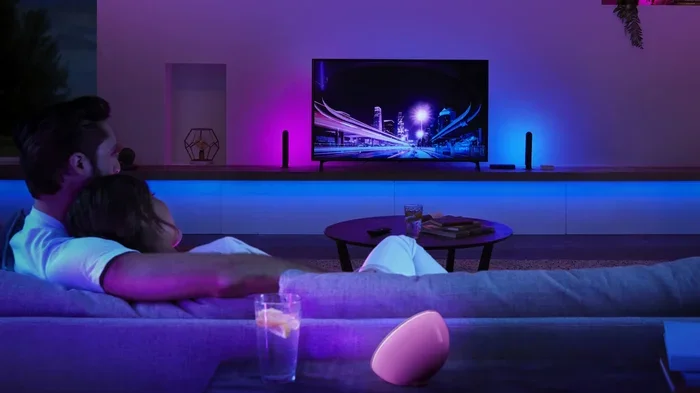
The Hue Sync Box is a small device made by Philips Hue. It connects to your TV and your Philips Hue smart lights. The box reads what is happening on your screen in real time. Then it tells your lights to change colors that match the action on screen.
Think of it like this. You are watching a movie and there is a bright explosion on screen. Your lights flash with warm orange and red tones. A calm scene with a blue sky? Your lights turn soft blue. The effect is subtle but powerful.
The Hue Sync Box uses HDMI input to capture video signals. It analyzes the colors, brightness, and movement on screen. Then it sends commands to your Hue lights over your home Wi-Fi network. The whole process happens in milliseconds, so the lighting stays in sync with what you watch.
What You Need to Get Started
Before you can use the Hue Sync Box with your TV apps, you need a few things. Here is a quick list of what the setup requires:
- A Philips Hue Sync Box
- At least one Philips Hue smart light or light strip
- The Philips Hue Bridge (version 2 or newer)
- The Hue Sync app (available for Windows, Mac, and the Hue Sync Box itself)
- A TV with an available HDMI port
- A stable Wi-Fi connection
The Hue Sync Box connects between your TV and your cable box, streaming stick, or gaming console. This way it can “see” the video signal before it reaches your screen. That is why HDMI connection quality matters for the best results.
Does Hue Sync Box Work With All TV Apps?
This is the big question, and the answer is mostly yes. The Hue Sync Box works with the vast majority of TV apps because it captures the video signal at the HDMI level. It does not matter what app you are using. The box sees the video output regardless.
However, there is a catch. Some apps use DRM protection (Digital Rights Management). This can sometimes interfere with the Hue Sync Box’s ability to read the video signal. When DRM is active, the sync might not work or might look choppy.
Here is a quick breakdown of how the Hue Sync Box handles different types of TV apps:
- Streaming Apps: Netflix, Disney+, Amazon Prime Video, Hulu, and HBO Max all work well. You may notice occasional sync delays with DRM-heavy content.
- Free Streaming Apps: YouTube, Tubi, Pluto TV, and Peacock work great. These apps have minimal DRM, so the sync is smooth.
- Gaming Consoles: PlayStation and Xbox work excellently. The Hue Sync Box has a dedicated Game mode for this.
- Cable TV and Satellite: Live TV from your cable box syncs fine. The Hue Sync Box treats it like any other HDMI source.
- PC and Laptop Connections: If you connect a laptop to your TV, Hue Sync Box can sync with whatever you display on screen. This is a great option if you want to use it with apps not natively on your TV.
The Hue Sync Box is very versatile. It works across platforms and devices, which is one of its biggest strengths. Whether you are using a smart TV, a streaming stick, or a gaming console, the box adapts to the source.
Apps That Work Best With Hue Sync Box
Some apps deliver a better sync experience than others. Here are the apps that work most reliably with the Hue Sync Box:
- Netflix
- YouTube
- Amazon Prime Video
- Disney+
- Apple TV+
- Spotify (for music visualizer mode)
- Nintendo Switch
- PlayStation 4 and 5
- Xbox One and Series X/S
- Tubi and Pluto TV
These apps have straightforward video outputs that the Hue Sync Box can read easily. The colors and lighting effects tend to be accurate and responsive.
Apps That May Have Sync Issues
A few apps can cause problems. These are usually due to heavy DRM or unusual video formats:
- Some newer streaming services with strict copyright protection
- Apps that use screen mirroring or casting instead of native playback
- Very low-bitrate streams that lack color detail for the box to read
If you run into issues with a specific app, try switching to a different source. For example, if casting from your phone causes problems, try using the app directly on your smart TV instead.
How to Set Up Hue Sync Box With Your TV Apps
Setting up the Hue Sync Box is straightforward. Follow these steps to get everything running with your favorite TV apps.
Step 1: Connect the Hue Sync Box to Your TV
Plug one end of an HDMI cable into the Hue Sync Box. Plug the other end into your TV’s HDMI input. Then connect another HDMI cable from your streaming device or gaming console to the Hue Sync Box input. This creates a chain: source device → Hue Sync Box → TV.
Step 2: Connect Your Hue Lights
Make sure your Philips Hue lights are set up and connected to the Hue Bridge. The Hue Sync Box communicates with the Bridge, which controls your lights. You can use any Hue lights in the room, but light bars and strips placed behind your TV work best for ambient lighting.
Step 3: Install the Hue Sync App
Download the Hue Sync app on your device. You can use the app on the Hue Sync Box itself, or run it on a PC or Mac connected to the same network. Open the app and it will automatically detect your Hue Sync Box and lights.
Step 4: Choose Your Sync Mode
The Hue Sync app offers several modes:
- Movie Mode: Optimized for watching films. Colors shift slowly and smoothly.
- Game Mode: Faster response times for gaming. Lights react quickly to on-screen action.
- Music Mode: Syncs lights to the audio output. Great for music apps and Spotify.
- Live TV Mode: Designed for cable TV and live broadcasts.
Select the mode that matches what you are watching. You can switch between modes anytime.
Step 5: Adjust the Settings
The Hue Sync app lets you fine-tune the experience. You can adjust the intensity, brightness range, and color saturation. Start with the default settings and tweak them until the lighting feels right for you.
Quick Tips for the Best Setup
- Place your Hue lights behind the TV for the most immersive effect.
- Use the Hue Sync Box’s HDMI passthrough to keep your TV remote working normally.
- If you want to connect your laptop to your TV wirelessly for a bigger screen, check how to connect my laptop to TV wirelessly before setting up the Hue Sync Box.
- Keep your Hue Bridge close to your router for a stable connection.
- Update the Hue Sync app regularly to get the latest features and bug fixes.
Hue Sync Box vs Other TV Sync Solutions
The Hue Sync Box is not the only option for TV ambient lighting. Let us compare it with a few alternatives.
| Feature | Hue Sync Box | Govee TV Light Bars | LED Light Strips (Generic) |
|---|---|---|---|
| App Compatibility | Works with all TV apps via HDMI | Works with most TV apps | Varies by brand |
| Setup Complexity | Moderate | Easy | Easy |
| Color Accuracy | Excellent | Good | Fair |
| Price Range | $199-$249 | $30-$60 | $10-$30 |
| Ecosystem Required | Philips Hue only | Govee app only | Varies |
| Gaming Mode | Yes | Yes | No |
The Hue Sync Box stands out for its premium build quality and deep integration with the Philips Hue ecosystem. It also works with a wider range of devices and apps. However, if you are on a budget, alternatives like Govee light bars offer similar features at a lower price point.
If you already have Philips Hue lights set up in your home, the Hue Sync Box is a natural fit. It also works well if you want to use a Bluetooth adapter on your TV for other devices. You can find more info on that setup by checking how to use a Bluetooth adapter on my TV.
Common Issues and How to Fix Them
Even with the best setup, you might run into some issues. Here are the most common problems and their solutions.
Lights Not Syncing With TV Apps
This usually happens when the HDMI connection is loose or the wrong input is selected. Check that all HDMI cables are firmly connected. Make sure your TV is set to the correct HDMI input where the Hue Sync Box is connected.
Sync Lag or Delay
A lag between the video and the lighting can be frustrating. Try switching to Game mode for faster response. Also, make sure your Wi-Fi network is stable. If you are using the Hue Sync app on a PC, a wired Ethernet connection can reduce lag.
DRM Blocking the Sync
Some streaming apps block the Hue Sync Box from reading the video signal. If this happens, try lowering the video quality in the app settings. You can also try switching to a different streaming source for the same content.
Lights Not Responding
If your Hue lights are not reacting at all, check the Hue Bridge connection. Restart the Bridge and the Hue Sync Box. Make sure the Hue Sync app has permission to control your lights.
Color Accuracy Issues
If the colors on your lights do not match the screen well, open the Hue Sync app settings. Adjust the saturation and brightness sliders. You can also calibrate the color range to match your specific light setup.
Expert Insights and Pro Tips
Maximize Your Immersive Experience
The best results come from combining the Hue Sync Box with the right lighting setup. Use multiple Hue lights placed around the room, not just behind the TV. This creates a more enveloping ambient effect.
Use the Hue Sync Box for More Than TV
The Hue Sync Box is not just for TV apps. You can use it with your computer for general ambient lighting. It works great with music apps, video editing software, and even as a decorative light setup for parties.
Keep Your Firmware Updated
Philips regularly releases firmware updates for the Hue Sync Box. These updates improve compatibility with new TV apps and fix known issues. Check the Hue app for updates every few weeks.
Consider Your Room Layout
The placement of your Hue lights matters a lot. Behind-the-TV placement gives the best cinematic effect. But placing lights around the room creates a more dramatic atmosphere. Experiment with different setups to find what works best for your space.
Final Thoughts
The Hue Sync Box is an excellent addition to any home entertainment setup. It works with most of your favorite TV apps without any hassle. From Netflix and YouTube to gaming on PlayStation and Xbox, the box delivers smooth and responsive ambient lighting.
While a few apps may have minor sync issues due to DRM, the overall compatibility is impressive. The setup is straightforward, and the results are genuinely immersive. If you already own Philips Hue lights, adding the Hue Sync Box takes your viewing experience to the next level.
The key is to set it up correctly, choose the right sync mode, and tweak the settings until everything feels just right. With a little patience, you will wonder how you ever watched TV without colored lights reacting to every scene.
Give the Hue Sync Box a try if you want to transform your living room into a mini home theater. The ambient lighting effect is truly something you have to experience to believe.
Frequently Asked Questions
Does the Hue Sync Box work with Netflix?
Yes, the Hue Sync Box works with Netflix. The app streams video over HDMI, which the box can read and sync with your Philips Hue lights. You may notice occasional minor delays with DRM-protected content, but the sync works well overall.
Can I use the Hue Sync Box with YouTube on my smart TV?
Absolutely. YouTube works very well with the Hue Sync Box because it has minimal DRM protection. The colors and lighting effects sync smoothly, making it one of the best apps to test the box with.
Does the Hue Sync Box work with gaming apps on PS5 and Xbox?
Yes, the Hue Sync Box has a dedicated Game mode that works great with PlayStation and Xbox. The lights react quickly to fast-moving game visuals, which enhances the gaming experience significantly.
Why does my Hue Sync Box not sync with some TV apps?
This usually happens because of DRM protection or an unstable HDMI connection. Try checking your cables, switching the video quality in the app, or restarting the Hue Sync Box and Bridge. Most apps will work fine after troubleshooting.
Do I need a Philips Hue Bridge to use the Hue Sync Box?
Yes, you do. The Hue Bridge connects your Hue Sync Box to your Philips Hue lights over Wi-Fi. Without the Bridge, the Hue Sync Box cannot communicate with your lights.
Can I use the Hue Sync Box with apps I cast from my phone?
Casting from your phone can sometimes cause sync issues because the video signal goes through a different path. For the best results, use the app directly on your TV or connect your phone to the TV via HDMI. If you want to learn more about connecting devices to your TV, check out how to hook your iPad to your TV using USB for alternative connection methods.