Can I Connect My Laptop To Tv Wirelessly Without Cables
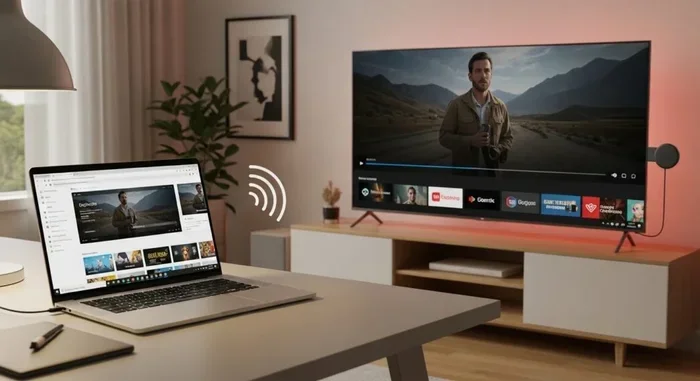
Yes, you can connect your laptop to TV wirelessly without any cables. Whether you use Chromecast, AirPlay, Miracast, or a smart TV’s built-in features, wireless screen mirroring is easy and fast. This guide walks you through every method so you can stream your laptop screen to your TV in minutes.
Have you ever wanted to watch something on a bigger screen but hated dealing with cables? Maybe you have a laptop full of photos, videos, or presentations, and you want to show them on your TV. The good news is that you can connect your laptop to TV wirelessly without spending a dime on extra wires. It is simpler than most people think, and this guide will show you exactly how.
Wireless laptop-to-TV connections have become incredibly popular. People use them for movie nights, work presentations, gaming, and sharing family photos. Whether you own a Windows laptop, a Mac, or a Chromebook, there is a wireless method that works for you. Connecting laptop to TV wirelessly gives you freedom, flexibility, and a much cleaner living space. No more tangled cords or limited seating positions.
In this article, we will cover every major method for wireless screen mirroring from your laptop to your TV. You will learn about Chromecast, AirPlay, Miracast, and built-in smart TV features. We will also share quick tips, common mistakes to avoid, and troubleshooting steps. By the end, you will know exactly which method fits your setup best.
Key Takeaways
- Multiple wireless options exist: Chromecast, AirPlay, Miracast, and built-in smart TV features let you cast without cables.
- No special hardware needed: Most modern laptops and TVs support wireless connections out of the box.
- Setup takes minutes: You can have your laptop screen on your TV in under 10 minutes with the right method.
- Wireless HDMI alternatives save money: Skip expensive cables and use free built-in tools like Miracast or AirPlay.
- Troubleshooting is simple: Most connection issues fix with a quick restart or Wi-Fi check.
- Quality has improved dramatically: Modern wireless projection delivers smooth, lag-free screen sharing.
📑 Table of Contents
- How Wireless Laptop-to-TV Connection Works
- Methods to Connect Your Laptop to TV Wirelessly
- Step-by-Step Guide to Casting Your Laptop Screen
- Troubleshooting Common Wireless Connection Issues
- Benefits of Going Wireless
- Quick Tips for the Best Wireless Experience
- Common Mistakes to Avoid
- Expert Insights on Wireless Laptop-to-TV Technology
- Comparison Table: Wireless Connection Methods
- Conclusion
How Wireless Laptop-to-TV Connection Works
Before diving into the methods, it helps to understand the basics. When you cast your laptop screen to your TV wirelessly, you are sending video and audio data over your home Wi-Fi network. Both devices need to be on the same network for this to work. Think of it like sharing a file between two phones, except the file is your entire screen.
There are different wireless display technologies that make this possible. Each one works slightly differently, but the end result is the same. Your TV shows what your laptop screen displays. Some methods mirror your screen exactly, while others let you cast specific apps or tabs.
The quality of your wireless connection depends on a few things. Your Wi-Fi speed matters a lot. A faster router means smoother streaming and less lag. The distance between your laptop and TV also plays a role. Walls and other obstacles can weaken the signal. But with a decent home network, most people get excellent results.
Wi-Fi Requirements for Wireless Screen Sharing
Here is what you need for a smooth Wi-Fi streaming experience:
- A dual-band or tri-band router (5 GHz is best for streaming)
- Both devices on the same Wi-Fi network
- At least 10 Mbps upload speed for 1080p content
- A stable connection with minimal interference
If your Wi-Fi is slow or unstable, your wireless display may lag or stutter. That is why checking your network before you start is always a smart move. A quick speed test on your phone can tell you a lot.
Methods to Connect Your Laptop to TV Wirelessly
Now let us get into the fun part. There are several ways to stream your laptop screen to your TV without cables. Each method has its own strengths, and some work better depending on your devices. Let us break them all down.
Using Chromecast to Connect Laptop to TV Wirelessly
Google Chromecast is one of the most popular ways to connect laptop to TV wirelessly. It is a small device that plugs into your TV’s HDMI port. Once set up, you can cast content from your laptop to your TV with just a few clicks. Chromecast works with Windows, Mac, and Chromebook laptops.
To use Chromecast, you need the Google Chrome browser on your laptop. Open Chrome, click the three-dot menu in the top right corner, and select “Cast.” Choose your Chromecast device, and your screen will appear on the TV. You can cast a specific tab, your entire desktop, or a file.
One of the best things about Chromecast is its simplicity. You do not need any extra software or drivers. The setup takes about five minutes. Wireless screen mirroring with Chromecast is smooth and reliable for most everyday tasks.
Using AirPlay for Apple Devices
If you use a MacBook or an iPad, AirPlay is your best friend for wireless display needs. Apple built AirPlay into macOS, so there is no extra hardware required if you have a compatible smart TV or Apple TV.
To use AirPlay, make sure your MacBook and TV are on the same Wi-Fi network. Click the Screen Mirroring icon in your Mac’s menu bar (it looks like two rectangles). Select your TV from the list, and your screen will appear instantly.
AirPlay offers excellent quality and very low latency. It is perfect for presentations, movie watching, and even light gaming. The only limitation is that it works best with Apple TVs or AirPlay-compatible smart TVs. If your TV does not support AirPlay natively, you can buy an Apple TV box for around $150.
Using Miracast for Windows Laptops
Windows laptops have a built-in feature called Miracast that lets you cast laptop to TV wirelessly. Miracast is a wireless standard built into most modern Windows PCs and many smart TVs. You do not need any extra dongles or apps if both devices support it.
To use Miracast on Windows, press the Windows key plus K on your keyboard. A panel will appear showing available devices. Select your TV, and your screen will start mirroring. It really is that simple.
Miracast works well for general use, but it is not ideal for high-resolution gaming or 4K video. The connection can sometimes drop if your Wi-Fi signal is weak. Still, for everyday tasks like browsing, streaming Netflix, or giving a presentation, Miracast is a solid choice.
Using a Wireless Display Adapter
If your TV does not have built-in wireless capabilities, a wireless display adapter is a great solution. These small USB-like devices plug into your TV’s HDMI port and connect to your laptop over Wi-Fi. Popular brands include Microsoft Wireless Display Adapter, Belkin Miracast, and Actiontec ScreenBeam.
A wireless adapter essentially turns any TV with an HDMI port into a smart, wireless-ready display. You get the same screen mirroring experience as a built-in smart TV. The adapter handles the wireless connection, and your laptop does the rest.
These adapters usually cost between $30 and $80. They are a budget-friendly option if you do not want to buy a Chromecast or Apple TV. Setup is straightforward, and most adapters work with both Windows and Mac laptops.
Using Smart TV Built-in Features
Most modern smart TVs come with built-in wireless screen sharing. Samsung TVs use Screen Mirroring, LG TVs use Smart Share, and Sony TVs use Screen Mirroring too. These features use DLNA and Miracast protocols to receive content from your laptop.
To use your TV’s built-in feature, open your TV’s input menu and look for “Screen Mirroring,” “Smart View,” or a similar option. Your TV will search for nearby devices. On your laptop, make sure Wi-Fi is on and both devices are on the same network. Your TV should appear as a casting target.
This method is incredibly convenient because you do not need any extra hardware. Just make sure your TV model supports wireless screen sharing. Most TVs made after 2018 have this feature built in.
Step-by-Step Guide to Casting Your Laptop Screen
Now let us walk through a quick setup process. Follow these steps to wirelessly project your laptop screen to your TV.
- Check compatibility: Make sure your laptop and TV both support wireless mirroring.
- Connect to the same Wi-Fi: Both devices must be on the same network.
- Choose your method: Pick Chromecast, AirPlay, Miracast, or your TV’s built-in feature.
- Enable screen mirroring: Use the method described above for your chosen technology.
- Adjust display settings: On Windows, go to Settings > Display > Extend or Duplicate. On Mac, go to System Settings > Displays.
- Test the connection: Open a video or image and check if it appears on your TV.
That is all it takes. Most people complete this setup in under ten minutes. Once it is working, you can cast laptop to TV anytime with just a few clicks.
Adjusting Display Settings for the Best Experience
After you connect, you may want to tweak your display settings. You can choose to duplicate your laptop screen (exact same image on both) or extend it (your TV becomes a second monitor). Extending your display is great for multitasking. You can watch a video on your TV while working on your laptop.
For the best picture quality, set your TV to its highest resolution. On Windows, right-click your desktop, select Display Settings, and choose the recommended resolution for your TV. On Mac, go to System Settings > Displays and select the TV display.
Troubleshooting Common Wireless Connection Issues
Sometimes things do not go as smoothly as we hope. Here are the most common problems people face when they connect laptop to TV wirelessly, along with simple fixes.
Laptop Not Finding the TV
If your laptop does not see your TV, the first thing to check is your Wi-Fi connection. Both devices must be on the same network. Try turning Wi-Fi off and back on on both devices. Restarting your router can also help. If you still have issues, make sure your TV’s wireless display feature is turned on and set to discoverable mode.
Lagging or Stuttering Screen
Lag during wireless projection is usually caused by a weak Wi-Fi signal or network congestion. Move your router closer to your TV if possible. Switch to the 5 GHz band instead of 2.4 GHz for faster speeds. Close any apps on your laptop that might be using bandwidth, like cloud sync services or streaming apps.
Audio and Video Out of Sync
This is a common issue with wireless mirroring. It happens because video and audio travel through different processing paths. To fix it, try reducing the resolution of your cast. Lowering from 1080p to 720p often resolves sync issues. You can also adjust the audio delay settings in your TV or adapter software.
Connection Keeps Dropping
If your wireless display connection drops frequently, interference may be the culprit. Other Wi-Fi devices, microwaves, and even baby monitors can interfere with the signal. Try changing your Wi-Fi channel in your router settings. Also, make sure your laptop and TV are not too far apart from each other.
Benefits of Going Wireless
Switching from wired to wireless connections offers many advantages. Here is why more and more people are choosing to stream their laptop screen to their TV without cables.
- No cable clutter: Your living room or office stays clean and organized. No more unsightly HDMI cables running across the floor.
- Freedom of movement: You can sit anywhere in the room and still control what appears on your TV. Walk around, stretch, or even use your laptop from the couch.
- Multi-device support: Wireless connections work with laptops, tablets, and phones. One setup serves all your devices.
- Quick setup: Most wireless methods take less than five minutes to configure. No tools, no cables, no hassle.
- Cost savings: You do not need to buy expensive HDMI cables or adapters. Most wireless features are built into your devices for free.
- Better for presentations: Wireless casting makes business presentations more flexible. You can move around the room and interact with your audience.
Overall, wireless laptop-to-TV connections make your entertainment and work setup more flexible and enjoyable. Once you try it, going back to cables feels like a step backward.
Quick Tips for the Best Wireless Experience
Here are some practical tips to make sure your wireless screen mirroring works flawlessly every time.
- Use a 5 GHz Wi-Fi band: It is faster and less crowded than the 2.4 GHz band.
- Keep devices close: The closer your laptop is to the router, the stronger the signal.
- Close unused apps: Background apps can eat up bandwidth and cause lag.
- Update your software: Keep your laptop, TV, and router firmware up to date for the best performance.
- Restart devices regularly: A simple restart can fix most minor connection issues.
- Use an ethernet backhaul: If your router supports it, connect it to your modem via ethernet for a more stable Wi-Fi signal.
Common Mistakes to Avoid
Even with the best setup, some mistakes can ruin your wireless display experience. Here are the ones to watch out for.
- Not checking Wi-Fi compatibility: Some older routers do not support the demands of wireless screen casting. Make sure your router is modern enough.
- Using 2.4 GHz for streaming: The 2.4 GHz band is slower and more prone to interference. Always prefer 5 GHz when possible.
- Ignoring software updates: Outdated software can cause compatibility issues. Keep everything updated.
- Casting over a public network: Public Wi-Fi networks often block device-to-device connections. Use your home network for the best results.
- Forgetting to enable screen mirroring on the TV: Your TV must be set to receive a wireless signal. Check your TV’s input or settings menu.
Avoiding these mistakes will save you a lot of frustration and help you get the most out of your wireless laptop-to-TV setup.
Expert Insights on Wireless Laptop-to-TV Technology
According to tech experts, the quality of wireless projection has improved dramatically in recent years. Early wireless display solutions suffered from noticeable lag and poor image quality. Today’s technology delivers near-wireless-HDMI performance in most cases.
Industry analysts point out that the rise of smart TVs has made built-in wireless casting standard. Almost every TV sold today supports some form of wireless screen sharing. This means you likely do not need to buy any extra hardware to get started.
Tech reviewers also recommend using a dedicated streaming device like Chromecast or Apple TV for the most reliable experience. Built-in TV features can sometimes be finicky, while dedicated devices offer polished, consistent performance. If you want the smoothest wireless display experience, a streaming stick or box is worth the investment.
Comparison Table: Wireless Connection Methods
| Method | Best For | Devices Supported | Quality | Cost |
|---|---|---|---|---|
| Chromecast | Chrome browser users | Windows, Mac, Chromebook | Good (1080p) | $35+ |
| AirPlay | Mac and Apple TV users | Mac, iPad, iPhone | Excellent | Free (with Apple TV) |
| Miracast | Windows laptop users | Windows PCs, Miracast TVs | Good (1080p) | Free (built-in) |
| Wireless Display Adapter | Non-smart TVs with HDMI | Windows, Mac, Chromebook | Good (1080p) | $30-$80 |
| Smart TV Built-in | Users with compatible smart TVs | Windows, Mac, Chromebook | Varies | Free |
As you can see, there is a method for every budget and device combination. Pick the one that matches your setup and start enjoying wireless screen mirroring today.
Conclusion
Connecting your laptop to TV wirelessly without cables is easier than most people think. You have many options at your fingertips, from built-in features like AirPlay and Miracast to affordable devices like Chromecast and wireless adapters. No matter what devices you own, there is a wireless display solution that works for you.
The key is to choose the right method for your setup, ensure both devices are on the same Wi-Fi network, and follow the simple steps outlined in this guide. With a little patience during setup, you will enjoy the freedom and convenience of wireless screen sharing every single day.
So go ahead and try it. Cast your laptop screen to your TV tonight and experience the difference. Once you see how easy and enjoyable wireless streaming can be, you will wonder why you ever relied on cables in the first place.
Frequently Asked Questions
Can I connect my laptop to TV wirelessly for free?
Yes, you can. Most modern laptops and smart TVs have built-in wireless features that cost nothing extra. Methods like Miracast for Windows and AirPlay for Mac work without any additional hardware. You only need a stable Wi-Fi connection and devices that support wireless screen sharing.
What is the best way to connect laptop to TV wirelessly?
The best method depends on your devices. For Windows laptops, Miracast or a wireless display adapter works great. For Mac users, AirPlay is the top choice. For general use, Chromecast is one of the most popular and reliable options. All of these methods deliver excellent wireless screen mirroring quality.
Does wireless laptop-to-TV connection have lag?
Modern wireless connections have very minimal lag for most uses. You may notice slight delay during fast-action gaming or video calls. For movies, presentations, and general browsing, the experience is smooth and responsive. Using a 5 GHz Wi-Fi band reduces lag significantly.
Can I use Bluetooth to connect my laptop to TV?
Bluetooth is not ideal for screen mirroring because it has limited bandwidth. You can use Bluetooth to connect wireless headphones or speakers to your TV, but for screen sharing, Wi-Fi-based methods like Chromecast, AirPlay, or Miracast work much better. Wi-Fi streaming delivers far superior video and audio quality compared to Bluetooth.
Do I need a smart TV to connect my laptop wirelessly?
No, you do not. If your TV has an HDMI port, you can use a wireless display adapter to add wireless capabilities. These adapters plug into your TV’s HDMI port and create a wireless connection with your laptop. You can also use devices like Chromecast or Apple TV to make any TV wireless-ready.
Is wireless screen mirroring safe and secure?
Yes, wireless screen mirroring is generally safe. Most methods use your home Wi-Fi network, which is protected by your router’s password. AirPlay and Chromecast also use encrypted connections. To stay safe, avoid casting over public Wi-Fi networks and keep your devices updated with the latest security patches.