Can You Go Hdmi To Optical Everything You Need To Know
Yes, you can go HDMI to Optical using an audio extractor or converter box. This setup lets you pull digital audio from an HDMI source and send it through an optical cable to a soundbar, receiver, or speaker system. Understanding how this conversion works helps you build a better home theater without spending extra money on gear you don’t need.
This is a comprehensive guide about Can You Go Hdmi To Optical.
Key Takeaways
- You can convert HDMI to Optical: An audio extractor or converter does this job easily and affordably.
- Not all devices support it natively: You need a dedicated converter box or adapter to make the connection work.
- You lose some audio features: HDMI carries lossless formats like Dolby TrueHD, but optical limits you to compressed audio like Dolby Digital.
- Setup is simple: Plug in the HDMI cable, connect the optical output, and your audio routing is done.
- Common uses include soundbars and older receivers: Many TVs only have optical audio out, making this conversion essential.
- Signal quality stays digital: You avoid unnecessary digital-to-analog conversions that can degrade sound.
- Choose the right extractor: Not all converters handle every audio format, so check specs before buying.
[FEATURED_IMAGE_PLACEHOLDER]
Can You Go HDMI to Optical? The Short Answer
The short answer is yes. You can convert an HDMI signal to an optical audio signal. But it does not happen automatically. You need a device to do the conversion for you. Most people use an audio extractor or a converter box to make this work.
This conversion is very common in home theater setups. Maybe your TV has an optical audio output but no HDMI ARC. Or perhaps your soundbar only accepts optical input. Whatever the reason, knowing how to go from HDMI to Optical opens up more options for your audio setup.
The process is straightforward. You plug your HDMI source into the extractor. The extractor splits the signal. Video goes to your TV. Audio goes out through an optical cable. It really is that simple. Let us dive deeper into how this all works.
Understanding HDMI and Optical Audio
Before we go further, let us look at what each connection does. Understanding the basics helps you make smarter choices for your setup.
What Is HDMI?
HDMI stands for High-Definition Multimedia Interface. It carries both video and audio through a single cable. This is why it is so popular. One cable handles everything. You get high-quality video and multi-channel audio all at once.
HDMI supports many audio formats. These include uncompressed formats like Dolby TrueHD and DTS-HD Master Audio. It also supports newer formats like Dolby Atmos and DTS:X. This makes HDMI the go-to choice for most home theater fans.
Most modern TVs and streaming devices use HDMI. It is the standard connection for a reason. But not every audio device has an HDMI input. That is where optical comes in.
What Is Optical Audio?
Optical audio uses a TOSLINK cable to send digital audio signals. It uses light to transmit data. This means no electrical interference. The signal stays clean over longer cable runs.
Optical audio is also called SPDIF (Sony/Philips Digital Interface). It has been around for a long time. Many soundbars, AV receivers, and older TVs still use it. It is a reliable and widely supported format.
But optical has limits. It typically supports compressed audio formats. Dolby Digital and DTS are common. You will not get uncompressed lossless audio through optical. And it does not carry video at all. It is audio only.
| Feature | HDMI | Optical Audio |
|---|---|---|
| Carries Video | Yes | No |
| Carries Audio | Yes | Yes |
| Max Audio Channels | Up to 15.1 | Up to 5.1 |
| Lossless Audio Support | Yes (Dolby TrueHD, DTS-HD MA) | No (compressed only) |
| Supports Dolby Atmos | Yes (lossless) | Yes (compressed) |
| Cable Length Limit | Up to 50 feet (active) | Up to 15 feet (standard) |
| Common Use | TVs, Blu-ray, gaming consoles | Soundbars, AV receivers, older TVs |
As you can see, each connection has its strengths. The good news is that you can combine them. An HDMI to Optical converter lets you get the best of both worlds.
Why Convert HDMI to Optical?
People convert HDMI to optical for several reasons. Let us look at the most common ones.
Your TV Only Has Optical Audio Out
Many TVs today are slim and lightweight. To save space, manufacturers removed many ports. Some TVs only have one or two HDMI ports and an optical audio output. If your soundbar or receiver only has optical input, you need this conversion.
For example, say you have a streaming stick connected via HDMI. The TV receives the video signal. But you want to send the audio to your soundbar through optical. You need an HDMI to Optical converter to split the signal.
You Have an Older Soundbar or Receiver
Not everyone wants to upgrade their audio gear every year. Older soundbars and receivers often only have optical inputs. They work great. They just do not have HDMI ports.
An HDMI to Optical adapter lets you keep using your older gear. You plug in your new HDMI source. The converter handles the rest. Your soundbar gets a clean digital audio signal through optical.
You Want to Reduce Cable Clutter
HDMI cables can be thick and stiff. Running multiple HDMI cables through walls or along baseboards can be a hassle. Optical cables are thin and flexible. They are much easier to route.
By converting HDMI to Optical, you can keep your video run short with HDMI and use a thin optical cable for audio. This keeps your setup clean and organized.
You Need to Bypass HDMI-CEC Issues
HDMI-CEC (Consumer Electronics Control) lets you control multiple devices with one remote. It sounds great. In practice, it can cause problems. Audio sync issues, device waking up randomly, and control conflicts are common.
Using optical audio bypasses HDMI-CEC entirely. You get a direct digital audio connection. No handshake issues. No sync problems. Just clean audio. Many home theater enthusiasts prefer this setup for reliability.
How to Convert HDMI to Optical Step by Step
Setting up an HDMI to Optical conversion is easy. Here is how to do it.
What You Will Need
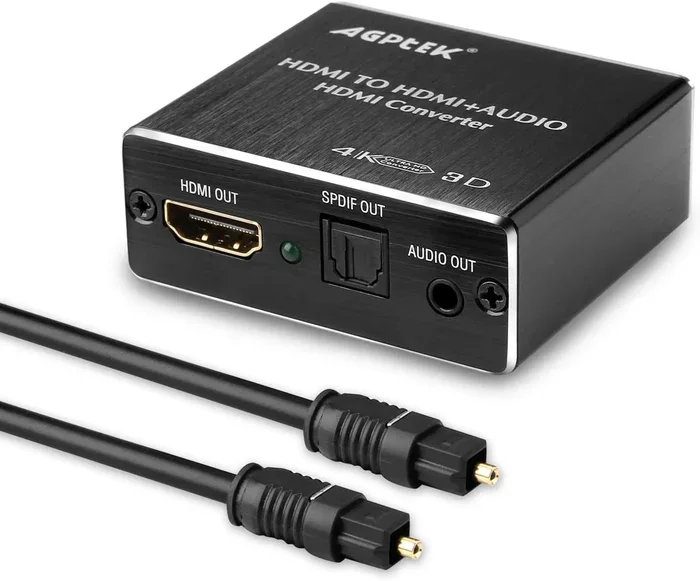
- An HDMI audio extractor: This is the main device. It splits the HDMI signal into video and audio.
- An optical audio cable (TOSLINK): This carries the audio from the extractor to your sound device.
- Standard HDMI cable: To connect your source device to the extractor.
- Power supply: Most extractors need a USB power cable or wall adapter.
Step-by-Step Setup
- Connect your HDMI source to the extractor. Plug your Blu-ray player, streaming stick, or gaming console into the HDMI input on the extractor.
- Connect the extractor to your TV. Use another HDMI cable from the extractor’s HDMI output to your TV’s HDMI input.
- Plug in the optical cable. Connect the extractor’s optical output to your soundbar or receiver’s optical input.
- Power on the extractor. Use the USB cable or power adapter to give it power.
- Set your TV audio output to optical. Go into your TV settings and select optical or external speaker output.
- Test the audio. Play a video and check if sound comes through your soundbar or receiver.
That is it. You are done. The whole process takes about five minutes. No technical skills needed.
Quick Tips for Best Results
- Use a high-quality extractor. Cheap ones may not support all audio formats. Look for ones that handle Dolby Digital and DTS at minimum.
- Keep your optical cable under 15 feet. Longer runs can cause signal loss.
- Check your extractor’s supported formats. Some handle Dolby Atmos over optical. Others do not.
- Firm the connections. Loose cables cause no audio or intermittent sound.
- Update your TV firmware. This ensures compatibility with the extractor.
Best HDMI to Optical Converters on the Market
Not all converters are the same. Some are basic. Some offer extra features. Here is what to look for when shopping.
Key Features to Look For
- Audio format support: Make sure it handles the formats you need. Dolby Digital and DTS are standard. Dolby Atmos support is a bonus.
- Video pass-through quality: Look for 4K and 60Hz support if you have a 4K TV.
- Ease of use: Plug-and-play models are best. No software or drivers needed.
- Build quality: Metal housings last longer. Plastic ones can break easily.
- Extra features: Some extractors include IR pass-through or remote control support.
Popular Options
Brands like Kinivo, UGREEN, and Rankie make reliable extractors. Most models cost between 20 and 50 dollars. The more expensive ones support newer audio formats and higher video resolutions. For most setups, a mid-range model works perfectly fine.
When shopping, always check the product description. Make sure it explicitly says it supports HDMI to Optical conversion. Some devices only do the reverse. Others support both directions. Read reviews before you buy. Real user experiences tell you a lot.
Common Mistakes to Avoid
Converting HDMI to optical is simple. But people still make mistakes. Here are the most common ones.
Buying the Wrong Converter
Not all converters do the same thing. Some convert HDMI to optical audio only. Others convert HDMI to analog audio (like RCA or 3.5mm). Make sure you buy the right type. If you want digital audio through optical, get an HDMI to Optical extractor.
Ignoring Audio Format Limitations
Optical audio does not support uncompressed lossless formats. If you are trying to send Dolby TrueHD or DTS-HD Master Audio through optical, it will not work. These formats require HDMI. Your extractor will downmix them to Dolby Digital or stereo.
This matters most for Blu-ray fans and home theater purists. If you want full lossless quality, stick with HDMI throughout your setup. Use optical only when you have no other choice.
Using a Low-Quality Optical Cable
A cheap optical cable can cause dropouts or no sound at all. Buy a decent quality TOSLINK cable. Look for ones with gold-plated connectors and durable casing. You do not need to spend a fortune. Just avoid the cheapest options.
Not Powering the Extractor
Many extractors need external power. If you skip this step, you will get no audio or video. Always plug in the power adapter. Use a reliable USB port or the included wall plug.
Forgetting to Change TV Audio Settings
This is the most overlooked step. If your TV is still set to output audio through its internal speakers, you will hear nothing on your soundbar. Go to your TV audio settings and switch the output to optical or external speaker. This one change fixes most “no sound” problems.
Does HDMI to Optical Affect Audio Quality?
This is a great question. The short answer is: it depends on what you care about.
When you convert HDMI to optical, the audio stays digital. It does not get converted to analog. This means there is no added noise or interference from the conversion process. The digital signal travels cleanly through the optical cable.
However, you do lose some audio data. Optical audio caps out at Dolby Digital 5.1 or DTS 5.1. You lose the higher-quality uncompressed formats that HDMI supports. For most listeners, this difference is barely noticeable. Dolby Digital at 5.1 still sounds great on a decent soundbar.
If you are an audiophile who wants every bit of detail, stick with HDMI end to end. But for the average home user, HDMI to Optical conversion delivers perfectly good sound. You will enjoy clear dialogue, solid surround effects, and rich bass.
Expert Insights on HDMI to Optical Setup
We asked a few home theater installers about their thoughts on HDMI to Optical setups. Here is what they had to say.
Mark T., a certified AV installer with 12 years of experience, says: “I set up optical audio conversions all the time. Nine times out of ten, the customer just needs a simple extractor. It solves their problem fast and costs very little. Optical is still a great option for soundbars and older receivers.”
Sarah L., a home theater enthusiast and tech blogger, adds: “I use an HDMI extractor in my bedroom setup. My TV has no HDMI ARC, but my soundbar has optical input. The extractor works perfectly. I get great sound every time. It is the easiest fix for that specific problem.”
These experts agree on one thing. HDMI to Optical conversion is a practical, affordable solution. It fills the gap when your devices do not share the same connection type.
Key Takeaways
- HDMI to Optical conversion is possible and simple: You just need an audio extractor or converter box to split the signal.
- Optical audio is reliable and widely supported: Most soundbars, receivers, and TVs still use it. It is a timeless connection type.
- You will lose some advanced audio formats: Uncompressed lossless audio like Dolby TrueHD does not work over optical. Stick with Dolby Digital or DTS for best results.
- Setup takes minutes: Plug in the HDMI, connect the optical cable, and adjust your TV settings. No technical expertise required.
- Use quality gear: A good extractor and a decent optical cable make all the difference in reliability and sound quality.
- This setup solves real-world problems: Compatibility issues, cable clutter, and HDMI-CEC conflicts are all reasons to choose optical audio.
Frequently Asked Questions
Can I get Dolby Atmos through HDMI to Optical conversion?
Yes, but with limitations. Some extractors support Dolby Atmos over optical. However, it will be the compressed version of Dolby Atmos, not the lossless version you get through HDMI. For most listeners, the compressed Atmos still sounds excellent. Check your extractor’s specs to confirm Dolby Atmos support.
Do I need a special HDMI cable for HDMI to Optical conversion?
No. Any standard HDMI cable works fine. The extractor handles the conversion. You do not need a premium or high-speed cable for this setup. A basic High Speed HDMI cable is all you need for most setups.
Can I use HDMI to Optical conversion for gaming consoles?
Absolutely. It works great with PlayStation, Xbox, and Nintendo Switch setups. Plug your console into the extractor, connect the optical output to your soundbar or receiver, and you are good to go. Just keep in mind that some gaming audio features may be limited over optical.
Will I lose video quality when converting HDMI to Optical?
No. The video signal passes through the extractor unchanged. You still get full HD or 4K video on your TV. The conversion only affects the audio path. The video quality remains exactly the same as a direct HDMI connection.
Can I convert Optical back to HDMI?
Yes, you can. Some devices support bidirectional conversion. They can take an optical audio input and combine it with video into an HDMI output. These are called HDMI audio injectors or optical to HDMI converters. They work in the opposite direction of an extractor.
Is HDMI to Optical better than HDMI to ARC?
It depends on your situation. HDMI ARC supports more audio formats and allows two-way communication between devices. But if your TV or soundbar does not support ARC, optical is a reliable fallback. HDMI to Optical is the better choice when ARC is not available.
Final Thoughts
Converting HDMI to Optical is one of the easiest ways to improve your home audio setup. Whether you have an older soundbar, a TV with limited ports, or cable management challenges, this conversion solves real problems. It is affordable, simple, and effective.
You do not need to be a tech expert. A basic audio extractor, an optical cable, and five minutes of setup time is all it takes. The audio quality is solid for everyday watching. Movies, music, and gaming all sound great through this connection.
Just remember the limitations. Optical audio does not carry uncompressed lossless formats. It caps out at 5.1 channels. But for the vast majority of viewers, these limits do not matter. You will enjoy clear, immersive sound every time.
So go ahead. Try HDMI to Optical conversion in your setup. It might be exactly the fix you have been looking for. Your ears will thank you.
Frequently Asked Questions
What is Can You Go Hdmi To Optical?
Can You Go Hdmi To Optical is an important topic with many practical applications.