Can Apple Usb C Be Used For Display And Why It Matters
Yes, Apple USB-C can absolutely be used for display output. Modern MacBooks, Mac Minis, and iPads with USB-C ports support video output to external monitors through USB-C and Thunderbolt connections. Understanding your options helps you choose the right cable, adapter, or docking station for a seamless setup.
Can Apple USB C be used for display? The short answer is yes. If you own a modern Apple device, there is a strong chance your USB-C port can send video to an external monitor. This is great news for anyone who wants a bigger screen, a second display, or a full workstation setup without extra clutter.
Apple made the switch to USB-C a few years ago, and since then, almost every new MacBook, Mac Mini, and iPad Pro uses this single connector for charging, data transfer, and video output. That means one cable can do the job of three or four older cables. But not all USB-C cables are the same, and not every setup works perfectly right out of the box.
In this guide, we will walk through everything you need to know about using Apple USB-C for display. We will cover which devices support it, how to set it up, what cables and adapters you need, and common problems you might run into. Whether you are connecting a single monitor or building a multi-display setup, this article has you covered.
Key Takeaways
- Apple USB-C supports display output: Most modern Apple devices with USB-C ports can connect to external monitors and displays.
- Thunderbolt 3 and Thunderbolt 4 offer the best display performance, including high resolutions and refresh rates.
- You need the right cable or adapter: Not all USB-C cables support video. Make sure yours is rated for display output.
- Docking stations simplify multi-monitor setups: A quality USB-C hub lets you connect multiple displays with one cable.
- Common issues like no signal or flickering are usually easy to fix with the right cable or adapter.
- USB-C displays are used across industries: From creative workstations to medical imaging setups, USB-C connectivity is versatile.
📑 Table of Contents
- What Is Apple USB-C and Why Does It Matter for Displays
- Can Apple USB-C Connect to External Monitors
- Which Apple Devices Support USB-C Display Output
- Setting Up Your USB-C Display the Right Way
- Common Problems and How to Fix Them
- USB-C Displays in Professional and Creative Work
- Quick Tips for the Best USB-C Display Experience
- Common Mistakes to Avoid
- Expert Insights on Apple USB-C Display Connectivity
- Key Takeaways
- Conclusion
What Is Apple USB-C and Why Does It Matter for Displays
USB-C is a small, reversible connector that has become the standard for many devices. Apple started using it on the MacBook in 2015 and has expanded it across nearly its entire product line. The connector is tiny, oval-shaped, and can be plugged in either way, which makes it much more user-friendly than older USB types.
The USB-C Connector Explained
USB-C is not just one thing. It is a connector shape that can carry different types of data and power. A USB-C port can handle USB 3.0, USB 3.1, USB 3.2, Thunderbolt 3, or Thunderbolt 4, depending on the hardware inside. When it comes to display output, the protocol matters a lot.
Here is a quick look at what each protocol can do for display connections:
- USB 3.0 and 3.1: These older USB-C standards do not always carry video. You may need a special adapter.
- USB 3.2: Supports video output through DisplayPort Alt Mode on many devices.
- Thunderbolt 3: Supports video output natively. Can drive a 4K display at 60Hz or two 4K displays at 30Hz.
- Thunderbolt 4: The latest standard. Supports dual 4K displays at 60Hz or a single 8K display.
When you are shopping for cables or adapters, always check which protocol your device supports. This is the single most important factor for getting a reliable display connection.
How Apple Adopted USB-C for Display Output
Apple was one of the first major laptop makers to move away from HDMI, DisplayPort, and MagSafe all at once. The 2016 MacBook Pro was a turning point. It only had USB-C ports, which meant users needed adapters or docks to connect to projectors, monitors, and TVs.
At first, many people complained. But over time, the industry caught up. USB-C monitors became widely available, and adapters improved dramatically. Today, Apple USB-C for display is a well-supported and reliable feature across the board.
Can Apple USB-C Connect to External Monitors
Yes, Apple USB-C can connect to external monitors in several ways. The method you choose depends on your device, the monitor you own, and the kind of experience you want. Let us break down the main options.
Supported Display Protocols
Most modern Apple devices support DisplayPort Alt Mode over USB-C. This means the USB-C port can natively send a video signal to a compatible display. You do not always need extra hardware. A direct USB-C to USB-C cable can work if your monitor has a USB-C input.
For monitors with HDMI or DisplayPort inputs, you will need a simple adapter or cable. The good news is that Apple sells official adapters, and there are many reliable third-party options available too.
Maximum Resolution and Refresh Rates
The resolution and refresh rate you can achieve depend on your device and the USB-C protocol it uses. Here is a general breakdown:
- Thunderbolt 3 devices: Single 4K display at 60Hz or dual 4K at 30Hz.
- Thunderbolt 4 devices: Single 4K at 120Hz, dual 4K at 60Hz, or single 8K at 60Hz.
- USB 3.2 devices with DisplayPort Alt Mode: Single 4K at 60Hz.
- Older USB-C devices: May be limited to 1080p or lower.
These numbers can vary, so always check your specific device specifications. Apple’s support pages list the exact display support for each model.
Which Apple Devices Support USB-C Display Output
Not every Apple device has USB-C, and not every USB-C Apple device supports video output. Here is a look at the main devices that can use Apple USB-C for display purposes.
MacBook Pro Models
All MacBook Pro models from 2016 onward use USB-C or Thunderbolt ports. The newer models with M1, M2, and M3 chips support excellent display output. The MacBook Pro 14-inch and 16-inch models can drive up to two external displays, depending on the chip generation.
For example, an M3 Pro MacBook Pro can support up to two external displays natively. The M3 Max chip pushes this even further with support for more displays and higher resolutions. If you are a professional who needs multiple screens, the MacBook Pro line is a strong choice.
MacBook Air and Mac Mini
The MacBook Air also supports USB-C display output, though with some limitations. Most MacBook Air models can drive one external display. The M2 and M3 MacBook Air models support one external display natively, and some configurations allow two when the laptop lid is closed.
The Mac Mini is another excellent option. It has multiple USB-C ports on the back, and most models support at least one external display. The Mac Mini with M2 Pro or M2 Max chips can drive two or more external monitors, making it a great desktop alternative.
iPad Pro and Other Apple Devices
The iPad Pro with USB-C can also connect to external displays. The iPad Pro M4 chip supports one external display up to 4K. This makes it a surprisingly capable portable monitor or presentation device.
Other Apple devices like the iPad Air and iPad Mini also have USB-C, but their display output support varies. Always double-check before buying an adapter or cable.
Setting Up Your USB-C Display the Right Way
Getting your Apple USB-C display set up is straightforward, but a few tips can save you time and frustration. Let us walk through the most common setup methods.
Direct Cable Connection
The simplest setup is a direct USB-C cable from your Mac or iPad to a USB-C monitor. Just plug one end into your Apple device and the other into the monitor. The display should be detected automatically.
Make sure your cable is rated for data and video. A charge-only USB-C cable will not carry a video signal. Look for cables labeled as USB-C with Thunderbolt or data transfer support.
Using a Docking Station or Hub
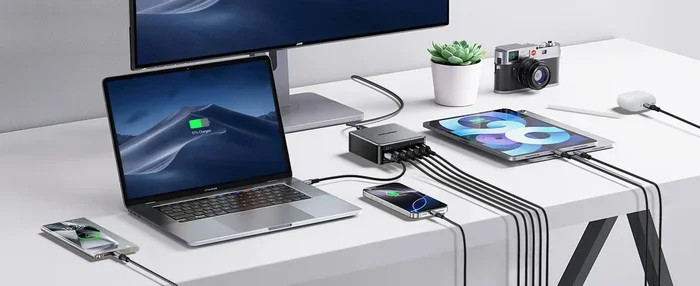
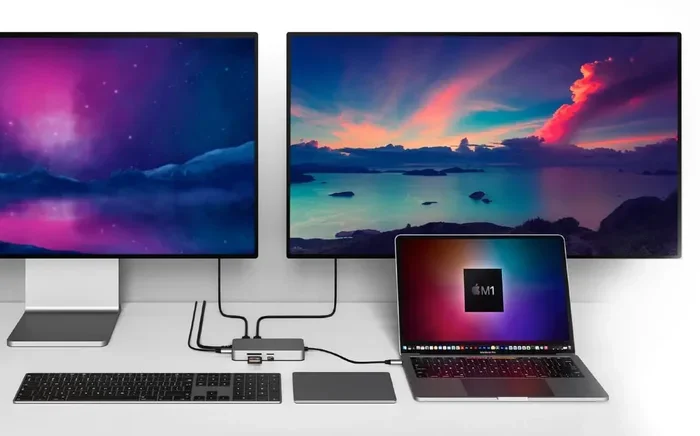
If you need multiple ports or multiple displays, a USB-C docking station is your best friend. A good dock lets you connect your laptop to monitors, keyboards, mice, and ethernet all at once.
When choosing a docking station, look for these features:
- Thunderbolt 3 or 4 support for the best performance.
- Multiple display outputs if you need more than one monitor.
- Power delivery so your laptop charges while connected.
- USB-A and USB-C ports for connecting peripherals.
Popular brands like CalDigit, Anker, and Belkin make reliable USB-C hubs that work well with Apple devices. A docking station turns your laptop into a full desktop setup with minimal effort.
Adapter Options You Should Know About
If your monitor does not have a USB-C input, you will need an adapter. Apple sells a USB-C to HDMI adapter and a USB-C to DisplayPort adapter. These work reliably and are well worth the investment.
Here are the most common adapter types you might need:
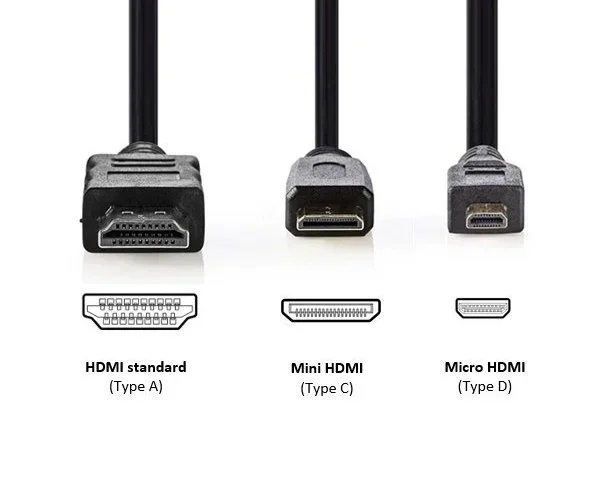
- USB-C to HDMI: Connects to most TVs and HDMI monitors.
- USB-C to DisplayPort: Ideal for PC-style monitors with DisplayPort inputs.
- USB-C to VGA: For older projectors and monitors, though quality may be limited.
- USB-C Multiport Adapter: Adds HDMI, USB-A, and SD card slots in one compact device.
Always buy adapters from reputable brands. Cheap adapters can cause flickering, low resolution, or no signal at all.
Common Problems and How to Fix Them
Even with the right setup, you might run into issues. Most USB-C display problems have simple solutions. Here are the most common ones and how to fix them.
No Signal Issues
If your external monitor shows no signal, the first thing to check is the cable. Try a different USB-C cable that is rated for data and video. A charge-only cable is the most common culprit.
Next, check your display settings on the Mac. Go to System Settings, then Displays, and see if the external monitor is detected. If it is not, try unplugging the cable and plugging it back in. Sometimes the port needs a fresh connection.
Flickering and Resolution Problems
Flickering screens or incorrect resolution are often caused by an incompatible cable or adapter. Make sure your cable supports the resolution you are trying to use. A 4K cable is different from a 1080p cable.
You can also try adjusting the refresh rate in your display settings. If your monitor supports 60Hz but your Mac is set to 30Hz, the image may appear dim or flicker. Match the settings to your monitor’s capabilities.
Another quick fix is to reset the NVRAM on your Mac. This clears small settings that can sometimes interfere with display output. Simply restart your Mac and hold Option + Command + P + R for about 20 seconds.
USB-C Displays in Professional and Creative Work
USB-C display connectivity has become essential in many professional fields. The ability to send high-quality video through a single cable simplifies setups and reduces cable clutter. This matters in environments where reliability and image quality are critical.
Medical and Healthcare Applications
In healthcare settings, USB-C connected displays play a growing role. Medical computers and imaging workstations often rely on clean, simple connections. The shift toward USB-C in medical devices means fewer cables, fewer adapter failures, and easier maintenance.
For professionals working with medical imaging systems, the ability to connect high-resolution displays through a single USB-C cable is a real advantage. The same connectivity principles that make Apple USB-C versatile for everyday use also apply in specialized environments. In fact, many modern medical computing setups benefit from the same USB-C connectivity standards that power consumer devices. You can explore 10 ways computers are used in medicine to understand how deeply integrated computing has become in healthcare settings, and USB-C connectivity plays a role in many of those applications.
Radiology departments, for example, use high-resolution monitors to view medical images. USB-C allows these displays to connect to workstations with minimal cabling, which reduces the risk of connection issues in critical environments.
Video Editing and Design Work
Creative professionals benefit greatly from USB-C display setups. Video editors need accurate color reproduction and high resolution. USB-C connections through Thunderbolt 3 or 4 deliver both, often with the added benefit of powering the laptop through the same cable.
Graphic designers also rely on external monitors for color grading and detailed work. A USB-C dock with a DisplayPort connection can deliver a color-accurate signal to professional-grade monitors without any compression or quality loss.
The key takeaway is that Apple USB-C for display is not just a convenience feature. It is a professional tool that enables high-quality, reliable connectivity across many industries.
Quick Tips for the Best USB-C Display Experience
Here are some practical tips to get the most out of your Apple USB-C display setup:
- Use certified cables: Look for USB-IF certified or Thunderbolt certified cables to ensure compatibility.
- Keep cables short: Longer cables can degrade signal quality, especially at high resolutions.
- Update your software: macOS updates often include display driver improvements. Keep your system up to date.
- Test your setup early: Before an important presentation or project deadline, test your display connection to avoid surprises.
- Invest in a good dock: A quality Thunderbolt dock can save you from buying multiple adapters and cables.
Common Mistakes to Avoid
Avoid these common mistakes when setting up your Apple USB-C display:
- Using a charge-only cable: This is the number one cause of “no signal” issues. Always use a data and video-capable cable.
- Ignoring cable length limits: Passive USB-C cables longer than 2 meters may not support 4K at 60Hz.
- Buying cheap adapters: Low-quality adapters can cause flickering, color issues, or no signal. Stick with reputable brands.
- Not checking your Mac model: Not every Mac supports the same number of external displays. Check Apple’s support page for your specific model.
- Forgetting to close the laptop lid: On some Mac models, you must close the lid to use an external display as the primary screen.
Expert Insights on Apple USB-C Display Connectivity
According to Apple’s own technical support documentation, USB-C ports on MacBooks and Mac Minis are designed to support display output as a core feature. The company recommends using certified cables and adapters for the best experience.
Technology experts also point out that Thunderbolt 4 is the future of USB-C display connectivity. It offers backward compatibility with older devices while providing the best performance for new ones. If you are buying new cables or docks, Thunderbolt 4 is the way to go.
One thing many users overlook is the importance of the display’s input settings. Some monitors have multiple input ports, and you need to manually select the correct input source after connecting. This sounds obvious, but it is one of the most common reasons a new display setup does not work right away.
Key Takeaways
- Apple USB-C fully supports display output: Modern MacBooks, Mac Minis, and iPads can all connect to external monitors through USB-C.
- Thunderbolt 3 and Thunderbolt 4 deliver the best performance: They support high resolutions, high refresh rates, and multiple displays.
- The right cable and adapter make all the difference: Always use certified, video-capable cables and reputable adapters.
- Docking stations simplify complex setups: A single Thunderbolt dock can power your laptop and connect multiple displays and peripherals.
- Most problems have simple fixes: No signal, flickering, and resolution issues are usually solved by checking cables, adapters, or display settings.
- USB-C displays serve professionals across industries: From creative workstations to healthcare imaging, USB-C connectivity is versatile and reliable.
Conclusion
So, can Apple USB-C be used for display? Absolutely. It is one of the most useful features of modern Apple devices. Whether you are connecting a single external monitor for more workspace, setting up a dual-display creative studio, or building a professional workstation, Apple USB-C makes it possible with a single, versatile connector.
The key is understanding your device’s capabilities and choosing the right cables, adapters, and docking stations. With the right setup, you get a clean, efficient workspace that delivers excellent image quality and reliable performance.
Take some time to explore your options. Check your device specifications, invest in quality accessories, and test your setup before you need it most. Once you experience the simplicity of Apple USB-C for display, you will wonder how you ever managed with multiple cables and adapters.
The future of connectivity is USB-C. Embrace it, and your Apple devices will work harder, smarter, and more seamlessly than ever before.
Frequently Asked Questions
Can I connect a 4K monitor to my MacBook Pro using USB-C?
Yes, most MacBook Pro models with Thunderbolt 3 or Thunderbolt 4 can drive a 4K monitor at 60Hz through a direct USB-C cable or a compatible adapter. Check your specific model to confirm the number of external displays it supports.
Do I need a special cable to use USB-C for display on a Mac?
You need a USB-C cable that supports data and video transfer. A charge-only cable will not carry a display signal. Look for cables labeled as Thunderbolt or data-capable USB-C for the best results.
Can I use a USB-C hub with my MacBook Air for an external display?
Yes, a USB-C hub or docking station works great with MacBook Air models that have USB-C ports. Make sure the hub supports video output and matches the display protocol your monitor uses, such as HDMI or DisplayPort.
Why does my external monitor show no signal when connected to my Mac?
The most common reason is using a charge-only USB-C cable. Try a different cable that supports data transfer. Also check your display settings in System Settings to see if the monitor is detected, and make sure the monitor input source is set correctly.
Can I use USB-C to connect my iPad Pro to an external monitor?
Yes, iPad Pro models with USB-C can connect to external monitors. The M4 iPad Pro supports one external display up to 4K. You can use a direct USB-C cable or an adapter depending on your monitor’s input options.
Is Thunderbolt 4 better than Thunderbolt 3 for display output?
Thunderbolt 4 offers improved display support compared to Thunderbolt 3. It can handle dual 4K displays at 60Hz and single 8K displays, while Thunderbolt 3 is generally limited to dual 4K at 30Hz or a single 4K at 60Hz. For the best display experience, Thunderbolt 4 is the better choice.
=== META TITLE ===
Can Apple USB C Be Used For Display? Here Is How
=== URL SLUG ===
/apple-usb-c-be-used-for-display
=== SEO TITLE ===
Can Apple Usb C Be Used For Display And Why It Matters