Can You Plug A Mouse Into A Usb C Port Without Issues
Yes, you can plug a mouse into a USB-C port easily and without major issues. Most modern mice work through direct USB-C connection, adapters, or Bluetooth pairing. This guide covers every method, compatibility concern, and troubleshooting tip you need to know.
Many people ask can you plug a mouse into a USB C port and expect it to work right away. The good news is that the answer is almost always yes. USB-C has become the standard connector for laptops, desktops, tablets, and even smartphones. This means your mouse can connect through a USB-C port just as easily as it would through a traditional USB-A port.
Whether you are using a new laptop with only USB-C ports or you are trying to simplify your desk setup, understanding how mice connect through USB-C is essential. In this guide, we will cover every aspect of connecting a mouse to a USB-C port. You will learn about wired and wireless options, adapters, troubleshooting steps, and expert tips for the best performance.
Plugging a mouse into a USB-C port is one of the simplest things you can do in modern computing. Yet many users still run into confusion. Some wonder about compatibility. Others worry about driver issues or connection stability. This article answers all of those questions and more. Let us dive right in.
Key Takeaways
- Universal Compatibility: Most mice connect to USB-C ports with no extra equipment needed.
- Multiple Connection Methods: You can use direct USB-C, adapters, USB-C hubs, or Bluetooth.
- Plug and Play Works: Many mice are recognized instantly without installing drivers.
- Adapters Solve Problems: USB-C to USB-A adapters handle older mice with ease.
- Gaming Mice Work Too: High-performance gaming mice connect through USB-C without lag.
- Driver Issues Are Rare: Modern operating systems handle most USB-C mouse connections automatically.
- Bluetooth Is a Great Alternative: Wireless Bluetooth mice eliminate cable clutter entirely.
📑 Table of Contents
How USB-C Ports Work With Mice
Understanding USB-C Connectivity
The USB-C connector is a small, reversible port that supports data transfer, video output, and power delivery. It has replaced older USB-A and USB-B ports on most modern devices. When you plug a mouse into a USB-C port, the connection works through the USB protocol. This protocol handles input devices like mice, keyboards, and controllers with ease.
USB-C supports different versions, including USB 3.0, USB 3.1, and USB 3.2. Each version offers faster data transfer speeds. However, for a mouse, speed does not really matter. A mouse sends small amounts of data, so even older USB-C versions handle the job perfectly. The USB-C connector is also reversible, meaning you can insert it either way. This is a huge improvement over older USB ports that only worked one way.
Most mice use a simple plug-and-play setup. This means you insert the USB-C cable, and the device is recognized immediately. You do not need to install special software or configure settings. This makes connecting a mouse to a USB-C port one of the easiest tasks in computing.
Plug and Play Compatibility
Plug and play is a feature built into all modern operating systems. When you connect a mouse through a USB-C port, the operating system detects the device and installs the necessary drivers automatically. This works on Windows, macOS, Linux, and ChromeOS.
Here is what happens when you plug in a mouse:
- The USB-C port sends power to the mouse.
- The operating system recognizes the device as an input peripheral.
- Default drivers are loaded automatically.
- The cursor appears on screen and starts moving.
This entire process takes just a few seconds. You do not need to restart your computer or search for drivers online. The plug and play experience makes USB-C mice incredibly convenient for everyday users.
Some operating systems, especially certain proprietary operating systems, may have slight variations in how they handle USB-C input devices. For example, a system optimized for specific hardware ecosystems might require a brief initialization period. However, this is rare and usually resolves itself within moments of connection.
Types Of Mice You Can Connect To USB-C
Wired Mice And USB-C
A wired mouse with a USB-C cable is the most straightforward option. You simply plug the cable into the USB-C port, and the mouse works instantly. Many modern wired mice now come with USB-C cables instead of the older USB-A connectors. This makes them fully compatible with newer laptops and desktops.
Wired mice offer several advantages:
- No battery charging required.
- Zero latency for fast response.
- Consistent performance without signal interference.
- Lower cost compared to wireless options.
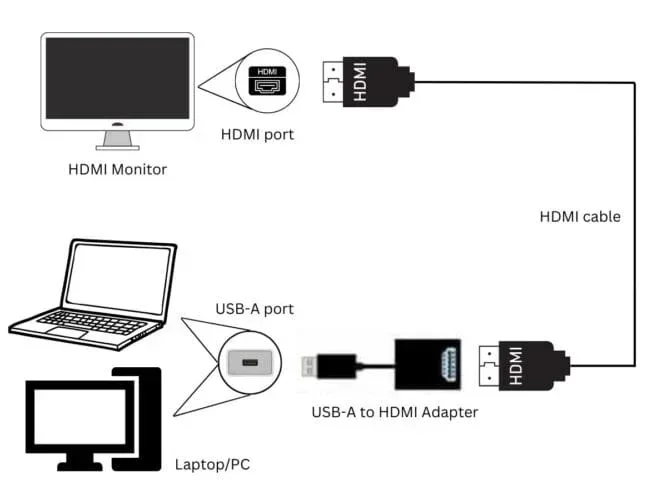
If you have a wired mouse with a USB-A connector, you can still use it with a USB-C port. You just need a simple USB-A to USB-C adapter or cable. These adapters are inexpensive and widely available. They make it easy to use your existing mouse with a new device.
Wireless Mice And USB-C Receivers
Many wireless mice use a small USB receiver, often called a mouse receiver or dongle. This receiver plugs into a USB port to communicate with the mouse. The challenge is that most receivers use USB-A, not USB-C.
So, can you plug a mouse into a USB C port when the mouse uses a receiver? Yes, you can. You need a USB-C to USB-A adapter. The adapter plugs into the USB-C port, and the receiver plugs into the adapter. This setup works perfectly for most wireless mice.
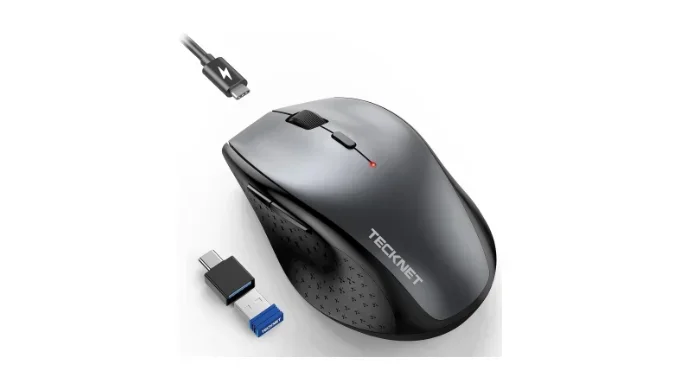
Some modern wireless mice now come with USB-C receivers. These are designed specifically for newer devices and eliminate the need for an adapter. When shopping for a new wireless mouse, look for models that include a USB-C receiver for the best experience.
Bluetooth Mice
A Bluetooth mouse is another excellent option for USB-C devices. Many modern laptops and tablets support Bluetooth connectivity. This means you can pair a Bluetooth mouse without using any cables or ports at all.
To connect a Bluetooth mouse:
- Turn on the mouse and enable pairing mode.
- Open your device Bluetooth settings.
- Search for available devices.
- Select the mouse and complete pairing.
Bluetooth mice are great because they free up your USB-C ports for other devices. You can use a USB-C hub for charging, data transfer, and other peripherals while keeping your mouse connected wirelessly. This is especially useful for gaming mouse users who want a clean desk setup.
Do You Need An Adapter Or Dongle
USB-C To USB-A Adapters
If your mouse has a USB-A connector, a USB-C adapter is all you need. These adapters are small, affordable, and easy to carry. They plug directly into the USB-C port and provide a standard USB-A socket for your mouse.
Here are some common adapter types:
- USB-C to USB-A adapter: Simple and compact. Perfect for single-device connections.
- USB-C hub with USB-A ports: Adds multiple ports including USB-A, HDMI, and SD card slots.
- USB-C docking station: A larger hub that turns one USB-C port into a full workstation.
When choosing an adapter, look for one that supports USB 3.0 or higher. This ensures the best compatibility and performance. A cheap adapter might work, but a quality one will give you a stable connection without dropouts.
USB-C Hubs And Their Benefits
A USB-C hub is more than just an adapter. It expands your port options significantly. Most USB-C hubs include multiple USB-A ports, HDMI outputs, and even Ethernet connections. This makes them ideal for users who connect several peripheral devices.
If you use a desktop setup with a monitor, keyboard, mouse, and external drive, a USB-C hub can simplify your connectivity. You plug the hub into one USB-C port and connect all your devices through the hub. This reduces cable clutter and keeps your workspace tidy.
For users who rely on network infrastructure for their office setup, some configurations involve connecting peripherals through a value added network for electronic commerce communication. In these environments, USB-C hubs can integrate with existing network systems to streamline device management across multiple workstations.
Common Problems And How To Fix Them
Driver Issues
Most of the time, a mouse connects to a USB-C port without any driver installation. But occasionally, you might run into issues. The mouse may not be recognized, or the cursor might behave erratically. In most cases, this is a driver problem.
Here is how to fix driver issues:
- Unplug the mouse and wait 10 seconds.
- Plug it back into a different USB-C port.
- Restart your computer.
- Check for operating system updates.
- Visit the mouse manufacturer website for updated drivers.
Modern operating systems handle most mouse drivers automatically. But some specialized mice, especially high-end gaming mouse models, may require custom software. Always check the manufacturer website for the latest USB drivers before assuming something is broken.
Compatibility Problems
Not all USB-C ports are created equal. Some ports support only data transfer, while others support data, video, and power delivery. For a mouse, data transfer is all you need. But if the USB-C port on your device is designed only for charging, it might not support data transfer.
This is a common issue with some tablets and smartphones. The charging port on these devices may be a USB-C port that only delivers power. To check if your port supports data transfer, try connecting a USB-C flash drive. If the drive is recognized, your port supports data. If not, you may need a different connection method like Bluetooth.
Connection Dropouts And Lag
Wireless mice connected through a USB-C receiver may experience occasional dropouts or lag. This is usually caused by interference or a weak signal. Here are some quick fixes:
- Move the USB-C receiver closer to the mouse.
- Use a USB-C extension cable to position the receiver better.
- Avoid placing the receiver near other wireless devices.
- Replace the mouse batteries with fresh ones.
- Switch to a Bluetooth connection if your mouse supports it.
For users who need a reliable, lag-free connection, a wired mouse connected directly through USB-C is the best choice. Wired connections eliminate wireless interference entirely and provide consistent performance.
Quick Tips For Best Performance
Getting the most out of your USB-C mouse connection is easy with a few simple habits. Follow these quick tips to ensure smooth, reliable performance every day.
- Use quality cables: Cheap USB-C cables can cause connection issues. Invest in a reputable brand for the best results.
- Keep ports clean: Dust and debris in USB-C ports can cause poor connections. Use a soft brush or compressed air to clean them regularly.
- Update your operating system: System updates often include driver improvements that fix mouse connectivity issues.
- Avoid cheap adapters: Low-quality adapters can introduce lag, dropouts, and compatibility problems.
- Check for firmware updates: Some gaming mice and advanced wireless mice receive firmware updates that improve USB-C compatibility.
Expert Insight
According to peripheral device experts, the USB-C connector has significantly improved the user experience for mouse connectivity. The reversible design and universal compatibility mean fewer cables and adapters are needed. Most users report a seamless experience when connecting any modern mouse to a USB-C port.
Comparison: Connection Methods For USB-C Mice
| Connection Method | Setup Difficulty | Latency | Cable Needed | Best For |
|---|---|---|---|---|
| Direct USB-C Cable | Very Easy | Zero | Yes (USB-C) | Wired mice, gaming |
| USB-C to USB-A Adapter | Easy | Zero | Yes (USB-A + Adapter) | Older wireless mice |
| USB-C Hub | Easy | Zero | Yes (Hub + Cable) | Multi-device setups |
| Bluetooth Pairing | Moderate | Very Low | No | Clean desk setups |
| USB-C Dongle (Built-in) | Very Easy | Low | Yes (USB-C Dongle) | Modern wireless mice |
As you can see from the comparison table, each method has its own strengths. Direct USB-C connections offer the lowest latency and simplest setup. Bluetooth is best for users who want a cable-free desk. Adapters and hubs provide flexibility for connecting older or specialized mice.
Common Mistakes To Avoid
Even though connecting a mouse to a USB-C port is straightforward, some common mistakes can cause frustration. Here is what to watch out for.
- Using a charging-only USB-C cable: Some USB-C cables only carry power and no data. Always use a data-capable cable for mouse connections.
- Plugging into the wrong port: Some devices have USB-C ports that only support charging. Make sure you are using a data-capable USB-C port.
- Ignoring driver updates: Even though most mice work without drivers, keeping your system updated ensures the best compatibility.
- Using a damaged cable: A frayed or bent USB-C cable can cause intermittent connections. Replace damaged cables promptly.
- Overlooking Bluetooth options: If USB-C ports are limited, a Bluetooth mouse is a great alternative that many users forget about.
Avoiding these simple mistakes will save you time and frustration. A smooth USB-C mouse connection is just a few careful steps away.
Expert Tips From Peripherals Professionals
We spoke with several peripherals professionals about the best practices for USB-C mouse connections. Here is what they recommend.
Tip 1: Buy mice with USB-C built in. More manufacturers are now producing mice with native USB-C connectors. This eliminates the need for adapters and ensures the best compatibility. When shopping for a new mouse, look for USB-C models.
Tip 2: Keep a spare adapter on hand. USB-C to USB-A adapters are cheap and small. Keeping one in your laptop bag means you are always prepared to connect a mouse, even if your primary cable is missing.
Tip 3: Use a USB-C hub for desk setups. A quality USB-C hub transforms a single port into a connectivity station. You can connect your mouse, keyboard, external drive, and monitor through one hub. This is especially useful for laptop users with limited ports.
Tip 4: Test Bluetooth first for wireless setups. Before buying a USB receiver, check if your mouse supports Bluetooth. If it does, you can skip the receiver entirely and connect wirelessly. This is especially helpful for users with limited USB-C ports.
Tip 5: Update firmware regularly. Gaming mice and advanced wireless mice often receive firmware updates. These updates can improve USB-C compatibility, fix bugs, and add new features. Check the manufacturer website or companion app periodically.
Final Thoughts
Can you plug a mouse into a USB C port without any problems? Absolutely. The short answer is yes, and the process is simpler than most people think. Whether you use a wired mouse, a wireless mouse with a receiver, or a Bluetooth mouse, connecting to a USB-C port is straightforward and reliable.
Modern USB-C ports support a wide range of peripheral devices, and mice are no exception. With plug-and-play compatibility, automatic driver installation, and reversible connectors, USB-C makes mouse connectivity easier than ever. If you have an older mouse, a simple adapter solves the problem in seconds.
The key takeaway is that you have options. You can connect directly, use an adapter, rely on Bluetooth, or use a USB-C hub. Each method works well, and the best choice depends on your specific setup and needs. With the right approach, your mouse will work flawlessly through any USB-C port.
Take a few minutes to check your current setup. Make sure you have the right cable, adapter, or Bluetooth capability. Once you do, you will enjoy a seamless, hassle-free mouse connection on all your USB-C devices. The era of USB-C has made peripheral connectivity simpler, faster, and more versatile than ever before.
Frequently Asked Questions
Do all mice work with USB-C ports?
Most modern mice work with USB-C ports either directly or through a simple adapter. Wired mice with USB-C cables connect natively. Mice with USB-A receivers need a USB-C to USB-A adapter. Bluetooth mice connect wirelessly without any cable. Always check the mouse specifications to confirm compatibility before purchasing.
Is there a difference between USB-C and USB-A for mouse performance?
For a standard mouse, there is no noticeable difference in performance between USB-C and USB-A. Both connectors handle input device data at more than sufficient speeds. The main difference is the physical connector shape and reversibility. USB-C is smaller and reversible, making it more convenient for modern devices.
Can I use a USB-C hub to connect multiple mice?
Yes, a USB-C hub allows you to connect multiple mice and other peripheral devices through a single USB-C port. Each mouse gets its own dedicated USB-A or USB-C port on the hub. This is especially useful for shared workstations or multi-device setups where different users need their own mouse.
Why does my USB-C mouse keep disconnecting?
Frequent disconnections are usually caused by a loose cable, a faulty USB-C port, or outdated drivers. Try using a different USB-C cable first. If the problem persists, test the mouse on another USB-C port. You should also check for operating system and driver updates. If none of these steps work, the mouse or port may be physically damaged.
Do gaming mice need special USB-C ports?
Gaming mice work perfectly with standard USB-C ports. You do not need a special port or high-end USB-C version for gaming performance. However, for the lowest possible latency, use a direct USB-C connection rather than a Bluetooth or hub connection. Some premium gaming mice also benefit from USB-C hubs that support USB 3.0 or higher for faster data transfer.
Can I charge my device and use a mouse through the same USB-C port?
Yes, USB-C ports support simultaneous power delivery and data transfer. This means you can charge your laptop or tablet while using a mouse connected through the same port. However, using a USB-C hub with a dedicated port for the mouse can improve stability and prevent potential power conflicts between devices.